> ## Documentation Index
> Fetch the complete documentation index at: https://learn.nextedy.com/llms.txt
> Use this file to discover all available pages before exploring further.
# Widget Parameters
> Complete reference for every parameter of the Nextedy SCHEDULER widget, with the value each one carries out of the box.
export const LastReviewed = ({date}) => {
if (!date) return null;
const formatted = new Date(`${date}T00:00:00Z`).toLocaleDateString("en-US", {
year: "numeric",
month: "long",
day: "numeric",
timeZone: "UTC"
});
return
Last reviewed on {formatted}
;
};
Almost everything about a Scheduler board is configured through the widget's parameter panels. The one setting that reaches a board from outside them is the project configuration property behind the **Days Back** and **Days Forward** defaults, noted under **Advanced** below.
This page lists every parameter the widget exposes, what it changes on the board, and the value it starts with.
## Where the parameters live
Open the page that hosts the board, then:
Open the **Tools** panel of the page (**Expand Tools** in the page header).
Click **Edit**.
Click the Scheduler widget on the page.
Choose **Edit widget parameters**.
The panels appear in this order: **Work Items**, **Data Mapping**, **Queries**, **Swimlanes (Rows)**, **Unplanned Sidebar**, **Create New Work Item**, **Advanced**.
**Data Mapping** and **Advanced** start collapsed, so click the panel heading to open them.
 Parameters are stored on the page, not on the project.
Two pages in the same project can host two Scheduler boards configured completely differently -- for example one grouped by user and one grouped by an enumeration field.
## Work Items
This panel defines which work items reach the board at all, and how their effort is read.
| Parameter | What it does | Default |
| -------------------- | --------------------------------------------------------------------------------------------------------------------------------------------------------------------------------------------------------------- | -------------------------------------- |
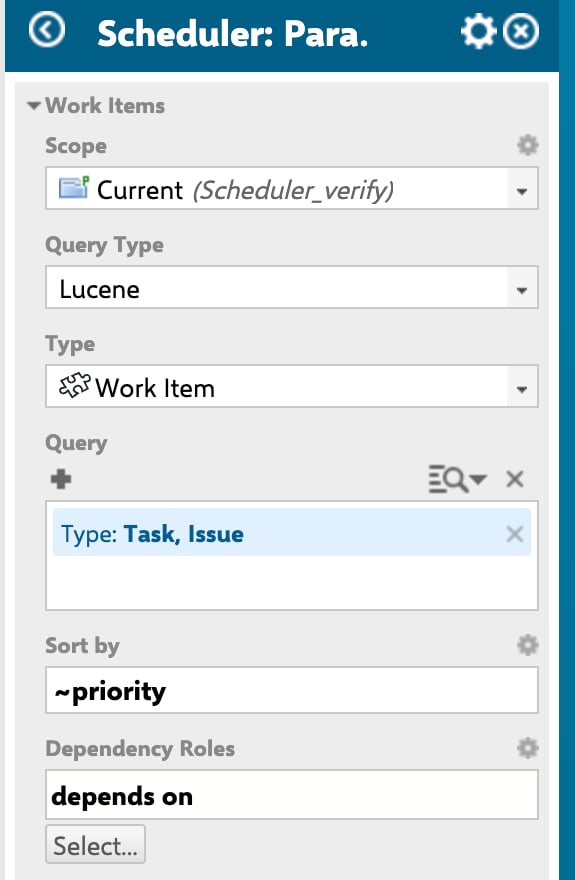
| **Work Items** | Polarion's standard work-item data set: the scope and the query. Everything the query returns becomes the task pool -- items with usable dates land on the timeline, the rest land in the **Unplanned** sidebar | None -- you supply the scope and query |
| **Sort by** | Field the work items are read in | `id` |
| **Dependency Roles** | Which work-item link roles Scheduler treats as dependencies. Leave it empty and the **Add Link** handle and the **Show Dependencies** toolbar control never appear | None |
| **Plans Type** | Which effort figure drives the load markers and the effort shown on each card. Three options: **Initial Estimate**, **Remaining Estimate**, **Remaining Estimate + Time Spent** | Remaining Estimate |
| **Sidebar Fields** | Fields rendered on the cards in the **Unplanned** sidebar | Title |
| **Tooltip Fields** | Fields listed in a task's hover tooltip, below the title and date range | Project, Type, Status, Assignee(s) |
A board built from the demo project template arrives with **Remaining Estimate** selected.
**Remaining Estimate + Time Spent** is the option to pick when you want the board to reflect work already burned as well as work still ahead.
See [Dates, Duration and Effort](/scheduler/concepts/dates-duration-and-effort) for how each mode is calculated.
## Data Mapping
Scheduler needs to know which work-item fields hold a task's schedule.
Set **exactly two** of the three parameters below; the third is derived.
| Parameter | What it does | Default |
| ------------------ | ----------------------------------------------------------- | ------- |
| **Start Field** | Work-item field holding the task's start date | `start` |
| **End Field** | Work-item field holding the task's end date | `end` |
| **Duration Field** | Work-item field holding the task's duration in working days | Empty |
Parameters are stored on the page, not on the project.
Two pages in the same project can host two Scheduler boards configured completely differently -- for example one grouped by user and one grouped by an enumeration field.
## Work Items
This panel defines which work items reach the board at all, and how their effort is read.
| Parameter | What it does | Default |
| -------------------- | --------------------------------------------------------------------------------------------------------------------------------------------------------------------------------------------------------------- | -------------------------------------- |
| **Work Items** | Polarion's standard work-item data set: the scope and the query. Everything the query returns becomes the task pool -- items with usable dates land on the timeline, the rest land in the **Unplanned** sidebar | None -- you supply the scope and query |
| **Sort by** | Field the work items are read in | `id` |
| **Dependency Roles** | Which work-item link roles Scheduler treats as dependencies. Leave it empty and the **Add Link** handle and the **Show Dependencies** toolbar control never appear | None |
| **Plans Type** | Which effort figure drives the load markers and the effort shown on each card. Three options: **Initial Estimate**, **Remaining Estimate**, **Remaining Estimate + Time Spent** | Remaining Estimate |
| **Sidebar Fields** | Fields rendered on the cards in the **Unplanned** sidebar | Title |
| **Tooltip Fields** | Fields listed in a task's hover tooltip, below the title and date range | Project, Type, Status, Assignee(s) |
A board built from the demo project template arrives with **Remaining Estimate** selected.
**Remaining Estimate + Time Spent** is the option to pick when you want the board to reflect work already burned as well as work still ahead.
See [Dates, Duration and Effort](/scheduler/concepts/dates-duration-and-effort) for how each mode is calculated.
## Data Mapping
Scheduler needs to know which work-item fields hold a task's schedule.
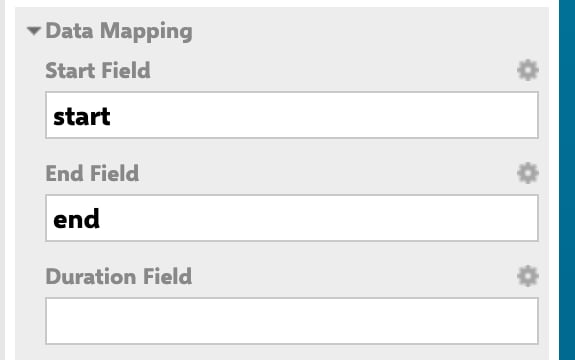
Set **exactly two** of the three parameters below; the third is derived.
| Parameter | What it does | Default |
| ------------------ | ----------------------------------------------------------- | ------- |
| **Start Field** | Work-item field holding the task's start date | `start` |
| **End Field** | Work-item field holding the task's end date | `end` |
| **Duration Field** | Work-item field holding the task's duration in working days | Empty |
 The combination you set decides how a bar's extent is worked out:
| Fields set | How the bar is placed |
| ---------------------------- | ---------------------------------------------------------------- |
| Start Field + End Field | Both dates are read straight from the work item |
| Start Field + Duration Field | The end is the start plus the duration, counted in working days |
| End Field + Duration Field | The start is the end minus the duration, counted in working days |
A duration of zero is treated as one day.
Dragging a bar moves it -- it never stretches it.
Duration is changed on the work item, through whichever field you mapped here.
See [Schedule and Reschedule Tasks](/scheduler/guides/schedule-and-reschedule-tasks).
## Queries
| Parameter | What it does | Default |
| ----------- | ------------------------------------------------------------------------------------------------------------------------------------------------------------------------------------------------------------------ | ------- |
| **Queries** | A repeatable list of named queries. Each entry has a **Name** and a **Query**; the names appear under **Queries** in the **Unplanned** sidebar's funnel filter, so a planner can narrow the backlog with one click | None |
The funnel filter shows these entries under **Queries**, alongside Polarion's own saved queries in the **Global Queries** and **Project Queries** groups.
See [Filter the Unplanned Sidebar](/scheduler/guides/filter-the-unplanned-sidebar).
## Swimlanes (Rows)
| Parameter | What it does | Default |
| ------------------- | ----------------------------------------------------------------------------------------------------------------------------------------------------------------------------- | ---------------- |
| **Assignment Type** | What the rows of the board represent. Two options: **Users (Assignee)** -- one row per project user -- or **Enumeration Field** -- one row per option of an enumeration field | Users (Assignee) |
| **Field ID** | The enumeration field whose options become rows. Shown and used only in **Enumeration Field** mode | `team` |
The combination you set decides how a bar's extent is worked out:
| Fields set | How the bar is placed |
| ---------------------------- | ---------------------------------------------------------------- |
| Start Field + End Field | Both dates are read straight from the work item |
| Start Field + Duration Field | The end is the start plus the duration, counted in working days |
| End Field + Duration Field | The start is the end minus the duration, counted in working days |
A duration of zero is treated as one day.
Dragging a bar moves it -- it never stretches it.
Duration is changed on the work item, through whichever field you mapped here.
See [Schedule and Reschedule Tasks](/scheduler/guides/schedule-and-reschedule-tasks).
## Queries
| Parameter | What it does | Default |
| ----------- | ------------------------------------------------------------------------------------------------------------------------------------------------------------------------------------------------------------------ | ------- |
| **Queries** | A repeatable list of named queries. Each entry has a **Name** and a **Query**; the names appear under **Queries** in the **Unplanned** sidebar's funnel filter, so a planner can narrow the backlog with one click | None |
The funnel filter shows these entries under **Queries**, alongside Polarion's own saved queries in the **Global Queries** and **Project Queries** groups.
See [Filter the Unplanned Sidebar](/scheduler/guides/filter-the-unplanned-sidebar).
## Swimlanes (Rows)
| Parameter | What it does | Default |
| ------------------- | ----------------------------------------------------------------------------------------------------------------------------------------------------------------------------- | ---------------- |
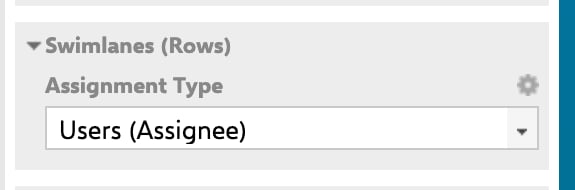
| **Assignment Type** | What the rows of the board represent. Two options: **Users (Assignee)** -- one row per project user -- or **Enumeration Field** -- one row per option of an enumeration field | Users (Assignee) |
| **Field ID** | The enumeration field whose options become rows. Shown and used only in **Enumeration Field** mode | `team` |
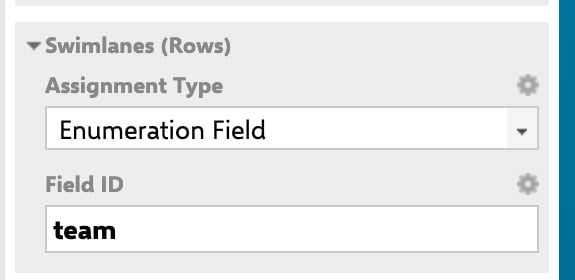 The field named in **Field ID** must exist in the project as an enumeration.
With the default `team` on a project that has no such enumeration, the board reports a field error instead of drawing rows.
Point **Field ID** at an enumeration your project actually defines -- see [Configure Swimlanes](/scheduler/guides/configure-swimlanes).
Status, resolution and type fields are rejected as swimlane fields; the board reports this rather than drawing rows.
Row capacity differs by mode: user rows carry 8 hours per day, enumeration rows 24 hours per day.
See [Capacity and Load](/scheduler/concepts/capacity-and-load).
## Unplanned Sidebar
| Parameter | What it does | Default |
| ---------------- | ----------------------------------------------------------------------------------------------------------------------------------------------------------------------------- | ------- |
| **Load Parents** | How many levels of parent work items to load for the sidebar. Above `0`, sidebar cards are grouped under their parent's heading, with everything else under a no-parent group | `0` |
| **Parent Roles** | Which link roles are followed to find a card's parent | None |
| **Width (%)** | Width of the sidebar as a percentage of the widget's width; the timeline takes the remainder | `20` |
Parent grouping needs three things together: a **Load Parents** depth above `0`, at least one role in **Parent Roles** -- those are the roles followed upwards to find a parent -- and at least one role in **Dependency Roles**.
## Create New Work Item
| Parameter | What it does | Default |
| --------------------- | ------------------------------------------------------------------------------------------------------------------------------------------------------------------------------------------------------- | ------- |
| **Enable Create New** | Whether a planner can create work items directly on the timeline, by double-clicking an empty cell or dragging across one. Off by default -- the board is read-and-schedule only until you turn this on | Off |
| **Work Item Type** | Type of the work item created by that gesture | `task` |
See [Create Tasks on the Timeline](/scheduler/guides/create-tasks-on-the-timeline).
## Advanced
| Parameter | What it does | Default |
| -------------------- | ------------------------------------------------------------------------------------------------------------------------------------------------------------------------------------------- | -------------- |
| **User Role** | Project role a user must hold to get a swimlane row, in **Users (Assignee)** mode. Clear it to give every project user a row | `project_user` |
| **Days Back** | How many days before today the timeline window starts | `10` |
| **Days Forward** | How many days after today the timeline window ends | `100` |
| **Old as Unplanned** | When on, a work item whose start date falls before the beginning of the timeline window is shown in the **Unplanned** sidebar instead of on the board, so stale dates do not sit off-screen | On |
| **Max Items** | Upper bound on how many work items the board loads from the query | `500` |
| **Card Height** | Height of a task card in pixels. Raise it when your **Tooltip Fields** or titles need more room | `50` |
| **Show Time Points** | Whether the board reserves a bottom row for Polarion time points | On |
| **Config Script** | Velocity script evaluated on the server and injected into the page, for board-wide adjustments | Empty |
| **Item Script** | JavaScript evaluated once per work item, in a read-only transaction. Sets per-item flags such as `cli.readonly` and `cli.hide` | Empty |
Set **Days Forward** explicitly on every board.
Left empty, its fallback value comes from the same configuration setting that supplies the **Days Back** default, so the forward window may not be the 100 days you expect.
An explicit value is always honoured -- the footer's **Timeline range** line tells you which window is actually in force.
The **Show Time Points** row is populated from legacy Polarion time points.
On current Polarion versions, plan objects such as iterations and releases are not returned as time points, so the row does not appear even when the parameter is on and a plan falls inside the window.
## Parameters and their panels at a glance
| Panel | Parameters |
| -------------------- | ---------------------------------------------------------------------------------------------------------------------------------- |
| Work Items | Work Items (scope + query) · Sort by · Dependency Roles · Plans Type · Sidebar Fields · Tooltip Fields |
| Data Mapping | Start Field · End Field · Duration Field |
| Queries | Queries (Name + Query) |
| Swimlanes (Rows) | Assignment Type · Field ID |
| Unplanned Sidebar | Load Parents · Parent Roles · Width (%) |
| Create New Work Item | Enable Create New · Work Item Type |
| Advanced | User Role · Days Back · Days Forward · Old as Unplanned · Max Items · Card Height · Show Time Points · Config Script · Item Script |
## See Also
* [Add the Scheduler Widget](/scheduler/guides/add-the-scheduler-widget) -- placing and configuring the widget step by step
* [Configure Swimlanes](/scheduler/guides/configure-swimlanes) -- the two swimlane modes in practice
* [Advanced Configuration](/scheduler/guides/advanced-configuration) -- the timeline window and the two scripts
* [Toolbar Controls](/scheduler/reference/toolbar-controls) -- what a planner can change without touching parameters
* [Dates, Duration and Effort](/scheduler/concepts/dates-duration-and-effort) -- how mapping and Plans Type interact
The field named in **Field ID** must exist in the project as an enumeration.
With the default `team` on a project that has no such enumeration, the board reports a field error instead of drawing rows.
Point **Field ID** at an enumeration your project actually defines -- see [Configure Swimlanes](/scheduler/guides/configure-swimlanes).
Status, resolution and type fields are rejected as swimlane fields; the board reports this rather than drawing rows.
Row capacity differs by mode: user rows carry 8 hours per day, enumeration rows 24 hours per day.
See [Capacity and Load](/scheduler/concepts/capacity-and-load).
## Unplanned Sidebar
| Parameter | What it does | Default |
| ---------------- | ----------------------------------------------------------------------------------------------------------------------------------------------------------------------------- | ------- |
| **Load Parents** | How many levels of parent work items to load for the sidebar. Above `0`, sidebar cards are grouped under their parent's heading, with everything else under a no-parent group | `0` |
| **Parent Roles** | Which link roles are followed to find a card's parent | None |
| **Width (%)** | Width of the sidebar as a percentage of the widget's width; the timeline takes the remainder | `20` |
Parent grouping needs three things together: a **Load Parents** depth above `0`, at least one role in **Parent Roles** -- those are the roles followed upwards to find a parent -- and at least one role in **Dependency Roles**.
## Create New Work Item
| Parameter | What it does | Default |
| --------------------- | ------------------------------------------------------------------------------------------------------------------------------------------------------------------------------------------------------- | ------- |
| **Enable Create New** | Whether a planner can create work items directly on the timeline, by double-clicking an empty cell or dragging across one. Off by default -- the board is read-and-schedule only until you turn this on | Off |
| **Work Item Type** | Type of the work item created by that gesture | `task` |
See [Create Tasks on the Timeline](/scheduler/guides/create-tasks-on-the-timeline).
## Advanced
| Parameter | What it does | Default |
| -------------------- | ------------------------------------------------------------------------------------------------------------------------------------------------------------------------------------------- | -------------- |
| **User Role** | Project role a user must hold to get a swimlane row, in **Users (Assignee)** mode. Clear it to give every project user a row | `project_user` |
| **Days Back** | How many days before today the timeline window starts | `10` |
| **Days Forward** | How many days after today the timeline window ends | `100` |
| **Old as Unplanned** | When on, a work item whose start date falls before the beginning of the timeline window is shown in the **Unplanned** sidebar instead of on the board, so stale dates do not sit off-screen | On |
| **Max Items** | Upper bound on how many work items the board loads from the query | `500` |
| **Card Height** | Height of a task card in pixels. Raise it when your **Tooltip Fields** or titles need more room | `50` |
| **Show Time Points** | Whether the board reserves a bottom row for Polarion time points | On |
| **Config Script** | Velocity script evaluated on the server and injected into the page, for board-wide adjustments | Empty |
| **Item Script** | JavaScript evaluated once per work item, in a read-only transaction. Sets per-item flags such as `cli.readonly` and `cli.hide` | Empty |
Set **Days Forward** explicitly on every board.
Left empty, its fallback value comes from the same configuration setting that supplies the **Days Back** default, so the forward window may not be the 100 days you expect.
An explicit value is always honoured -- the footer's **Timeline range** line tells you which window is actually in force.
The **Show Time Points** row is populated from legacy Polarion time points.
On current Polarion versions, plan objects such as iterations and releases are not returned as time points, so the row does not appear even when the parameter is on and a plan falls inside the window.
## Parameters and their panels at a glance
| Panel | Parameters |
| -------------------- | ---------------------------------------------------------------------------------------------------------------------------------- |
| Work Items | Work Items (scope + query) · Sort by · Dependency Roles · Plans Type · Sidebar Fields · Tooltip Fields |
| Data Mapping | Start Field · End Field · Duration Field |
| Queries | Queries (Name + Query) |
| Swimlanes (Rows) | Assignment Type · Field ID |
| Unplanned Sidebar | Load Parents · Parent Roles · Width (%) |
| Create New Work Item | Enable Create New · Work Item Type |
| Advanced | User Role · Days Back · Days Forward · Old as Unplanned · Max Items · Card Height · Show Time Points · Config Script · Item Script |
## See Also
* [Add the Scheduler Widget](/scheduler/guides/add-the-scheduler-widget) -- placing and configuring the widget step by step
* [Configure Swimlanes](/scheduler/guides/configure-swimlanes) -- the two swimlane modes in practice
* [Advanced Configuration](/scheduler/guides/advanced-configuration) -- the timeline window and the two scripts
* [Toolbar Controls](/scheduler/reference/toolbar-controls) -- what a planner can change without touching parameters
* [Dates, Duration and Effort](/scheduler/concepts/dates-duration-and-effort) -- how mapping and Plans Type interact