> ## Documentation Index
> Fetch the complete documentation index at: https://learn.nextedy.com/llms.txt
> Use this file to discover all available pages before exploring further.
# Schedule and Reschedule Tasks
> Plan work on the Nextedy SCHEDULER board: drop an unscheduled item onto a row, drag its bar to move it, change its duration through the mapped field, and unplan it back to the backlog.
export const LastReviewed = ({date}) => {
if (!date) return null;
const formatted = new Date(`${date}T00:00:00Z`).toLocaleDateString("en-US", {
year: "numeric",
month: "long",
day: "numeric",
timeZone: "UTC"
});
return
Last reviewed on {formatted}
;
};
Scheduling on the Scheduler board is direct manipulation: you drag an item out of the backlog onto the row and day it belongs to, and you move it later by dragging its bar. Each gesture writes straight to the work item's mapped fields, so what you see on the board is what the work items say.
## Prerequisites
* A configured board (see [Add the Scheduler Widget](/scheduler/guides/add-the-scheduler-widget)) with **Data Mapping** pointing at real work item fields
* Write permission on the work items and on their mapped date, duration and assignee fields
* Items to plan: work items returned by the widget's query that have no schedule yet
## Schedule an Item from the Backlog
The backlog sits on the right of the board under the **Unplanned** header. It is shown by default; the **Show unscheduled items in sidebar** toolbar button hides and shows it again.
Type into the sidebar's **Search…** box, or use the funnel filter to narrow the list to a saved query or a single swimlane. When a filter is active the count above the list reads as "N out of M work items", so you can see how much of the backlog you are looking at. See [Filter the Unplanned Sidebar](/scheduler/guides/filter-the-unplanned-sidebar).
Drag the card out of the sidebar and drop it on the row and day where the work should start.
The drop does three things at once:
* **Schedules the item** from the day you dropped it on, writing the mapped date fields.
* **Assigns the resource of the row** you dropped it on -- the user for a user row, or the mapped enumeration value for an enumeration row (see [Configure Swimlanes](/scheduler/guides/configure-swimlanes)).
* **Sets the length of the bar** from the item's effort, rounded up to whole days against an eight-hour day. An item with no effort recorded gets a single day.
The card disappears from the sidebar and appears as a bar on the row. The footer's "Items loaded: N / Scheduled: M" counter increases its scheduled figure, and the load markers on that row recalculate to include the new work.
Which value counts as "effort" is set by **Plans Type** in the widget's **Work Items** section -- **Initial Estimate**, **Remaining Estimate**, or **Remaining Estimate + Time Spent**. It is the same value that drives the row's load markers, so a board planned by remaining estimate stays honest as work is logged. See [Dates, Duration and Effort](/scheduler/concepts/dates-duration-and-effort).
## Move a Task
To reschedule, drag the task's bar along the timeline and drop it on its new day. The mapped fields are rewritten to the new dates, the bar keeps its length, and the row's load markers recompute on the drop.
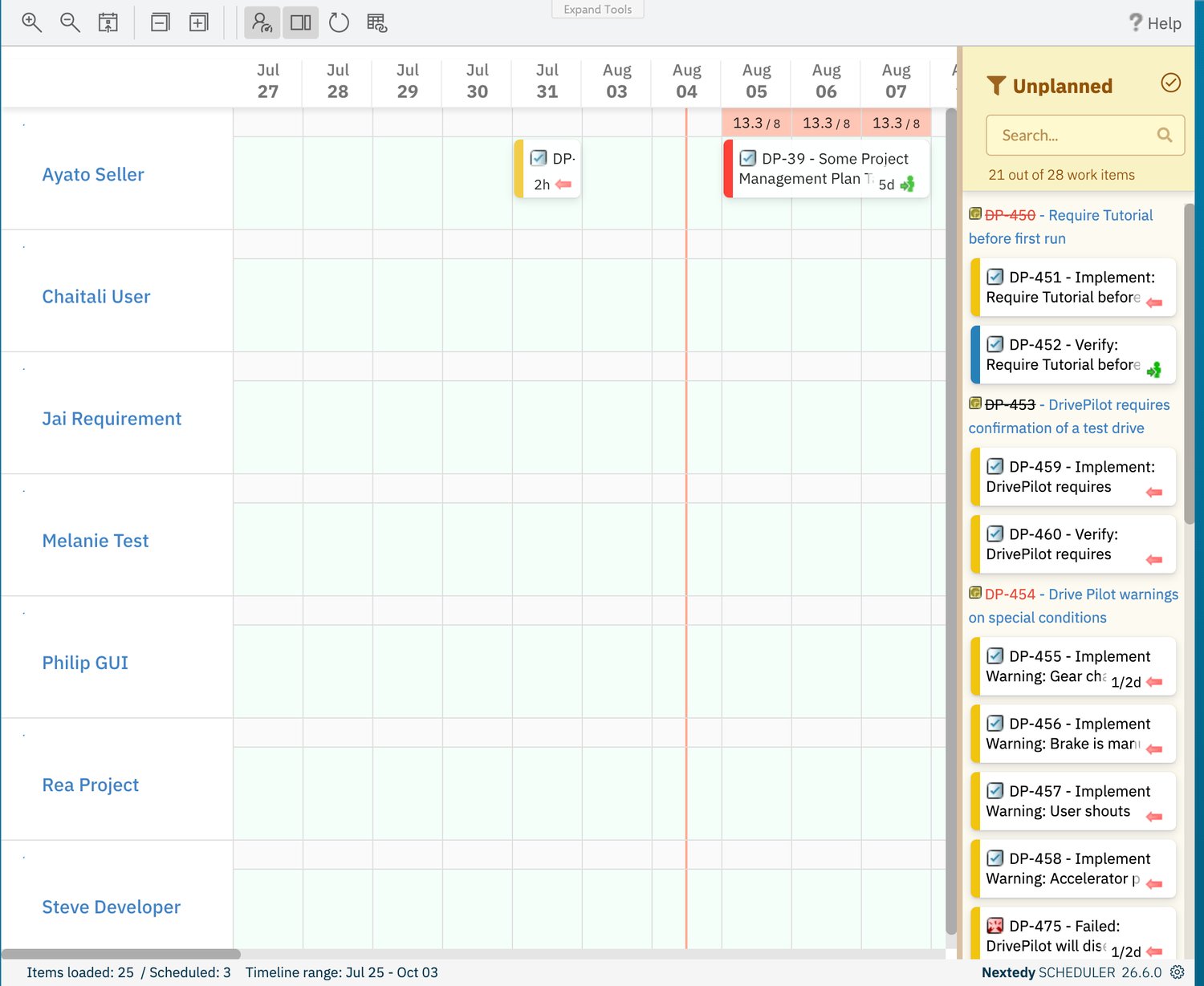 Use the timeline controls rather than a long drag when the new date is off-screen: **Zoom out the timeline** to bring more days into view, or **Scroll to today** to get back to the current date. [Navigate the Timeline](/scheduler/guides/navigate-the-timeline) covers all of them.
Weekends are hidden by default, so the day columns skip Saturday and Sunday; off-days are drawn with a diagonal hatch. See [Board and Timeline](/scheduler/concepts/board-and-timeline).
## Change a Task's Duration
**Task bars cannot be resized.** They have no resize handles: dragging a bar's edge moves the whole bar and keeps its length, exactly like dragging its middle. A task's length is a property of the work item, and you change it in the fields the widget's **Data Mapping** points at.
| Your Data Mapping | Change the duration by |
| --------------------------------------------- | --------------------------------------------------------------------------------------------------------------------- |
| **Start Field** + **End Field** (the default) | Editing the mapped end date -- or the start date -- on the work item. The bar spans the two mapped dates |
| **Start Field** + **Duration Field** | Editing the mapped **Duration Field** on the work item. The bar starts at the start date and runs for that duration |
| **End Field** + **Duration Field** | Editing the mapped **Duration Field** on the work item. The bar ends at the end date and starts that duration earlier |
Click the card body: Scheduler opens that work item in Polarion's **Work Item Prop.** sidebar next to the board, where its fields can be edited. The card also carries the work item's ID as a link.
Change the mapped duration or date field and save the work item.
Click **Refresh data** on the toolbar. The bar redraws at its new length and the row's load markers recalculate.
Where a **Duration Field** is mapped, moving a bar preserves the duration and rewrites the dates around it -- so dragging never silently changes how long a task takes. A duration of zero is drawn as one day.
## Unplan an Item
Unplanning takes a task off the timeline and returns it to the backlog, without touching the work item itself.
Two small handles appear on the card: the chain icon (**Add Link**) and a calendar icon with a cross (**Unplan item**).
Use the timeline controls rather than a long drag when the new date is off-screen: **Zoom out the timeline** to bring more days into view, or **Scroll to today** to get back to the current date. [Navigate the Timeline](/scheduler/guides/navigate-the-timeline) covers all of them.
Weekends are hidden by default, so the day columns skip Saturday and Sunday; off-days are drawn with a diagonal hatch. See [Board and Timeline](/scheduler/concepts/board-and-timeline).
## Change a Task's Duration
**Task bars cannot be resized.** They have no resize handles: dragging a bar's edge moves the whole bar and keeps its length, exactly like dragging its middle. A task's length is a property of the work item, and you change it in the fields the widget's **Data Mapping** points at.
| Your Data Mapping | Change the duration by |
| --------------------------------------------- | --------------------------------------------------------------------------------------------------------------------- |
| **Start Field** + **End Field** (the default) | Editing the mapped end date -- or the start date -- on the work item. The bar spans the two mapped dates |
| **Start Field** + **Duration Field** | Editing the mapped **Duration Field** on the work item. The bar starts at the start date and runs for that duration |
| **End Field** + **Duration Field** | Editing the mapped **Duration Field** on the work item. The bar ends at the end date and starts that duration earlier |
Click the card body: Scheduler opens that work item in Polarion's **Work Item Prop.** sidebar next to the board, where its fields can be edited. The card also carries the work item's ID as a link.
Change the mapped duration or date field and save the work item.
Click **Refresh data** on the toolbar. The bar redraws at its new length and the row's load markers recalculate.
Where a **Duration Field** is mapped, moving a bar preserves the duration and rewrites the dates around it -- so dragging never silently changes how long a task takes. A duration of zero is drawn as one day.
## Unplan an Item
Unplanning takes a task off the timeline and returns it to the backlog, without touching the work item itself.
Two small handles appear on the card: the chain icon (**Add Link**) and a calendar icon with a cross (**Unplan item**).
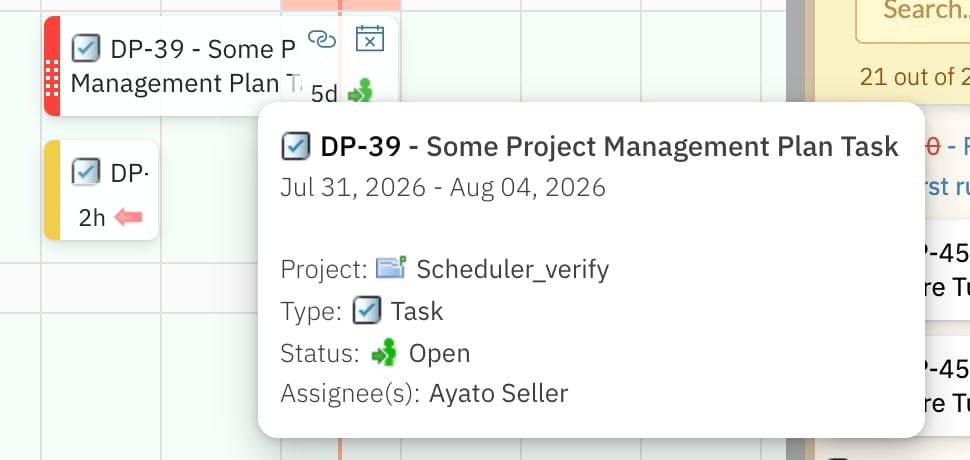 The task's mapped date fields -- and its mapped duration field, if one is configured -- are cleared. There is no confirmation prompt.
The item reappears as a card under **Unplanned**, the footer's scheduled count drops by one, and the sidebar's item count rises by one. Drag it back onto a row whenever you want to schedule it again.
**Unplan item** does not delete anything. The work item, its title, its links and its history are untouched -- only its schedule is removed. Deleting a work item remains a Polarion operation, done from the work item itself.
## Everything Saves Automatically
The board has **no Save control**. Every drop, move and unplan is written to Polarion as you make it, and the toolbar carries no Save button to press afterwards.
Two consequences are worth knowing:
* **There is nothing to confirm and nothing to discard.** To undo a change, make the opposite change: drag the bar back, or drag an unplanned item out of the sidebar again.
* **Widget configuration is different.** Parameter changes are part of the Polarion page and must be saved with the page in edit mode. See [Add the Scheduler Widget](/scheduler/guides/add-the-scheduler-widget).
If you are unsure whether a change landed, click **Refresh data**: the board reloads from the server, so what you see afterwards is what is stored.
## Tasks You Cannot Drag
Some cards do not respond to dragging, by design:
* **Resolved work items** are drawn grey and are read-only on the board. Reopen the work item in Polarion if it genuinely needs rescheduling.
* **Items marked read-only by an Item Script.** A board can be configured to make selected items non-editable -- see [Advanced Configuration](/scheduler/guides/advanced-configuration).
## Verification
Work through one item end to end:
1. Drop a backlog card onto a row -- it becomes a bar on that row, and the footer's scheduled count rises by one.
2. Open the work item -- the mapped date fields hold the dates you dropped it on, and the resource of that row is set.
3. Drag the bar two days later, then reload the page -- the bar is still on the new dates, with no Save action in between.
4. Try to drag the bar's edge -- the whole bar moves and its length is unchanged.
5. Change the mapped duration or end date on the work item, then click **Refresh data** -- the bar redraws at its new length.
6. Click **Unplan item** -- the card returns to **Unplanned** and the work item still exists, with its date fields empty.
## See Also
* [Create Tasks on the Timeline](/scheduler/guides/create-tasks-on-the-timeline) -- create new work items directly on the board
* [Dates, Duration and Effort](/scheduler/concepts/dates-duration-and-effort) -- the three date-mapping modes and how effort is read
* [Configure Swimlanes](/scheduler/guides/configure-swimlanes) -- what a drop assigns, per row type
* [Navigate the Timeline](/scheduler/guides/navigate-the-timeline) -- zoom, scroll to today, collapse and expand rows
* [Link Task Dependencies](/scheduler/guides/link-task-dependencies) -- connect tasks with the **Add Link** handle
* [Capacity and Load](/scheduler/concepts/capacity-and-load) -- why a row turns red after you schedule onto it
The task's mapped date fields -- and its mapped duration field, if one is configured -- are cleared. There is no confirmation prompt.
The item reappears as a card under **Unplanned**, the footer's scheduled count drops by one, and the sidebar's item count rises by one. Drag it back onto a row whenever you want to schedule it again.
**Unplan item** does not delete anything. The work item, its title, its links and its history are untouched -- only its schedule is removed. Deleting a work item remains a Polarion operation, done from the work item itself.
## Everything Saves Automatically
The board has **no Save control**. Every drop, move and unplan is written to Polarion as you make it, and the toolbar carries no Save button to press afterwards.
Two consequences are worth knowing:
* **There is nothing to confirm and nothing to discard.** To undo a change, make the opposite change: drag the bar back, or drag an unplanned item out of the sidebar again.
* **Widget configuration is different.** Parameter changes are part of the Polarion page and must be saved with the page in edit mode. See [Add the Scheduler Widget](/scheduler/guides/add-the-scheduler-widget).
If you are unsure whether a change landed, click **Refresh data**: the board reloads from the server, so what you see afterwards is what is stored.
## Tasks You Cannot Drag
Some cards do not respond to dragging, by design:
* **Resolved work items** are drawn grey and are read-only on the board. Reopen the work item in Polarion if it genuinely needs rescheduling.
* **Items marked read-only by an Item Script.** A board can be configured to make selected items non-editable -- see [Advanced Configuration](/scheduler/guides/advanced-configuration).
## Verification
Work through one item end to end:
1. Drop a backlog card onto a row -- it becomes a bar on that row, and the footer's scheduled count rises by one.
2. Open the work item -- the mapped date fields hold the dates you dropped it on, and the resource of that row is set.
3. Drag the bar two days later, then reload the page -- the bar is still on the new dates, with no Save action in between.
4. Try to drag the bar's edge -- the whole bar moves and its length is unchanged.
5. Change the mapped duration or end date on the work item, then click **Refresh data** -- the bar redraws at its new length.
6. Click **Unplan item** -- the card returns to **Unplanned** and the work item still exists, with its date fields empty.
## See Also
* [Create Tasks on the Timeline](/scheduler/guides/create-tasks-on-the-timeline) -- create new work items directly on the board
* [Dates, Duration and Effort](/scheduler/concepts/dates-duration-and-effort) -- the three date-mapping modes and how effort is read
* [Configure Swimlanes](/scheduler/guides/configure-swimlanes) -- what a drop assigns, per row type
* [Navigate the Timeline](/scheduler/guides/navigate-the-timeline) -- zoom, scroll to today, collapse and expand rows
* [Link Task Dependencies](/scheduler/guides/link-task-dependencies) -- connect tasks with the **Add Link** handle
* [Capacity and Load](/scheduler/concepts/capacity-and-load) -- why a row turns red after you schedule onto it