> ## Documentation Index
> Fetch the complete documentation index at: https://learn.nextedy.com/llms.txt
> Use this file to discover all available pages before exploring further.
# Link Task Dependencies
> Connect tasks on a Nextedy SCHEDULER board with the Add Link handle and draw the dependency arrows over the timeline.
export const LastReviewed = ({date}) => {
if (!date) return null;
const formatted = new Date(`${date}T00:00:00Z`).toLocaleDateString("en-US", {
year: "numeric",
month: "long",
day: "numeric",
timeZone: "UTC"
});
return
Last reviewed on {formatted}
;
};
Scheduler can record that one task depends on another, and draw the relationship as an arrow over the timeline.
A dependency created on the board is a normal Polarion work item link -- it uses a link role you choose, and it is visible on the work item outside Scheduler.
Linking is switched on by configuring **Dependency Roles** on the widget.
Until you do, neither the link handle on the cards nor the **Show Dependencies** toolbar button appears.
## Prerequisites
* A Scheduler board with at least two scheduled tasks. See [Schedule and Reschedule Tasks](/scheduler/guides/schedule-and-reschedule-tasks).
* A work item link role in the project to use as the dependency role (for example, "depends on").
* Permission to edit the page, because the dependency role is set in the widget parameters.
Open the page that hosts the board, click **Expand Tools**, then **Edit**.
Select the Scheduler widget and choose **Edit widget parameters**.
In the **Work Items** section, set **Dependency Roles** to the link role that represents a dependency in your project -- for example, "depends on".
The parameter accepts more than one role and may be left empty.
Save the page.
**Dependency Roles** is the switch for the whole feature.
With the parameter empty, cards show no link handle and the toolbar shows no **Show Dependencies** button.
Set at least one role and both appear.
Hover over the card of the task that comes **first** -- the one the other task will depend on.
Two handles appear on the card: **Add Link** (a chain icon) and **Unplan item**.
Click **Add Link**.
The handle marks itself as armed, and the handles on the other cards change to show what a second click would do there: whether it would add a link to the armed task, or remove one that already exists.
 Hover the card of the task that **depends on** the first one and click its **Add Link** handle.
The two tasks are now linked: the second task depends on the first.
Scheduler writes the work item link immediately -- there is no Save step.
Clicking the armed card's own handle again, rather than a second card, ends the gesture without creating anything.
Removing a link is the same gesture as creating it.
Click **Add Link** on the first task, then **Add Link** on the second task: because the link already exists, the second click removes it.
The handles that appear while the gesture is armed tell you which it will be -- a card that is already linked to the armed task offers removal rather than addition.
Click **Show Dependencies** in the toolbar.
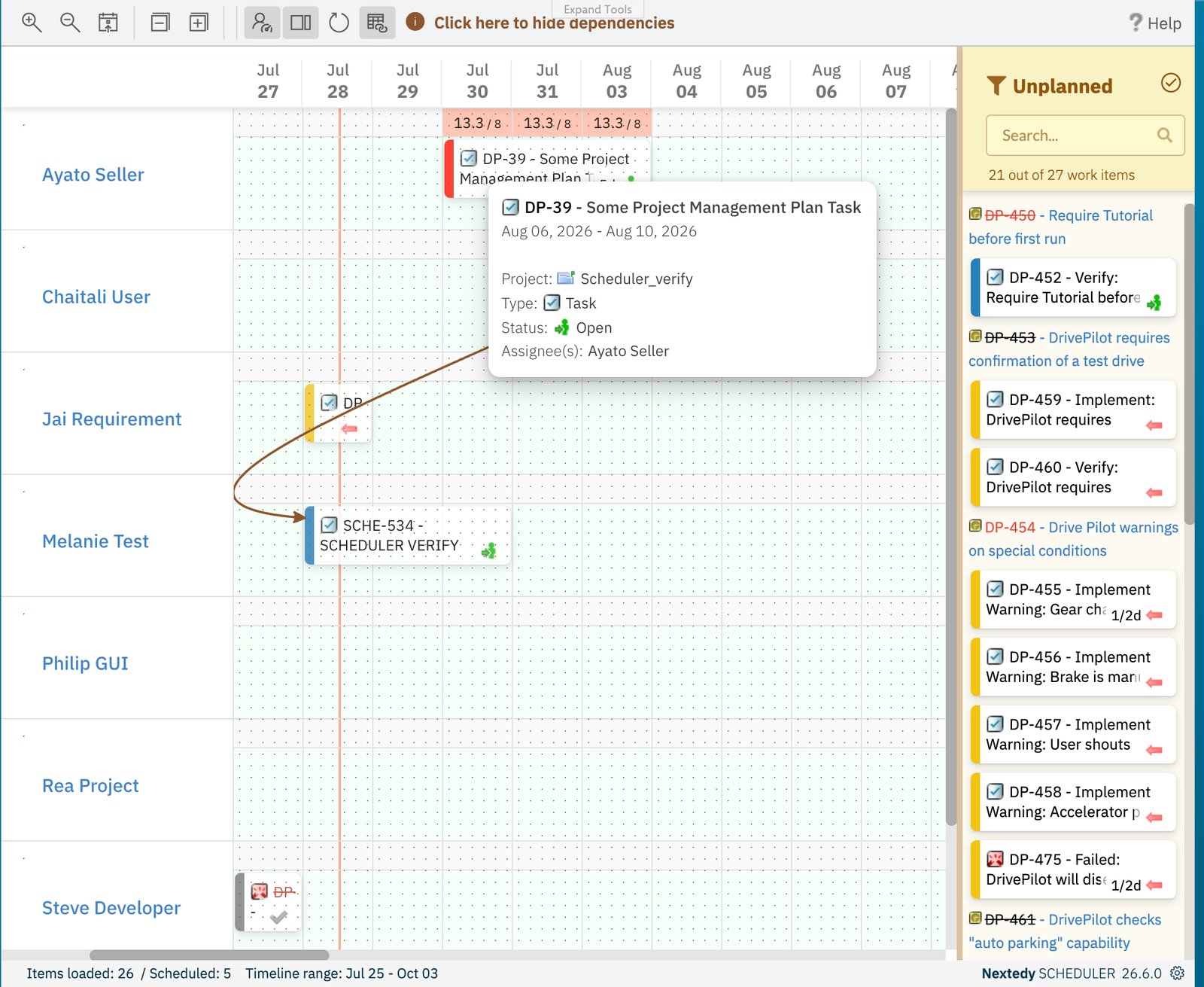
Scheduler draws a curved arrow for every dependency between the tasks currently on the board, pointing from the predecessor to the task that depends on it, with the arrowhead on the dependent task.
While the arrows are shown, the toolbar offers **Click here to hide dependencies**.
Click it to clear the overlay.
Hover the card of the task that **depends on** the first one and click its **Add Link** handle.
The two tasks are now linked: the second task depends on the first.
Scheduler writes the work item link immediately -- there is no Save step.
Clicking the armed card's own handle again, rather than a second card, ends the gesture without creating anything.
Removing a link is the same gesture as creating it.
Click **Add Link** on the first task, then **Add Link** on the second task: because the link already exists, the second click removes it.
The handles that appear while the gesture is armed tell you which it will be -- a card that is already linked to the armed task offers removal rather than addition.
Click **Show Dependencies** in the toolbar.
Scheduler draws a curved arrow for every dependency between the tasks currently on the board, pointing from the predecessor to the task that depends on it, with the arrowhead on the dependent task.
While the arrows are shown, the toolbar offers **Click here to hide dependencies**.
Click it to clear the overlay.
 The arrows are a snapshot rather than a live layer, so they are also cleared whenever the board is redrawn -- by **Zoom in the timeline**, **Zoom out the timeline**, **Scroll to today**, **Collapse rows**, **Expand rows**, **Toggle Resource Load visualization**, **Show unscheduled items in sidebar** or **Refresh data**.
Click **Show Dependencies** again to redraw them.
## Which Tasks Get an Arrow
An arrow is drawn only between two tasks that are **both scheduled and visible** on the board.
That means a dependency exists but stays invisible when:
* One end is unplanned and sits in the **Unplanned** sidebar rather than on a row.
* One end falls outside the timeline window, which is set by the **Days Back** and **Days Forward** parameters. The window in effect is shown in the footer as **Timeline range**.
* One end is filtered out by the board's query, so it was never loaded.
The link itself is unaffected -- it stays on the work item and reappears as an arrow once both ends are on screen.
A dependency you cannot see is still a dependency.
When an arrow you expect is missing, check the footer's **Timeline range** and the **Unplanned** sidebar before assuming the link was lost.
## The Link Is a Real Polarion Link
Scheduler does not keep a private list of dependencies.
Each connection is stored as a work item link with the role you configured, so it behaves like any other Polarion link:
* It appears on the work item itself, alongside the links created in Polarion.
* Removing it in Polarion removes the arrow from the board.
* Configuring a different **Dependency Roles** value changes which existing links Scheduler treats as dependencies -- links with other roles are ignored by the board.
Because the role is yours to choose, the same board can present whichever relationship your project already uses for sequencing.
See [Dependencies](/scheduler/concepts/dependencies) for the concept behind this.
## Verification
With a dependency role configured you should see:
1. A chain-shaped **Add Link** handle on a card when you hover it, next to **Unplan item**.
2. After clicking one card's handle, the handles on the other cards change appearance.
3. After clicking a second card's handle, the two work items are linked -- open either work item in Polarion and the link is there, with the configured role.
4. **Show Dependencies** draws a curved arrow from the first task to the second.
5. **Click here to hide dependencies** clears the arrows.
6. Repeating the two clicks on the same pair removes the link.
If the handle never appears, re-open the widget parameters and confirm that **Dependency Roles** holds at least one role.
## See Also
* [Dependencies](/scheduler/concepts/dependencies) -- what a dependency means on the board
* [Schedule and Reschedule Tasks](/scheduler/guides/schedule-and-reschedule-tasks) -- get both ends of a link onto the timeline
* [Create Tasks on the Timeline](/scheduler/guides/create-tasks-on-the-timeline) -- create the task you want to link
* [Toolbar Controls](/scheduler/reference/toolbar-controls) -- every toolbar button and what it does
* [Widget Parameters](/scheduler/reference/widget-parameters) -- where Dependency Roles sits among the parameters
The arrows are a snapshot rather than a live layer, so they are also cleared whenever the board is redrawn -- by **Zoom in the timeline**, **Zoom out the timeline**, **Scroll to today**, **Collapse rows**, **Expand rows**, **Toggle Resource Load visualization**, **Show unscheduled items in sidebar** or **Refresh data**.
Click **Show Dependencies** again to redraw them.
## Which Tasks Get an Arrow
An arrow is drawn only between two tasks that are **both scheduled and visible** on the board.
That means a dependency exists but stays invisible when:
* One end is unplanned and sits in the **Unplanned** sidebar rather than on a row.
* One end falls outside the timeline window, which is set by the **Days Back** and **Days Forward** parameters. The window in effect is shown in the footer as **Timeline range**.
* One end is filtered out by the board's query, so it was never loaded.
The link itself is unaffected -- it stays on the work item and reappears as an arrow once both ends are on screen.
A dependency you cannot see is still a dependency.
When an arrow you expect is missing, check the footer's **Timeline range** and the **Unplanned** sidebar before assuming the link was lost.
## The Link Is a Real Polarion Link
Scheduler does not keep a private list of dependencies.
Each connection is stored as a work item link with the role you configured, so it behaves like any other Polarion link:
* It appears on the work item itself, alongside the links created in Polarion.
* Removing it in Polarion removes the arrow from the board.
* Configuring a different **Dependency Roles** value changes which existing links Scheduler treats as dependencies -- links with other roles are ignored by the board.
Because the role is yours to choose, the same board can present whichever relationship your project already uses for sequencing.
See [Dependencies](/scheduler/concepts/dependencies) for the concept behind this.
## Verification
With a dependency role configured you should see:
1. A chain-shaped **Add Link** handle on a card when you hover it, next to **Unplan item**.
2. After clicking one card's handle, the handles on the other cards change appearance.
3. After clicking a second card's handle, the two work items are linked -- open either work item in Polarion and the link is there, with the configured role.
4. **Show Dependencies** draws a curved arrow from the first task to the second.
5. **Click here to hide dependencies** clears the arrows.
6. Repeating the two clicks on the same pair removes the link.
If the handle never appears, re-open the widget parameters and confirm that **Dependency Roles** holds at least one role.
## See Also
* [Dependencies](/scheduler/concepts/dependencies) -- what a dependency means on the board
* [Schedule and Reschedule Tasks](/scheduler/guides/schedule-and-reschedule-tasks) -- get both ends of a link onto the timeline
* [Create Tasks on the Timeline](/scheduler/guides/create-tasks-on-the-timeline) -- create the task you want to link
* [Toolbar Controls](/scheduler/reference/toolbar-controls) -- every toolbar button and what it does
* [Widget Parameters](/scheduler/reference/widget-parameters) -- where Dependency Roles sits among the parameters