> ## Documentation Index
> Fetch the complete documentation index at: https://learn.nextedy.com/llms.txt
> Use this file to discover all available pages before exploring further.
# Configure Swimlanes
> Choose what a row on the Nextedy SCHEDULER board represents -- project users or the options of an enumeration field.
export const LastReviewed = ({date}) => {
if (!date) return null;
const formatted = new Date(`${date}T00:00:00Z`).toLocaleDateString("en-US", {
year: "numeric",
month: "long",
day: "numeric",
timeZone: "UTC"
});
return
Last reviewed on {formatted}
;
};
Rows on the Scheduler board are its swimlanes, and each row is a resource: work lands on a row, and the row carries the per-day load that results. The **Assignment Type** parameter decides what a resource is -- a person, or an option of an enumeration field such as a team or a component.
## Prerequisites
* A page with the Scheduler widget on it (see [Add the Scheduler Widget](/scheduler/guides/add-the-scheduler-widget))
* Edit permission on that page
* For enumeration rows: an enumeration field configured on the work item types your query returns, and its field ID
## Open the Swimlane Parameters
Open the page holding the board, click **Expand Tools** in the upper toolbar, then click **Edit**.
Select the Scheduler widget and choose **Edit widget parameters**.
Find the **Swimlanes (Rows)** section. It is expanded when the editor opens and holds **Assignment Type**; a second parameter, **Field ID**, appears beneath it only once **Assignment Type** is set to **Enumeration Field**.
## Rows from Users
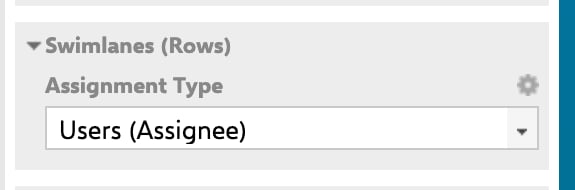
**Users (Assignee)** is the default **Assignment Type**. The board draws one row per project user and labels it with the user's display name; a work item appears on the row of every user among its assignees, so an item assigned to two people shows on both rows.
In **Swimlanes (Rows)**, set **Assignment Type** to **Users (Assignee)**. **Field ID** is not used in this mode.
 The list of users comes from the **User Role** parameter, which lives in the **Advanced** section of the same parameter editor -- not in **Swimlanes (Rows)**.
* Out of the box **User Role** is `project_user`, so the board shows one row per user holding that role in the project.
* Set it to another role to restrict the board to that group, for example a role that only your planners hold.
* Leave it empty to give every user in the project a row.
Apply the change and save the page, then reload the board and confirm the rows you expect.
User rows are measured against an eight-hour working day, so their load markers read as a figure over `8` -- for example `6 / 8`. See [Capacity and Load](/scheduler/concepts/capacity-and-load).
A row's name is rendered as a link, but the link has no real target -- clicking it opens a new browser tab on a dead URL and changes nothing on the board. To narrow the board to one resource, use the **Unplanned** sidebar's funnel filter instead: its **Swimlanes** submenu lists the board's users and filters the backlog to the one you pick. See [Filter the Unplanned Sidebar](/scheduler/guides/filter-the-unplanned-sidebar).
## Rows from an Enumeration Field
Switch **Assignment Type** to **Enumeration Field** when you plan by team, component, product line or any other enumeration rather than by person.
In **Swimlanes (Rows)**, set **Assignment Type** to **Enumeration Field**. A **Field ID** parameter appears beneath it.
The list of users comes from the **User Role** parameter, which lives in the **Advanced** section of the same parameter editor -- not in **Swimlanes (Rows)**.
* Out of the box **User Role** is `project_user`, so the board shows one row per user holding that role in the project.
* Set it to another role to restrict the board to that group, for example a role that only your planners hold.
* Leave it empty to give every user in the project a row.
Apply the change and save the page, then reload the board and confirm the rows you expect.
User rows are measured against an eight-hour working day, so their load markers read as a figure over `8` -- for example `6 / 8`. See [Capacity and Load](/scheduler/concepts/capacity-and-load).
A row's name is rendered as a link, but the link has no real target -- clicking it opens a new browser tab on a dead URL and changes nothing on the board. To narrow the board to one resource, use the **Unplanned** sidebar's funnel filter instead: its **Swimlanes** submenu lists the board's users and filters the backlog to the one you pick. See [Filter the Unplanned Sidebar](/scheduler/guides/filter-the-unplanned-sidebar).
## Rows from an Enumeration Field
Switch **Assignment Type** to **Enumeration Field** when you plan by team, component, product line or any other enumeration rather than by person.
In **Swimlanes (Rows)**, set **Assignment Type** to **Enumeration Field**. A **Field ID** parameter appears beneath it.
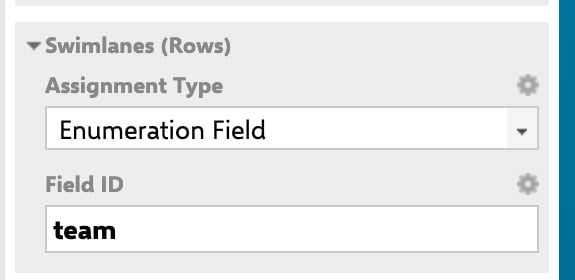 Type the ID of the enumeration field the rows should come from. This is the field's ID as configured in Polarion, not its display label:
```text theme={null}
severity
```
The parameter arrives pre-filled with:
```text theme={null}
team
```
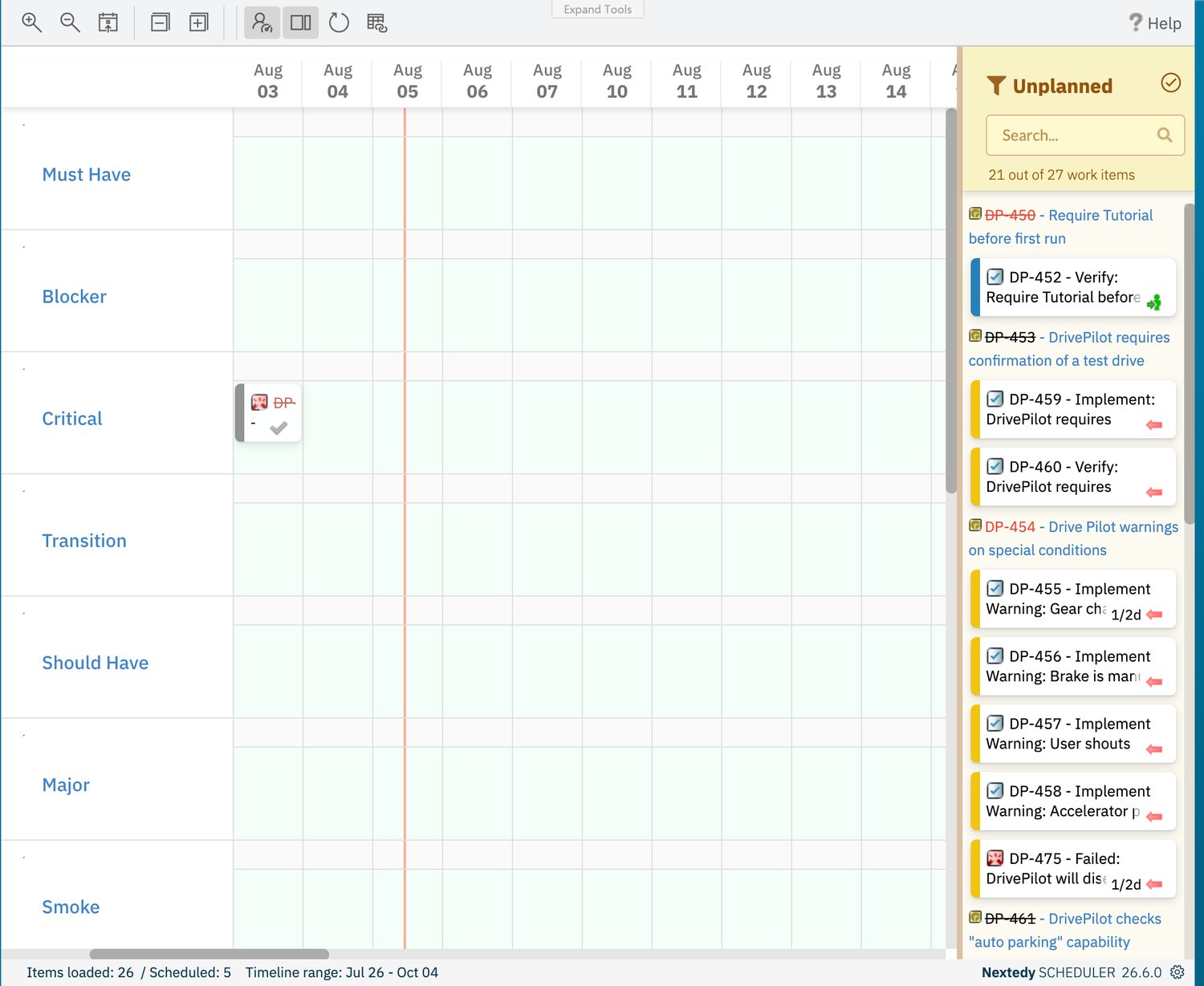
Apply the change and save the page. On reload, the board draws one row per option of that enumeration, labelled with the option's name, and each work item appears on the row matching its value in that field.
Type the ID of the enumeration field the rows should come from. This is the field's ID as configured in Polarion, not its display label:
```text theme={null}
severity
```
The parameter arrives pre-filled with:
```text theme={null}
team
```
Apply the change and save the page. On reload, the board draws one row per option of that enumeration, labelled with the option's name, and each work item appears on the row matching its value in that field.
 Two differences from user rows are worth knowing before you switch:
* **Capacity.** Enumeration rows are measured against a 24-hour day, so their load markers read as a figure over `24` rather than over `8`. A row that stands for a whole team therefore reads very differently from a row that stands for one person.
* **What a drop writes.** Dropping a card onto an enumeration row sets that work item's value in the mapped enumeration field, where dropping onto a user row sets the assignee.
**The default `team` only works if your project has a `team` enumeration.** If you switch to **Enumeration Field** and apply without changing **Field ID**, the board reports that the field `team` does not exist or is not of type enumeration, and shows that error instead of rows. Set **Field ID** to a field that exists in your project.
## Fields That Cannot Be Used as Rows
Not every field can carry swimlanes, and the board tells you so in place of the rows rather than falling back to a default:
| What you enter in Field ID | What the board does |
| -------------------------------------------------------------- | ------------------------------------------------------------------------------------- |
| An enumeration field that exists on your work items | Draws one row per option of that enumeration |
| `status`, `resolution` or `type` | Rejects it with a message that the field is not supported as a swimlane |
| A field that does not exist, or one that is not an enumeration | Rejects it with a message that the field does not exist or is not of type enumeration |
Both rejections replace the rows, so the symptom is the same: a board with a field error and no swimlanes on it. Correct **Field ID** and reload.
If you need rows by status, resolution or type, that is a job for the board's query rather than its rows: give each of those slices its own Scheduler page, or add a named query in the **Queries** section so planners can filter the backlog to it.
## Verification
After applying a change to **Swimlanes (Rows)**:
1. Reload the page and count the rows -- one per user in the configured role, or one per option of the enumeration field.
2. Check a row label against the source: a user's display name, or the enumeration option's name.
3. Check a load marker on a busy row -- it should read against `8` for user rows and against `24` for enumeration rows.
4. Drag a card out of the **Unplanned** sidebar onto a row, then open the work item: its assignee (user rows) or its enumeration field (enumeration rows) should now hold that row's value.
5. If a field error appears instead of rows, re-check **Field ID** against the field's ID in Polarion.
## See Also
* [Swimlanes and Resources](/scheduler/concepts/swimlanes-and-resources) -- what a resource is on the board and where its rows come from
* [Capacity and Load](/scheduler/concepts/capacity-and-load) -- how the per-day load markers on a row are calculated
* [Add the Scheduler Widget](/scheduler/guides/add-the-scheduler-widget) -- the full parameter walkthrough this guide is part of
* [Filter the Unplanned Sidebar](/scheduler/guides/filter-the-unplanned-sidebar) -- filter the backlog to a single swimlane
* [Widget Parameters](/scheduler/reference/widget-parameters) -- **Assignment Type**, **Field ID** and **User Role** with their defaults
Two differences from user rows are worth knowing before you switch:
* **Capacity.** Enumeration rows are measured against a 24-hour day, so their load markers read as a figure over `24` rather than over `8`. A row that stands for a whole team therefore reads very differently from a row that stands for one person.
* **What a drop writes.** Dropping a card onto an enumeration row sets that work item's value in the mapped enumeration field, where dropping onto a user row sets the assignee.
**The default `team` only works if your project has a `team` enumeration.** If you switch to **Enumeration Field** and apply without changing **Field ID**, the board reports that the field `team` does not exist or is not of type enumeration, and shows that error instead of rows. Set **Field ID** to a field that exists in your project.
## Fields That Cannot Be Used as Rows
Not every field can carry swimlanes, and the board tells you so in place of the rows rather than falling back to a default:
| What you enter in Field ID | What the board does |
| -------------------------------------------------------------- | ------------------------------------------------------------------------------------- |
| An enumeration field that exists on your work items | Draws one row per option of that enumeration |
| `status`, `resolution` or `type` | Rejects it with a message that the field is not supported as a swimlane |
| A field that does not exist, or one that is not an enumeration | Rejects it with a message that the field does not exist or is not of type enumeration |
Both rejections replace the rows, so the symptom is the same: a board with a field error and no swimlanes on it. Correct **Field ID** and reload.
If you need rows by status, resolution or type, that is a job for the board's query rather than its rows: give each of those slices its own Scheduler page, or add a named query in the **Queries** section so planners can filter the backlog to it.
## Verification
After applying a change to **Swimlanes (Rows)**:
1. Reload the page and count the rows -- one per user in the configured role, or one per option of the enumeration field.
2. Check a row label against the source: a user's display name, or the enumeration option's name.
3. Check a load marker on a busy row -- it should read against `8` for user rows and against `24` for enumeration rows.
4. Drag a card out of the **Unplanned** sidebar onto a row, then open the work item: its assignee (user rows) or its enumeration field (enumeration rows) should now hold that row's value.
5. If a field error appears instead of rows, re-check **Field ID** against the field's ID in Polarion.
## See Also
* [Swimlanes and Resources](/scheduler/concepts/swimlanes-and-resources) -- what a resource is on the board and where its rows come from
* [Capacity and Load](/scheduler/concepts/capacity-and-load) -- how the per-day load markers on a row are calculated
* [Add the Scheduler Widget](/scheduler/guides/add-the-scheduler-widget) -- the full parameter walkthrough this guide is part of
* [Filter the Unplanned Sidebar](/scheduler/guides/filter-the-unplanned-sidebar) -- filter the backlog to a single swimlane
* [Widget Parameters](/scheduler/reference/widget-parameters) -- **Assignment Type**, **Field ID** and **User Role** with their defaults