> ## Documentation Index
> Fetch the complete documentation index at: https://learn.nextedy.com/llms.txt
> Use this file to discover all available pages before exploring further.
# Advanced Configuration
> Tune a Nextedy SCHEDULER board beyond its defaults: the Days Back and Days Forward date window, the fields shown in task tooltips, and the Item Script and Config Script hooks.
export const LastReviewed = ({date}) => {
if (!date) return null;
const formatted = new Date(`${date}T00:00:00Z`).toLocaleDateString("en-US", {
year: "numeric",
month: "long",
day: "numeric",
timeZone: "UTC"
});
return
Last reviewed on {formatted}
;
};
Most Scheduler boards need nothing more than a query, swimlanes, and a date mapping. The parameters on this page cover the rest: how wide a date window the board shows, what a task tooltip lists, and the two script hooks that let you adapt individual cards and the board's configuration.
They all live in the widget's parameter editor, so you need edit rights on the page that holds the board.
## Open the widget parameters
Navigate to the page that holds the Scheduler board. In a project created from the Scheduler demo template, that is the **Scheduler** entry in the project navigation.
Expand **Tools** in the page toolbar, then click **Edit**.
Select the Scheduler widget on the page, then choose **Edit widget parameters**. The parameter panels appear, one composite panel per group.
**Advanced** holds the date window, the two script fields, and several display settings. It is collapsed by default -- click its header to open it.
**Tooltip Fields** is not in **Advanced**; it sits in the **Work Items** panel next to the query.
Confirm the parameter editor and save the page. The board reloads with the new configuration.
**Editing parameters changes the board for everyone.** Widget parameters are part of the page, so a change you save applies to every user who opens it. The zoom level and the active view, by contrast, are per-user browser settings -- see [Navigate the Timeline](/scheduler/guides/navigate-the-timeline).
## Set the date window with Days Back and Days Forward
A Scheduler board always shows a window around today. It starts **Days Back** days before today and ends **Days Forward** days after today, and the resulting dates are shown in the footer as **Timeline range**.
| Parameter | Panel | Default | What it sets |
| ---------------- | -------- | ------- | ---------------------------------------------- |
| **Days Back** | Advanced | 10 | How many days before today the timeline starts |
| **Days Forward** | Advanced | 100 | How many days after today the timeline ends |
Pick the window to match how the board is used. A sprint or maintenance board is easier to read at 10 days back and 30 to 60 days forward; a release-planning board needs a longer forward window.
**An unset Days Forward falls back to a shared default, not to its own value.** Both fields take their default from the same project configuration property, `nextedy.scheduler.days_back`; only when that property is unset do they fall back to their own built-in values of 10 and 100. If an administrator sets that property, the value becomes the default for **Days Back and Days Forward alike**. Type an explicit number into **Days Forward** whenever the forward window matters -- an explicit value is always used exactly as entered.
Zooming does not change this window; it only changes how much of the window fits on screen. See [Board and Timeline](/scheduler/concepts/board-and-timeline) for how the window and the day grid relate.
## Choose what a task tooltip shows
Hovering a task bar shows a tooltip with the work item's title in bold, the task's start and end dates, and then one line per field listed in **Tooltip Fields**. When the task is overdue, a red **Overdue** line with the due date is added.
**Tooltip Fields** lives in the **Work Items** panel and defaults to four fields: **Project**, **Type**, **Status**, and **Assignee(s)**.
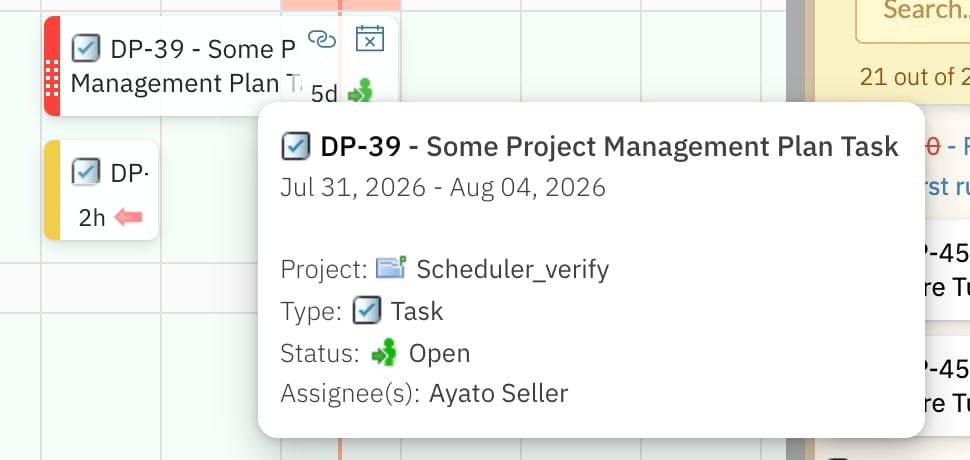 To change the list, open the **Work Items** panel, click **Tooltip Fields**, and pick the fields you want. Each field is rendered as a labelled line, using the field's own label and its formatted value.
**A field the work item does not have is skipped.** The tooltip only lists fields that exist on the item being hovered, so boards that mix work item types can show shorter tooltips on some cards.
Keep the list short. A tooltip is a hover popup, and a long list of fields is slower to scan than the two or three values that actually drive your planning decision -- assignee, status, and estimate for most teams.
The **Work Items** panel also carries a **Sidebar Fields** parameter, which defaults to **Title**.
## Adapt individual cards with an Item Script
**Item Script** (in **Advanced**) holds a JavaScript snippet that the board evaluates once for every work item it loads. The script runs on the server, in a read-only transaction, so it cannot change work item data -- it can only influence how that one item is treated on the board.
Reach a work item's fields with Polarion's **getter methods** -- `wi.getType().getId()`, `wi.getStatus().getId()`, `wi.getId()` -- not with property access such as `wi.type.id`.
Property access does not work: the script runs without error and simply has no effect, so a board configured that way looks as though the Item Script were ignored. If a script of yours does nothing at all, this is the first thing to check.
The script receives two objects:
| Object | What it is |
| ------ | ------------------------------------------------------------- |
| `wi` | The work item currently being processed, with its fields |
| `cli` | A flags object whose properties control how that item appears |
Two flags are available:
| Flag | Set it to `true` to |
| -------------- | -------------------------------------------------------------------------------------------------------------------------------- |
| `cli.hide` | Leave the item off the board entirely -- it is not drawn on the timeline and not offered in the sidebar |
| `cli.readonly` | Mark the item read-only: its hover handles (**Add Link**, **Unplan item**) are not offered and the card is not moved by dragging |
Keep issue work items off a board that is only meant for tasks:
```js Item Script -- keep issues off the board theme={null}
if (wi.getType().getId() === "issue") { cli.hide = true; }
```
Make the whole board read-only, so it can be shared as a plan to look at rather than to change:
```js Item Script -- read-only board theme={null}
cli.readonly = true;
```
**Hiding an item hides it on this board only.** `cli.hide` removes the card from this board's view. The work item itself, its dates, and its links are untouched, and it still appears on any other board or report whose query returns it.
The script runs for every item on every load, so keep it short and guard it with a condition on the field you care about rather than doing work for items it should not affect.
## Config Script
**Config Script** (also in **Advanced**) holds a server-side script that the widget evaluates when the page renders, and injects the result into the board's page. It is a page-level hook, evaluated once per render, in contrast to **Item Script**, which is evaluated per work item as the board's data is built.
It is empty by default, and a board with an empty **Config Script** renders normally. Leave it empty unless you have a specific script to run there.
## Other settings in the Advanced panel
| Parameter | Default | What it sets |
| -------------------- | -------------- | ------------------------------------------------------------------------------------------------------------------------------------------------------------------ |
| **User Role** | `project_user` | Which project role's members become swimlanes when **Assignment Type** is **Users (Assignee)** -- see [Configure Swimlanes](/scheduler/guides/configure-swimlanes) |
| **Max Items** | 500 | The maximum number of work items the board loads from the query |
| **Card Height** | 50 | The height, in pixels, of a task card on the timeline |
| **Show Time Points** | Selected | Whether the time-points row is shown under the swimlanes |
**The time-points row is populated from legacy Polarion time points.** Leaving **Show Time Points** selected does not add a row for modern Plans on current Polarion versions. See [Swimlanes and Resources](/scheduler/concepts/swimlanes-and-resources).
The default card height of 50 pixels fits a card's title line and its fields line. Raise it to give the cards more room, or lower it to fit more task rows on screen at once.
The full parameter list, panel by panel, is in [Widget Parameters](/scheduler/reference/widget-parameters).
## Verification
After changing these parameters, confirm each one on the board itself:
1. Set **Days Forward** to a specific number -- for example 60 -- and save. The footer **Timeline range** now ends roughly that many days after today, and starts **Days Back** days before it.
2. Remove a field from **Tooltip Fields** and save. Hover a task bar: the tooltip no longer lists that field, and still shows the title and the date range.
3. Put `cli.readonly = true` in **Item Script** and save. Hover a card: the **Add Link** and **Unplan item** handles are not offered, and the bar does not move when you drag it.
4. Replace it with a `cli.hide` condition that matches one work item type on your board and save. Cards of that type are gone from the timeline, while the work items themselves are unchanged in Polarion.
5. Clear **Item Script** and save. The cards and their hover handles come back.
## See Also
* [Add the Scheduler Widget](/scheduler/guides/add-the-scheduler-widget) -- place the widget and set its query, swimlanes, and date mapping
* [Widget Parameters](/scheduler/reference/widget-parameters) -- every parameter with its panel and default
* [Configure Swimlanes](/scheduler/guides/configure-swimlanes) -- assignee rows versus enumeration-field rows
* [Board and Timeline](/scheduler/concepts/board-and-timeline) -- how the date window builds the day grid
* [Navigate the Timeline](/scheduler/guides/navigate-the-timeline) -- the per-user view settings the toolbar controls
To change the list, open the **Work Items** panel, click **Tooltip Fields**, and pick the fields you want. Each field is rendered as a labelled line, using the field's own label and its formatted value.
**A field the work item does not have is skipped.** The tooltip only lists fields that exist on the item being hovered, so boards that mix work item types can show shorter tooltips on some cards.
Keep the list short. A tooltip is a hover popup, and a long list of fields is slower to scan than the two or three values that actually drive your planning decision -- assignee, status, and estimate for most teams.
The **Work Items** panel also carries a **Sidebar Fields** parameter, which defaults to **Title**.
## Adapt individual cards with an Item Script
**Item Script** (in **Advanced**) holds a JavaScript snippet that the board evaluates once for every work item it loads. The script runs on the server, in a read-only transaction, so it cannot change work item data -- it can only influence how that one item is treated on the board.
Reach a work item's fields with Polarion's **getter methods** -- `wi.getType().getId()`, `wi.getStatus().getId()`, `wi.getId()` -- not with property access such as `wi.type.id`.
Property access does not work: the script runs without error and simply has no effect, so a board configured that way looks as though the Item Script were ignored. If a script of yours does nothing at all, this is the first thing to check.
The script receives two objects:
| Object | What it is |
| ------ | ------------------------------------------------------------- |
| `wi` | The work item currently being processed, with its fields |
| `cli` | A flags object whose properties control how that item appears |
Two flags are available:
| Flag | Set it to `true` to |
| -------------- | -------------------------------------------------------------------------------------------------------------------------------- |
| `cli.hide` | Leave the item off the board entirely -- it is not drawn on the timeline and not offered in the sidebar |
| `cli.readonly` | Mark the item read-only: its hover handles (**Add Link**, **Unplan item**) are not offered and the card is not moved by dragging |
Keep issue work items off a board that is only meant for tasks:
```js Item Script -- keep issues off the board theme={null}
if (wi.getType().getId() === "issue") { cli.hide = true; }
```
Make the whole board read-only, so it can be shared as a plan to look at rather than to change:
```js Item Script -- read-only board theme={null}
cli.readonly = true;
```
**Hiding an item hides it on this board only.** `cli.hide` removes the card from this board's view. The work item itself, its dates, and its links are untouched, and it still appears on any other board or report whose query returns it.
The script runs for every item on every load, so keep it short and guard it with a condition on the field you care about rather than doing work for items it should not affect.
## Config Script
**Config Script** (also in **Advanced**) holds a server-side script that the widget evaluates when the page renders, and injects the result into the board's page. It is a page-level hook, evaluated once per render, in contrast to **Item Script**, which is evaluated per work item as the board's data is built.
It is empty by default, and a board with an empty **Config Script** renders normally. Leave it empty unless you have a specific script to run there.
## Other settings in the Advanced panel
| Parameter | Default | What it sets |
| -------------------- | -------------- | ------------------------------------------------------------------------------------------------------------------------------------------------------------------ |
| **User Role** | `project_user` | Which project role's members become swimlanes when **Assignment Type** is **Users (Assignee)** -- see [Configure Swimlanes](/scheduler/guides/configure-swimlanes) |
| **Max Items** | 500 | The maximum number of work items the board loads from the query |
| **Card Height** | 50 | The height, in pixels, of a task card on the timeline |
| **Show Time Points** | Selected | Whether the time-points row is shown under the swimlanes |
**The time-points row is populated from legacy Polarion time points.** Leaving **Show Time Points** selected does not add a row for modern Plans on current Polarion versions. See [Swimlanes and Resources](/scheduler/concepts/swimlanes-and-resources).
The default card height of 50 pixels fits a card's title line and its fields line. Raise it to give the cards more room, or lower it to fit more task rows on screen at once.
The full parameter list, panel by panel, is in [Widget Parameters](/scheduler/reference/widget-parameters).
## Verification
After changing these parameters, confirm each one on the board itself:
1. Set **Days Forward** to a specific number -- for example 60 -- and save. The footer **Timeline range** now ends roughly that many days after today, and starts **Days Back** days before it.
2. Remove a field from **Tooltip Fields** and save. Hover a task bar: the tooltip no longer lists that field, and still shows the title and the date range.
3. Put `cli.readonly = true` in **Item Script** and save. Hover a card: the **Add Link** and **Unplan item** handles are not offered, and the bar does not move when you drag it.
4. Replace it with a `cli.hide` condition that matches one work item type on your board and save. Cards of that type are gone from the timeline, while the work items themselves are unchanged in Polarion.
5. Clear **Item Script** and save. The cards and their hover handles come back.
## See Also
* [Add the Scheduler Widget](/scheduler/guides/add-the-scheduler-widget) -- place the widget and set its query, swimlanes, and date mapping
* [Widget Parameters](/scheduler/reference/widget-parameters) -- every parameter with its panel and default
* [Configure Swimlanes](/scheduler/guides/configure-swimlanes) -- assignee rows versus enumeration-field rows
* [Board and Timeline](/scheduler/concepts/board-and-timeline) -- how the date window builds the day grid
* [Navigate the Timeline](/scheduler/guides/navigate-the-timeline) -- the per-user view settings the toolbar controls