> ## Documentation Index
> Fetch the complete documentation index at: https://learn.nextedy.com/llms.txt
> Use this file to discover all available pages before exploring further.
# Schedule Your First Task
> By the end of this tutorial, you will have scheduled, moved and unplanned a work item on a Nextedy SCHEDULER board.
export const LastReviewed = ({date}) => {
if (!date) return null;
const formatted = new Date(`${date}T00:00:00Z`).toLocaleDateString("en-US", {
year: "numeric",
month: "long",
day: "numeric",
timeZone: "UTC"
});
return
Last reviewed on {formatted}
;
};
## What you will achieve
By the end of this tutorial, you will have taken a work item out of the Unplanned sidebar, dropped it onto a resource row, moved it to a different date, and sent it back to the sidebar again.
Along the way you will see the three things that surprise people most on a first pass: where the duration comes from, that there is no Save button, and that unplanning an item does not delete it.
## Prerequisites
* A working Scheduler board on a Polarion page (see [Your First Board](/scheduler/getting-started/first-board))
* At least one unscheduled work item in the Unplanned sidebar
* Permission to edit those work items in Polarion
1. If the sidebar is not visible, switch it on with the toolbar's **Show unscheduled items in sidebar** button
2. Type a word from the item's title into the sidebar's **Search…** box, or pick a saved query from the funnel menu, until you can see the card you want
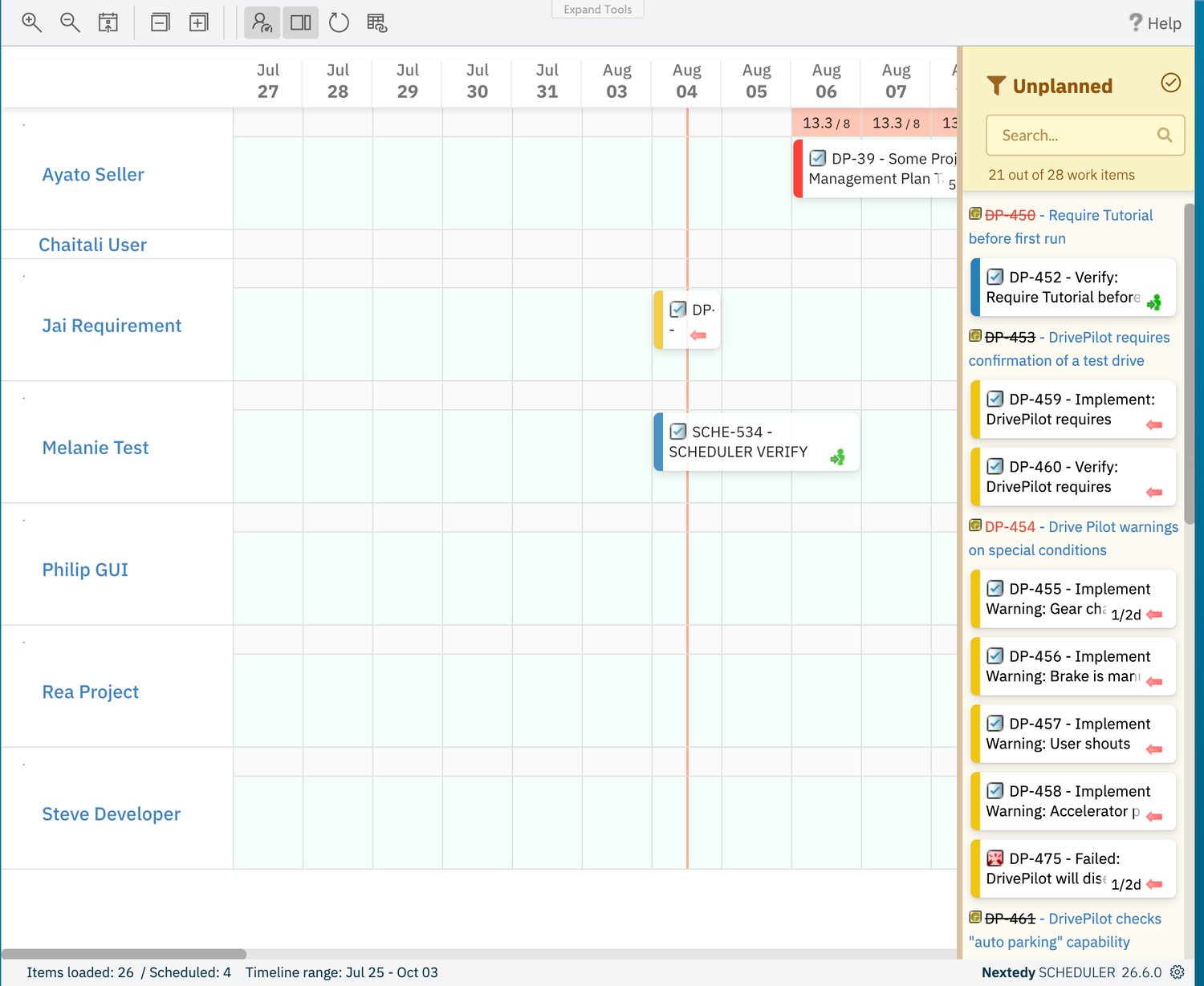
**What you should see:** the card in the sidebar, and a header count such as `21 out of 28 work items` reflecting your filter.
The sidebar only lists items that match the board's query **and** have no schedule yet.
If it is empty, either everything is already scheduled or the query excludes the items — see [Filter the Unplanned Sidebar](/scheduler/guides/filter-the-unplanned-sidebar).
Drag the card out of the sidebar and drop it on the row of the person who should do the work, on the day it should start.
Two things happen in one gesture:
* The work item is **scheduled**, starting on the day column you dropped it on
* The work item is **assigned to that row's resource** — with the default assignee swimlanes, that means the row's user becomes the item's assignee
The duration is taken from the item's effort, rounded up to whole days at eight hours per day.
An item with no effort, or zero effort, is scheduled as a single day.
| Effort on the work item | Duration on the board |
| ----------------------- | --------------------- |
| Not set, or 0 | 1 day |
| 8 hours | 1 day |
| 12 hours | 2 days |
| 40 hours | 5 days |
**What you should see:** the card leaves the sidebar and appears as a bar on the row you dropped it on.
The footer's **Scheduled** count goes up by one, the sidebar count goes down by one, and the load markers on that row recalculate to include the new work.
 Which Polarion field the board reads as effort is set by the widget's **Plans Type** parameter — **Initial Estimate**, **Remaining Estimate**, or **Remaining Estimate + Time Spent**.
See [Dates, Duration and Effort](/scheduler/concepts/dates-duration-and-effort).
Drag the bar sideways to another day, or onto a different row.
**What you should see:** the bar lands on the new dates, the load markers on both the old and the new row recalculate, and nothing else is required of you.
The board has no Save button.
Every drop is written back to Polarion immediately, so the dates and the assignee on the work item are updated as soon as you release the mouse.
If you want to confirm what was written, reload the page — the bar stays where you put it.
Dragging the edge of a bar moves the whole bar and keeps its length; task bars have no resize handles.
To make a task longer or shorter, change the work item's mapped Duration field (or its start and end dates, depending on the board's **Data Mapping**) — see [Schedule and Reschedule Tasks](/scheduler/guides/schedule-and-reschedule-tasks).
Click the body of the card.
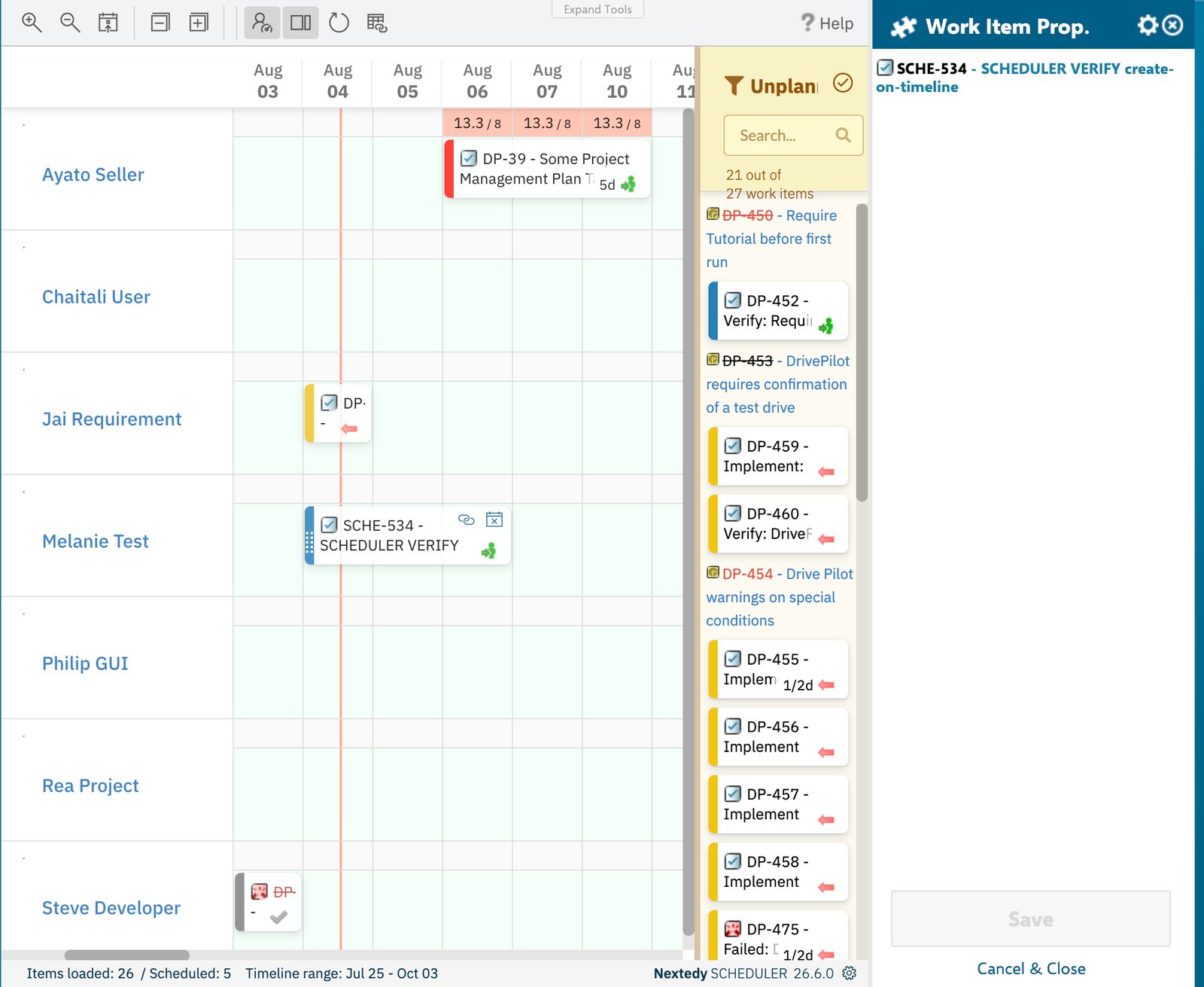
**What you should see:** Polarion's **Work Item Prop.** sidebar opens for that work item, where you can read the fields the board just wrote — the dates and the assignee.
Which Polarion field the board reads as effort is set by the widget's **Plans Type** parameter — **Initial Estimate**, **Remaining Estimate**, or **Remaining Estimate + Time Spent**.
See [Dates, Duration and Effort](/scheduler/concepts/dates-duration-and-effort).
Drag the bar sideways to another day, or onto a different row.
**What you should see:** the bar lands on the new dates, the load markers on both the old and the new row recalculate, and nothing else is required of you.
The board has no Save button.
Every drop is written back to Polarion immediately, so the dates and the assignee on the work item are updated as soon as you release the mouse.
If you want to confirm what was written, reload the page — the bar stays where you put it.
Dragging the edge of a bar moves the whole bar and keeps its length; task bars have no resize handles.
To make a task longer or shorter, change the work item's mapped Duration field (or its start and end dates, depending on the board's **Data Mapping**) — see [Schedule and Reschedule Tasks](/scheduler/guides/schedule-and-reschedule-tasks).
Click the body of the card.
**What you should see:** Polarion's **Work Item Prop.** sidebar opens for that work item, where you can read the fields the board just wrote — the dates and the assignee.
 Your selection is remembered, so the same work item is still selected when you come back to the board.
Hovering a card shows a tooltip with the work item's title, its date range, and the fields configured for tooltips — by default Project, Type, Status and Assignee(s).
The line on the right-hand side of the card itself shows the duration, for example `5d`.
1. Hover the card — two small handles appear on the right of it: a chain for **Add Link** and a calendar-with-a-cross for **Unplan item**
2. Click **Unplan item**
**What you should see:** the schedule is cleared and the card reappears in the Unplanned sidebar.
The footer's **Scheduled** count drops by one and the sidebar count goes back up.
There is no confirmation dialog, and the action takes effect immediately.
**Unplan item** clears the item's schedule on the board — it does not delete the work item.
The work item, its fields, its links and its history stay in Polarion untouched, and you can drop it back onto the timeline at any time.
The board has no control that deletes a work item.
A work item that has a Resolution set is drawn grey and read-only on the board: it cannot be dragged and it shows no **Unplan item** handle.
Reopen the work item in Polarion if you need to reschedule it.
## Next steps
You can now move work on and off the timeline.
Continue with:
* [Schedule and Reschedule Tasks](/scheduler/guides/schedule-and-reschedule-tasks) — the full set of scheduling gestures and what each one writes
* [Create Tasks on the Timeline](/scheduler/guides/create-tasks-on-the-timeline) — create brand-new work items directly on the grid
* [Dates, Duration and Effort](/scheduler/concepts/dates-duration-and-effort) — how the mapped fields and Plans Type decide a bar's position and length
* [Capacity and Load](/scheduler/concepts/capacity-and-load) — why a row turns red when you drop too much on it
* [Link Task Dependencies](/scheduler/guides/link-task-dependencies) — use the **Add Link** handle you saw on the card
* [Colours and Load Thresholds](/scheduler/reference/colours-and-load-thresholds) — what each card colour means
Your selection is remembered, so the same work item is still selected when you come back to the board.
Hovering a card shows a tooltip with the work item's title, its date range, and the fields configured for tooltips — by default Project, Type, Status and Assignee(s).
The line on the right-hand side of the card itself shows the duration, for example `5d`.
1. Hover the card — two small handles appear on the right of it: a chain for **Add Link** and a calendar-with-a-cross for **Unplan item**
2. Click **Unplan item**
**What you should see:** the schedule is cleared and the card reappears in the Unplanned sidebar.
The footer's **Scheduled** count drops by one and the sidebar count goes back up.
There is no confirmation dialog, and the action takes effect immediately.
**Unplan item** clears the item's schedule on the board — it does not delete the work item.
The work item, its fields, its links and its history stay in Polarion untouched, and you can drop it back onto the timeline at any time.
The board has no control that deletes a work item.
A work item that has a Resolution set is drawn grey and read-only on the board: it cannot be dragged and it shows no **Unplan item** handle.
Reopen the work item in Polarion if you need to reschedule it.
## Next steps
You can now move work on and off the timeline.
Continue with:
* [Schedule and Reschedule Tasks](/scheduler/guides/schedule-and-reschedule-tasks) — the full set of scheduling gestures and what each one writes
* [Create Tasks on the Timeline](/scheduler/guides/create-tasks-on-the-timeline) — create brand-new work items directly on the grid
* [Dates, Duration and Effort](/scheduler/concepts/dates-duration-and-effort) — how the mapped fields and Plans Type decide a bar's position and length
* [Capacity and Load](/scheduler/concepts/capacity-and-load) — why a row turns red when you drop too much on it
* [Link Task Dependencies](/scheduler/guides/link-task-dependencies) — use the **Add Link** handle you saw on the card
* [Colours and Load Thresholds](/scheduler/reference/colours-and-load-thresholds) — what each card colour means