Last reviewed on {formatted}
; }; ## What a Swimlane Represents A swimlane is one horizontal band of the board that stands for a **resource** -- the thing work is scheduled against. A task bar sits in a swimlane because the work item behind it points at that resource, and the per-day load markers on the swimlane's summary row measure the effort landing on it. Scheduler builds those rows in one of two ways, and you choose which by setting **Assignment Type** in the widget's **Swimlanes (Rows)** panel. To reach it on a page that already hosts the board, use **Expand Tools → Edit**, select the widget, then open *Edit widget parameters*. | Assignment Type | Rows are | Row label | Which items land there | | ------------------------------ | ------------------------------------ | ------------------------- | ------------------------------------------------------- | | **Users (Assignee)** (default) | Project users | The user's display name | Every work item that has that user among its assignees | | **Enumeration Field** | The options of one enumeration field | The option's display name | Every work item whose value in that field is the option | Only these two modes exist -- the **Assignment Type** dropdown has exactly these two options. ## Users (Assignee) Mode This is the out-of-the-box behaviour: one swimlane per person, which is what you want for team-level capacity planning. Which people appear is decided by **User Role**, a parameter in the widget's **Advanced** panel rather than in **Swimlanes (Rows)**. Its default value is the Polarion role ID `project_user`, so a fresh board shows the users who hold that role, one row each. Clear the value to widen the board to all users instead of a single role. A work item is placed by its **assignees**, so an item assigned to two people appears in both of their swimlanes. User rows are scheduled against a working day taken from that user's own Polarion working calendar: Scheduler reads the calendar per user and works out the available hours for each day. With Polarion's default calendar that is **8 hours per day**, which is the figure you will see in the load markers. Days the user's calendar treats as non-working carry no capacity at all and are hatched in the grid. ## Enumeration Field Mode Choosing **Enumeration Field** reveals a second parameter, **Field ID**. Fill it with the ID of an enumeration field on work items, and the board draws one swimlane per option of that enumeration -- for example one row per team, per component, or per severity level. Two constraints are worth knowing before you switch: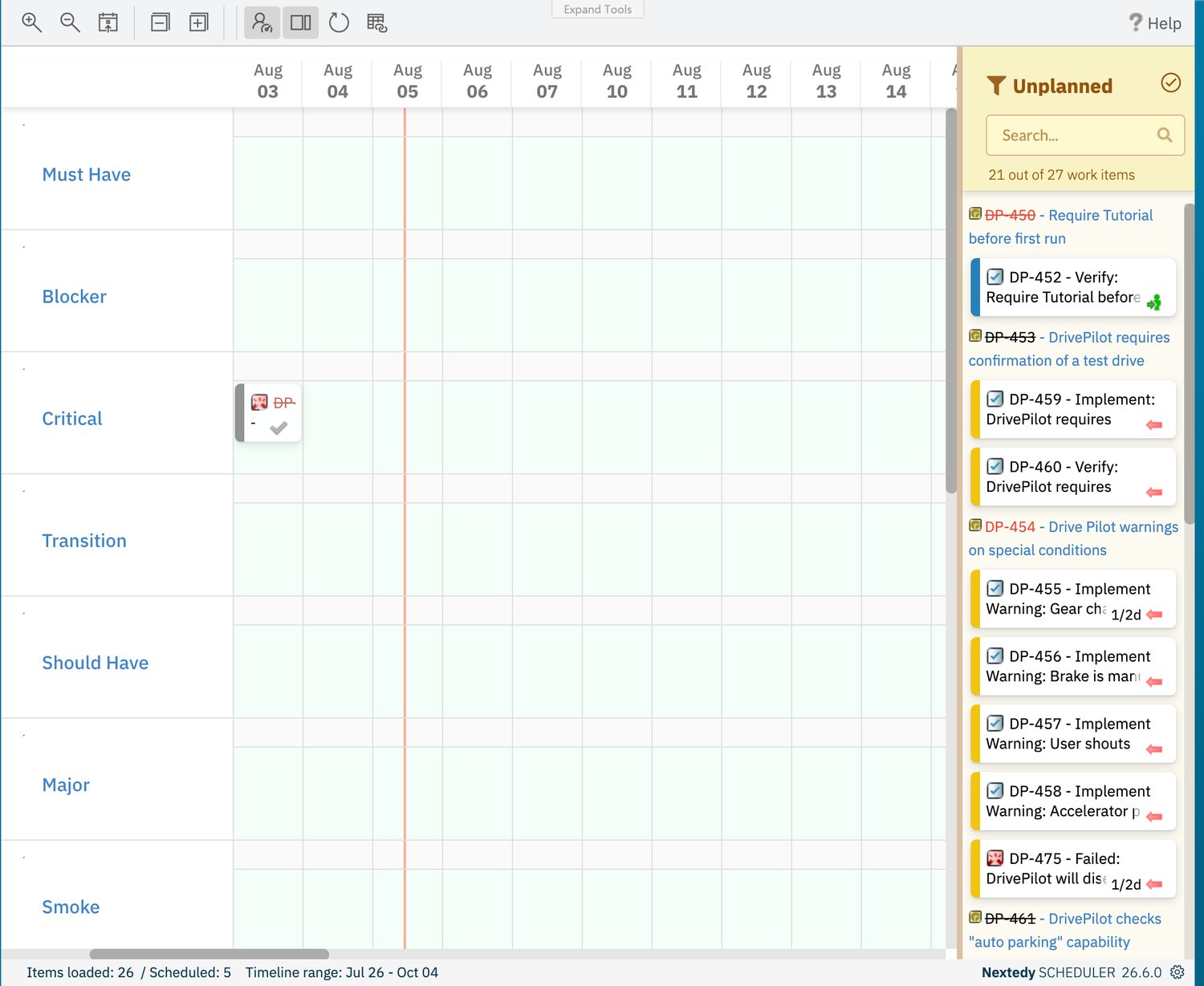 [Configure Swimlanes](/scheduler/guides/configure-swimlanes) walks through switching modes and picking a field; the capacity difference is explained in full in [Capacity and Load](/scheduler/concepts/capacity-and-load).
## Capacity per Row Type at a Glance
| Row type | Daily capacity | Non-working days |
| --------------------------------------- | -------------- | ------------------------------------ |
| User row (**Users (Assignee)**) | 8 hours | Hatched, no capacity, no load figure |
| Enumeration row (**Enumeration Field**) | 24 hours | -- |
## Working With Row Names
Row names are rendered as links, but the link has no real target: clicking a swimlane name opens a new browser tab on a dead URL, and neither opens the user's page nor filters the board.
The place where a row name is actionable is the **Unplanned** sidebar. Its funnel filter has a **Swimlanes** submenu listing every row on the board, and picking one narrows the backlog to the items belonging to that resource -- which is the fast way to work through one person's or one team's queue. See [Filter the Unplanned Sidebar](/scheduler/guides/filter-the-unplanned-sidebar).
## The Time Points Row
Below the resource swimlanes, Scheduler can add one further row -- with a blank label -- carrying Polarion **time points** that fall inside the visible window. It is governed by **Show Time Points** in the **Advanced** panel, which is on by default, and it appears only when there is at least one such time point to place. Markers in this row are read-only: they cannot be dragged, and they exist purely as date landmarks next to your bars.
[Configure Swimlanes](/scheduler/guides/configure-swimlanes) walks through switching modes and picking a field; the capacity difference is explained in full in [Capacity and Load](/scheduler/concepts/capacity-and-load).
## Capacity per Row Type at a Glance
| Row type | Daily capacity | Non-working days |
| --------------------------------------- | -------------- | ------------------------------------ |
| User row (**Users (Assignee)**) | 8 hours | Hatched, no capacity, no load figure |
| Enumeration row (**Enumeration Field**) | 24 hours | -- |
## Working With Row Names
Row names are rendered as links, but the link has no real target: clicking a swimlane name opens a new browser tab on a dead URL, and neither opens the user's page nor filters the board.
The place where a row name is actionable is the **Unplanned** sidebar. Its funnel filter has a **Swimlanes** submenu listing every row on the board, and picking one narrows the backlog to the items belonging to that resource -- which is the fast way to work through one person's or one team's queue. See [Filter the Unplanned Sidebar](/scheduler/guides/filter-the-unplanned-sidebar).
## The Time Points Row
Below the resource swimlanes, Scheduler can add one further row -- with a blank label -- carrying Polarion **time points** that fall inside the visible window. It is governed by **Show Time Points** in the **Advanced** panel, which is on by default, and it appears only when there is at least one such time point to place. Markers in this row are read-only: they cannot be dragged, and they exist purely as date landmarks next to your bars.