> ## Documentation Index
> Fetch the complete documentation index at: https://learn.nextedy.com/llms.txt
> Use this file to discover all available pages before exploring further.
# Scheduler
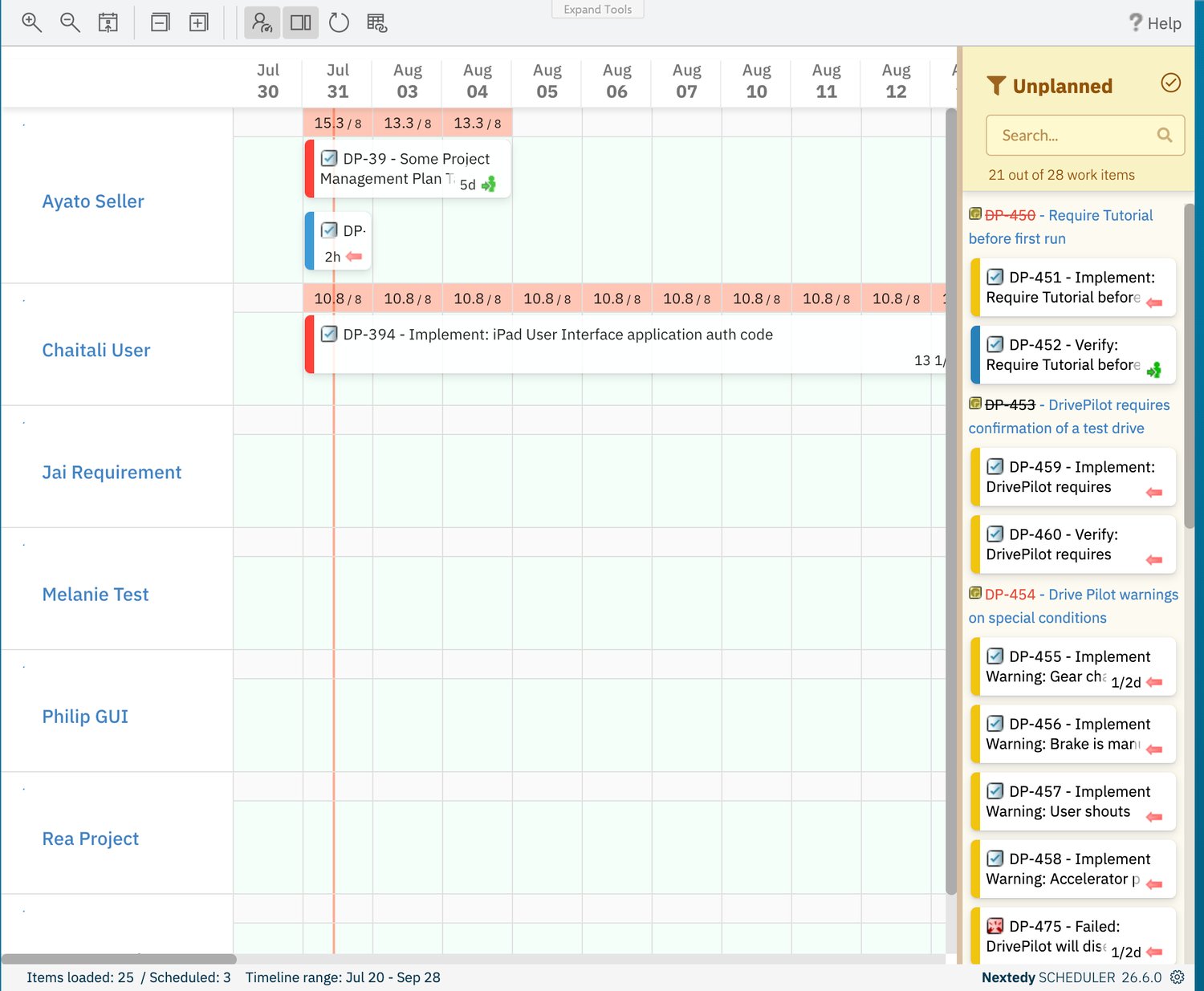
> Nextedy SCHEDULER is a Polarion page widget that lays work items out as task bars on a day-by-day timeline across resource swimlanes, with per-day load, an Unplanned backlog, and dependency links.
export const SUPPORT_TICKET_URL = "https://support.nextedy.com/support/tickets/new";
export const SUPPORT_PORTAL_URL = "https://support.nextedy.com";
export const LastReviewed = ({date}) => {
if (!date) return null;
const formatted = new Date(`${date}T00:00:00Z`).toLocaleDateString("en-US", {
year: "numeric",
month: "long",
day: "numeric",
timeZone: "UTC"
});
return
Last reviewed on {formatted}
;
};
Scheduler is an extension for Siemens Polarion ALM that turns a work-item query into a schedule you can drag.
You add the **Scheduler** widget to a Polarion Rich Page, point it at a query, and the board renders in place: a day-by-day timeline in which every work item with dates becomes a task bar, laid out across swimlane rows.
Rows are resources.
By default there is one row per project user, taken from the work item's assignee; alternatively the rows can be the options of an enumeration field, so the board groups by team, component, or any other enumeration you already maintain.
Each row carries a per-day load marker showing booked effort against available capacity, so over-allocation is visible before the plan is committed.
Work items that match the query but are not scheduled yet wait in the **Unplanned** sidebar.
Drag one onto a row and it is scheduled on that date and assigned to that resource in a single gesture.
Dragging an existing bar moves it, and dependencies between tasks are stored as real Polarion work-item links that the board can draw as arrows.
Every change writes straight back to Polarion as you make it — there is no Save button on the board.
 ## Quick Navigation
Install the extension, create the demo project, build your first board, and schedule your first task.
Understand the timeline, swimlanes and resources, capacity and load, dates and effort, and dependencies.
Task-oriented instructions for adding the widget, configuring swimlanes, scheduling, linking, filtering, and advanced configuration.
Widget parameters with their defaults, every toolbar control, the colour and load bands, and the administration pages.
Answers to the questions that come up most often when a board does not behave the way you expect.
## Key Features
* **Timeline of scheduled work items** — day columns with a month and day header, zoom in and out in fixed steps, and a red line marking today; weekends are hidden by default
* **Resource swimlanes** — rows built from project users (Assignment Type **Users (Assignee)**) or from the options of an enumeration field (**Enumeration Field** plus a **Field ID**)
* **Per-day resource load** — each row cell shows booked effort against capacity in one of four colour bands, from empty through to over capacity
* **Unplanned backlog sidebar** — unscheduled matches grouped under their parent work items, with saved-query, swimlane, resolved and free-text filters and a live item count
* **Drag to schedule and reschedule** — drop a card from the sidebar to schedule and assign it; drag a bar to move it; changes save automatically
* **Create work items on the timeline** — when **Enable Create New** is set, double-click or drag on an empty row to create a work item of the configured type
* **Dependency links** — connect two tasks and Scheduler writes a real Polarion "depends on" link; **Show Dependencies** draws the arrows over the board
* **Unplan without deleting** — **Unplan item** clears a task's schedule and returns it to the sidebar; the work item itself is untouched
* **Configured from widget parameters** — the query, swimlanes, date and duration mapping, effort mode, card height, tooltip fields, and the timeline window are all widget parameters
* **Polarion-native** — clicking a task opens it in Polarion's work item properties sidebar, and a per-item script can make individual tasks read-only
## Documentation Structure
| Section | Purpose | Start Here |
| --------------------------------------------------- | -------------------------------------------------------------------- | ---------------------------------------------------------------------- |
| [Getting Started](/scheduler/getting-started/index) | Install Scheduler and get a working board | [Installation](/scheduler/getting-started/installation) |
| [Concepts](/scheduler/concepts/index) | Understand how the timeline, swimlanes, load, and dates fit together | [Board and Timeline](/scheduler/concepts/board-and-timeline) |
| [Guides](/scheduler/guides/index) | Step-by-step instructions for specific tasks | [Add the Scheduler Widget](/scheduler/guides/add-the-scheduler-widget) |
| [Reference](/scheduler/reference/index) | Look up parameters, controls, colours, and administration pages | [Widget Parameters](/scheduler/reference/widget-parameters) |
| [FAQ](/scheduler/faq/index) | Quick answers to common questions | [General](/scheduler/faq/general) |
## Common Tasks
* [Install Scheduler](/scheduler/getting-started/installation) — deploy the extension and create the demo project
* [Add the Scheduler widget to a page](/scheduler/guides/add-the-scheduler-widget) — put a board in your own project
* [Configure swimlanes](/scheduler/guides/configure-swimlanes) — switch between user rows and enumeration rows
* [Schedule and reschedule tasks](/scheduler/guides/schedule-and-reschedule-tasks) — plan from the sidebar and move bars on the timeline
* [Link task dependencies](/scheduler/guides/link-task-dependencies) — connect tasks and show the arrows
* [Filter the Unplanned sidebar](/scheduler/guides/filter-the-unplanned-sidebar) — narrow the backlog by query, swimlane, or text
* [Navigate the timeline](/scheduler/guides/navigate-the-timeline) — zoom, scroll to today, collapse and expand rows
* [Look up widget parameters](/scheduler/reference/widget-parameters) — find the parameter and default you need
## Need help?
Can't find the answer here? Open a ticket and the Nextedy support team will help you out.
## Quick Navigation
Install the extension, create the demo project, build your first board, and schedule your first task.
Understand the timeline, swimlanes and resources, capacity and load, dates and effort, and dependencies.
Task-oriented instructions for adding the widget, configuring swimlanes, scheduling, linking, filtering, and advanced configuration.
Widget parameters with their defaults, every toolbar control, the colour and load bands, and the administration pages.
Answers to the questions that come up most often when a board does not behave the way you expect.
## Key Features
* **Timeline of scheduled work items** — day columns with a month and day header, zoom in and out in fixed steps, and a red line marking today; weekends are hidden by default
* **Resource swimlanes** — rows built from project users (Assignment Type **Users (Assignee)**) or from the options of an enumeration field (**Enumeration Field** plus a **Field ID**)
* **Per-day resource load** — each row cell shows booked effort against capacity in one of four colour bands, from empty through to over capacity
* **Unplanned backlog sidebar** — unscheduled matches grouped under their parent work items, with saved-query, swimlane, resolved and free-text filters and a live item count
* **Drag to schedule and reschedule** — drop a card from the sidebar to schedule and assign it; drag a bar to move it; changes save automatically
* **Create work items on the timeline** — when **Enable Create New** is set, double-click or drag on an empty row to create a work item of the configured type
* **Dependency links** — connect two tasks and Scheduler writes a real Polarion "depends on" link; **Show Dependencies** draws the arrows over the board
* **Unplan without deleting** — **Unplan item** clears a task's schedule and returns it to the sidebar; the work item itself is untouched
* **Configured from widget parameters** — the query, swimlanes, date and duration mapping, effort mode, card height, tooltip fields, and the timeline window are all widget parameters
* **Polarion-native** — clicking a task opens it in Polarion's work item properties sidebar, and a per-item script can make individual tasks read-only
## Documentation Structure
| Section | Purpose | Start Here |
| --------------------------------------------------- | -------------------------------------------------------------------- | ---------------------------------------------------------------------- |
| [Getting Started](/scheduler/getting-started/index) | Install Scheduler and get a working board | [Installation](/scheduler/getting-started/installation) |
| [Concepts](/scheduler/concepts/index) | Understand how the timeline, swimlanes, load, and dates fit together | [Board and Timeline](/scheduler/concepts/board-and-timeline) |
| [Guides](/scheduler/guides/index) | Step-by-step instructions for specific tasks | [Add the Scheduler Widget](/scheduler/guides/add-the-scheduler-widget) |
| [Reference](/scheduler/reference/index) | Look up parameters, controls, colours, and administration pages | [Widget Parameters](/scheduler/reference/widget-parameters) |
| [FAQ](/scheduler/faq/index) | Quick answers to common questions | [General](/scheduler/faq/general) |
## Common Tasks
* [Install Scheduler](/scheduler/getting-started/installation) — deploy the extension and create the demo project
* [Add the Scheduler widget to a page](/scheduler/guides/add-the-scheduler-widget) — put a board in your own project
* [Configure swimlanes](/scheduler/guides/configure-swimlanes) — switch between user rows and enumeration rows
* [Schedule and reschedule tasks](/scheduler/guides/schedule-and-reschedule-tasks) — plan from the sidebar and move bars on the timeline
* [Link task dependencies](/scheduler/guides/link-task-dependencies) — connect tasks and show the arrows
* [Filter the Unplanned sidebar](/scheduler/guides/filter-the-unplanned-sidebar) — narrow the backlog by query, swimlane, or text
* [Navigate the timeline](/scheduler/guides/navigate-the-timeline) — zoom, scroll to today, collapse and expand rows
* [Look up widget parameters](/scheduler/reference/widget-parameters) — find the parameter and default you need
## Need help?
Can't find the answer here? Open a ticket and the Nextedy support team will help you out.