> ## Documentation Index
> Fetch the complete documentation index at: https://learn.nextedy.com/llms.txt
> Use this file to discover all available pages before exploring further.
# Rich Text Formatting Loss
> Resolve issues where editing rich text fields in Nextedy RISKSHEET strips line breaks, HTML formatting, and other text structure from work item content.
export const LastReviewed = ({date}) => {
if (!date) return null;
const formatted = new Date(`${date}T00:00:00Z`).toLocaleDateString("en-US", {
year: "numeric",
month: "long",
day: "numeric",
timeZone: "UTC"
});
return
Last reviewed on {formatted}
;
};
## Symptoms
When editing rich text fields in Risksheet, you may notice one or more of these problems:
* Line breaks disappear and all text runs together into a single block
* HTML formatting (bold, italic, lists, headings) is stripped from the field content
* The formatting loss persists in the underlying Siemens Polarion ALM work item XML after saving
* Saving the work item from Risksheet permanently removes the original rich text formatting
* Content that appeared formatted in the Polarion work item editor looks like a single paragraph in the grid
 ## Understanding the Root Cause
Risksheet does not fully support editing rich text fields. The grid cell editor treats all content as plain text, which means HTML tags and formatting markup are stripped when you edit and save the cell. Because the save operation writes the edited plain text back to the Polarion work item XML, the formatting loss is permanent — the original HTML is overwritten.
This behavior affects any field that Polarion stores as rich text (`Text` type), including `description`, custom rich text fields, and any field where users have added HTML formatting through the Polarion work item editor.
Once you edit and save a rich text field through the Risksheet grid, the original HTML formatting cannot be recovered. The plain text value replaces the rich text content in the Polarion work item. Always use one of the workarounds below before allowing users to edit rich text fields in the grid.
The recommended workaround is to configure the column as type `text` instead of relying on rich text editing. This treats the field as plain text and prevents HTML formatting markup from being misinterpreted on save:
```yaml theme={null}
columns:
- id: description
header: Description
bindings: description
type: text
cellCss: wrapText
```
With `type: text`, the field is treated as plain text. Line breaks entered in the cell editor are preserved on save. Text wrapping is controlled via the `styles` section using a CSS class referenced by `cellCss` — not through a column-level boolean property:
```yaml theme={null}
styles:
'.wrapText': '{white-space: pre-wrap !important; word-break: break-word !important;}'
```
Setting the column `type` to `text` and applying a `cellCss` style with `white-space: pre-wrap` is the recommended approach for description fields, notes, and any field where users need to enter paragraph-style content. This avoids the rich text stripping issue while still allowing structured multi-line input.
The following table compares the behavior of each configuration option:
| Configuration | Editable | Line Breaks | HTML Formatting | Use Case |
| --------------------------------- | -------- | ------------ | ----------------- | ---------------------------------- |
| `type: text` + wrap style | Yes | Preserved | Not rendered | Multi-line descriptions, notes |
| `serverRender` + `readOnly: true` | No | Preserved | Rendered | Display-only formatted content |
| `serverRender` | No | Preserved | Full HTML control | Complex rendering, clickable links |
| Default (no type override) | Yes | Lost on edit | Stripped on edit | Avoid for rich text fields |
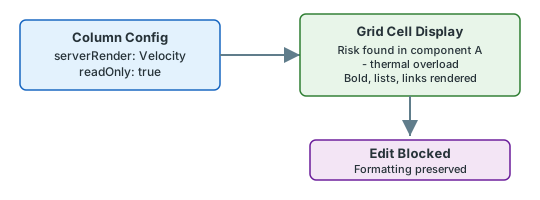
If you need to display rich text content with full formatting but do not need users to edit the field inline, render the field through a server-side Velocity template and mark the column read-only. HTML rendering in cells is handled by `serverRender` (Velocity), not by a column-level toggle:
```yaml theme={null}
columns:
- id: description
header: Description
bindings: description
readOnly: true
serverRender: "$item.fields().description().render().htmlFor().forFrame()"
```
The `serverRender` template emits the rendered HTML, preserving bold text, lists, links, and other HTML elements. Setting `readOnly: true` prevents users from editing the content through the grid, which protects the original formatting from being stripped.
## Understanding the Root Cause
Risksheet does not fully support editing rich text fields. The grid cell editor treats all content as plain text, which means HTML tags and formatting markup are stripped when you edit and save the cell. Because the save operation writes the edited plain text back to the Polarion work item XML, the formatting loss is permanent — the original HTML is overwritten.
This behavior affects any field that Polarion stores as rich text (`Text` type), including `description`, custom rich text fields, and any field where users have added HTML formatting through the Polarion work item editor.
Once you edit and save a rich text field through the Risksheet grid, the original HTML formatting cannot be recovered. The plain text value replaces the rich text content in the Polarion work item. Always use one of the workarounds below before allowing users to edit rich text fields in the grid.
The recommended workaround is to configure the column as type `text` instead of relying on rich text editing. This treats the field as plain text and prevents HTML formatting markup from being misinterpreted on save:
```yaml theme={null}
columns:
- id: description
header: Description
bindings: description
type: text
cellCss: wrapText
```
With `type: text`, the field is treated as plain text. Line breaks entered in the cell editor are preserved on save. Text wrapping is controlled via the `styles` section using a CSS class referenced by `cellCss` — not through a column-level boolean property:
```yaml theme={null}
styles:
'.wrapText': '{white-space: pre-wrap !important; word-break: break-word !important;}'
```
Setting the column `type` to `text` and applying a `cellCss` style with `white-space: pre-wrap` is the recommended approach for description fields, notes, and any field where users need to enter paragraph-style content. This avoids the rich text stripping issue while still allowing structured multi-line input.
The following table compares the behavior of each configuration option:
| Configuration | Editable | Line Breaks | HTML Formatting | Use Case |
| --------------------------------- | -------- | ------------ | ----------------- | ---------------------------------- |
| `type: text` + wrap style | Yes | Preserved | Not rendered | Multi-line descriptions, notes |
| `serverRender` + `readOnly: true` | No | Preserved | Rendered | Display-only formatted content |
| `serverRender` | No | Preserved | Full HTML control | Complex rendering, clickable links |
| Default (no type override) | Yes | Lost on edit | Stripped on edit | Avoid for rich text fields |
If you need to display rich text content with full formatting but do not need users to edit the field inline, render the field through a server-side Velocity template and mark the column read-only. HTML rendering in cells is handled by `serverRender` (Velocity), not by a column-level toggle:
```yaml theme={null}
columns:
- id: description
header: Description
bindings: description
readOnly: true
serverRender: "$item.fields().description().render().htmlFor().forFrame()"
```
The `serverRender` template emits the rendered HTML, preserving bold text, lists, links, and other HTML elements. Setting `readOnly: true` prevents users from editing the content through the grid, which protects the original formatting from being stripped.
 Users who need to modify the field content can open the work item directly in the Polarion work item editor, where full rich text editing is available.
For fields that require complex HTML rendering with clickable links, images, or custom formatting logic, use server-rendered columns with Velocity templates:
```yaml theme={null}
columns:
- id: description
header: Description
bindings: description
serverRender: "$item.fields().description().render().htmlFor().forFrame()"
```
For custom rich text fields, use the generic `get()` method with the field ID:
```yaml theme={null}
columns:
- id: riskNotes
header: Risk Notes
bindings: riskNotes
serverRender: "$item.fields().get('riskNotes').render().htmlFor().forFrame()"
```
Columns with `serverRender` are implicitly read-only — server-rendered content cannot be edited through the grid. This approach gives you full control over the display via Velocity templates while protecting the underlying rich text content from accidental modification.
When exporting to Excel or PDF, rich text fields behave differently depending on column configuration. Ensure your chosen approach produces acceptable export output:
| Column Type | Excel Export Behavior | PDF Export Behavior |
| ---------------------------------- | ---------------------------------------------------------------------------------------------- | ------------------------------------ |
| `type: text` | Plain text with line breaks preserved | Plain text with line breaks |
| `serverRender` (read-only display) | HTML stripped, plain text extracted | HTML stripped, plain text extracted |
| `serverRender` (complex template) | Server-rendered HTML converted to plain text; `` elements become newline-separated entries | HTML content converted to plain text |
There is a known issue where PDF export may truncate text in cells due to a cell height calculation regression. If you notice truncated text in PDF exports of rich text or multi-line columns, this is a known bug with a fix planned at highest priority. Multi-page risks may also exhibit unwanted text repetition in PDF output.
## Decision Matrix: Choosing the Right Approach
Use this matrix to select the best configuration for your specific scenario:
Users who need to modify the field content can open the work item directly in the Polarion work item editor, where full rich text editing is available.
For fields that require complex HTML rendering with clickable links, images, or custom formatting logic, use server-rendered columns with Velocity templates:
```yaml theme={null}
columns:
- id: description
header: Description
bindings: description
serverRender: "$item.fields().description().render().htmlFor().forFrame()"
```
For custom rich text fields, use the generic `get()` method with the field ID:
```yaml theme={null}
columns:
- id: riskNotes
header: Risk Notes
bindings: riskNotes
serverRender: "$item.fields().get('riskNotes').render().htmlFor().forFrame()"
```
Columns with `serverRender` are implicitly read-only — server-rendered content cannot be edited through the grid. This approach gives you full control over the display via Velocity templates while protecting the underlying rich text content from accidental modification.
When exporting to Excel or PDF, rich text fields behave differently depending on column configuration. Ensure your chosen approach produces acceptable export output:
| Column Type | Excel Export Behavior | PDF Export Behavior |
| ---------------------------------- | ---------------------------------------------------------------------------------------------- | ------------------------------------ |
| `type: text` | Plain text with line breaks preserved | Plain text with line breaks |
| `serverRender` (read-only display) | HTML stripped, plain text extracted | HTML stripped, plain text extracted |
| `serverRender` (complex template) | Server-rendered HTML converted to plain text; `` elements become newline-separated entries | HTML content converted to plain text |
There is a known issue where PDF export may truncate text in cells due to a cell height calculation regression. If you notice truncated text in PDF exports of rich text or multi-line columns, this is a known bug with a fix planned at highest priority. Multi-page risks may also exhibit unwanted text repetition in PDF output.
## Decision Matrix: Choosing the Right Approach
Use this matrix to select the best configuration for your specific scenario:
 ## Verification
After applying your chosen configuration:
1. Reload the Risksheet page to pick up the sheet configuration changes
2. If you used `type: text` — edit a cell, add line breaks, save, and confirm the line breaks persist after page reload
3. If you used a read-only `serverRender` column — verify the cell displays formatted content (bold, lists) and that clicking the cell does not open an editor
4. If you used `serverRender` with a complex template — verify the cell renders the Velocity output and that links are clickable
You should now see multi-line text content displayed with line breaks preserved in the Risksheet grid, with no formatting loss on save.
## See Also
* [Cell Editing Issues](/risksheet/troubleshooting/cell-editing-issues) -- for other cell editing problems
* [Save Operation Failures](/risksheet/troubleshooting/save-failures) -- for save-related errors after editing
* [Rendering and Display Errors](/risksheet/troubleshooting/rendering-errors) -- for display formatting issues
* [Export Performance Issues](/risksheet/troubleshooting/export-performance) -- for export-related problems including PDF truncation
## Verification
After applying your chosen configuration:
1. Reload the Risksheet page to pick up the sheet configuration changes
2. If you used `type: text` — edit a cell, add line breaks, save, and confirm the line breaks persist after page reload
3. If you used a read-only `serverRender` column — verify the cell displays formatted content (bold, lists) and that clicking the cell does not open an editor
4. If you used `serverRender` with a complex template — verify the cell renders the Velocity output and that links are clickable
You should now see multi-line text content displayed with line breaks preserved in the Risksheet grid, with no formatting loss on save.
## See Also
* [Cell Editing Issues](/risksheet/troubleshooting/cell-editing-issues) -- for other cell editing problems
* [Save Operation Failures](/risksheet/troubleshooting/save-failures) -- for save-related errors after editing
* [Rendering and Display Errors](/risksheet/troubleshooting/rendering-errors) -- for display formatting issues
* [Export Performance Issues](/risksheet/troubleshooting/export-performance) -- for export-related problems including PDF truncation