> ## Documentation Index
> Fetch the complete documentation index at: https://learn.nextedy.com/llms.txt
> Use this file to discover all available pages before exploring further.
# Menu Disappeared After Update
> Restore the Nextedy RISKSHEET menu in Polarion navigation after a plugin update by verifying the plugin installation and clearing cached configuration.
export const LastReviewed = ({date}) => {
if (!date) return null;
const formatted = new Date(`${date}T00:00:00Z`).toLocaleDateString("en-US", {
year: "numeric",
month: "long",
day: "numeric",
timeZone: "UTC"
});
return
Last reviewed on {formatted}
;
};
## Symptoms
After updating the Risksheet plugin, you may encounter:
* The Risksheet menu item is missing from the Polarion navigation bar
* The Setup and License pages in Polarion administration appear empty
* Risksheet features are completely unavailable despite the plugin files being present
A common update mistake is copying the new plugin version over the old one instead of deleting the old version first. Only **one version folder** per product is allowed in the Extensions directory.
1. Navigate to `[POLARION_INSTALL]/polarion/extensions/`
2. Look for Risksheet-related folders
3. Verify that only **one** Risksheet folder exists
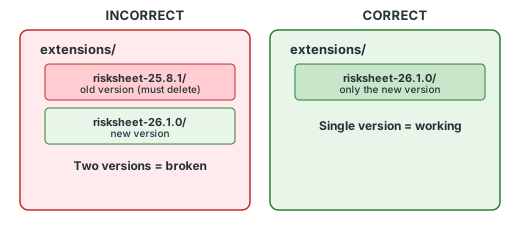 You must completely delete the previous plugin version folder from the Extensions directory **before** copying the new version. Having two versions simultaneously causes the menu to disappear and other unpredictable behavior.
After installing or updating the Risksheet plugin, you must clear the Polarion workspace cache:
1. Stop the Polarion server
2. Delete the directory: `[POLARION_INSTALL]/data/workspace/.config`
3. Optionally, also delete: `[POLARION_INSTALL]/data/workspace/.metadata`
Failure to delete the `[POLARION_INSTALL]/data/workspace/.config` directory after installation or update causes empty Setup and License pages in administration. This step is required for **both** fresh installations and updates.
1. Start the Polarion server service
2. Wait for the server to fully initialize (check server logs for startup completion)
3. Clear your browser cache or open a new incognito/private window
4. Navigate to the Polarion project where Risksheet is configured
After the Risksheet plugin loads successfully, confirm that the context menu and navigation items are available:
1. Open a Risksheet-enabled document
2. Right-click on any cell in the grid
3. Verify that menu options appear, including:
* Open Row Item
* Open Linked Item (when applicable)
* New Level Items (for creating risk items)
* Freeze Pane / Unfreeze Pane
| Menu Item | When Available |
| ---------------- | ----------------------------------------------------- |
| Open Row Item | Always available on data rows |
| Open Linked Item | When cell contains a valid item link |
| New Level Items | When `levels[].showInMenu` is `true` in configuration |
| Freeze Pane | Always available |
| Unfreeze Pane | When columns are currently frozen |
When debug/developer mode is active, a **Debug** option appears in the context menu that logs diagnostic information to the browser console. Debug mode is a developer/runtime mode and is **not** enabled through the sheet configuration — setting `debug: true` in the `global` section has no effect (the key is silently ignored).
## Verification
You should now see the Risksheet menu in the Polarion navigation bar and the Setup and License pages should display their full content in the administration panel. The context menu should appear when right-clicking cells in the Risksheet grid.
## See Also
* [Installation](/risksheet/getting-started/installation) -- for initial setup instructions
* [Rendering and Display Errors](/risksheet/troubleshooting/rendering-errors) -- for other display issues
* [Access Denied Errors](/risksheet/troubleshooting/access-denied) -- if menu is visible but access is denied
***
You must completely delete the previous plugin version folder from the Extensions directory **before** copying the new version. Having two versions simultaneously causes the menu to disappear and other unpredictable behavior.
After installing or updating the Risksheet plugin, you must clear the Polarion workspace cache:
1. Stop the Polarion server
2. Delete the directory: `[POLARION_INSTALL]/data/workspace/.config`
3. Optionally, also delete: `[POLARION_INSTALL]/data/workspace/.metadata`
Failure to delete the `[POLARION_INSTALL]/data/workspace/.config` directory after installation or update causes empty Setup and License pages in administration. This step is required for **both** fresh installations and updates.
1. Start the Polarion server service
2. Wait for the server to fully initialize (check server logs for startup completion)
3. Clear your browser cache or open a new incognito/private window
4. Navigate to the Polarion project where Risksheet is configured
After the Risksheet plugin loads successfully, confirm that the context menu and navigation items are available:
1. Open a Risksheet-enabled document
2. Right-click on any cell in the grid
3. Verify that menu options appear, including:
* Open Row Item
* Open Linked Item (when applicable)
* New Level Items (for creating risk items)
* Freeze Pane / Unfreeze Pane
| Menu Item | When Available |
| ---------------- | ----------------------------------------------------- |
| Open Row Item | Always available on data rows |
| Open Linked Item | When cell contains a valid item link |
| New Level Items | When `levels[].showInMenu` is `true` in configuration |
| Freeze Pane | Always available |
| Unfreeze Pane | When columns are currently frozen |
When debug/developer mode is active, a **Debug** option appears in the context menu that logs diagnostic information to the browser console. Debug mode is a developer/runtime mode and is **not** enabled through the sheet configuration — setting `debug: true` in the `global` section has no effect (the key is silently ignored).
## Verification
You should now see the Risksheet menu in the Polarion navigation bar and the Setup and License pages should display their full content in the administration panel. The context menu should appear when right-clicking cells in the Risksheet grid.
## See Also
* [Installation](/risksheet/getting-started/installation) -- for initial setup instructions
* [Rendering and Display Errors](/risksheet/troubleshooting/rendering-errors) -- for other display issues
* [Access Denied Errors](/risksheet/troubleshooting/access-denied) -- if menu is visible but access is denied
***