> ## Documentation Index
> Fetch the complete documentation index at: https://learn.nextedy.com/llms.txt
> Use this file to discover all available pages before exploring further.
# Configure Row Header Styles
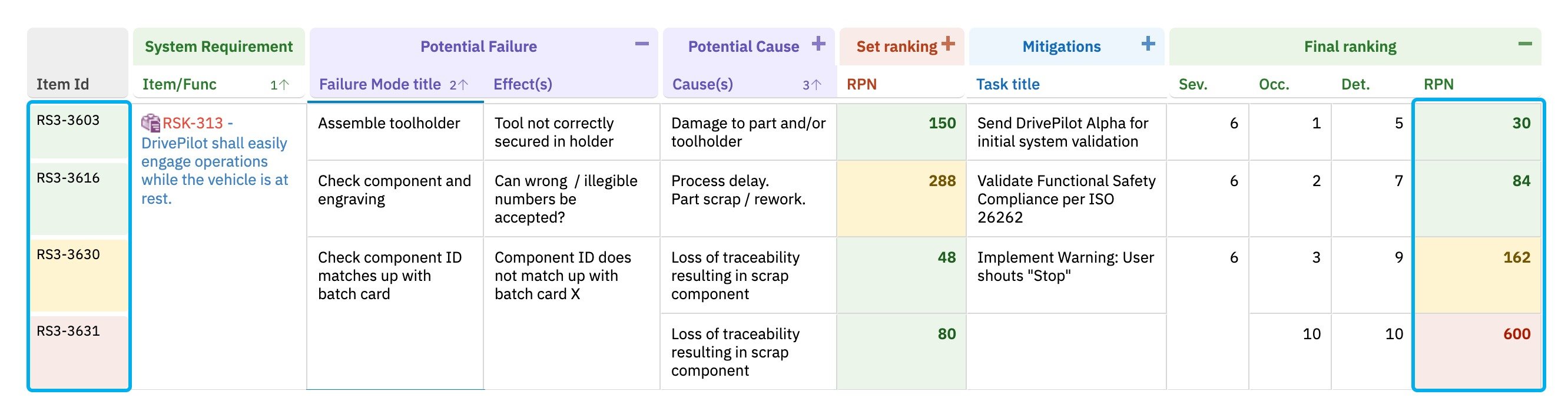
> Customize row headers with conditional coloring based on risk values such as Risk Priority Number (RPN) scores, giving an instant visual indicator of risk severity for each row in the Nextedy RISKSHEET grid.
export const LastReviewed = ({date}) => {
if (!date) return null;
const formatted = new Date(`${date}T00:00:00Z`).toLocaleDateString("en-US", {
year: "numeric",
month: "long",
day: "numeric",
timeZone: "UTC"
});
return
Last reviewed on {formatted}
;
};
## How Row Headers Work
Row headers appear on the left side of the grid and display the work item ID (`systemItemId`) for each row. You assign a custom renderer function in the sheet configuration that applies conditional CSS classes based on work item data.
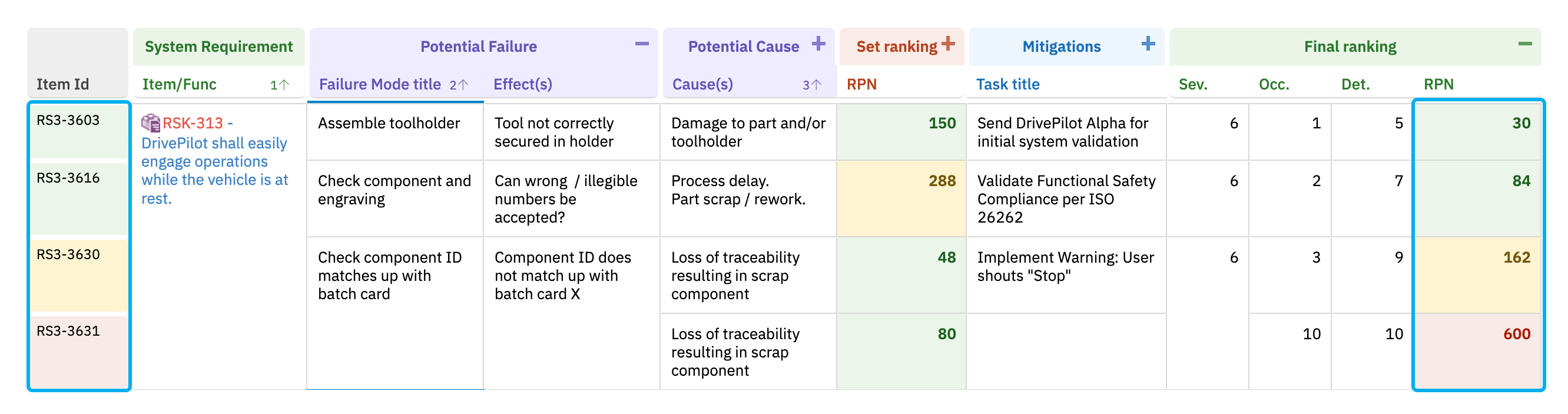 Row header renderers live in the `cellDecorators` section of the sheet configuration. Each function receives an `info` object exposing the cell and the underlying work item, and uses the jQuery `$(info.cell).toggleClass(...)` form to add or remove CSS class names on the header cell:
```yaml theme={null}
cellDecorators:
rowHeaderRpnNew: |
function(info) {
var val = info.item['rpnNew'];
$(info.cell).toggleClass('rpn1', val > 0 && val <= 150);
$(info.cell).toggleClass('rpn2', val > 150 && val <= 250);
$(info.cell).toggleClass('rpn3', val > 250);
}
```
The function uses `info.item['fieldId']` to access any field on the work item. In this example, it reads the `rpnNew` field (revised RPN after mitigations) and applies color classes based on configurable risk thresholds.
Use `info.item['fieldId']` to read any field from the current row's work item. For enum fields, the value is the enum ID, not the display name. For example, `info.item['severity']` returns `'5'`, not `'Critical'`.
Row header decorators use the same jQuery `$(info.cell).toggleClass('className', condition)` form as cell decorators for regular columns — this is the form the product's reference templates use. (The wijmo signature `wijmo.toggleClass(info.cell, 'className', condition)` is an equivalent alternative — it converts to the same `$(info.cell).toggleClass(...)` call — but it is not the canonical form.)
Reference the renderer function from the `headers.rowHeader.renderer` property:
```yaml theme={null}
headers:
rowHeader:
renderer: rowHeaderRpnNew
width: 80
```
The `renderer` value must match the key name in `cellDecorators` exactly.
The CSS classes referenced inside the renderer must be declared in the `styles` section. Each style value must be wrapped in `{}` braces:
```yaml theme={null}
styles:
'.rpn1': '{background-color: #eaf5e9 !important; color: #1d5f20 !important;}'
'.rpn2': '{background-color: #fff3d2 !important; color: #735602 !important;}'
'.rpn3': '{background-color: #f8eae7 !important; color: #ab1c00 !important;}'
```
Use `!important` so the row header styling overrides the default grid theme.
Row header renderers live in the `cellDecorators` section of the sheet configuration. Each function receives an `info` object exposing the cell and the underlying work item, and uses the jQuery `$(info.cell).toggleClass(...)` form to add or remove CSS class names on the header cell:
```yaml theme={null}
cellDecorators:
rowHeaderRpnNew: |
function(info) {
var val = info.item['rpnNew'];
$(info.cell).toggleClass('rpn1', val > 0 && val <= 150);
$(info.cell).toggleClass('rpn2', val > 150 && val <= 250);
$(info.cell).toggleClass('rpn3', val > 250);
}
```
The function uses `info.item['fieldId']` to access any field on the work item. In this example, it reads the `rpnNew` field (revised RPN after mitigations) and applies color classes based on configurable risk thresholds.
Use `info.item['fieldId']` to read any field from the current row's work item. For enum fields, the value is the enum ID, not the display name. For example, `info.item['severity']` returns `'5'`, not `'Critical'`.
Row header decorators use the same jQuery `$(info.cell).toggleClass('className', condition)` form as cell decorators for regular columns — this is the form the product's reference templates use. (The wijmo signature `wijmo.toggleClass(info.cell, 'className', condition)` is an equivalent alternative — it converts to the same `$(info.cell).toggleClass(...)` call — but it is not the canonical form.)
Reference the renderer function from the `headers.rowHeader.renderer` property:
```yaml theme={null}
headers:
rowHeader:
renderer: rowHeaderRpnNew
width: 80
```
The `renderer` value must match the key name in `cellDecorators` exactly.
The CSS classes referenced inside the renderer must be declared in the `styles` section. Each style value must be wrapped in `{}` braces:
```yaml theme={null}
styles:
'.rpn1': '{background-color: #eaf5e9 !important; color: #1d5f20 !important;}'
'.rpn2': '{background-color: #fff3d2 !important; color: #735602 !important;}'
'.rpn3': '{background-color: #f8eae7 !important; color: #ab1c00 !important;}'
```
Use `!important` so the row header styling overrides the default grid theme.
 ## Row Header Renderer with Enum Values
For row headers colored by an enum field such as severity, compare against the enum IDs (not the display labels):
```yaml theme={null}
cellDecorators:
rowHeaderBySeverity: |
function(info) {
var sev = info.item['severity'];
$(info.cell).toggleClass('sevLow', sev === '1' || sev === '2');
$(info.cell).toggleClass('sevMed', sev === '3');
$(info.cell).toggleClass('sevHigh', sev === '4' || sev === '5');
}
```
Row header renderers compare against enum IDs, not display names. If your severity enum entry has `id: '5'` and `name: 'Critical'`, compare against `'5'`, not `'Critical'`. This is a frequent source of styling issues.
## Row Header Merging
When using multi-level hierarchies, row headers merge vertically for consecutive rows that share the same `systemItemId`. This creates a single colored header cell spanning multiple sub-rows:
* Multiple rows belonging to the same work item (for example, multiple causes for one failure mode) display a single merged row header.
* The merged row header color is based on the parent work item's field values, evaluated once per group.
## Complete Example
A minimal end-to-end sheet configuration that wires together `headers`, `cellDecorators`, and `styles`:
```yaml theme={null}
headers:
rowHeader:
renderer: rowHeaderRpnNew
width: 85
columnHeader:
height: 36
cellDecorators:
rowHeaderRpnNew: |
function(info) {
var val = info.item['rpnNew'];
$(info.cell).toggleClass('rpn1', val > 0 && val <= 150);
$(info.cell).toggleClass('rpn2', val > 150 && val <= 250);
$(info.cell).toggleClass('rpn3', val > 250);
}
styles:
'.rpn1': '{background-color: #eaf5e9 !important; color: #1d5f20 !important;}'
'.rpn2': '{background-color: #fff3d2 !important; color: #735602 !important;}'
'.rpn3': '{background-color: #f8eae7 !important; color: #ab1c00 !important;}'
```
RPN thresholds are user-configurable. The values 150 and 250 above match one production deployment; other deployments use different boundaries (for example, simple low/medium/high band labels). Pick thresholds that match your project's risk acceptance criteria.
## Troubleshooting
| Problem | Cause | Solution |
| -------------------------- | -------------------------------------------- | --------------------------------------------------------------------------------------------------------------- |
| Row header has no color | Renderer name mismatch | Verify `headers.rowHeader.renderer` matches the `cellDecorators` key exactly |
| Color always the same | Comparing display name instead of ID | Use enum IDs in comparisons, not display names |
| Styles not applying | Missing `!important` or unbraced style value | Add `!important` and wrap each style value in `{}` braces |
| Calculated values empty | Data imported but not edited in Risksheet | Edit items in Risksheet or use data sync (v24.5.1+) |
| Old colors stuck on a cell | Forgetting to use `toggleClass` | Always use `$(info.cell).toggleClass(...)` so previous classes are removed when the condition no longer matches |
## Verification
After saving your sheet configuration changes and reloading the page, you should see:
* Row header cells colored based on the field values evaluated by your renderer.
* Low-risk items with green row headers, medium with yellow, and high with red (for the RPN-based example).
* Merged row headers maintaining a single consistent color across hierarchical multi-level row groups.
## See Also
* [Configure Cell Styles](/risksheet/guides/styling/cell-styles) — style definition fundamentals
* [Apply Conditional Formatting](/risksheet/guides/styling/conditional-formatting) — cell decorator function reference
* [Configure Item Colors](/risksheet/guides/styling/item-colors) — severity-based coloring patterns
* [Styling and Formatting](/risksheet/guides/styling/index) — overview of all styling options
## Row Header Renderer with Enum Values
For row headers colored by an enum field such as severity, compare against the enum IDs (not the display labels):
```yaml theme={null}
cellDecorators:
rowHeaderBySeverity: |
function(info) {
var sev = info.item['severity'];
$(info.cell).toggleClass('sevLow', sev === '1' || sev === '2');
$(info.cell).toggleClass('sevMed', sev === '3');
$(info.cell).toggleClass('sevHigh', sev === '4' || sev === '5');
}
```
Row header renderers compare against enum IDs, not display names. If your severity enum entry has `id: '5'` and `name: 'Critical'`, compare against `'5'`, not `'Critical'`. This is a frequent source of styling issues.
## Row Header Merging
When using multi-level hierarchies, row headers merge vertically for consecutive rows that share the same `systemItemId`. This creates a single colored header cell spanning multiple sub-rows:
* Multiple rows belonging to the same work item (for example, multiple causes for one failure mode) display a single merged row header.
* The merged row header color is based on the parent work item's field values, evaluated once per group.
## Complete Example
A minimal end-to-end sheet configuration that wires together `headers`, `cellDecorators`, and `styles`:
```yaml theme={null}
headers:
rowHeader:
renderer: rowHeaderRpnNew
width: 85
columnHeader:
height: 36
cellDecorators:
rowHeaderRpnNew: |
function(info) {
var val = info.item['rpnNew'];
$(info.cell).toggleClass('rpn1', val > 0 && val <= 150);
$(info.cell).toggleClass('rpn2', val > 150 && val <= 250);
$(info.cell).toggleClass('rpn3', val > 250);
}
styles:
'.rpn1': '{background-color: #eaf5e9 !important; color: #1d5f20 !important;}'
'.rpn2': '{background-color: #fff3d2 !important; color: #735602 !important;}'
'.rpn3': '{background-color: #f8eae7 !important; color: #ab1c00 !important;}'
```
RPN thresholds are user-configurable. The values 150 and 250 above match one production deployment; other deployments use different boundaries (for example, simple low/medium/high band labels). Pick thresholds that match your project's risk acceptance criteria.
## Troubleshooting
| Problem | Cause | Solution |
| -------------------------- | -------------------------------------------- | --------------------------------------------------------------------------------------------------------------- |
| Row header has no color | Renderer name mismatch | Verify `headers.rowHeader.renderer` matches the `cellDecorators` key exactly |
| Color always the same | Comparing display name instead of ID | Use enum IDs in comparisons, not display names |
| Styles not applying | Missing `!important` or unbraced style value | Add `!important` and wrap each style value in `{}` braces |
| Calculated values empty | Data imported but not edited in Risksheet | Edit items in Risksheet or use data sync (v24.5.1+) |
| Old colors stuck on a cell | Forgetting to use `toggleClass` | Always use `$(info.cell).toggleClass(...)` so previous classes are removed when the condition no longer matches |
## Verification
After saving your sheet configuration changes and reloading the page, you should see:
* Row header cells colored based on the field values evaluated by your renderer.
* Low-risk items with green row headers, medium with yellow, and high with red (for the RPN-based example).
* Merged row headers maintaining a single consistent color across hierarchical multi-level row groups.
## See Also
* [Configure Cell Styles](/risksheet/guides/styling/cell-styles) — style definition fundamentals
* [Apply Conditional Formatting](/risksheet/guides/styling/conditional-formatting) — cell decorator function reference
* [Configure Item Colors](/risksheet/guides/styling/item-colors) — severity-based coloring patterns
* [Styling and Formatting](/risksheet/guides/styling/index) — overview of all styling options