> ## Documentation Index
> Fetch the complete documentation index at: https://learn.nextedy.com/llms.txt
> Use this file to discover all available pages before exploring further.
# Use the AI Assistant
> Run an AI Assistant action on a risk row in Nextedy RISKSHEET — find candidate harms, controls, or linked items in your Polarion project, review the rationale, and apply a suggestion into the sheet.
export const LastReviewed = ({date}) => {
if (!date) return null;
const formatted = new Date(`${date}T00:00:00Z`).toLocaleDateString("en-US", {
year: "numeric",
month: "long",
day: "numeric",
timeZone: "UTC"
});
return
Last reviewed on {formatted}
;
};
The **AI Assistant** searches your own Polarion project for work items that fit the risk row you are working on, explains why each one fits, and links the ones you choose into the sheet. This guide covers the task from the analyst's side: running an action, reading what comes back, and applying it.
For what the assistant is doing behind the panel, see [AI Assistant](/risksheet/concepts/ai-assistant). For setting it up, see [Configure the AI Assistant](/risksheet/guides/administration/configure-the-ai-assistant).
## Prerequisites
* The **Nextedy AI** package is installed on your Polarion server and a valid **Nextedy AI** license is in place.
* The assistant is enabled for your project, and your administrator has configured at least one action.
* You have edit rights on the sheet — applying a suggestion is an ordinary sheet edit.
If the sparkle button is greyed out, or missing entirely, the assistant is not available to you yet — **hover it and the tooltip names the reason**, whether that is the package, the license, or actions not yet configured. [Toolbar and Risksheet Menu](/risksheet/reference/toolbar) lists every state, and [Configure the AI Assistant](/risksheet/guides/administration/configure-the-ai-assistant) covers what an administrator needs to do.
## Run an action
There are two ways in, and they do the same thing.
Click any cell in the risk row. The assistant always works on the row your cursor is in, so this is the one decision that matters most — it is the entire input to the action.
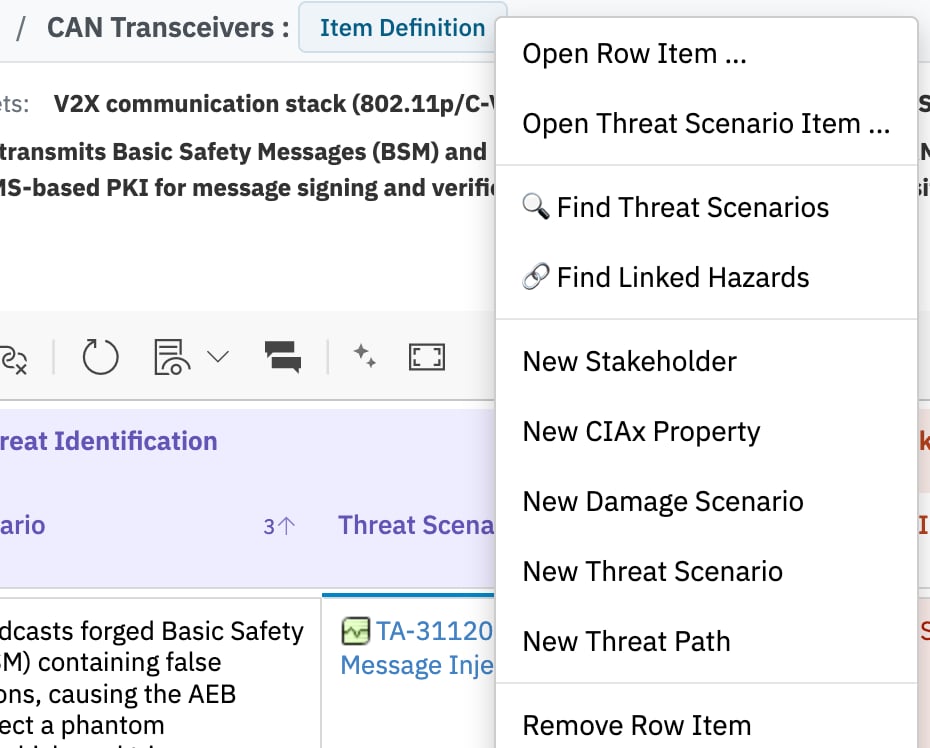
**From the cell menu** — right-click the cell and pick the action. AI actions sit together in their own group, after the **Open … Item** entries and before the **New …** entries. Choosing one runs it straight away and opens the assistant panel for you.
**From the panel** — click the sparkle **AI Assistant** button at the right-hand end of the toolbar to open the panel, then pick an action from the list.
Which actions you see in the cell menu depends on the column you right-clicked: an action can be restricted to particular columns, so a "Find Harms" action may only appear on the hazard columns. The panel's list is not filtered, so it always shows everything configured for the sheet.
The panel reports progress while it works — **Processing query...**, then **Searching project data...**, then **Analyzing and ranking candidates...** — and then lists what it found. It searches your project as you, so it only ever finds items you have permission to see.
 ## Read the results
Each recommendation is one work item from your project, with:
* its **ID and title**, taken from Polarion rather than from the model;
* a **one-sentence rationale** for why it matches your row;
* an **Apply** link that writes it into the sheet.
Above them the panel echoes back the context it sent — the row, and the fields your administrator chose to pass. That is worth a glance when a result looks wrong: an odd suggestion is usually an odd input.
Treat the rationale as the model's opinion about relevance, not as a measurement. The panel's standing note — *"AI can make mistakes. Verify suggestions before applying."* — is the operating instruction, and in a regulated analysis you remain the author of every link you accept.
### When nothing comes back
Two messages mean two different things:
| Message | What it means | What to try |
| --------------------------------------------------------------------------------------------- | ----------------------------------------------------------------------------------------------------------------------------------------------------------------- | ----------------------------------------------------------------------------------------------------------------------------------------------------------- |
| **No matching items found in the project.** | Nothing in your project matched the row. The items may not exist yet, may be of a different work-item type, or may sit outside your permissions. | Check the item you expected actually exists and is of the type the column accepts. Widen the row's wording — the assistant works from the text in your row. |
| **No verified matches found. The AI suggested items that don't exist in the search results.** | Nothing the assistant proposed could be matched to a real work item in your project, so it showed you nothing rather than a suggestion it could not stand behind. | The row's context is probably too thin to choose from. Fill in the descriptive fields and run the action again. |
Neither message means the assistant is broken. Both are it declining to guess.
## Apply a suggestion
Click **Apply** on a recommendation and Risksheet writes the link into the column the action targets. What happens next depends on the column:
| Target column | Cell empty | Cell already filled |
| ------------------- | ---------------------------------------- | -------------------------------------------------------------------------------------- |
| **Task link** | The link is written into your row. | Your value is left alone and a **new task row** is created for the recommendation. |
| **Item link** | The link is written into your row. | Your value is left alone and a **new row** is added at the level that owns the column. |
| **Multi item link** | The recommendation is added to the cell. | The recommendation is **appended** alongside the values already there. |
**Applying never overwrites a value you already have.** On a single-link column with something in it, the assistant creates a new row rather than replacing your work — so applying several recommendations to a filled column grows the sheet. Check the row count afterwards if you apply in bulk.
Once the link is written, Risksheet fetches the item from Polarion and fills in the columns derived from it, so the row looks the same as if you had linked it by hand.
### Undo and save
Applying is an ordinary sheet edit: it lands in the grid, and it becomes permanent when you **save** the sheet. Applying into an empty cell is registered with the sheet's undo, so you can step it back the usual way before saving.
Applying to a filled column creates a row. Removing that row is the way back — see [Remove or Delete a Risk](/risksheet/guides/risk-management/remove-delete-risk).
## Start over
The circular-arrow **New conversation** button in the panel header clears the panel and returns you to the action list without re-running anything. The **Close** button closes the panel; your applied changes stay in the sheet either way.
Running the same action again on a row you have not touched returns the same answer. Change something in the row, or move to a different one, to get a fresh result.
## Getting better results
The assistant is only as good as the row it reads. In practice:
* **Fill in the descriptive fields before asking.** A hazard row with a one-word hazard gives the assistant almost nothing to go on.
* **Write phrases that share vocabulary with your target items.** Matching is loose rather than exact, so one distinctive noun helps more than a long sentence.
* **Avoid leaning on abbreviations.** Very short terms such as "UV" or "CO" do not help the assistant find anything — spell the concept out somewhere in the row.
* **Ask on the right column.** An action is written for a particular target column, and only the work-item types that column accepts can come back.
If a whole action consistently disappoints across many rows, that is a configuration matter rather than a usage one — the wording of its prompts is the lever, and it belongs with your administrator.
## See Also
* [AI Assistant](/risksheet/concepts/ai-assistant) — what the assistant does, what context is sent, and where its limits are
* [Configure the AI Assistant](/risksheet/guides/administration/configure-the-ai-assistant) — enable it and define actions
* [AI Action Configuration](/risksheet/reference/configuration/ai-action-configuration) — the action file reference
* [Configure HARA Workflows](/risksheet/guides/risk-management/hara-configuration) — the HARA sheet an action typically runs on
* [Configure FMEA Workflows](/risksheet/guides/risk-management/fmea-configuration) — the FMEA equivalent
* [Undo and Redo](/risksheet/guides/advanced/undo-redo) — how the sheet's undo stack behaves
## Read the results
Each recommendation is one work item from your project, with:
* its **ID and title**, taken from Polarion rather than from the model;
* a **one-sentence rationale** for why it matches your row;
* an **Apply** link that writes it into the sheet.
Above them the panel echoes back the context it sent — the row, and the fields your administrator chose to pass. That is worth a glance when a result looks wrong: an odd suggestion is usually an odd input.
Treat the rationale as the model's opinion about relevance, not as a measurement. The panel's standing note — *"AI can make mistakes. Verify suggestions before applying."* — is the operating instruction, and in a regulated analysis you remain the author of every link you accept.
### When nothing comes back
Two messages mean two different things:
| Message | What it means | What to try |
| --------------------------------------------------------------------------------------------- | ----------------------------------------------------------------------------------------------------------------------------------------------------------------- | ----------------------------------------------------------------------------------------------------------------------------------------------------------- |
| **No matching items found in the project.** | Nothing in your project matched the row. The items may not exist yet, may be of a different work-item type, or may sit outside your permissions. | Check the item you expected actually exists and is of the type the column accepts. Widen the row's wording — the assistant works from the text in your row. |
| **No verified matches found. The AI suggested items that don't exist in the search results.** | Nothing the assistant proposed could be matched to a real work item in your project, so it showed you nothing rather than a suggestion it could not stand behind. | The row's context is probably too thin to choose from. Fill in the descriptive fields and run the action again. |
Neither message means the assistant is broken. Both are it declining to guess.
## Apply a suggestion
Click **Apply** on a recommendation and Risksheet writes the link into the column the action targets. What happens next depends on the column:
| Target column | Cell empty | Cell already filled |
| ------------------- | ---------------------------------------- | -------------------------------------------------------------------------------------- |
| **Task link** | The link is written into your row. | Your value is left alone and a **new task row** is created for the recommendation. |
| **Item link** | The link is written into your row. | Your value is left alone and a **new row** is added at the level that owns the column. |
| **Multi item link** | The recommendation is added to the cell. | The recommendation is **appended** alongside the values already there. |
**Applying never overwrites a value you already have.** On a single-link column with something in it, the assistant creates a new row rather than replacing your work — so applying several recommendations to a filled column grows the sheet. Check the row count afterwards if you apply in bulk.
Once the link is written, Risksheet fetches the item from Polarion and fills in the columns derived from it, so the row looks the same as if you had linked it by hand.
### Undo and save
Applying is an ordinary sheet edit: it lands in the grid, and it becomes permanent when you **save** the sheet. Applying into an empty cell is registered with the sheet's undo, so you can step it back the usual way before saving.
Applying to a filled column creates a row. Removing that row is the way back — see [Remove or Delete a Risk](/risksheet/guides/risk-management/remove-delete-risk).
## Start over
The circular-arrow **New conversation** button in the panel header clears the panel and returns you to the action list without re-running anything. The **Close** button closes the panel; your applied changes stay in the sheet either way.
Running the same action again on a row you have not touched returns the same answer. Change something in the row, or move to a different one, to get a fresh result.
## Getting better results
The assistant is only as good as the row it reads. In practice:
* **Fill in the descriptive fields before asking.** A hazard row with a one-word hazard gives the assistant almost nothing to go on.
* **Write phrases that share vocabulary with your target items.** Matching is loose rather than exact, so one distinctive noun helps more than a long sentence.
* **Avoid leaning on abbreviations.** Very short terms such as "UV" or "CO" do not help the assistant find anything — spell the concept out somewhere in the row.
* **Ask on the right column.** An action is written for a particular target column, and only the work-item types that column accepts can come back.
If a whole action consistently disappoints across many rows, that is a configuration matter rather than a usage one — the wording of its prompts is the lever, and it belongs with your administrator.
## See Also
* [AI Assistant](/risksheet/concepts/ai-assistant) — what the assistant does, what context is sent, and where its limits are
* [Configure the AI Assistant](/risksheet/guides/administration/configure-the-ai-assistant) — enable it and define actions
* [AI Action Configuration](/risksheet/reference/configuration/ai-action-configuration) — the action file reference
* [Configure HARA Workflows](/risksheet/guides/risk-management/hara-configuration) — the HARA sheet an action typically runs on
* [Configure FMEA Workflows](/risksheet/guides/risk-management/fmea-configuration) — the FMEA equivalent
* [Undo and Redo](/risksheet/guides/advanced/undo-redo) — how the sheet's undo stack behaves