> ## Documentation Index
> Fetch the complete documentation index at: https://learn.nextedy.com/llms.txt
> Use this file to discover all available pages before exploring further.
# Configure Remove/Delete Actions
> Control how risk items and downstream tasks are removed from the Nextedy RISKSHEET grid by choosing among permanent deletion, recycle bin retention, and status-based soft-delete strategies.
export const LastReviewed = ({date}) => {
if (!date) return null;
const formatted = new Date(`${date}T00:00:00Z`).toLocaleDateString("en-US", {
year: "numeric",
month: "long",
day: "numeric",
timeZone: "UTC"
});
return
Last reviewed on {formatted}
;
};
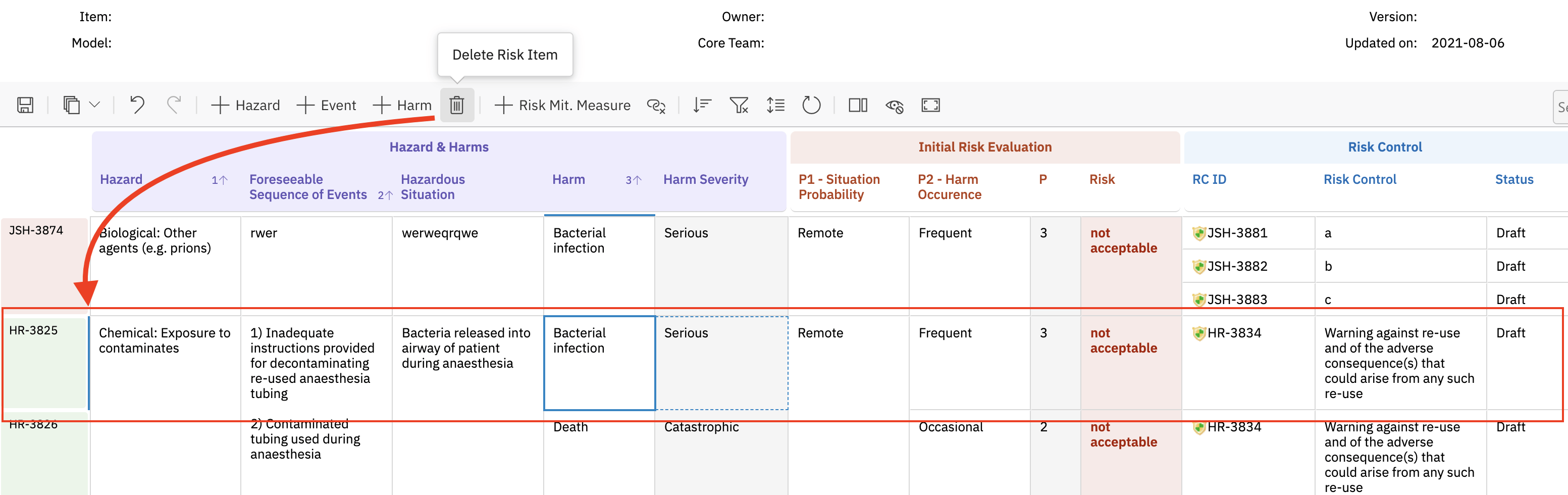 The `dataTypes.risk.removeStrategy` property in the sheet configuration determines what happens when a user removes a risk item from the grid. Risksheet supports four removal strategies. The default is `delete`, which permanently removes the work item from Polarion:
```yaml theme={null}
dataTypes:
risk:
type: fmeaRisk
role: has_risk
removeStrategy: delete
```
| Strategy | Behavior | Recoverable | Version |
| ------------- | ------------------------------------------------------------------ | ---------------------------------- | ------------ |
| `delete` | Permanently deletes the Polarion work item | No | All versions |
| `rejected` | Transitions the item to a rejected status, hiding it from the grid | Yes, via workflow transition | All versions |
| `recycle_bin` | Moves the work item to a hidden recycle bin instead of deleting it | Yes, via recycle bin restore | All versions |
| `hide` | Item remains but is filtered out by `rejectedStatus` | Yes, by clearing the status filter | v23.7.7+ |
The `dataTypes.risk.removeStrategy` property in the sheet configuration determines what happens when a user removes a risk item from the grid. Risksheet supports four removal strategies. The default is `delete`, which permanently removes the work item from Polarion:
```yaml theme={null}
dataTypes:
risk:
type: fmeaRisk
role: has_risk
removeStrategy: delete
```
| Strategy | Behavior | Recoverable | Version |
| ------------- | ------------------------------------------------------------------ | ---------------------------------- | ------------ |
| `delete` | Permanently deletes the Polarion work item | No | All versions |
| `rejected` | Transitions the item to a rejected status, hiding it from the grid | Yes, via workflow transition | All versions |
| `recycle_bin` | Moves the work item to a hidden recycle bin instead of deleting it | Yes, via recycle bin restore | All versions |
| `hide` | Item remains but is filtered out by `rejectedStatus` | Yes, by clearing the status filter | v23.7.7+ |
 For regulated environments where traceability requires preserving all risk items (for example, ISO 26262, ISO 14971), the `rejected`, `recycle_bin`, or `hide` strategies are recommended over hard `delete`. The `hide` strategy (v23.7.7+) is the lightest touch — the work item is untouched, and visibility is controlled purely through the configured `rejectedStatus` filter.
For the `rejected` and `hide` strategies, configure the rejected status properties in the sheet configuration. These hide the item from the grid by transitioning it to (or filtering it by) a specific workflow state:
```yaml theme={null}
dataTypes:
risk:
type: fmeaRisk
role: has_risk
removeStrategy: rejected
rejectedAction: reject
rejectedStatus: rejected
rejectedResolution: invalid
```
| Property | Default | Description |
| -------------------- | ---------- | ------------------------------------------------------------------------------- |
| `rejectedAction` | `reject` | Workflow action to execute when removing the item (used by `rejected`) |
| `rejectedStatus` | `rejected` | Target status after the action executes; also the status that `hide` filters on |
| `rejectedResolution` | `invalid` | Resolution value set on the work item |
When a user removes a risk item with the `rejected` strategy, Risksheet executes the workflow action, setting the item's status and resolution. Items in the `rejectedStatus` are automatically filtered from the grid view. With `hide`, the work item itself stays unchanged — only the grid's filter on `rejectedStatus` controls visibility.
The `rejectedAction` must correspond to a valid workflow action available from the item's current state. If the action does not exist or is not reachable, the removal fails with a "No rejected action found" error. Verify the workflow configuration in Polarion's workflow editor.
Work items imported via the Polarion XLSX importer may fail to delete even when manually created items delete without error. The "No rejected action found" error indicates a workflow mismatch specific to imported items. Verify that the `rejectedAction` is available from the workflow state assigned to imported work items.
Ensure your Polarion work item workflow supports the configured transition:
1. Open the Polarion workflow editor for your risk work item type
2. Verify that the `reject` action (or your configured `rejectedAction`) is available from all active states
3. Confirm the action transitions to the `rejected` status (or your configured `rejectedStatus`)
4. Ensure the `rejected` status allows the configured resolution value
The Polarion resolution field cannot be directly displayed or edited in the Risksheet grid. Use `rejectedAction`, `rejectedStatus`, and `rejectedResolution` in the `dataTypes` section of the sheet configuration to handle rejection automatically through the workflow.
Risksheet does not support electronic signatures for rejection workflows due to Polarion API limitations. If your process requires signatures when rejecting items, split the rejection into a Risksheet action (without signature) and a separate Polarion workflow action (with signature) performed outside Risksheet.
Downstream task items have their own removal logic with two distinct behaviors depending on whether the risk item has single or multiple tasks:
* **Multiple tasks**: the task row is deleted from the grid, and the link relationship is removed
* **Single task**: the task fields are cleared from the row, but the risk item row is preserved
All task removal operations are fully undoable through the undo function.
Tasks linked to a risk item with the read-only flag set are protected from removal. Use Polarion permissions on the underlying task work item type to enforce stricter constraints when needed.
To prevent users from creating new items directly in Risksheet (ensuring all required fields are filled in Polarion), the sheet configuration offers two controls:
* Set `canCreate: false` on `dataTypes.task` to globally disable task creation from the grid
* Set `canCreate: false` on individual `itemLink`, `multiItemLink`, or `taskLink` column configurations to allow linking existing items only
```yaml theme={null}
dataTypes:
task:
type: mitigation
role: mitigates
canCreate: false
columns:
- bindings: linkedReq
type: itemLink
canCreate: false
```
The toolbar delete button removes the entire row from the grid. To clear only a cell's content without removing the row, use the keyboard Delete key instead.
## Verification
After saving your sheet configuration:
1. Open a Risksheet document with risk items
2. Right-click on a risk item to open the context menu
3. Select the remove option
4. For `delete`: confirm the item is permanently removed from Polarion
5. For `rejected`: confirm the item disappears from the grid and that its status and resolution match the configured values in Polarion
6. For `recycle_bin`: confirm the item is no longer visible in Polarion's main views but can be recovered from the recycle bin
7. For `hide` (v23.7.7+): confirm the item is hidden from the grid but still exists unchanged in Polarion, and reappears when the `rejectedStatus` filter is cleared
You should now see the configured remove behavior when deleting risk items. With any non-`delete` strategy, items are hidden from Risksheet but remain as work items in Polarion — all data continues to live in Polarion and is subject to Polarion authorization and audit. You can find soft-removed items using Polarion queries that include the rejected status, and restore them by changing the status back to an active state.
## See Also
* [Configure Multiple Risk Types](/risksheet/guides/risk-management/multiple-risk-types) — risk type configuration
* [Configure Downstream Tasks](/risksheet/guides/risk-management/downstream-tasks) — task data type setup
* [Configure Permissions](/risksheet/guides/administration/permissions) — access control for removal actions
* [Customize the Context Menu](/risksheet/guides/customization/context-menu) — context menu options
* [Configure FMEA Workflows](/risksheet/guides/risk-management/fmea-configuration) — FMEA workflow with reject actions
For regulated environments where traceability requires preserving all risk items (for example, ISO 26262, ISO 14971), the `rejected`, `recycle_bin`, or `hide` strategies are recommended over hard `delete`. The `hide` strategy (v23.7.7+) is the lightest touch — the work item is untouched, and visibility is controlled purely through the configured `rejectedStatus` filter.
For the `rejected` and `hide` strategies, configure the rejected status properties in the sheet configuration. These hide the item from the grid by transitioning it to (or filtering it by) a specific workflow state:
```yaml theme={null}
dataTypes:
risk:
type: fmeaRisk
role: has_risk
removeStrategy: rejected
rejectedAction: reject
rejectedStatus: rejected
rejectedResolution: invalid
```
| Property | Default | Description |
| -------------------- | ---------- | ------------------------------------------------------------------------------- |
| `rejectedAction` | `reject` | Workflow action to execute when removing the item (used by `rejected`) |
| `rejectedStatus` | `rejected` | Target status after the action executes; also the status that `hide` filters on |
| `rejectedResolution` | `invalid` | Resolution value set on the work item |
When a user removes a risk item with the `rejected` strategy, Risksheet executes the workflow action, setting the item's status and resolution. Items in the `rejectedStatus` are automatically filtered from the grid view. With `hide`, the work item itself stays unchanged — only the grid's filter on `rejectedStatus` controls visibility.
The `rejectedAction` must correspond to a valid workflow action available from the item's current state. If the action does not exist or is not reachable, the removal fails with a "No rejected action found" error. Verify the workflow configuration in Polarion's workflow editor.
Work items imported via the Polarion XLSX importer may fail to delete even when manually created items delete without error. The "No rejected action found" error indicates a workflow mismatch specific to imported items. Verify that the `rejectedAction` is available from the workflow state assigned to imported work items.
Ensure your Polarion work item workflow supports the configured transition:
1. Open the Polarion workflow editor for your risk work item type
2. Verify that the `reject` action (or your configured `rejectedAction`) is available from all active states
3. Confirm the action transitions to the `rejected` status (or your configured `rejectedStatus`)
4. Ensure the `rejected` status allows the configured resolution value
The Polarion resolution field cannot be directly displayed or edited in the Risksheet grid. Use `rejectedAction`, `rejectedStatus`, and `rejectedResolution` in the `dataTypes` section of the sheet configuration to handle rejection automatically through the workflow.
Risksheet does not support electronic signatures for rejection workflows due to Polarion API limitations. If your process requires signatures when rejecting items, split the rejection into a Risksheet action (without signature) and a separate Polarion workflow action (with signature) performed outside Risksheet.
Downstream task items have their own removal logic with two distinct behaviors depending on whether the risk item has single or multiple tasks:
* **Multiple tasks**: the task row is deleted from the grid, and the link relationship is removed
* **Single task**: the task fields are cleared from the row, but the risk item row is preserved
All task removal operations are fully undoable through the undo function.
Tasks linked to a risk item with the read-only flag set are protected from removal. Use Polarion permissions on the underlying task work item type to enforce stricter constraints when needed.
To prevent users from creating new items directly in Risksheet (ensuring all required fields are filled in Polarion), the sheet configuration offers two controls:
* Set `canCreate: false` on `dataTypes.task` to globally disable task creation from the grid
* Set `canCreate: false` on individual `itemLink`, `multiItemLink`, or `taskLink` column configurations to allow linking existing items only
```yaml theme={null}
dataTypes:
task:
type: mitigation
role: mitigates
canCreate: false
columns:
- bindings: linkedReq
type: itemLink
canCreate: false
```
The toolbar delete button removes the entire row from the grid. To clear only a cell's content without removing the row, use the keyboard Delete key instead.
## Verification
After saving your sheet configuration:
1. Open a Risksheet document with risk items
2. Right-click on a risk item to open the context menu
3. Select the remove option
4. For `delete`: confirm the item is permanently removed from Polarion
5. For `rejected`: confirm the item disappears from the grid and that its status and resolution match the configured values in Polarion
6. For `recycle_bin`: confirm the item is no longer visible in Polarion's main views but can be recovered from the recycle bin
7. For `hide` (v23.7.7+): confirm the item is hidden from the grid but still exists unchanged in Polarion, and reappears when the `rejectedStatus` filter is cleared
You should now see the configured remove behavior when deleting risk items. With any non-`delete` strategy, items are hidden from Risksheet but remain as work items in Polarion — all data continues to live in Polarion and is subject to Polarion authorization and audit. You can find soft-removed items using Polarion queries that include the rejected status, and restore them by changing the status back to an active state.
## See Also
* [Configure Multiple Risk Types](/risksheet/guides/risk-management/multiple-risk-types) — risk type configuration
* [Configure Downstream Tasks](/risksheet/guides/risk-management/downstream-tasks) — task data type setup
* [Configure Permissions](/risksheet/guides/administration/permissions) — access control for removal actions
* [Customize the Context Menu](/risksheet/guides/customization/context-menu) — context menu options
* [Configure FMEA Workflows](/risksheet/guides/risk-management/fmea-configuration) — FMEA workflow with reject actions