> ## Documentation Index
> Fetch the complete documentation index at: https://learn.nextedy.com/llms.txt
> Use this file to discover all available pages before exploring further.
# Configure Downstream Tasks
> Set up downstream task tracking to link mitigation actions, control measures, and corrective actions to risk items in your Nextedy RISKSHEET grid.
export const LastReviewed = ({date}) => {
if (!date) return null;
const formatted = new Date(`${date}T00:00:00Z`).toLocaleDateString("en-US", {
year: "numeric",
month: "long",
day: "numeric",
timeZone: "UTC"
});
return
Last reviewed on {formatted}
;
};
## Prerequisites
* A working Risksheet configuration with risk items displayed
* Access to the sheet configuration file (see [Find Configuration Files](/risksheet/guides/configuration/finding-config-files))
* A target Polarion work item type for tasks (e.g., `task`, `mitigationAction`, `countermeasure`)
* A link role in Polarion connecting risks to tasks (e.g., `mitigates`, `controls`)
Open the sheet configuration in the YAML editor and add a `task` entry under `dataTypes`. This tells Risksheet which work item type represents your downstream tasks, how they relate to risk items, and how they appear in the toolbar and zoom navigation.
```yaml theme={null}
dataTypes:
risk:
type: failureMode
task:
type: mitigationAction
role: mitigates
name: Mitigation
zoomColumn: taskTitle
```
| Property | Purpose |
| ------------ | --------------------------------------------------------------------------------------------------------------------------------- |
| `type` | The Polarion work item type ID for downstream items. Since v25.3.1, comma-separated values are supported for multiple task types. |
| `role` | The link role connecting risk items to task items. |
| `name` | Display name shown in the toolbar and right-click menu (for example, "Task", "Mitigation", "Safety Requirement"). |
| `zoomColumn` | Column ID that receives focus when a new task is created, enabling immediate inline editing. |
Set `name` and `zoomColumn` so users get a clear menu label and a meaningful entry point after task creation.
Add columns to display task properties in the grid. The `bindings` property maps each column to a Polarion field on the task work item. Columns bound to `task.*` fields automatically participate in task-level cell merging — sibling tasks belonging to the same risk are grouped visually.
```yaml theme={null}
columns:
- id: taskId
bindings: task.id
header: Task ID
type: taskLink
width: 120
- id: taskTitle
bindings: task.title
header: Mitigation Action
width: 250
- id: taskStatus
bindings: task.status
header: Status
type: enum:status
width: 120
```
Task columns have no `level` property — they merge by parent risk item plus task ID instead of joining the risk-item visual hierarchy.
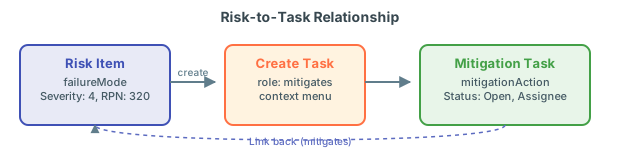 Two related properties control where Risksheet looks for tasks and where new tasks are created.
### Restrict task loading with `document`
Set `document` to a LiveDoc path to restrict which existing tasks Risksheet loads for the current risksheet. This is the recommended pattern when tasks are organized in a dedicated mitigation document.
```yaml theme={null}
dataTypes:
risk:
type: failureMode
task:
type: mitigationAction
role: mitigates
name: Mitigation
zoomColumn: taskTitle
document: Risks/FHA-SYS-001
```
With `document` set, only tasks residing in the specified LiveDoc are considered candidates — link traversal still applies, but the result is filtered to that document.
### Control where new tasks are placed
By default, new tasks are created in the Polarion project tracker. Two properties influence the destination:
```yaml theme={null}
dataTypes:
task:
type: mitigationAction
role: mitigates
name: Mitigation
zoomColumn: taskTitle
createInCurrentDocument: true
createInDocument: Risks/Tasks
```
| Property | Behavior | Version |
| ------------------------- | --------------------------------------------------------------------------------------------------------------------------- | ------------ |
| `createInCurrentDocument` | When `true`, new tasks are created in the same LiveDoc that hosts the risksheet. | All versions |
| `createInDocument` | Path to a target LiveDoc where new tasks are created. Use this when tasks live in a different document from the risk items. | v24.8.1+ |
If you omit both `createInCurrentDocument` and `createInDocument`, all new downstream items go to the project tracker rather than a LiveDoc document. This is the most common misconfiguration reported by users. Note that chapter-level placement within a document is not supported — items are added at the document root level.
For tasks that reside in a different Polarion project, use the `project` property for a single target or `projects` for multiple. The `projects` array form requires v23.7.0 or later.
```yaml theme={null}
dataTypes:
task:
type: mitigationAction
role: mitigates
name: Mitigation
zoomColumn: taskTitle
project: MitigationProject
```
For multiple target projects:
```yaml theme={null}
dataTypes:
task:
type: mitigationAction
role: mitigates
name: Mitigation
zoomColumn: taskTitle
projects:
- ProjectA
- ProjectB
```
Use `project` (singular) when all tasks belong to one target project. Use `projects` (plural array) when tasks may come from multiple projects. Mixing both is not supported. In clustered Polarion setups with separate servers, items cannot be linked across different server instances.
Prior to version 24.6.0, linking existing downstream items from another project required removing the task project column as a workaround. This issue was resolved in version 24.6.0.
To further narrow which tasks appear in the grid — for example, to exclude rejected or obsolete items — add a Lucene `query` to the task data type:
```yaml theme={null}
dataTypes:
task:
type: mitigationAction
role: mitigates
name: Mitigation
zoomColumn: taskTitle
document: Risks/Mitigations
query: NOT status:rejected
```
The query is combined with the link-role lookup and the optional `document` scope to produce the final task set.
Use `canCreate` at the data-type level to globally disable creating new tasks. When `false`, users can only link to existing items from a library:
```yaml theme={null}
dataTypes:
task:
type: mitigationAction
role: mitigates
name: Mitigation
zoomColumn: taskTitle
canCreate: false
```
This is useful when tasks are managed in a separate process and the risksheet should only reference them. Combine with column-level `canCreate: false` on individual task-link columns for finer control.
Risksheet supports multiple downstream tasks per risk item. When you add a task to an item that already has tasks:
1. The current record is cloned with task-level fields cleared.
2. A new unique task ID is generated automatically.
3. The new row is inserted immediately after all sibling tasks (grouped by `systemItemId`).
Tasks belonging to the same parent risk are kept together in the grid and always sorted by local ID in ascending order (for example, TASK-1, TASK-2, TASK-10). Unresolvable work items (deleted or inaccessible) are silently filtered out.
As of version 25.9.0, when you create a new task within a group that already has tasks, values from sibling items are automatically inherited, reducing manual data entry.
## Verification
After saving the sheet configuration:
1. Open the Risksheet in the configured LiveDoc document.
2. Right-click a risk item and select the option labeled by `dataTypes.task.name` (for example, **Create Mitigation**).
3. Verify the new task row appears below the risk item with an auto-generated ID.
4. Confirm the task lands in the correct location (current document, target document, or tracker).
5. Check that the `zoomColumn` receives focus for immediate editing.
6. If `document` is set, confirm only tasks from that LiveDoc load.
## See Also
* [Configure Downstream Traceability Columns](/risksheet/guides/columns/downstream-traceability) — column layout for task fields
* [Configure Multiple Downstream Types](/risksheet/guides/risk-management/multiple-downstream-types) — separate task categories
* [Configure Remove/Delete Actions](/risksheet/guides/risk-management/remove-delete-risk) — removing tasks from risk items
* [Configure Cross-Project Linking](/risksheet/guides/advanced/cross-project-linking) — cross-project relationships
* [Configure Target Document Creation](/risksheet/guides/advanced/target-document-creation) — document-scoped item creation
Two related properties control where Risksheet looks for tasks and where new tasks are created.
### Restrict task loading with `document`
Set `document` to a LiveDoc path to restrict which existing tasks Risksheet loads for the current risksheet. This is the recommended pattern when tasks are organized in a dedicated mitigation document.
```yaml theme={null}
dataTypes:
risk:
type: failureMode
task:
type: mitigationAction
role: mitigates
name: Mitigation
zoomColumn: taskTitle
document: Risks/FHA-SYS-001
```
With `document` set, only tasks residing in the specified LiveDoc are considered candidates — link traversal still applies, but the result is filtered to that document.
### Control where new tasks are placed
By default, new tasks are created in the Polarion project tracker. Two properties influence the destination:
```yaml theme={null}
dataTypes:
task:
type: mitigationAction
role: mitigates
name: Mitigation
zoomColumn: taskTitle
createInCurrentDocument: true
createInDocument: Risks/Tasks
```
| Property | Behavior | Version |
| ------------------------- | --------------------------------------------------------------------------------------------------------------------------- | ------------ |
| `createInCurrentDocument` | When `true`, new tasks are created in the same LiveDoc that hosts the risksheet. | All versions |
| `createInDocument` | Path to a target LiveDoc where new tasks are created. Use this when tasks live in a different document from the risk items. | v24.8.1+ |
If you omit both `createInCurrentDocument` and `createInDocument`, all new downstream items go to the project tracker rather than a LiveDoc document. This is the most common misconfiguration reported by users. Note that chapter-level placement within a document is not supported — items are added at the document root level.
For tasks that reside in a different Polarion project, use the `project` property for a single target or `projects` for multiple. The `projects` array form requires v23.7.0 or later.
```yaml theme={null}
dataTypes:
task:
type: mitigationAction
role: mitigates
name: Mitigation
zoomColumn: taskTitle
project: MitigationProject
```
For multiple target projects:
```yaml theme={null}
dataTypes:
task:
type: mitigationAction
role: mitigates
name: Mitigation
zoomColumn: taskTitle
projects:
- ProjectA
- ProjectB
```
Use `project` (singular) when all tasks belong to one target project. Use `projects` (plural array) when tasks may come from multiple projects. Mixing both is not supported. In clustered Polarion setups with separate servers, items cannot be linked across different server instances.
Prior to version 24.6.0, linking existing downstream items from another project required removing the task project column as a workaround. This issue was resolved in version 24.6.0.
To further narrow which tasks appear in the grid — for example, to exclude rejected or obsolete items — add a Lucene `query` to the task data type:
```yaml theme={null}
dataTypes:
task:
type: mitigationAction
role: mitigates
name: Mitigation
zoomColumn: taskTitle
document: Risks/Mitigations
query: NOT status:rejected
```
The query is combined with the link-role lookup and the optional `document` scope to produce the final task set.
Use `canCreate` at the data-type level to globally disable creating new tasks. When `false`, users can only link to existing items from a library:
```yaml theme={null}
dataTypes:
task:
type: mitigationAction
role: mitigates
name: Mitigation
zoomColumn: taskTitle
canCreate: false
```
This is useful when tasks are managed in a separate process and the risksheet should only reference them. Combine with column-level `canCreate: false` on individual task-link columns for finer control.
Risksheet supports multiple downstream tasks per risk item. When you add a task to an item that already has tasks:
1. The current record is cloned with task-level fields cleared.
2. A new unique task ID is generated automatically.
3. The new row is inserted immediately after all sibling tasks (grouped by `systemItemId`).
Tasks belonging to the same parent risk are kept together in the grid and always sorted by local ID in ascending order (for example, TASK-1, TASK-2, TASK-10). Unresolvable work items (deleted or inaccessible) are silently filtered out.
As of version 25.9.0, when you create a new task within a group that already has tasks, values from sibling items are automatically inherited, reducing manual data entry.
## Verification
After saving the sheet configuration:
1. Open the Risksheet in the configured LiveDoc document.
2. Right-click a risk item and select the option labeled by `dataTypes.task.name` (for example, **Create Mitigation**).
3. Verify the new task row appears below the risk item with an auto-generated ID.
4. Confirm the task lands in the correct location (current document, target document, or tracker).
5. Check that the `zoomColumn` receives focus for immediate editing.
6. If `document` is set, confirm only tasks from that LiveDoc load.
## See Also
* [Configure Downstream Traceability Columns](/risksheet/guides/columns/downstream-traceability) — column layout for task fields
* [Configure Multiple Downstream Types](/risksheet/guides/risk-management/multiple-downstream-types) — separate task categories
* [Configure Remove/Delete Actions](/risksheet/guides/risk-management/remove-delete-risk) — removing tasks from risk items
* [Configure Cross-Project Linking](/risksheet/guides/advanced/cross-project-linking) — cross-project relationships
* [Configure Target Document Creation](/risksheet/guides/advanced/target-document-creation) — document-scoped item creation