{label}
; }; This guide prepares a sheet for an approval round: a column that shows each risk's approval state, a column to invite approvers, and the settings for approval comments. Once it is done, reviewers approve from the Approvals sidebar as described in [Approve Risks in the Approvals Sidebar](/risksheet/guides/reviews/approve-risks-in-the-approvals-sidebar). For the background, see [Work Item Approvals](/risksheet/concepts/work-item-approvals). ## Prerequisites * You can edit the sheet configuration of the document or of its template (**Menu > Configuration > Edit Risksheet Configuration**). See [Find Configuration Files](/risksheet/guides/configuration/finding-config-files). * The people who will approve hold the Polarion **`project_approver`** role in the project, or the global **`approver`** role. The Approvers column offers only the holders of these two roles, so with neither assigned its list is empty. Once either role is defined, Polarion also lets only users who hold one of them approve. * Whoever invites approvers has the Polarion permission to manage other users' approvals on the items. Removing an approver who has already filed a verdict also needs the permission to reset approvals. * Reviewers have the Polarion permissions to modify approvals and to comment on the risk work items. ## Configure the Sheet
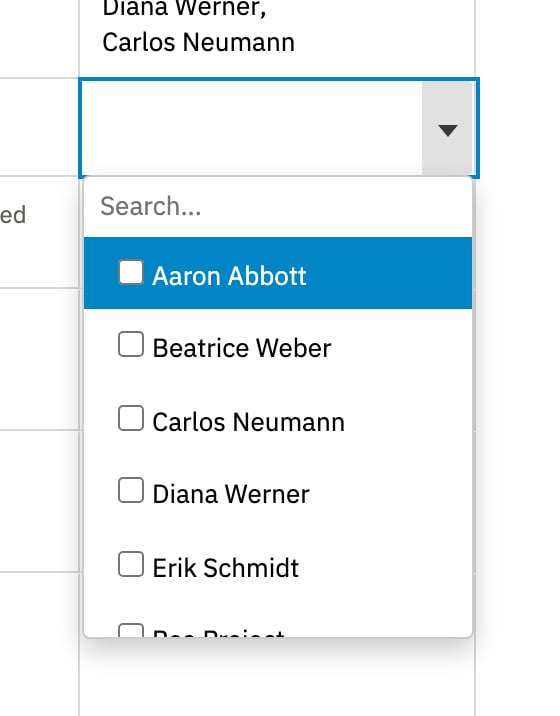
 Approvers can also be added or removed in Polarion; the sheet shows the same list.
## Switch Approvals Off for a Sheet
The Approvals sidebar is available on every sheet. To switch it off for one sheet, set:
```yaml theme={null}
approval:
enabled: false
```
The **Approvals** entries in the toolbar's sidebar menu and in **Menu > Process** then stay visible but disabled, and their tooltip tells the user that an administrator can turn approvals on in the sheet configuration. Approval columns configured on the sheet still show.
## Verify the Setup
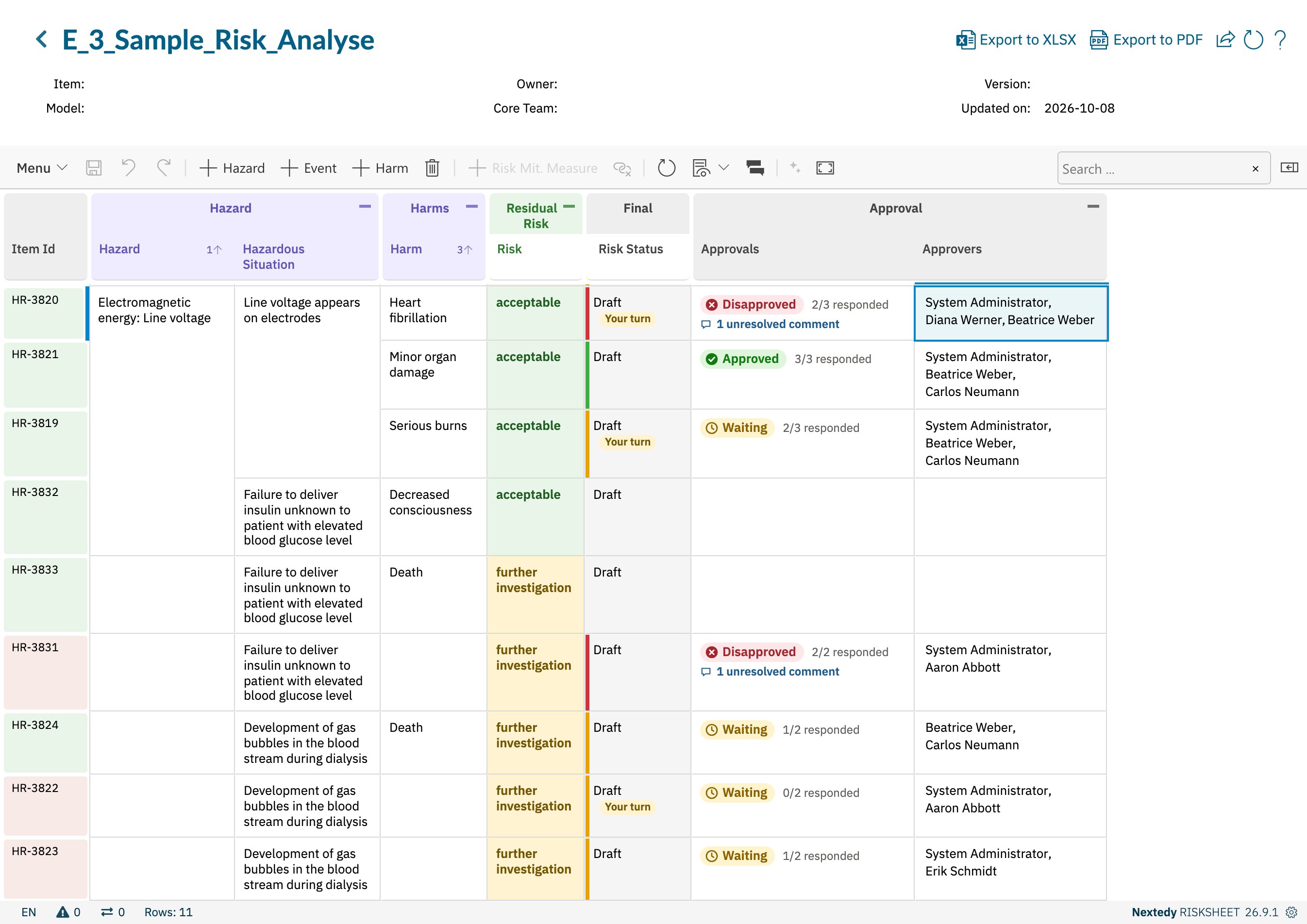
* The **Approvals** and **Approvers** columns appear, and risks with approvers show their state.
* The toolbar's sidebar menu, at the right end of the toolbar, offers **Approvals**.
* A reviewer who opens **Approvals** sees the risks waiting for their decision.
## Troubleshooting
| Symptom | Cause | Solution |
| - | - | - |
| The Approvers picker is empty | No user holds the `project_approver` or the `approver` role | Assign one of the roles to the people who approve |
| A user is missing from the Approvers picker | The user holds neither approver role | Assign the role, then reload the sheet |
| Saving an approver change fails for some rows | You lack the permission to manage approvals, or you removed an approver who had already filed a verdict without the permission to reset approvals | Ask your Polarion administrator for the permission, or ask someone who holds it |
| A cell decorator reading approvals sees no state | The sheet has no Approvals column for the row's own item | Add the column from step 1 |
| **Approvals** is disabled in the menus | The sheet sets `approval.enabled: false` | Remove the setting or set it to `true` |
## See Also
* [Work Item Approvals](/risksheet/concepts/work-item-approvals)
* [Approval Columns](/risksheet/reference/columns/approval-columns)
* [Approve Risks in the Approvals Sidebar](/risksheet/guides/reviews/approve-risks-in-the-approvals-sidebar)
* [Track an Approval Round](/risksheet/guides/reviews/track-an-approval-round)
Approvers can also be added or removed in Polarion; the sheet shows the same list.
## Switch Approvals Off for a Sheet
The Approvals sidebar is available on every sheet. To switch it off for one sheet, set:
```yaml theme={null}
approval:
enabled: false
```
The **Approvals** entries in the toolbar's sidebar menu and in **Menu > Process** then stay visible but disabled, and their tooltip tells the user that an administrator can turn approvals on in the sheet configuration. Approval columns configured on the sheet still show.
## Verify the Setup
* The **Approvals** and **Approvers** columns appear, and risks with approvers show their state.
* The toolbar's sidebar menu, at the right end of the toolbar, offers **Approvals**.
* A reviewer who opens **Approvals** sees the risks waiting for their decision.
## Troubleshooting
| Symptom | Cause | Solution |
| - | - | - |
| The Approvers picker is empty | No user holds the `project_approver` or the `approver` role | Assign one of the roles to the people who approve |
| A user is missing from the Approvers picker | The user holds neither approver role | Assign the role, then reload the sheet |
| Saving an approver change fails for some rows | You lack the permission to manage approvals, or you removed an approver who had already filed a verdict without the permission to reset approvals | Ask your Polarion administrator for the permission, or ask someone who holds it |
| A cell decorator reading approvals sees no state | The sheet has no Approvals column for the row's own item | Add the column from step 1 |
| **Approvals** is disabled in the menus | The sheet sets `approval.enabled: false` | Remove the setting or set it to `true` |
## See Also
* [Work Item Approvals](/risksheet/concepts/work-item-approvals)
* [Approval Columns](/risksheet/reference/columns/approval-columns)
* [Approve Risks in the Approvals Sidebar](/risksheet/guides/reviews/approve-risks-in-the-approvals-sidebar)
* [Track an Approval Round](/risksheet/guides/reviews/track-an-approval-round)