> ## Documentation Index
> Fetch the complete documentation index at: https://learn.nextedy.com/llms.txt
> Use this file to discover all available pages before exploring further.
# Approve Risks in the Approvals Sidebar
> Work through the risks waiting for your approval in Nextedy RISKSHEET: open the Approvals sidebar, filter the sheet to your queue, approve or disapprove with a comment, and save.
export const LastReviewed = ({date, state}) => {
if (!date) return null;
const formatted = new Date(`${date}T00:00:00Z`).toLocaleDateString("en-US", {
year: "numeric",
month: "long",
day: "numeric",
timeZone: "UTC"
});
const label = state === "reviewed" ? `Last reviewed and confirmed up to date on ${formatted}` : `Last updated on ${formatted}`;
return
{label}
;
};
As a reviewer you can file your Polarion approval on each risk directly in the sheet, next to the hazard, harm, ratings and risk controls the approval is about. This guide walks through one review session. For how approvals work, see [Work Item Approvals](/risksheet/concepts/work-item-approvals).
## Prerequisites
* The risks you review have you as an approver, or Polarion lets you approve without an invitation — every user may while neither the global `approver` role nor the project's `project_approver` role is defined, otherwise only users who hold one of them.
* You have the Polarion permission to modify approvals on the risk work items. To add an approval comment you also need permission to comment on them.
* The sheet has approvals switched on. They are on unless an administrator turned them off; see [Set Up Work Item Approvals](/risksheet/guides/reviews/set-up-work-item-approvals).
* You are looking at the current revision of the sheet. Approvals cannot be filed while you view a baseline or an older revision.
## Approve Your Risks
Open it in any of these ways:
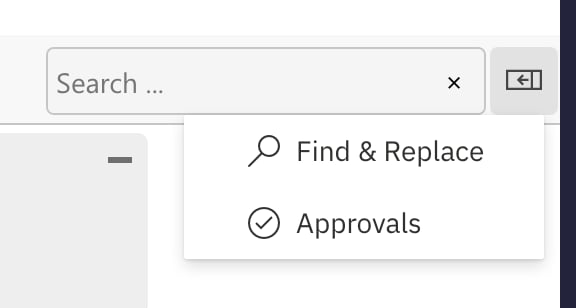
* Click the sidebar menu at the right end of the toolbar and choose **Approvals**.
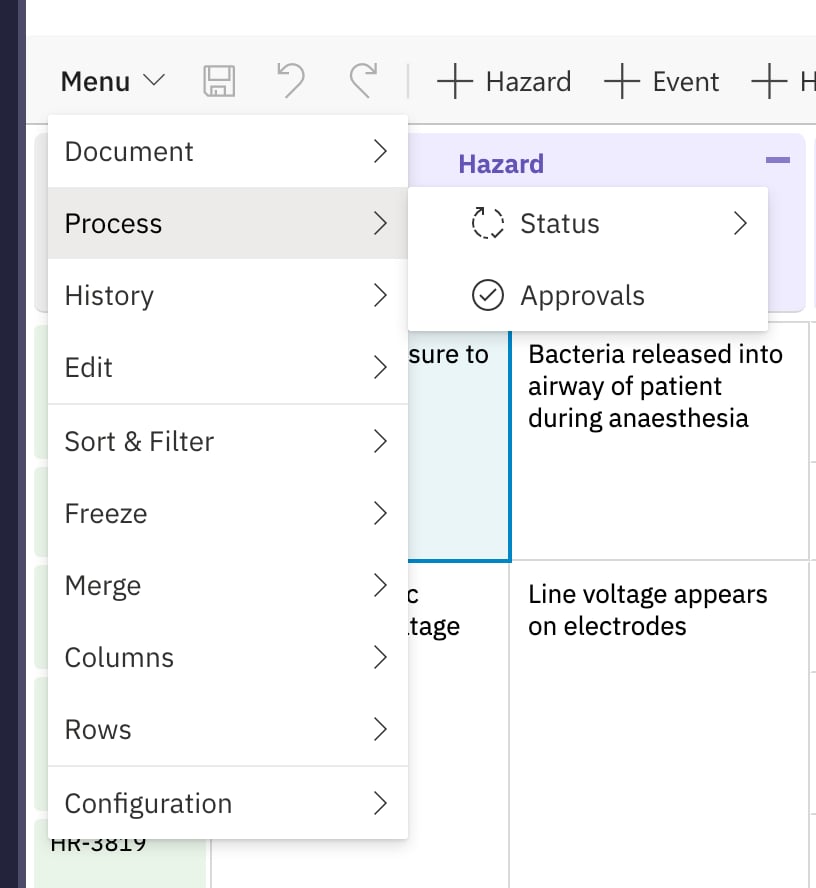
* Choose **Menu > Process > Approvals**.
* Click a cell of the sheet's own **Approvals** column. A column showing a linked item's approvals, such as `hazard.approvals`, does not open it.
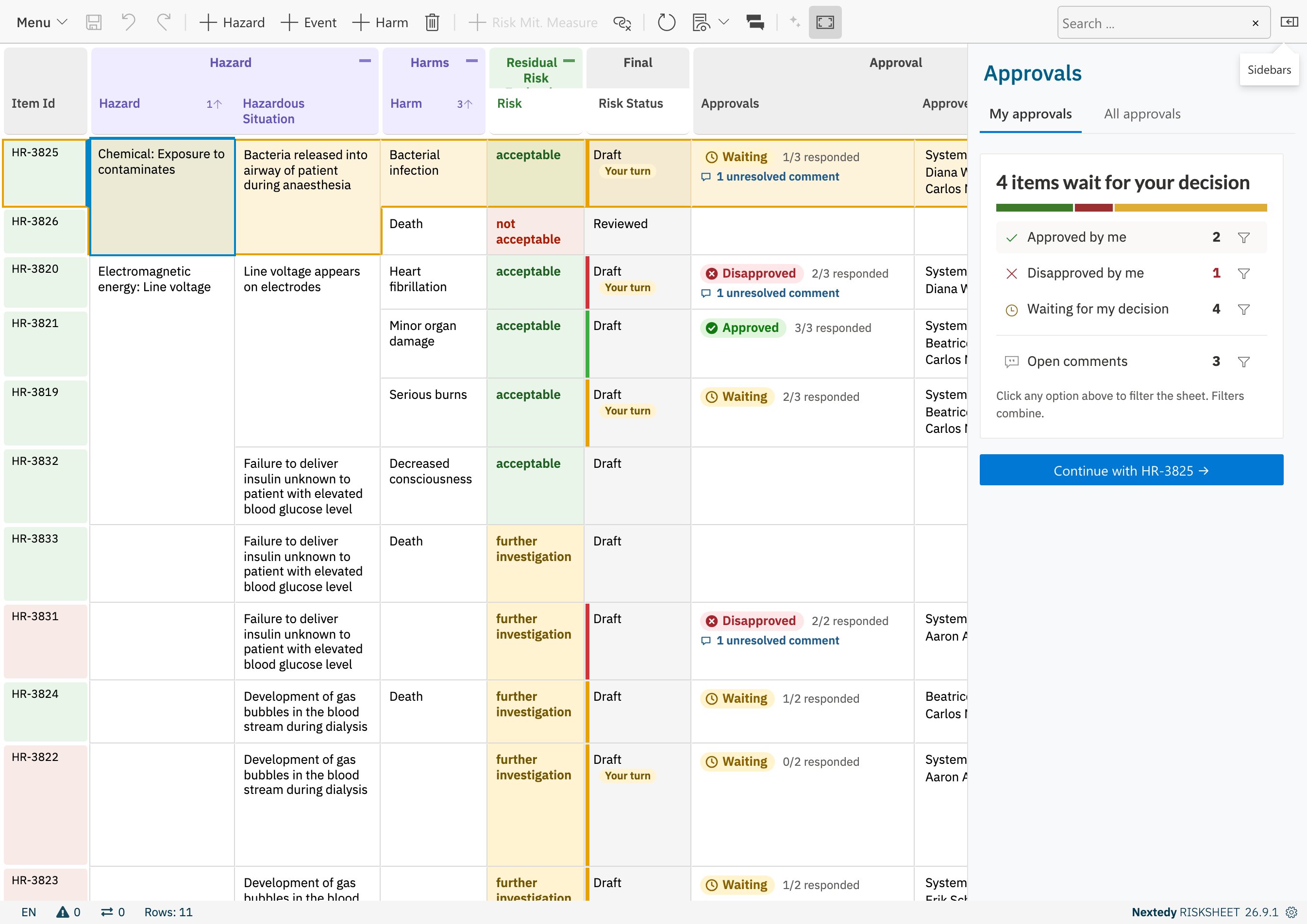
 The sidebar opens on **My approvals** and the sheet is maximised to give the grid more room; closing the sidebar restores the view. The row you are working on is outlined in the grid.
**My approvals** shows how many items wait for your decision, how many you approved or disapproved, and how many have open approval comments.
The sidebar opens on **My approvals** and the sheet is maximised to give the grid more room; closing the sidebar restores the view. The row you are working on is outlined in the grid.
**My approvals** shows how many items wait for your decision, how many you approved or disapproved, and how many have open approval comments.
 If you are not an approver on any item of the sheet, the sidebar says *Nothing is waiting for you* and offers **Open All approvals**; the next time you open it on that sheet, it opens on **All approvals**.
Click **Waiting for my decision**. The sheet now shows only the risks waiting for you, and the option is marked as on; click it again to switch it off.
You can click several options: the verdict options combine with each other, and **Open comments** narrows the result to items that also have an open discussion. The filter stays on while you move between items, and the other views show it as *Sheet filtered: Waiting for my decision* with a **Clear** link. Closing the sidebar lifts it too.
If you are not an approver on any item of the sheet, the sidebar says *Nothing is waiting for you* and offers **Open All approvals**; the next time you open it on that sheet, it opens on **All approvals**.
Click **Waiting for my decision**. The sheet now shows only the risks waiting for you, and the option is marked as on; click it again to switch it off.
You can click several options: the verdict options combine with each other, and **Open comments** narrows the result to items that also have an open discussion. The filter stays on while you move between items, and the other views show it as *Sheet filtered: Waiting for my decision* with a **Clear** link. Closing the sidebar lifts it too.
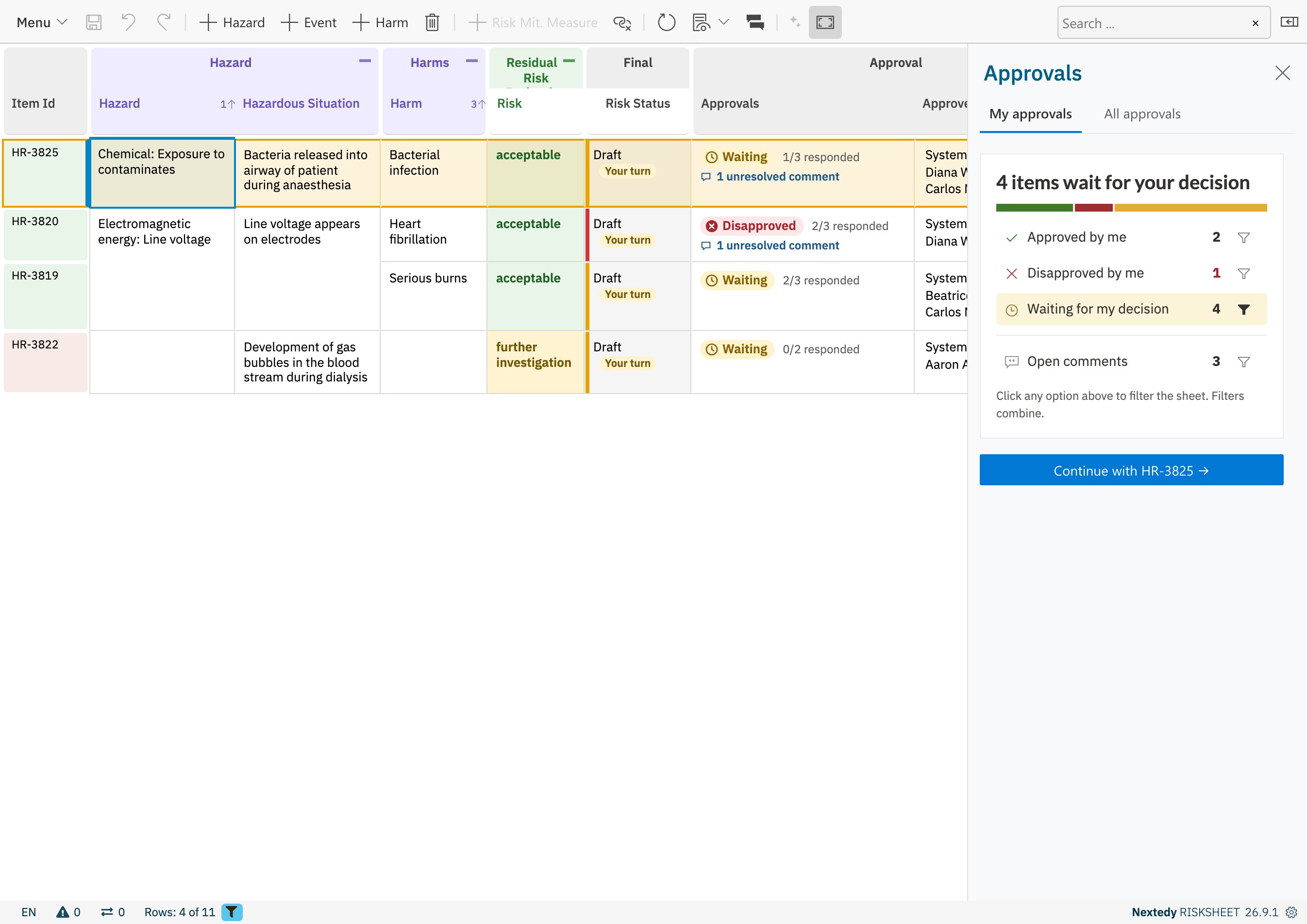 Click **Continue with** followed by the risk's ID. If you have selected a row in the grid, the button names that row's risk; otherwise it names the first risk waiting for you.
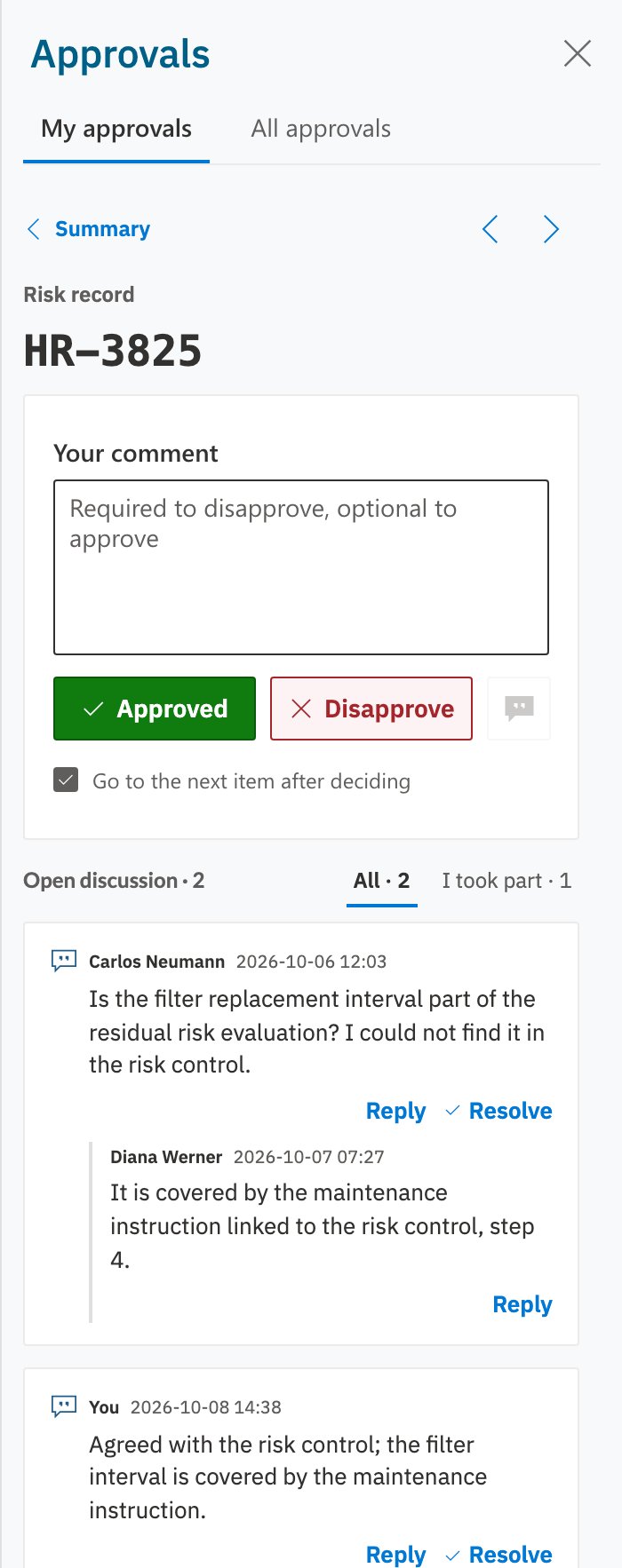
The sidebar shows the risk record, a comment box, the **Approve** and **Disapprove** buttons and the open approval discussion on the item. Click the risk's ID to scroll the grid to it. **Everyone's verdicts** shows how the other approvers decided.
Click **Continue with** followed by the risk's ID. If you have selected a row in the grid, the button names that row's risk; otherwise it names the first risk waiting for you.
The sidebar shows the risk record, a comment box, the **Approve** and **Disapprove** buttons and the open approval discussion on the item. Click the risk's ID to scroll the grid to it. **Everyone's verdicts** shows how the other approvers decided.
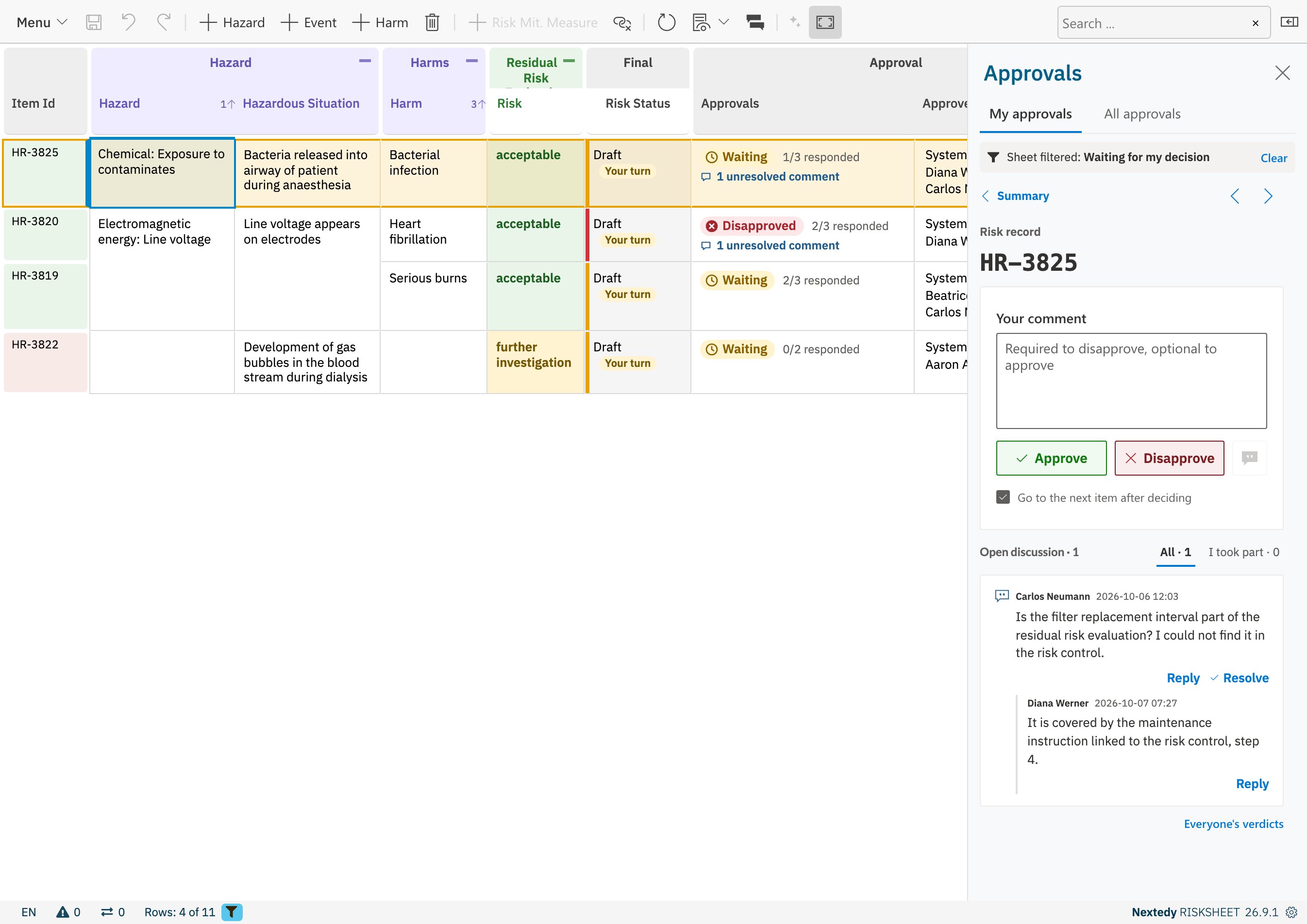 Type a comment if you want to explain your verdict, then click **Approve** or **Disapprove**. The comment is filed as an approval comment together with the verdict.
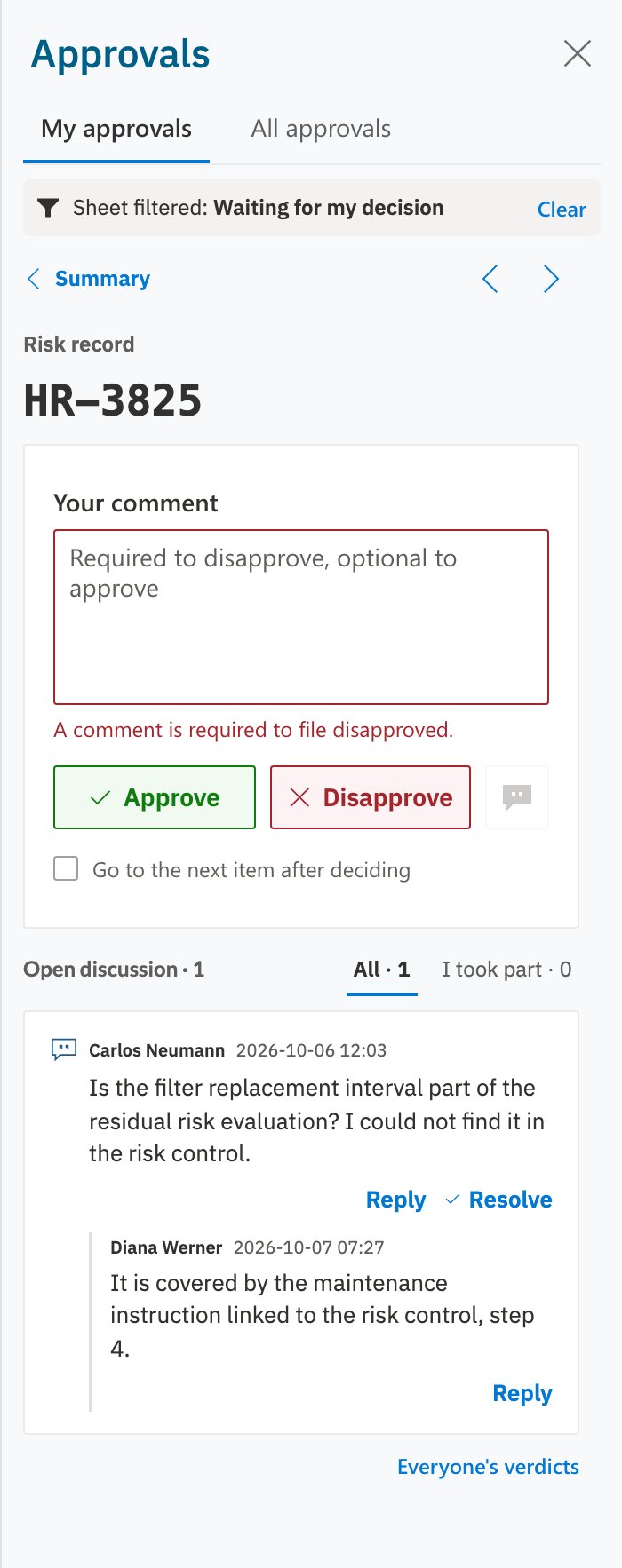
If the sheet requires a comment for that verdict, the box says so, and a verdict without one is refused:
Type a comment if you want to explain your verdict, then click **Approve** or **Disapprove**. The comment is filed as an approval comment together with the verdict.
If the sheet requires a comment for that verdict, the box says so, and a verdict without one is refused:
 With **Go to the next item after deciding** ticked, the sidebar moves on to the next risk waiting for you. Untick it to stay on the risk. The arrow buttons next to **Summary** step to the previous or next row of the sheet as it is currently shown.
You are not invited on a risk but allowed to approve it? The sidebar says so; filing a verdict adds you as an approver.
Your verdict is not yet in Polarion. The sidebar shows *You approved* with *Will file as Approved on save*, your comment is marked *unsaved*, and the row is marked as changed.
With **Go to the next item after deciding** ticked, the sidebar moves on to the next risk waiting for you. Untick it to stay on the risk. The arrow buttons next to **Summary** step to the previous or next row of the sheet as it is currently shown.
You are not invited on a risk but allowed to approve it? The sidebar says so; filing a verdict adds you as an approver.
Your verdict is not yet in Polarion. The sidebar shows *You approved* with *Will file as Approved on save*, your comment is marked *unsaved*, and the row is marked as changed.
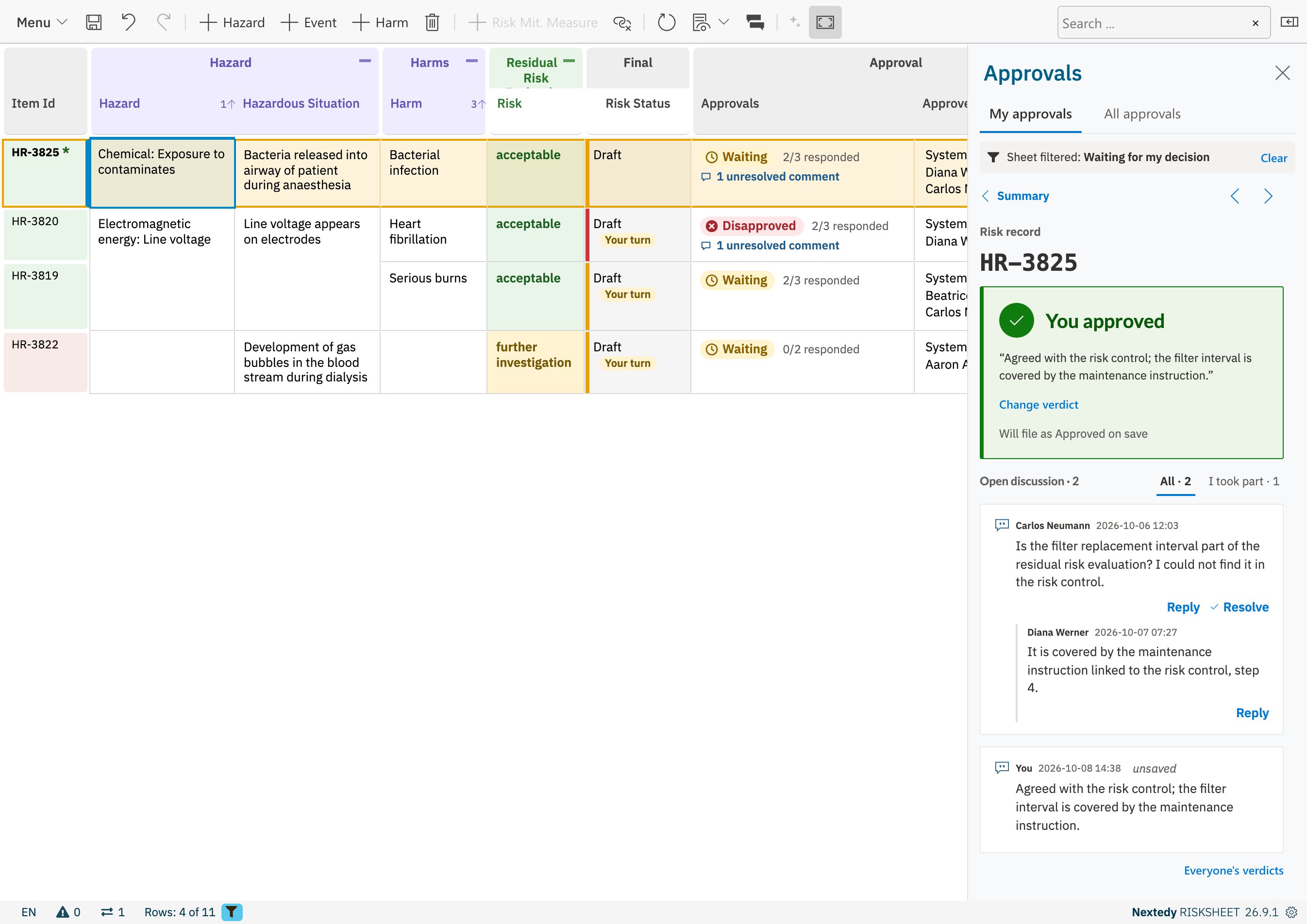 Click **Save** in the toolbar. The verdict and the comment are written to Polarion together with any other change you made in the sheet. Until you save, **Undo** takes the action back, and a short notification names what was undone; like any other unsaved change, a verdict you do not save is not filed.
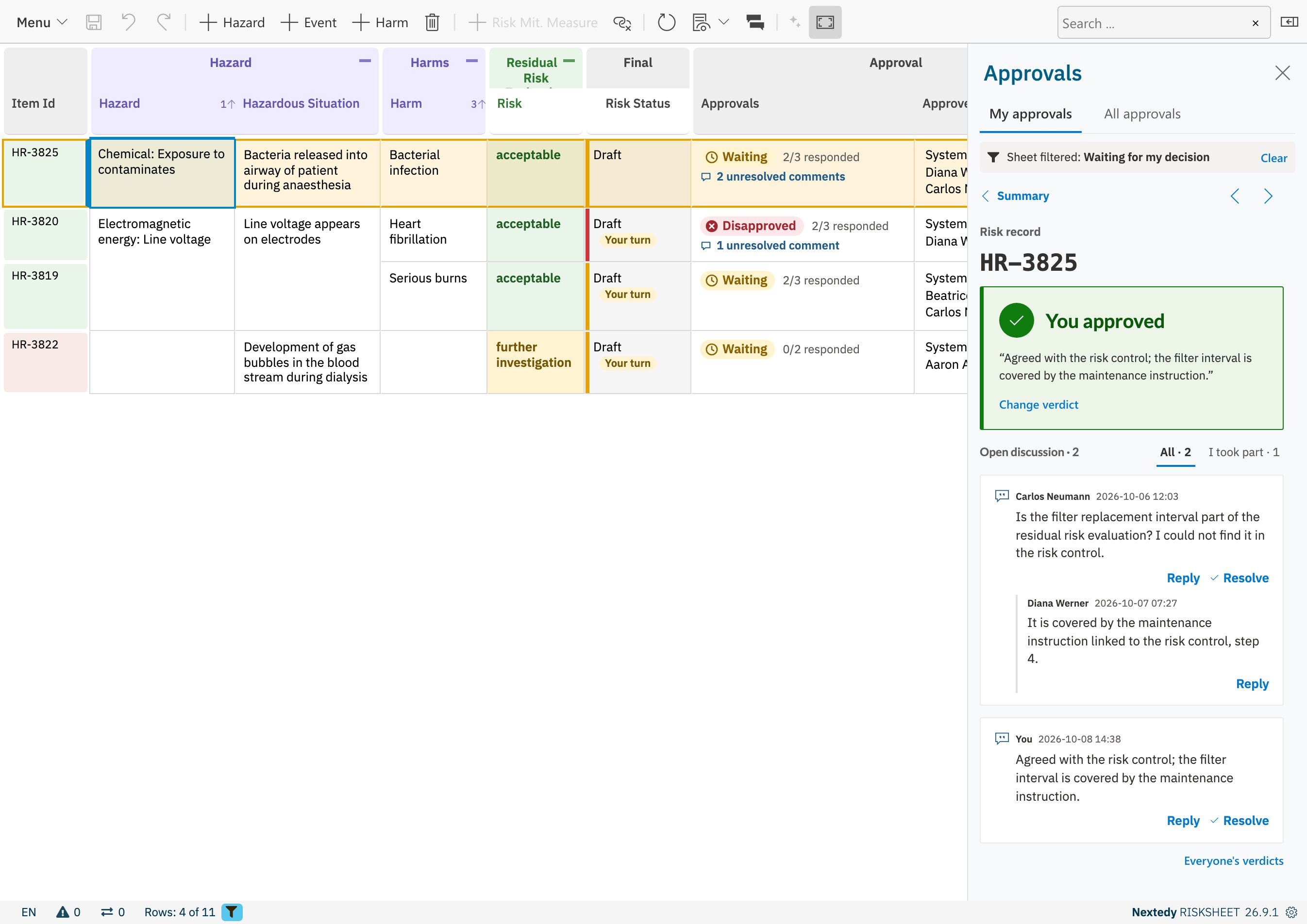 If Polarion refuses an approval change, a warning says *Some approval changes were not saved and are still pending.* with the reason. The refused change, and any approval change you queued after it on the same risk, stay pending; everything else is saved.
## Change or Withdraw Your Verdict
Click **Change verdict** on a risk you have decided. The button of your current verdict is shown filled; click the other one to change your mind, or click the filled one to reset your approval to *Waiting*. Resetting needs the Polarion permission to reset approvals; without it the filled button is disabled and its tooltip says so. Save to file the change.
If Polarion refuses an approval change, a warning says *Some approval changes were not saved and are still pending.* with the reason. The refused change, and any approval change you queued after it on the same risk, stay pending; everything else is saved.
## Change or Withdraw Your Verdict
Click **Change verdict** on a risk you have decided. The button of your current verdict is shown filled; click the other one to change your mind, or click the filled one to reset your approval to *Waiting*. Resetting needs the Polarion permission to reset approvals; without it the filled button is disabled and its tooltip says so. Save to file the change.
 ## Discuss an Approval
* **Comment without a verdict** — type in the comment box and click the comment button next to **Disapprove**. The comment is filed as an approval comment and your verdict stays as it is.
* **Reply** — click **Reply** under a comment. Replies stay in the comment's thread.
* **Resolve** — click **Resolve** to close a thread. Resolved threads are hidden unless you click **Show resolved**, or unless the sheet is set to show them.
* **I took part** — narrows the discussion to the threads you wrote in.
Comments, replies and resolving are saved with the sheet like verdicts.
## Troubleshooting
| Symptom | Cause | Solution |
| - | - | - |
| **Approve** and **Disapprove** are disabled with a message about an electronic signature | Polarion requires an electronic signature for approvals | File the approval in the Polarion Document View |
| The buttons are disabled with *You do not have the Polarion permission to file approvals on this item.* | You lack the permission to modify the item's approvals | Ask your Polarion administrator |
| *You are not among the users who may approve this item.* | The project defines an approver role you do not hold, and nobody invited you | Ask to be invited, or to be given the role |
| The buttons are disabled with *Approvals cannot be filed while viewing a baseline or an older revision.* | You are viewing a baseline, a comparison or an older revision | Open the current revision of the sheet |
| The comment button stays disabled | The comment box is empty, or you lack permission to comment on the item | Type a comment, or ask for the comment permission |
| **Approvals** is disabled in the menus | Approvals are switched off for this sheet | Ask the sheet's administrator |
| Your verdict still shows *Will file as … on save* | The sheet has not been saved | Click **Save** |
## See Also
* [Work Item Approvals](/risksheet/concepts/work-item-approvals)
* [Track an Approval Round](/risksheet/guides/reviews/track-an-approval-round)
* [Set Up Work Item Approvals](/risksheet/guides/reviews/set-up-work-item-approvals)
This documentation is built and hosted on [Mintlify](https://mintlify.com), a developer documentation platform.
## Discuss an Approval
* **Comment without a verdict** — type in the comment box and click the comment button next to **Disapprove**. The comment is filed as an approval comment and your verdict stays as it is.
* **Reply** — click **Reply** under a comment. Replies stay in the comment's thread.
* **Resolve** — click **Resolve** to close a thread. Resolved threads are hidden unless you click **Show resolved**, or unless the sheet is set to show them.
* **I took part** — narrows the discussion to the threads you wrote in.
Comments, replies and resolving are saved with the sheet like verdicts.
## Troubleshooting
| Symptom | Cause | Solution |
| - | - | - |
| **Approve** and **Disapprove** are disabled with a message about an electronic signature | Polarion requires an electronic signature for approvals | File the approval in the Polarion Document View |
| The buttons are disabled with *You do not have the Polarion permission to file approvals on this item.* | You lack the permission to modify the item's approvals | Ask your Polarion administrator |
| *You are not among the users who may approve this item.* | The project defines an approver role you do not hold, and nobody invited you | Ask to be invited, or to be given the role |
| The buttons are disabled with *Approvals cannot be filed while viewing a baseline or an older revision.* | You are viewing a baseline, a comparison or an older revision | Open the current revision of the sheet |
| The comment button stays disabled | The comment box is empty, or you lack permission to comment on the item | Type a comment, or ask for the comment permission |
| **Approvals** is disabled in the menus | Approvals are switched off for this sheet | Ask the sheet's administrator |
| Your verdict still shows *Will file as … on save* | The sheet has not been saved | Click **Save** |
## See Also
* [Work Item Approvals](/risksheet/concepts/work-item-approvals)
* [Track an Approval Round](/risksheet/guides/reviews/track-an-approval-round)
* [Set Up Work Item Approvals](/risksheet/guides/reviews/set-up-work-item-approvals)
This documentation is built and hosted on [Mintlify](https://mintlify.com), a developer documentation platform.