> ## Documentation Index
> Fetch the complete documentation index at: https://learn.nextedy.com/llms.txt
> Use this file to discover all available pages before exploring further.
# Choose License Tier
> Select the Nextedy RISKSHEET license tier that matches your organization's size and usage pattern based on the number of active users who need edit access to risk analysis documents.
export const LastReviewed = ({date}) => {
if (!date) return null;
const formatted = new Date(`${date}T00:00:00Z`).toLocaleDateString("en-US", {
year: "numeric",
month: "long",
day: "numeric",
timeZone: "UTC"
});
return
Last reviewed on {formatted}
;
};
## License Tier Overview
Risksheet offers tiered licensing based on the number of **Active Users** -- users who can create, edit, and manage risk items. All other registered Polarion server users automatically receive **read-only (Connect) access** at no additional cost.
| Tier | Active Users | Best For |
| ----------- | ------------ | ------------------------------------------------- |
| SMB | Up to 20 | Small teams with fewer than 50 total server users |
| Standard 20 | Up to 20 | Organizations with more than 50 server users |
| Standard 50 | Up to 50 | Medium teams with moderate edit requirements |
| Unlimited | No limit | Large organizations with 60+ active editors |
The Unlimited license tier becomes cost-effective when your organization has approximately 60-70 or more active users who need edit access. Below that threshold, a Named license tier typically offers better value.
Navigate to **Administration > Nextedy Risksheet > License** to see your current server user count. The License page reports the current count next to the licensed `namedUsers` limit -- for example: *"The Nextedy Risksheet license is set up for 30 server users. There are 7 users who have the 'users' role in your Polarion."*
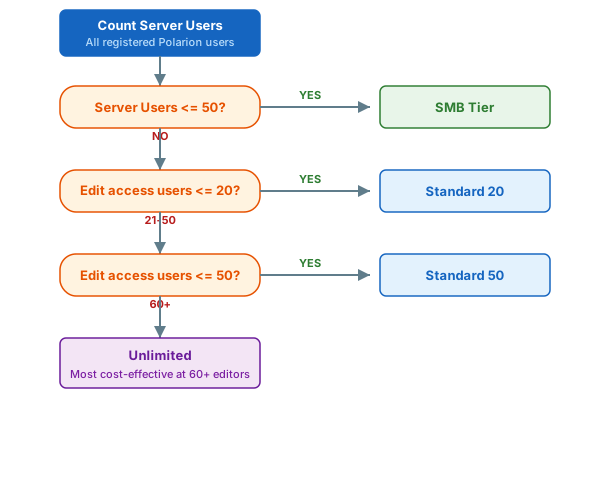 Risksheet counts a **server user** as any Polarion user who holds the `users` role. Users without the `users` role are not counted. The License page (Administration > Nextedy Risksheet > License) shows the current count of these users against the licensed `namedUsers` limit, so you can confirm at a glance whether you are within your tier.
Active Users are the team members who need to perform any of the following actions:
* Create new risk items or mitigation tasks
* Edit severity, occurrence, and detection ratings
* Add or modify upstream and downstream links
* Change work item field values through the grid
* Export risk data to Excel or PDF
* Participate in review workflows as editors
Users who only need to **view** risk data do not require Active User status. They receive automatic read-only Connect access.
Make a list of users by role who need edit access:
| Role | Typical Need | Active User? |
| ---------------- | ------------------------ | ------------------------- |
| Safety Engineer | Create and assess risks | Yes |
| Quality Manager | Edit ratings and review | Yes |
| Risk Analyst | Full analysis capability | Yes |
| FMEA Moderator | Manage risk sessions | Yes |
| Project Manager | View status and reports | No (read-only sufficient) |
| External Auditor | Review only | No (read-only sufficient) |
| Stakeholder | View dashboards | No (read-only sufficient) |
If your organization also uses or plans to use Powersheet, consider how the licensing tiers interact:
* Risksheet and Powersheet are licensed independently
* When Powersheet has a valid **production** license, Risksheet automatically unlocks additional features
* Evaluation or trial Powersheet licenses do **not** enable enhanced features
* Starting with version 25.11.0, users must be added to both the `nextedy_risksheet_users` and `nextedy_powersheet_users` groups when Powersheet is installed
Risksheet detects Powersheet license status automatically. When a valid Powersheet production license is present, enhanced features become available without manual configuration. License changes (activation, expiration, or upgrade from evaluation to production) are detected dynamically.
Once you have determined the appropriate tier:
1. Contact Nextedy sales or your authorized reseller with your tier selection
2. Provide your Polarion server details and server user count
3. Receive your license file
4. Navigate to **Administration > Nextedy Risksheet > License**
5. Upload or apply the license file according to the instructions on the license page
After applying the license, create and populate the Active Users group:
1. Navigate to **Administration > User Management > Groups**
2. Create a group named exactly `nextedy_risksheet_users`
3. Add the Polarion user IDs of all users who should have edit access
4. If Powersheet is installed (version 25.11.0+), also create `nextedy_powersheet_users` and add the same users
5. Restart Polarion services to ensure the license recognizes the group
```text theme={null}
// Example group membership (configured in Polarion, not risksheet.json)
// Group: nextedy_risksheet_users
// Members:
// - safety_engineer_1
// - quality_manager
// - risk_analyst_1
// - risk_analyst_2
// - fmea_moderator
```
After creating or modifying the `nextedy_risksheet_users` group, a Polarion service restart may be required for the license system to recognize the named users. Simply visiting the license page may not trigger an update of the user count.
After restarting Polarion, navigate to **Administration > Nextedy Risksheet > License** and verify:
| Field | Expected Value |
| ---------------------- | ---------------------------------------------------------------------- |
| License Status | Active |
| License Type | Your selected tier (Named 20, Named 50, or Unlimited) |
| Server Users | Polarion users holding the `users` role (as shown on the License page) |
| Configured Named Users | Number of users in `nextedy_risksheet_users` group |
| Licensed Capacity | Matches your tier limit |
You should now see:
* Named users can edit cells, create items, and save changes
* Non-named users see the Risksheet in read-only mode
* The license page shows the correct user counts
* No "Reviewer License" error messages for named users
If the license page shows 0 named users despite correct group configuration, see [License Validation Errors](/risksheet/troubleshooting/license-validation-errors) for troubleshooting steps.
## Tier Comparison Summary
| Feature | SMB | Standard 20 | Standard 50 | Unlimited |
| ------------------------- | --------- | ----------- | ----------- | --------- |
| Active Users | Up to 20 | Up to 20 | Up to 50 | Unlimited |
| Server User Limit | 50 | None | None | None |
| Read-Only (Connect) Users | Unlimited | Unlimited | Unlimited | Unlimited |
| FMEA/HARA/TARA Support | Yes | Yes | Yes | Yes |
| Export (Excel/PDF) | Yes | Yes | Yes | Yes |
| Review Workflows | Yes | Yes | Yes | Yes |
| Powersheet Feature Unlock | Yes | Yes | Yes | Yes |
| Cross-Project Linking | Yes | Yes | Yes | Yes |
Feature availability per tier may vary. Contact Nextedy sales for the most current feature comparison by license tier.
## See Also
* [Understand License Types](/risksheet/guides/licensing/understanding-licenses) -- detailed explanation of Named vs. Connect access
* [Assign Active Users](/risksheet/guides/licensing/assigning-active-users) -- step-by-step guide for managing the user group
* [Manage User Groups](/risksheet/guides/licensing/user-groups) -- advanced group management scenarios
* [License Validation Errors](/risksheet/troubleshooting/license-validation-errors) -- troubleshoot license issues
* [Installation](/risksheet/getting-started/installation) -- initial Risksheet deployment
Risksheet counts a **server user** as any Polarion user who holds the `users` role. Users without the `users` role are not counted. The License page (Administration > Nextedy Risksheet > License) shows the current count of these users against the licensed `namedUsers` limit, so you can confirm at a glance whether you are within your tier.
Active Users are the team members who need to perform any of the following actions:
* Create new risk items or mitigation tasks
* Edit severity, occurrence, and detection ratings
* Add or modify upstream and downstream links
* Change work item field values through the grid
* Export risk data to Excel or PDF
* Participate in review workflows as editors
Users who only need to **view** risk data do not require Active User status. They receive automatic read-only Connect access.
Make a list of users by role who need edit access:
| Role | Typical Need | Active User? |
| ---------------- | ------------------------ | ------------------------- |
| Safety Engineer | Create and assess risks | Yes |
| Quality Manager | Edit ratings and review | Yes |
| Risk Analyst | Full analysis capability | Yes |
| FMEA Moderator | Manage risk sessions | Yes |
| Project Manager | View status and reports | No (read-only sufficient) |
| External Auditor | Review only | No (read-only sufficient) |
| Stakeholder | View dashboards | No (read-only sufficient) |
If your organization also uses or plans to use Powersheet, consider how the licensing tiers interact:
* Risksheet and Powersheet are licensed independently
* When Powersheet has a valid **production** license, Risksheet automatically unlocks additional features
* Evaluation or trial Powersheet licenses do **not** enable enhanced features
* Starting with version 25.11.0, users must be added to both the `nextedy_risksheet_users` and `nextedy_powersheet_users` groups when Powersheet is installed
Risksheet detects Powersheet license status automatically. When a valid Powersheet production license is present, enhanced features become available without manual configuration. License changes (activation, expiration, or upgrade from evaluation to production) are detected dynamically.
Once you have determined the appropriate tier:
1. Contact Nextedy sales or your authorized reseller with your tier selection
2. Provide your Polarion server details and server user count
3. Receive your license file
4. Navigate to **Administration > Nextedy Risksheet > License**
5. Upload or apply the license file according to the instructions on the license page
After applying the license, create and populate the Active Users group:
1. Navigate to **Administration > User Management > Groups**
2. Create a group named exactly `nextedy_risksheet_users`
3. Add the Polarion user IDs of all users who should have edit access
4. If Powersheet is installed (version 25.11.0+), also create `nextedy_powersheet_users` and add the same users
5. Restart Polarion services to ensure the license recognizes the group
```text theme={null}
// Example group membership (configured in Polarion, not risksheet.json)
// Group: nextedy_risksheet_users
// Members:
// - safety_engineer_1
// - quality_manager
// - risk_analyst_1
// - risk_analyst_2
// - fmea_moderator
```
After creating or modifying the `nextedy_risksheet_users` group, a Polarion service restart may be required for the license system to recognize the named users. Simply visiting the license page may not trigger an update of the user count.
After restarting Polarion, navigate to **Administration > Nextedy Risksheet > License** and verify:
| Field | Expected Value |
| ---------------------- | ---------------------------------------------------------------------- |
| License Status | Active |
| License Type | Your selected tier (Named 20, Named 50, or Unlimited) |
| Server Users | Polarion users holding the `users` role (as shown on the License page) |
| Configured Named Users | Number of users in `nextedy_risksheet_users` group |
| Licensed Capacity | Matches your tier limit |
You should now see:
* Named users can edit cells, create items, and save changes
* Non-named users see the Risksheet in read-only mode
* The license page shows the correct user counts
* No "Reviewer License" error messages for named users
If the license page shows 0 named users despite correct group configuration, see [License Validation Errors](/risksheet/troubleshooting/license-validation-errors) for troubleshooting steps.
## Tier Comparison Summary
| Feature | SMB | Standard 20 | Standard 50 | Unlimited |
| ------------------------- | --------- | ----------- | ----------- | --------- |
| Active Users | Up to 20 | Up to 20 | Up to 50 | Unlimited |
| Server User Limit | 50 | None | None | None |
| Read-Only (Connect) Users | Unlimited | Unlimited | Unlimited | Unlimited |
| FMEA/HARA/TARA Support | Yes | Yes | Yes | Yes |
| Export (Excel/PDF) | Yes | Yes | Yes | Yes |
| Review Workflows | Yes | Yes | Yes | Yes |
| Powersheet Feature Unlock | Yes | Yes | Yes | Yes |
| Cross-Project Linking | Yes | Yes | Yes | Yes |
Feature availability per tier may vary. Contact Nextedy sales for the most current feature comparison by license tier.
## See Also
* [Understand License Types](/risksheet/guides/licensing/understanding-licenses) -- detailed explanation of Named vs. Connect access
* [Assign Active Users](/risksheet/guides/licensing/assigning-active-users) -- step-by-step guide for managing the user group
* [Manage User Groups](/risksheet/guides/licensing/user-groups) -- advanced group management scenarios
* [License Validation Errors](/risksheet/troubleshooting/license-validation-errors) -- troubleshoot license issues
* [Installation](/risksheet/getting-started/installation) -- initial Risksheet deployment