> ## Documentation Index
> Fetch the complete documentation index at: https://learn.nextedy.com/llms.txt
> Use this file to discover all available pages before exploring further.
# Navigate to Risksheet from LiveDoc
> Access the interactive Nextedy RISKSHEET grid from within Siemens Polarion ALM using the project navigation sidebar, an embedded LiveDoc link, direct URLs, or the **Open LiveDoc** command for bidirectional navigation.
export const LastReviewed = ({date}) => {
if (!date) return null;
const formatted = new Date(`${date}T00:00:00Z`).toLocaleDateString("en-US", {
year: "numeric",
month: "long",
day: "numeric",
timeZone: "UTC"
});
return
Last reviewed on {formatted}
;
};
## Option 1: Use the Project Navigation Sidebar
Risksheet registers itself as a navigation item in the Polarion project sidebar. The menu label dynamically reflects the configured tool name from your project properties.
1. Open your Polarion project in the browser.
2. Look for the **Risksheet** entry in the left navigation sidebar.
3. Click it to open the Risksheet home view for the current project.
The navigation URL follows the pattern:
```
/polarion/risksheet/view?project=
```
This lands you on the document selection interface where you can browse folders and select existing risksheet documents or create new ones.
Administrators can customize the navigation label using the tool name project property. For example, you might see "FMEA Tool" or "Risk Matrix" instead of "Risksheet" if your organization has rebranded the tool.
## Option 2: Embed a Link Inside the LiveDoc
You can render a styled hyperlink directly inside the parent LiveDoc that opens the associated risksheet. This is the recommended pattern for documents that own a single risk analysis grid, because it places the entry point next to the document content.
Insert a wiki snippet into the LiveDoc that resolves the current project ID and document path through Velocity:
```velocity theme={null}
#set($revisionPar = "")
#if($document.getRevision())
#set($revisionPar = "&revision=$document.getRevision()")
#end
Open Risksheet
```
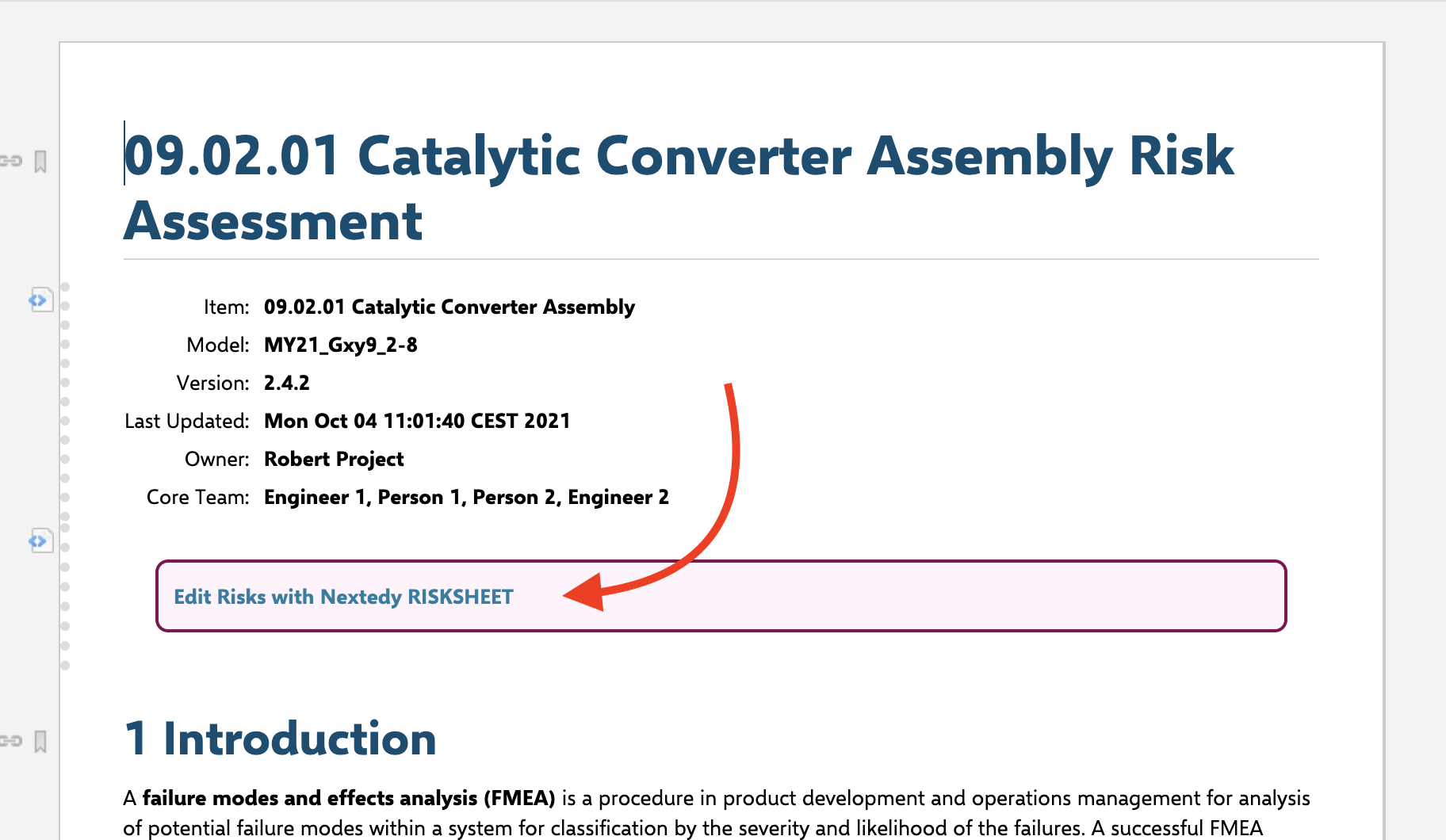 The URL pattern used by the link is:
```
/polarion/#/project//risksheet?document=&revision=
```
The Velocity helpers `$document.getProjectId()` and `$document.getRelativePath()` resolve the link to the current document at render time. The conditional `$revisionPar` appends a `revision` query parameter only when the LiveDoc is being viewed at a specific revision, so a baselined document opens the matching read-only risksheet snapshot. The recommended button styling uses a Nextedy-branded look: background `#fff4fb`, a `2px solid #860251` border, and `border-radius: 8px`.
## Option 3: Navigate Directly via URL
Construct a direct URL to a specific risksheet document using the project ID and document path:
The URL pattern used by the link is:
```
/polarion/#/project//risksheet?document=&revision=
```
The Velocity helpers `$document.getProjectId()` and `$document.getRelativePath()` resolve the link to the current document at render time. The conditional `$revisionPar` appends a `revision` query parameter only when the LiveDoc is being viewed at a specific revision, so a baselined document opens the matching read-only risksheet snapshot. The recommended button styling uses a Nextedy-branded look: background `#fff4fb`, a `2px solid #860251` border, and `border-radius: 8px`.
## Option 3: Navigate Directly via URL
Construct a direct URL to a specific risksheet document using the project ID and document path:
 | Parameter | Description | Required |
| ------------- | ------------------------------------- | -------- |
| `project` | Polarion project ID | Yes |
| `document` | Document path within the project | Yes |
| `revision` | Specific revision to view (read-only) | No |
| `comparingTo` | Revision to compare against | No |
When you specify a `revision` parameter, the risksheet opens in **read-only mode** displaying the historical state of the document at that revision.
## Option 4: Open LiveDoc from Risksheet
Risksheet provides a command to navigate from the risk grid back to the parent LiveDoc document:
1. Open a risksheet document.
2. Use the **Open LiveDoc** command from the toolbar or menu.
3. The parent Polarion document opens in a new browser tab.
This provides bidirectional navigation between the interactive risksheet grid and the LiveDoc document context.
## Option 5: Configure a Custom Help URL
You can set a custom help URL that the Risksheet **Help** button opens, pointing to your internal documentation portal. Add the `help` property in the `global` section of the sheet configuration:
```yaml theme={null}
global:
help: https://your-wiki.example.com/risksheet-docs
```
The `global.help` property accepts any URL. When not configured, the **Help** button defaults to the Nextedy support portal.
## Context Menu Navigation
The risksheet context menu (right-click on any cell) provides additional navigation options:
* **Open Row Item** — Opens the current row's work item in Polarion's work item editor (always available).
* **Open Linked Item** — Opens a linked upstream work item when clicking on an item link column.
* **Open Task Item** — Opens a linked downstream task from a task link column.
These options let you drill into individual work items without leaving the risksheet context.
## Session Keep-Alive
During long editing sessions, Risksheet automatically sends keep-alive signals to prevent your Polarion session from timing out. This helps ensure you do not lose unsaved work when navigating between Risksheet and other Polarion views.
The keep-alive interval depends on your Polarion server's session timeout configuration. Contact your administrator if you experience session timeouts during extended editing sessions.
## Verification
After setting up navigation:
1. Open your Polarion project in the browser.
2. Click the Risksheet entry in the project navigation sidebar, or click the embedded button you added to the LiveDoc.
You should now see the risksheet home view (or the targeted risksheet document) with the interactive grid ready for editing.
## See Also
* [Embed Risksheet in LiveDoc](/risksheet/guides/integration/livedoc-embedding) — Render a risk table inside a LiveDoc page.
* [Open Nested Risksheets](/risksheet/guides/integration/nested-risksheets) — Navigate between linked risksheet documents.
* [Understanding the Interface](/risksheet/getting-started/understanding-interface) — Risksheet UI overview.
| Parameter | Description | Required |
| ------------- | ------------------------------------- | -------- |
| `project` | Polarion project ID | Yes |
| `document` | Document path within the project | Yes |
| `revision` | Specific revision to view (read-only) | No |
| `comparingTo` | Revision to compare against | No |
When you specify a `revision` parameter, the risksheet opens in **read-only mode** displaying the historical state of the document at that revision.
## Option 4: Open LiveDoc from Risksheet
Risksheet provides a command to navigate from the risk grid back to the parent LiveDoc document:
1. Open a risksheet document.
2. Use the **Open LiveDoc** command from the toolbar or menu.
3. The parent Polarion document opens in a new browser tab.
This provides bidirectional navigation between the interactive risksheet grid and the LiveDoc document context.
## Option 5: Configure a Custom Help URL
You can set a custom help URL that the Risksheet **Help** button opens, pointing to your internal documentation portal. Add the `help` property in the `global` section of the sheet configuration:
```yaml theme={null}
global:
help: https://your-wiki.example.com/risksheet-docs
```
The `global.help` property accepts any URL. When not configured, the **Help** button defaults to the Nextedy support portal.
## Context Menu Navigation
The risksheet context menu (right-click on any cell) provides additional navigation options:
* **Open Row Item** — Opens the current row's work item in Polarion's work item editor (always available).
* **Open Linked Item** — Opens a linked upstream work item when clicking on an item link column.
* **Open Task Item** — Opens a linked downstream task from a task link column.
These options let you drill into individual work items without leaving the risksheet context.
## Session Keep-Alive
During long editing sessions, Risksheet automatically sends keep-alive signals to prevent your Polarion session from timing out. This helps ensure you do not lose unsaved work when navigating between Risksheet and other Polarion views.
The keep-alive interval depends on your Polarion server's session timeout configuration. Contact your administrator if you experience session timeouts during extended editing sessions.
## Verification
After setting up navigation:
1. Open your Polarion project in the browser.
2. Click the Risksheet entry in the project navigation sidebar, or click the embedded button you added to the LiveDoc.
You should now see the risksheet home view (or the targeted risksheet document) with the interactive grid ready for editing.
## See Also
* [Embed Risksheet in LiveDoc](/risksheet/guides/integration/livedoc-embedding) — Render a risk table inside a LiveDoc page.
* [Open Nested Risksheets](/risksheet/guides/integration/nested-risksheets) — Navigate between linked risksheet documents.
* [Understanding the Interface](/risksheet/getting-started/understanding-interface) — Risksheet UI overview.