> ## Documentation Index
> Fetch the complete documentation index at: https://learn.nextedy.com/llms.txt
> Use this file to discover all available pages before exploring further.
# Set Up Global Templates
> Create a centralized Nextedy RISKSHEET configuration template that multiple risk documents inherit automatically, ensuring consistent column layouts, formulas, and styling across your organization.
export const LastReviewed = ({date}) => {
if (!date) return null;
const formatted = new Date(`${date}T00:00:00Z`).toLocaleDateString("en-US", {
year: "numeric",
month: "long",
day: "numeric",
timeZone: "UTC"
});
return
Last reviewed on {formatted}
;
};
## How Template Inheritance Works
Risksheet configuration uses a simple inheritance model:
1. When a document is created from a template, it does not receive its own copy of the sheet configuration. Instead, it inherits the configuration from the template document.
2. When Risksheet loads, it first checks for a sheet configuration attachment on the current document. If none is found, it searches the document's template hierarchy.
3. Changes to the template's sheet configuration automatically propagate to all documents that inherit from it.
 1. Create a LiveDoc in a central project (for example, a `Templates` or `Library` project) that serves as the template repository.
2. Attach the configuration files to this template document:
* The sheet configuration (`risksheet.json`) -- the primary configuration with columns, levels, data types, formulas, styles, and cell decorators
* The top panel configuration (`risksheetTopPanel.vm`) -- optional Velocity template for the info panel above the grid
* The PDF export configuration (`risksheetPdfExport.vm`) -- optional Velocity template for PDF export formatting
3. Configure the template with the settings that should be shared across all risk documents.
1. Create a LiveDoc in a central project (for example, a `Templates` or `Library` project) that serves as the template repository.
2. Attach the configuration files to this template document:
* The sheet configuration (`risksheet.json`) -- the primary configuration with columns, levels, data types, formulas, styles, and cell decorators
* The top panel configuration (`risksheetTopPanel.vm`) -- optional Velocity template for the info panel above the grid
* The PDF export configuration (`risksheetPdfExport.vm`) -- optional Velocity template for PDF export formatting
3. Configure the template with the settings that should be shared across all risk documents.
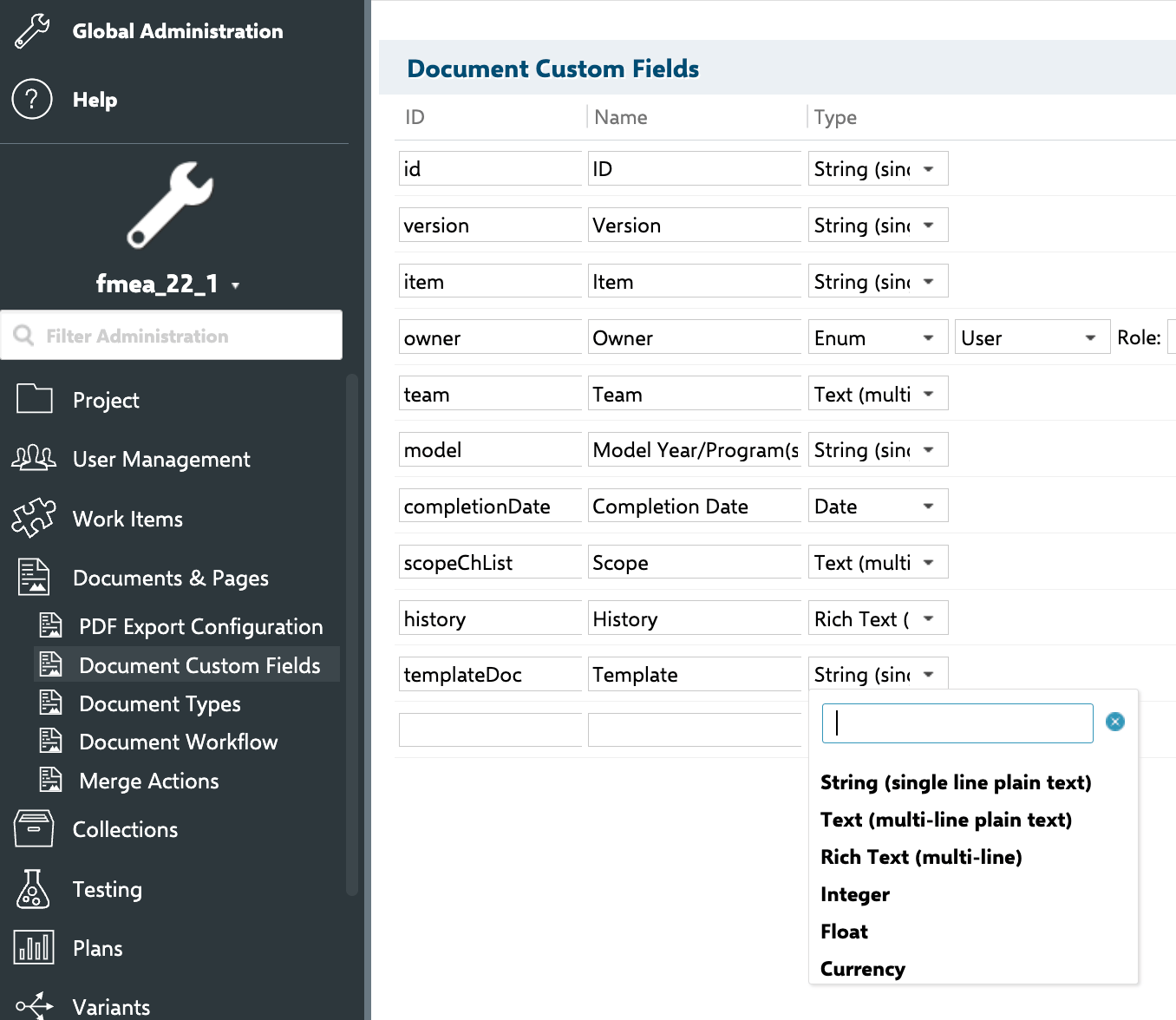
 Risksheet has no mandatory fields or work item types. The configuration is fully flexible and works with any custom work item types your organization uses. Rating scales such as severity, occurrence, and detection are not declared inside the sheet configuration -- they come from Polarion enumerations (**Administration > Enumerations**) and are referenced by columns through `type: rating:` together with `bindings: `.
Risksheet ships with two built-in project templates:
| Template | Description |
| ------------------------ | ----------------------------------------------------------------------------------------------------------- |
| `risksheet_template` | Standard FMEA (Failure Mode and Effects Analysis) template with severity, occurrence, and detection columns |
| `risksheet_templateHara` | HARA (Hazard Analysis and Risk Assessment) template for automotive safety |
To install:
1. Navigate to **Administration > Nextedy Risksheet > Setup**.
2. Click **Install Templates**.
3. The system installs both templates into Polarion's template repository.
The installer automatically checks whether templates are already present before installation. Reinstalling overwrites previous versions. The installation is transaction-safe -- it either completes fully or rolls back on error.
1. Open the Risksheet home page for your project.
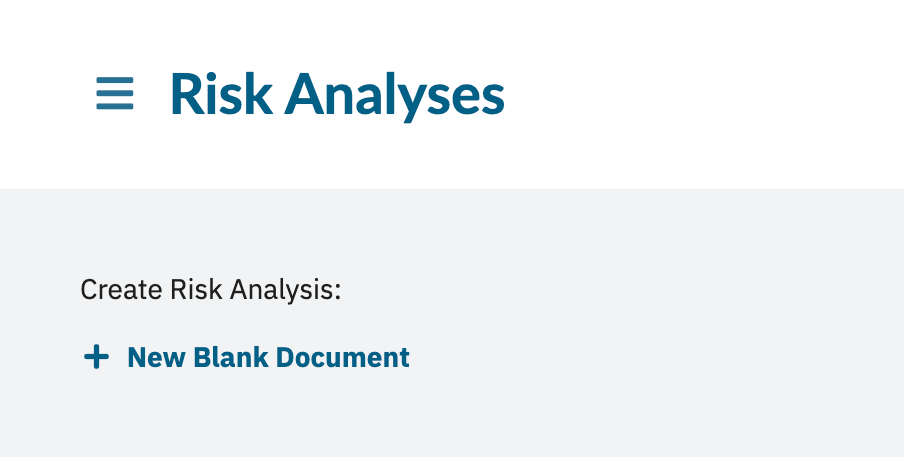
2. Click **Create New Document**.
3. Select a folder and enter the document name.
4. Choose the template from the template list.
5. Click **Create**.
The new document inherits the template's sheet configuration. It does not receive its own copy unless you explicitly override it later.
Risksheet has no mandatory fields or work item types. The configuration is fully flexible and works with any custom work item types your organization uses. Rating scales such as severity, occurrence, and detection are not declared inside the sheet configuration -- they come from Polarion enumerations (**Administration > Enumerations**) and are referenced by columns through `type: rating:` together with `bindings: `.
Risksheet ships with two built-in project templates:
| Template | Description |
| ------------------------ | ----------------------------------------------------------------------------------------------------------- |
| `risksheet_template` | Standard FMEA (Failure Mode and Effects Analysis) template with severity, occurrence, and detection columns |
| `risksheet_templateHara` | HARA (Hazard Analysis and Risk Assessment) template for automotive safety |
To install:
1. Navigate to **Administration > Nextedy Risksheet > Setup**.
2. Click **Install Templates**.
3. The system installs both templates into Polarion's template repository.
The installer automatically checks whether templates are already present before installation. Reinstalling overwrites previous versions. The installation is transaction-safe -- it either completes fully or rolls back on error.
1. Open the Risksheet home page for your project.
2. Click **Create New Document**.
3. Select a folder and enter the document name.
4. Choose the template from the template list.
5. Click **Create**.
The new document inherits the template's sheet configuration. It does not receive its own copy unless you explicitly override it later.
 Risksheet locates the global template through the Polarion configuration property `nextedy.risksheet.risksheetTemplatePath`. This property is a STRING. To point at a template stored in another Polarion project, use the format `PROJECTID:TEMPLATE_PATH`, where `PROJECTID` is the project ID hosting the template document and `TEMPLATE_PATH` is the space and document name within that project. For a template in the current project, use a plain path with no prefix (for example, `Risks/Risk Specification`).
| Property | Type | Format | Example |
| ----------------------------------------- | ------ | ------------------------- | ---------------------------------------- |
| `nextedy.risksheet.risksheetTemplatePath` | STRING | `PROJECTID:TEMPLATE_PATH` | `GlobalLibrary:Risks/Risk Specification` |
In the example, the template is the document `Risks/Risk Specification` in the project `GlobalLibrary`. Multiple paths can be separated with commas (for example, `GlobalLibrary:Risks/FMEA,GlobalLibrary:Risks/HARA`).
Risksheet locates the global template through the Polarion configuration property `nextedy.risksheet.risksheetTemplatePath`. This property is a STRING. To point at a template stored in another Polarion project, use the format `PROJECTID:TEMPLATE_PATH`, where `PROJECTID` is the project ID hosting the template document and `TEMPLATE_PATH` is the space and document name within that project. For a template in the current project, use a plain path with no prefix (for example, `Risks/Risk Specification`).
| Property | Type | Format | Example |
| ----------------------------------------- | ------ | ------------------------- | ---------------------------------------- |
| `nextedy.risksheet.risksheetTemplatePath` | STRING | `PROJECTID:TEMPLATE_PATH` | `GlobalLibrary:Risks/Risk Specification` |
In the example, the template is the document `Risks/Risk Specification` in the project `GlobalLibrary`. Multiple paths can be separated with commas (for example, `GlobalLibrary:Risks/FMEA,GlobalLibrary:Risks/HARA`).
 See [Configure Template Paths](/risksheet/guides/configuration/template-path-configuration) for detailed instructions on setting this property.
## Cross-Project Templates
Templates can be stored in a different project than the documents that use them, which is the typical pattern for centralized template libraries:
1. Create the template document in a shared project (for example, `GlobalLibrary` or `SharedTemplates`).
2. Reference the template through `nextedy.risksheet.risksheetTemplatePath` using the `PROJECTID:TEMPLATE_PATH` format.
3. Ensure all users have **read access** to the template project.
All users must have read permissions on the template project. If a user lacks access, they see a broken or inconsistent Risksheet structure instead of an explicit error message. This is a common source of confusion in multi-project deployments.
## Multiple Configurations Per Project
You can maintain multiple Risksheet configurations within a single project. Each document or document group can inherit from a different template:
* One template for FMEA analysis with RPN (Risk Priority Number) columns
* A separate template for HARA with ASIL (Automotive Safety Integrity Level) columns
* A third template for STRIDE or TARA (Threat Analysis and Risk Assessment) cybersecurity analysis
Risksheet is a generic tool that supports any risk methodology, including FMEA, HARA, TARA, STRIDE, and CVSS.
## Update a Global Template
To modify the configuration for all documents that inherit from a template:
1. Open the template document in Polarion.
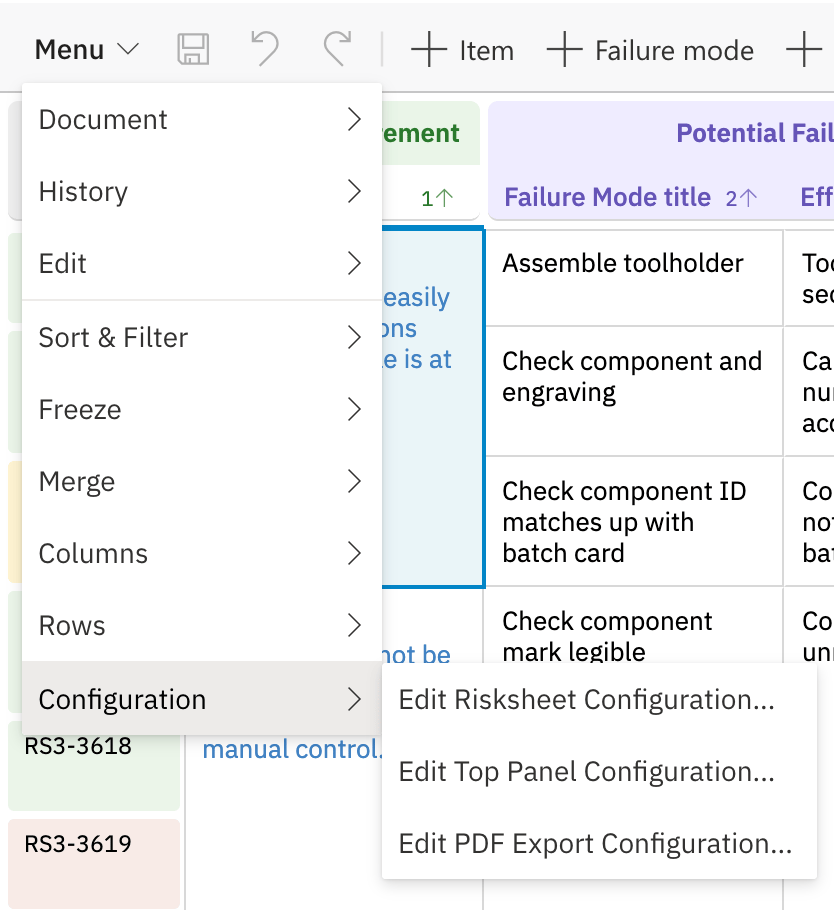
2. Open the configuration editor (**Menu > Configuration > Edit Risksheet Configuration**). The editor supports YAML editing with syntax highlighting and error detection.
3. Make your changes and save.
4. All inheriting documents use the updated configuration on their next page load.
During critical project phases, use **Menu > Override Template** to detach a document from the global template. This prevents unintended configuration changes from template updates. You can revert to the template later, but reverting discards document-specific changes.
## Verification
After setting up your global template and creating a document from it, you should now see:
* The document loads with the template's column layout and settings.
* The `templateName` property in the Risksheet metadata shows the template name.
* The `fromTemplate` flag is `true` in the configuration metadata.
## See Also
* [Override Template Configuration](/risksheet/guides/configuration/document-config-override) -- detach a document from its template
* [Configure Multi-Project Setup](/risksheet/guides/configuration/multi-project-setup) -- share templates across projects
* [Configure Template Paths](/risksheet/guides/configuration/template-path-configuration) -- define document creation folders
* [Find Configuration Files](/risksheet/guides/configuration/finding-config-files) -- identify which configuration a document uses
* [Use Project Templates](/risksheet/guides/integration/project-templates) -- project-level template integration
See [Configure Template Paths](/risksheet/guides/configuration/template-path-configuration) for detailed instructions on setting this property.
## Cross-Project Templates
Templates can be stored in a different project than the documents that use them, which is the typical pattern for centralized template libraries:
1. Create the template document in a shared project (for example, `GlobalLibrary` or `SharedTemplates`).
2. Reference the template through `nextedy.risksheet.risksheetTemplatePath` using the `PROJECTID:TEMPLATE_PATH` format.
3. Ensure all users have **read access** to the template project.
All users must have read permissions on the template project. If a user lacks access, they see a broken or inconsistent Risksheet structure instead of an explicit error message. This is a common source of confusion in multi-project deployments.
## Multiple Configurations Per Project
You can maintain multiple Risksheet configurations within a single project. Each document or document group can inherit from a different template:
* One template for FMEA analysis with RPN (Risk Priority Number) columns
* A separate template for HARA with ASIL (Automotive Safety Integrity Level) columns
* A third template for STRIDE or TARA (Threat Analysis and Risk Assessment) cybersecurity analysis
Risksheet is a generic tool that supports any risk methodology, including FMEA, HARA, TARA, STRIDE, and CVSS.
## Update a Global Template
To modify the configuration for all documents that inherit from a template:
1. Open the template document in Polarion.
2. Open the configuration editor (**Menu > Configuration > Edit Risksheet Configuration**). The editor supports YAML editing with syntax highlighting and error detection.
3. Make your changes and save.
4. All inheriting documents use the updated configuration on their next page load.
During critical project phases, use **Menu > Override Template** to detach a document from the global template. This prevents unintended configuration changes from template updates. You can revert to the template later, but reverting discards document-specific changes.
## Verification
After setting up your global template and creating a document from it, you should now see:
* The document loads with the template's column layout and settings.
* The `templateName` property in the Risksheet metadata shows the template name.
* The `fromTemplate` flag is `true` in the configuration metadata.
## See Also
* [Override Template Configuration](/risksheet/guides/configuration/document-config-override) -- detach a document from its template
* [Configure Multi-Project Setup](/risksheet/guides/configuration/multi-project-setup) -- share templates across projects
* [Configure Template Paths](/risksheet/guides/configuration/template-path-configuration) -- define document creation folders
* [Find Configuration Files](/risksheet/guides/configuration/finding-config-files) -- identify which configuration a document uses
* [Use Project Templates](/risksheet/guides/integration/project-templates) -- project-level template integration