> ## Documentation Index
> Fetch the complete documentation index at: https://learn.nextedy.com/llms.txt
> Use this file to discover all available pages before exploring further.
# Find Configuration Files
> Locate where your Nextedy RISKSHEET configuration is stored and determine whether it comes from a document attachment or an inherited template.
export const LastReviewed = ({date, state}) => {
if (!date) return null;
const formatted = new Date(`${date}T00:00:00Z`).toLocaleDateString("en-US", {
year: "numeric",
month: "long",
day: "numeric",
timeZone: "UTC"
});
const label = state === "reviewed" ? `Last reviewed and confirmed up to date on ${formatted}` : `Last updated on ${formatted}`;
return
{label}
;
};
## Configuration File Types
Risksheet uses three configuration files, each stored as a Polarion document attachment:
| File | Purpose | Format |
| - | - | - |
| sheet configuration | Primary configuration: columns, levels, data types, formulas, styles, enums, ratings, views, global settings | JSON |
| `risksheetTopPanel.vm` | Custom top panel template with buttons, filters, and UI elements above the grid | Velocity (HTML) |
| `risksheetPdfExport.vm` | PDF export script that controls how risk tables render in exported PDFs | Velocity |
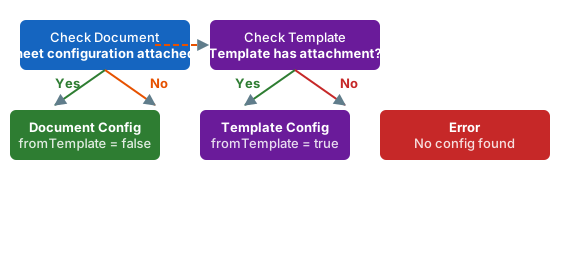
All three files follow the same inheritance model: if a file is not found directly on the document, the system searches the document's template hierarchy.
1. Open the LiveDoc document in Polarion.
2. Navigate to the document's **Attachments** section.
3. Look for sheet configuration in the attachment list.
If sheet configuration is present, the document has its own configuration. If it is absent, the document inherits its configuration from a template.
The configuration metadata exposes several properties that indicate where the active configuration was loaded from:
| Property | Value | Meaning |
| - | - | - |
| `source` | Path string | URI path to the configuration attachment that was actually loaded |
| `templateName` | Template name or empty | Name of the template document; includes project prefix if from a different project |
| `fromTemplate` | `true` / `false` | Whether configuration was inherited from a template |
When `templateName` is populated (for example, `SharedTemplates/FMEA Template`), the configuration is inherited. When it is empty, the configuration is attached directly to the document.
 **Admin permissions required for editing**
Modifying Risksheet configuration settings requires the Admin role for the project. Non-admin users must contact their project administrator to get the necessary permissions.
To edit sheet configuration outside the built-in editor:
1. Open the LiveDoc document in Polarion.
2. Navigate to the document's **Attachments** section.
3. Download the sheet configuration file.
4. Edit the JSON in your preferred text editor. Validate syntax with a JSON linter before uploading.
5. Upload the modified file back as an attachment, replacing the existing one.
**Template-linked documents**
If the document inherits its configuration from a template, you must first create a document-specific copy using **Menu > Override Template** before you can download and edit. See [Override Template Configuration](/risksheet/guides/configuration/document-config-override).
## Configuration Caching
Risksheet caches configuration files using the data revision identifier of the attachment. The cache is automatically invalidated when:
* The sheet configuration attachment content changes (new revision)
* The template document is updated
* You manually refresh the Risksheet page
**Clustered environments**
In clustered Polarion deployments, configuration changes may not immediately propagate to all server nodes. If you see inconsistent Risksheet structures, refresh the page to reload the configuration from the updated attachment.
## Project Properties
In addition to document-level configuration files, Risksheet uses **Polarion project properties** for project-wide settings. These are managed through Polarion Administration, not through sheet configuration:
| Property | Default | Purpose |
| - | - | - |
| Template path | `Risks/Risk Specification` | Folder paths where new risk documents can be created |
| Tool name | `Risksheet` | Display name shown in navigation and UI labels |
| Suggester result limit | `20` | Maximum autocomplete suggestions shown |
| Fuzzy search | Enabled | Whether fuzzy matching is used in item search |
| Wildcard search | Enabled | Whether wildcard characters are supported in search |
## Troubleshooting
* **"Error while reading configuration"** — The sheet configuration file contains invalid JSON. Download it and validate with a JSON linter.
* **Different users see different configurations** — Verify that all users have read access to the project where the template configuration is stored.
* **Configuration appears inconsistent across sessions** — Clear your browser cache and confirm you are not viewing a cached historical revision.
## Verification
After identifying your configuration source, you should now see either sheet configuration in the document's attachments (document-specific config) or a `templateName` value in the Risksheet metadata (template-inherited config).
## See Also
* [Use the Configuration Editor](/risksheet/guides/configuration/using-config-editor) — modify configuration visually
* [Set Up Global Templates](/risksheet/guides/configuration/global-templates) — create reusable configurations
* [Override Template Configuration](/risksheet/guides/configuration/document-config-override) — detach from a template
* [Configure Template Paths](/risksheet/guides/configuration/template-path-configuration) — control where documents are created
***
This documentation is built and hosted on [Mintlify](https://mintlify.com), a developer documentation platform.
**Admin permissions required for editing**
Modifying Risksheet configuration settings requires the Admin role for the project. Non-admin users must contact their project administrator to get the necessary permissions.
To edit sheet configuration outside the built-in editor:
1. Open the LiveDoc document in Polarion.
2. Navigate to the document's **Attachments** section.
3. Download the sheet configuration file.
4. Edit the JSON in your preferred text editor. Validate syntax with a JSON linter before uploading.
5. Upload the modified file back as an attachment, replacing the existing one.
**Template-linked documents**
If the document inherits its configuration from a template, you must first create a document-specific copy using **Menu > Override Template** before you can download and edit. See [Override Template Configuration](/risksheet/guides/configuration/document-config-override).
## Configuration Caching
Risksheet caches configuration files using the data revision identifier of the attachment. The cache is automatically invalidated when:
* The sheet configuration attachment content changes (new revision)
* The template document is updated
* You manually refresh the Risksheet page
**Clustered environments**
In clustered Polarion deployments, configuration changes may not immediately propagate to all server nodes. If you see inconsistent Risksheet structures, refresh the page to reload the configuration from the updated attachment.
## Project Properties
In addition to document-level configuration files, Risksheet uses **Polarion project properties** for project-wide settings. These are managed through Polarion Administration, not through sheet configuration:
| Property | Default | Purpose |
| - | - | - |
| Template path | `Risks/Risk Specification` | Folder paths where new risk documents can be created |
| Tool name | `Risksheet` | Display name shown in navigation and UI labels |
| Suggester result limit | `20` | Maximum autocomplete suggestions shown |
| Fuzzy search | Enabled | Whether fuzzy matching is used in item search |
| Wildcard search | Enabled | Whether wildcard characters are supported in search |
## Troubleshooting
* **"Error while reading configuration"** — The sheet configuration file contains invalid JSON. Download it and validate with a JSON linter.
* **Different users see different configurations** — Verify that all users have read access to the project where the template configuration is stored.
* **Configuration appears inconsistent across sessions** — Clear your browser cache and confirm you are not viewing a cached historical revision.
## Verification
After identifying your configuration source, you should now see either sheet configuration in the document's attachments (document-specific config) or a `templateName` value in the Risksheet metadata (template-inherited config).
## See Also
* [Use the Configuration Editor](/risksheet/guides/configuration/using-config-editor) — modify configuration visually
* [Set Up Global Templates](/risksheet/guides/configuration/global-templates) — create reusable configurations
* [Override Template Configuration](/risksheet/guides/configuration/document-config-override) — detach from a template
* [Configure Template Paths](/risksheet/guides/configuration/template-path-configuration) — control where documents are created
***
This documentation is built and hosted on [Mintlify](https://mintlify.com), a developer documentation platform.