> ## Documentation Index
> Fetch the complete documentation index at: https://learn.nextedy.com/llms.txt
> Use this file to discover all available pages before exploring further.
# Configure Upstream Traceability Columns
> Display linked upstream work items (such as requirements, hazards, or system functions) directly in the Nextedy RISKSHEET grid by configuring upstream traceability columns.
export const LastReviewed = ({date}) => {
if (!date) return null;
const formatted = new Date(`${date}T00:00:00Z`).toLocaleDateString("en-US", {
year: "numeric",
month: "long",
day: "numeric",
timeZone: "UTC"
});
return
Last reviewed on {formatted}
;
};
## Understanding the Column Type
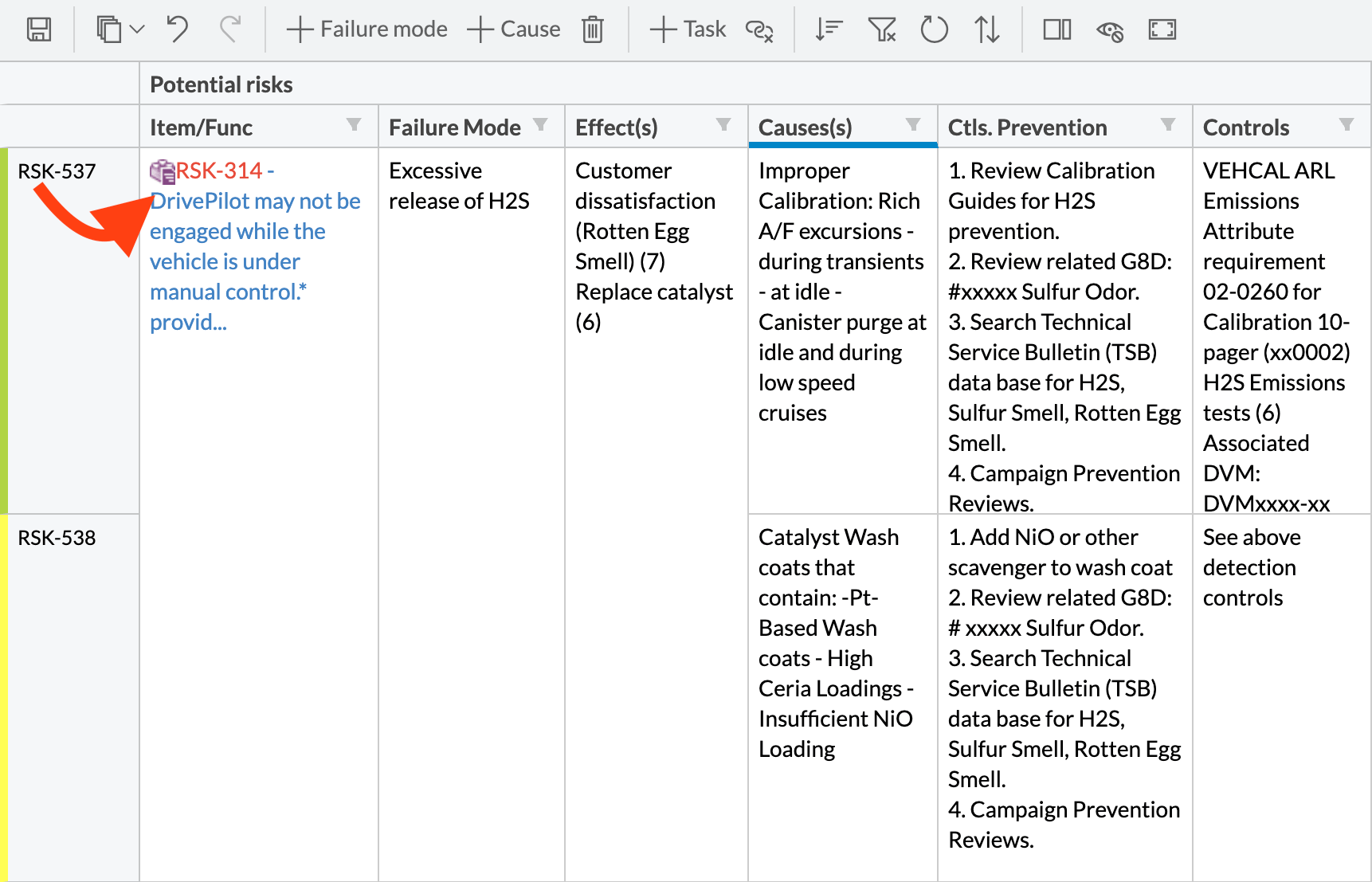
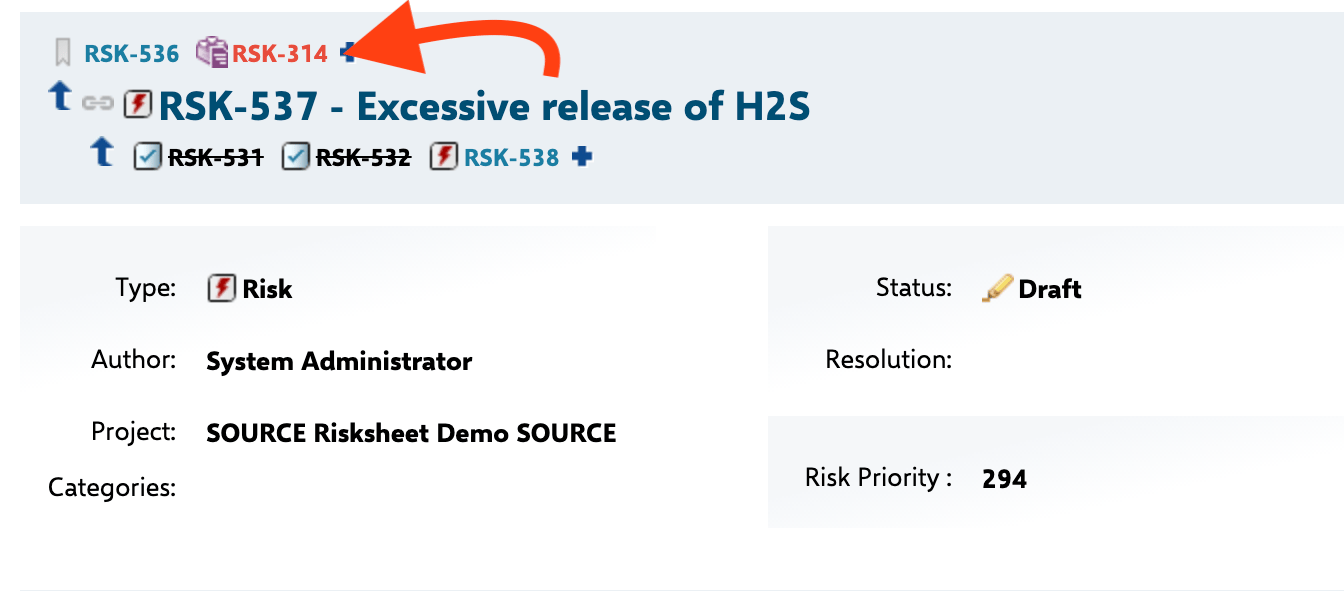
Upstream traceability columns use the `itemLink` or `multiItemLink` column type to display work items that are linked to each risk item through Siemens Polarion ALM work item link relationships. The column `bindings` property specifies the Polarion field that stores the link reference, and the `typeProperties` section defines the linked item's work item type, link role, and related behavior.

 ## Step 1: Identify the Link Role and Work Item Type
Before configuring the column, determine:
* The **work item type** of the upstream item (for example, `requirement`, `systemRequirement`, `hazard`). Risksheet supports one or more types in the same column.
* The **link role** connecting the risk item to the upstream item (for example, `mitigates`, `verifies`, `relatesTo`).
You can find these values in your Polarion project configuration under **Administration > Work Items > Link Roles**.
## The Six `typeProperties` Sub-Properties
The `typeProperties` block on an `itemLink` or `multiItemLink` column accepts the following sub-properties. The two highlighted in bold are required for any upstream column; the rest control optional behavior.
| Sub-property | Type | Description |
| --------------- | ------- | ------------------------------------------------------------------------------------------------------------------------------ |
| **`linkRole`** | string | Polarion link role connecting the risk item to the upstream item (e.g., `mitigates`). |
| **`linkTypes`** | string | Comma-separated list of work item type IDs the column accepts (e.g., `requirement` or `requirement,systemRequirement`). |
| `linkDirection` | string | Set to `back` to traverse the link in the reverse direction (the upstream item is the source of the link). |
| `backLink` | boolean | Renders the link in back-link form. Useful for reverse-direction columns. |
| `itemTemplate` | string | Velocity template for custom rendering of each linked item in the cell. |
| `queryFactory` | string | Name of a function in the `queryFactories` section that returns a Lucene query to filter autocomplete suggestions dynamically. |
Two additional sub-properties extend `typeProperties` for cross-document and cross-project scenarios and are covered in later steps: `document` (scope autocomplete to a specific LiveDoc) and `project` (load items from another project). Item creation is controlled by `createInCurrentDocument` and the top-level `canCreate` column property.
## Step 2: Add a Basic Upstream Column
Open the sheet configuration (the `risksheet.json` document attachment, editable in YAML since v25.5.0) and add an `itemLink` column. Set `bindings` to the Polarion field that stores the link, and define the linked work item via `linkTypes` and `linkRole`:
```yaml theme={null}
columns:
- id: sysReq
header: System Requirement
type: itemLink
bindings: linkedItem
level: 1
typeProperties:
linkTypes: systemRequirement
linkRole: mitigates
```
This configuration displays a single linked system requirement for each risk item at visual level 1 of the hierarchy. Note that the column `level` property is **1-indexed** — `level: 1` corresponds to the first entry in the top-level `levels` array.
Every column `id` in the sheet configuration must be unique across the entire file. Duplicating an ID (for example, using `id: sysReq` on two different columns) will break the sheet structure silently, causing columns to not render or data to be misaligned.
## Step 3: Configure Multi-Item Upstream Columns
When a risk item can be linked to multiple upstream items (for example, multiple requirements tracing to one hazard), use the `multiItemLink` type instead:
```yaml theme={null}
columns:
- id: requirements
header: Linked Requirements
type: multiItemLink
bindings: linkedItems
level: 1
typeProperties:
linkTypes: requirement
linkRole: mitigates
```
The `multiItemLink` column displays all matching linked items within a single cell, allowing users to add and remove links to multiple upstream items.
## Step 1: Identify the Link Role and Work Item Type
Before configuring the column, determine:
* The **work item type** of the upstream item (for example, `requirement`, `systemRequirement`, `hazard`). Risksheet supports one or more types in the same column.
* The **link role** connecting the risk item to the upstream item (for example, `mitigates`, `verifies`, `relatesTo`).
You can find these values in your Polarion project configuration under **Administration > Work Items > Link Roles**.
## The Six `typeProperties` Sub-Properties
The `typeProperties` block on an `itemLink` or `multiItemLink` column accepts the following sub-properties. The two highlighted in bold are required for any upstream column; the rest control optional behavior.
| Sub-property | Type | Description |
| --------------- | ------- | ------------------------------------------------------------------------------------------------------------------------------ |
| **`linkRole`** | string | Polarion link role connecting the risk item to the upstream item (e.g., `mitigates`). |
| **`linkTypes`** | string | Comma-separated list of work item type IDs the column accepts (e.g., `requirement` or `requirement,systemRequirement`). |
| `linkDirection` | string | Set to `back` to traverse the link in the reverse direction (the upstream item is the source of the link). |
| `backLink` | boolean | Renders the link in back-link form. Useful for reverse-direction columns. |
| `itemTemplate` | string | Velocity template for custom rendering of each linked item in the cell. |
| `queryFactory` | string | Name of a function in the `queryFactories` section that returns a Lucene query to filter autocomplete suggestions dynamically. |
Two additional sub-properties extend `typeProperties` for cross-document and cross-project scenarios and are covered in later steps: `document` (scope autocomplete to a specific LiveDoc) and `project` (load items from another project). Item creation is controlled by `createInCurrentDocument` and the top-level `canCreate` column property.
## Step 2: Add a Basic Upstream Column
Open the sheet configuration (the `risksheet.json` document attachment, editable in YAML since v25.5.0) and add an `itemLink` column. Set `bindings` to the Polarion field that stores the link, and define the linked work item via `linkTypes` and `linkRole`:
```yaml theme={null}
columns:
- id: sysReq
header: System Requirement
type: itemLink
bindings: linkedItem
level: 1
typeProperties:
linkTypes: systemRequirement
linkRole: mitigates
```
This configuration displays a single linked system requirement for each risk item at visual level 1 of the hierarchy. Note that the column `level` property is **1-indexed** — `level: 1` corresponds to the first entry in the top-level `levels` array.
Every column `id` in the sheet configuration must be unique across the entire file. Duplicating an ID (for example, using `id: sysReq` on two different columns) will break the sheet structure silently, causing columns to not render or data to be misaligned.
## Step 3: Configure Multi-Item Upstream Columns
When a risk item can be linked to multiple upstream items (for example, multiple requirements tracing to one hazard), use the `multiItemLink` type instead:
```yaml theme={null}
columns:
- id: requirements
header: Linked Requirements
type: multiItemLink
bindings: linkedItems
level: 1
typeProperties:
linkTypes: requirement
linkRole: mitigates
```
The `multiItemLink` column displays all matching linked items within a single cell, allowing users to add and remove links to multiple upstream items.
 You can also accept several work item types in the same column by providing a comma-separated string in `linkTypes`:
```yaml theme={null}
typeProperties:
linkTypes: requirement,systemRequirement
linkRole: mitigates
```
## Step 4: Control Item Creation from the Column
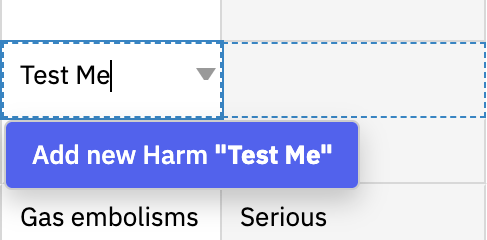
By default, upstream columns allow users to both select existing items and create new ones directly from the cell editor. To restrict the column to selection only (preventing creation of new upstream items), set the column-level `canCreate` to `false`:
You can also accept several work item types in the same column by providing a comma-separated string in `linkTypes`:
```yaml theme={null}
typeProperties:
linkTypes: requirement,systemRequirement
linkRole: mitigates
```
## Step 4: Control Item Creation from the Column
By default, upstream columns allow users to both select existing items and create new ones directly from the cell editor. To restrict the column to selection only (preventing creation of new upstream items), set the column-level `canCreate` to `false`:
 ```yaml theme={null}
columns:
- id: hazard
header: Hazardous Situation
type: itemLink
bindings: linkedItem
level: 1
canCreate: false
typeProperties:
linkTypes: hazardousSituation
linkRole: hasHazard
```
Set `canCreate` to `false` on upstream columns where the linked items should be pre-created in the tracker or in a separate document. This prevents users from accidentally creating upstream items from within the risksheet, keeping item creation workflows centralized. The cell remains active for linking and unlinking existing items.
Item creation can also be disabled globally for downstream task items via `dataTypes.task.canCreate: false`. The two `canCreate` switches operate independently.
## Step 5: Make Upstream Columns Editable
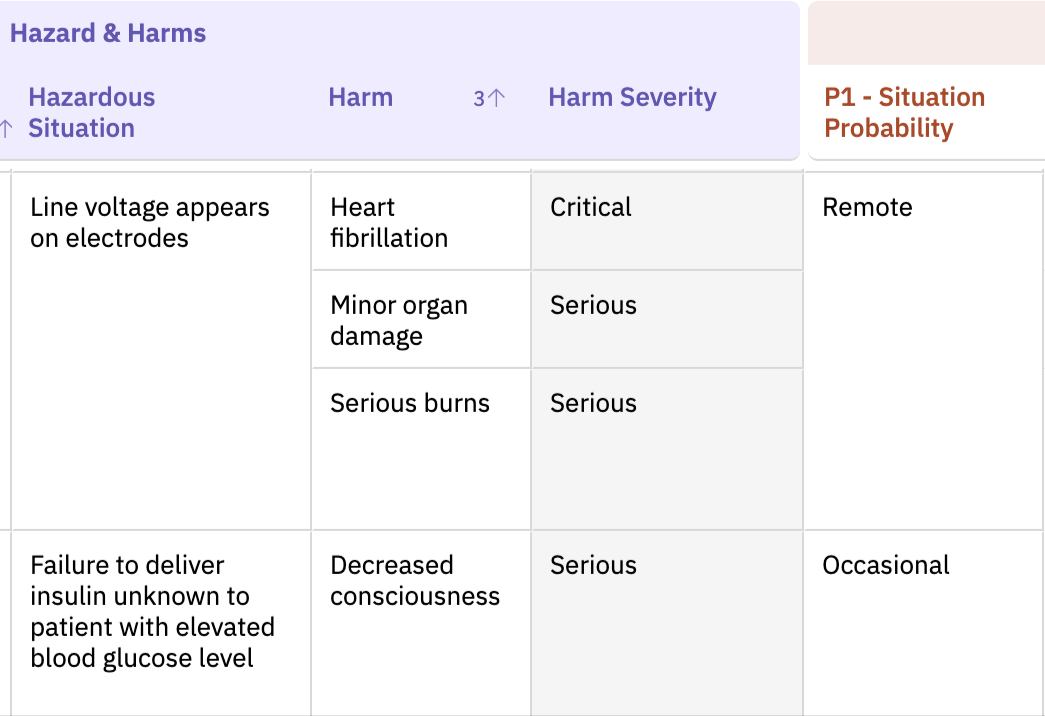
By default, upstream item columns are **read-only**. To allow users to edit field values of the linked upstream item directly from the grid, explicitly set `readOnly` to `false`:
```yaml theme={null}
columns:
- id: hazard
header: Hazardous Situation
type: itemLink
bindings: linkedItem
level: 1
canCreate: false
typeProperties:
linkTypes: hazardousSituation
linkRole: hasHazard
```
Set `canCreate` to `false` on upstream columns where the linked items should be pre-created in the tracker or in a separate document. This prevents users from accidentally creating upstream items from within the risksheet, keeping item creation workflows centralized. The cell remains active for linking and unlinking existing items.
Item creation can also be disabled globally for downstream task items via `dataTypes.task.canCreate: false`. The two `canCreate` switches operate independently.
## Step 5: Make Upstream Columns Editable
By default, upstream item columns are **read-only**. To allow users to edit field values of the linked upstream item directly from the grid, explicitly set `readOnly` to `false`:
 ```yaml theme={null}
columns:
- id: reqTitle
header: Requirement Title
type: string
bindings: title
level: 1
readOnly: false
typeProperties:
linkTypes: requirement
linkRole: mitigates
```
All upstream item columns default to `readOnly: true`. If you add an upstream column and users report they cannot edit it, add `readOnly: false` to the column definition. This is a frequent point of confusion during initial setup. The global behavior is also governed by the `nextedy.risksheet.upstreamSubColumnsReadonly` project property (default `true`).
## Step 6: Specify the Enum Type for Upstream Columns
When displaying enum fields from upstream items, you must explicitly set the column `type` to `enum` (or `multiEnum`). While the `type` property is optional for main row item columns (it can be auto-detected from the Polarion field), it is **mandatory** for upstream and downstream linked item columns:
```yaml theme={null}
columns:
- id: reqPriority
header: Priority
type: enum
bindings: priority
level: 1
typeProperties:
linkTypes: requirement
linkRole: mitigates
```
The enum values themselves are defined in Polarion (Administration > Enumerations) and bound to the work item field — Risksheet does not declare enum values in the sheet configuration.
## Step 7: Configure Cross-Project Upstream Items
To display upstream items from a different Polarion project, add the `project` parameter to `typeProperties`. The value is a space-separated string of project IDs, and the special variable `$projectId` resolves to the current project at runtime:
```yaml theme={null}
columns:
- id: crossProjReq
header: System Requirement
type: itemLink
bindings: linkedItem
level: 1
typeProperties:
linkTypes: systemRequirement
linkRole: mitigates
project: $projectId SystemProject
```
This enables cross-project traceability, where risk items in one project reference requirements or functions defined in another. The example above lets autocomplete pull items from both the current project and `SystemProject`.
The `project` parameter in `typeProperties` only works for directly linked items. If upstream items are linked through intermediary work items in another project (indirect links), the standard cross-project column configuration will not resolve them. Consider using `serverRender` with Velocity scripts for indirect cross-project link traversal.
## Step 8: Scope Autocomplete to a Library Document
For shared upstream catalogs (harms libraries, requirements libraries, function catalogs), restrict the autocomplete to a specific LiveDoc using `typeProperties.document`:
```yaml theme={null}
columns:
- id: harm
header: Harm
type: itemLink
bindings: linkedItem
level: 1
typeProperties:
linkTypes: harm
linkRole: hasHarm
document: 02 - Risk Management File/Harms Library
```
This is the recommended pattern for upstream traceability to centrally curated reference libraries — users can only link to items that already exist in the named document.
## Step 9: Configure the `createInCurrentDocument` Parameter
When upstream item creation is enabled (the default), the `createInCurrentDocument` parameter controls where newly created items are stored:
```yaml theme={null}
columns:
- id: hazard
header: Hazard
type: itemLink
bindings: linkedItem
level: 1
typeProperties:
linkTypes: hazard
linkRole: hasHazard
createInCurrentDocument: true
```
When `createInCurrentDocument` is `true`, new upstream items are created within the current LiveDoc. When `false` or omitted, new items are created in the Polarion tracker (outside any document).
## Step 10: Build Upstream Chains with `upstreamChains`
When two upstream item types are both linked to the risk item and you want to automatically create links between them, use the `nextedy.risksheet.upstreamChains` project property. This is configured at the project level, not in the sheet configuration.
The format is: `fromType-linkRole-toType`
For example, to automatically link a Hazardous Situation to a Sequence of Events when both are linked to the same risk record:
```text theme={null}
nextedy.risksheet.upstreamChains = situation-relatesTo-sequenceOfEvents
```
Multiple chains can be specified with commas:
```text theme={null}
nextedy.risksheet.upstreamChains = harm-relatesTo-situation,situation-hasHazard-hazard
```
The `upstreamChains` property only creates links between upstream items. It never deletes existing links. If you remove an upstream item from a risk record, the chain link between the two upstream items remains intact and must be manually removed if needed.
Some upstream linkages in DFMEA templates work automatically without explicit `upstreamChains` configuration. If you are using a Nextedy-provided DFMEA template, test your link behavior before adding chain configuration.
## Step 11: Dynamically Filter Suggestions with `queryFactory`
The `queryFactory` sub-property in `typeProperties` references a named function in the top-level `queryFactories` section. That function receives an `info` object with the current row's context and returns a Lucene query string used to filter the autocomplete suggestions. This is how you implement dependent upstream filtering — for example, restricting Hazardous Situation suggestions to those already linked to the selected Sequence of Events:
```yaml theme={null}
columns:
- id: reqTitle
header: Requirement Title
type: string
bindings: title
level: 1
readOnly: false
typeProperties:
linkTypes: requirement
linkRole: mitigates
```
All upstream item columns default to `readOnly: true`. If you add an upstream column and users report they cannot edit it, add `readOnly: false` to the column definition. This is a frequent point of confusion during initial setup. The global behavior is also governed by the `nextedy.risksheet.upstreamSubColumnsReadonly` project property (default `true`).
## Step 6: Specify the Enum Type for Upstream Columns
When displaying enum fields from upstream items, you must explicitly set the column `type` to `enum` (or `multiEnum`). While the `type` property is optional for main row item columns (it can be auto-detected from the Polarion field), it is **mandatory** for upstream and downstream linked item columns:
```yaml theme={null}
columns:
- id: reqPriority
header: Priority
type: enum
bindings: priority
level: 1
typeProperties:
linkTypes: requirement
linkRole: mitigates
```
The enum values themselves are defined in Polarion (Administration > Enumerations) and bound to the work item field — Risksheet does not declare enum values in the sheet configuration.
## Step 7: Configure Cross-Project Upstream Items
To display upstream items from a different Polarion project, add the `project` parameter to `typeProperties`. The value is a space-separated string of project IDs, and the special variable `$projectId` resolves to the current project at runtime:
```yaml theme={null}
columns:
- id: crossProjReq
header: System Requirement
type: itemLink
bindings: linkedItem
level: 1
typeProperties:
linkTypes: systemRequirement
linkRole: mitigates
project: $projectId SystemProject
```
This enables cross-project traceability, where risk items in one project reference requirements or functions defined in another. The example above lets autocomplete pull items from both the current project and `SystemProject`.
The `project` parameter in `typeProperties` only works for directly linked items. If upstream items are linked through intermediary work items in another project (indirect links), the standard cross-project column configuration will not resolve them. Consider using `serverRender` with Velocity scripts for indirect cross-project link traversal.
## Step 8: Scope Autocomplete to a Library Document
For shared upstream catalogs (harms libraries, requirements libraries, function catalogs), restrict the autocomplete to a specific LiveDoc using `typeProperties.document`:
```yaml theme={null}
columns:
- id: harm
header: Harm
type: itemLink
bindings: linkedItem
level: 1
typeProperties:
linkTypes: harm
linkRole: hasHarm
document: 02 - Risk Management File/Harms Library
```
This is the recommended pattern for upstream traceability to centrally curated reference libraries — users can only link to items that already exist in the named document.
## Step 9: Configure the `createInCurrentDocument` Parameter
When upstream item creation is enabled (the default), the `createInCurrentDocument` parameter controls where newly created items are stored:
```yaml theme={null}
columns:
- id: hazard
header: Hazard
type: itemLink
bindings: linkedItem
level: 1
typeProperties:
linkTypes: hazard
linkRole: hasHazard
createInCurrentDocument: true
```
When `createInCurrentDocument` is `true`, new upstream items are created within the current LiveDoc. When `false` or omitted, new items are created in the Polarion tracker (outside any document).
## Step 10: Build Upstream Chains with `upstreamChains`
When two upstream item types are both linked to the risk item and you want to automatically create links between them, use the `nextedy.risksheet.upstreamChains` project property. This is configured at the project level, not in the sheet configuration.
The format is: `fromType-linkRole-toType`
For example, to automatically link a Hazardous Situation to a Sequence of Events when both are linked to the same risk record:
```text theme={null}
nextedy.risksheet.upstreamChains = situation-relatesTo-sequenceOfEvents
```
Multiple chains can be specified with commas:
```text theme={null}
nextedy.risksheet.upstreamChains = harm-relatesTo-situation,situation-hasHazard-hazard
```
The `upstreamChains` property only creates links between upstream items. It never deletes existing links. If you remove an upstream item from a risk record, the chain link between the two upstream items remains intact and must be manually removed if needed.
Some upstream linkages in DFMEA templates work automatically without explicit `upstreamChains` configuration. If you are using a Nextedy-provided DFMEA template, test your link behavior before adding chain configuration.
## Step 11: Dynamically Filter Suggestions with `queryFactory`
The `queryFactory` sub-property in `typeProperties` references a named function in the top-level `queryFactories` section. That function receives an `info` object with the current row's context and returns a Lucene query string used to filter the autocomplete suggestions. This is how you implement dependent upstream filtering — for example, restricting Hazardous Situation suggestions to those already linked to the selected Sequence of Events:
 ```yaml theme={null}
queryFactories:
filterBySeqOfEvents: "function(info){ return 'type:hazardousSituation AND linkedItems:' + info.item['sequenceOfEvents']; }"
columns:
- id: hazSituation
header: Hazardous Situation
type: itemLink
bindings: linkedItem
level: 1
canCreate: false
typeProperties:
linkTypes: hazardousSituation
linkRole: hasHazard
queryFactory: filterBySeqOfEvents
```
The function body can perform any logic you need, including reading values from the top panel via jQuery selectors. Pair `queryFactory` with `canCreate: false` so users can only pick from the filtered set rather than create unrelated new items. See [Use Query Factory](/risksheet/guides/advanced/query-factory) for the full reference.
## Verification
After saving the sheet configuration and refreshing the page, you should see:
* The upstream column header displayed in the grid.
* Linked upstream items showing their ID or title in each cell.
* The cell editor allowing you to search for and select existing upstream items.
* New item creation available, unless `canCreate: false` is set on the column or globally.
If the column appears but shows no data, verify that the `linkRole` and `linkTypes` values in `typeProperties` match the Polarion project's link role and work item type definitions exactly.
## See Also
* [Configure Downstream Traceability Columns](/risksheet/guides/columns/downstream-traceability)
* [Show Multiple Linked Items](/risksheet/guides/columns/multiple-linked-items)
* [Enable Editing of Upstream Columns](/risksheet/guides/columns/edit-upstream-columns)
* [Consolidate Multiple Link Columns](/risksheet/guides/columns/consolidate-link-columns)
* [Enable Conditional Linking](/risksheet/guides/columns/conditional-linking)
* [Configure Cross-Project Linking](/risksheet/guides/advanced/cross-project-linking)
* [Use Query Factory](/risksheet/guides/advanced/query-factory)
```yaml theme={null}
queryFactories:
filterBySeqOfEvents: "function(info){ return 'type:hazardousSituation AND linkedItems:' + info.item['sequenceOfEvents']; }"
columns:
- id: hazSituation
header: Hazardous Situation
type: itemLink
bindings: linkedItem
level: 1
canCreate: false
typeProperties:
linkTypes: hazardousSituation
linkRole: hasHazard
queryFactory: filterBySeqOfEvents
```
The function body can perform any logic you need, including reading values from the top panel via jQuery selectors. Pair `queryFactory` with `canCreate: false` so users can only pick from the filtered set rather than create unrelated new items. See [Use Query Factory](/risksheet/guides/advanced/query-factory) for the full reference.
## Verification
After saving the sheet configuration and refreshing the page, you should see:
* The upstream column header displayed in the grid.
* Linked upstream items showing their ID or title in each cell.
* The cell editor allowing you to search for and select existing upstream items.
* New item creation available, unless `canCreate: false` is set on the column or globally.
If the column appears but shows no data, verify that the `linkRole` and `linkTypes` values in `typeProperties` match the Polarion project's link role and work item type definitions exactly.
## See Also
* [Configure Downstream Traceability Columns](/risksheet/guides/columns/downstream-traceability)
* [Show Multiple Linked Items](/risksheet/guides/columns/multiple-linked-items)
* [Enable Editing of Upstream Columns](/risksheet/guides/columns/edit-upstream-columns)
* [Consolidate Multiple Link Columns](/risksheet/guides/columns/consolidate-link-columns)
* [Enable Conditional Linking](/risksheet/guides/columns/conditional-linking)
* [Configure Cross-Project Linking](/risksheet/guides/advanced/cross-project-linking)
* [Use Query Factory](/risksheet/guides/advanced/query-factory)