> ## Documentation Index
> Fetch the complete documentation index at: https://learn.nextedy.com/llms.txt
> Use this file to discover all available pages before exploring further.
# Show ID and Title in One Column for Downstream Items
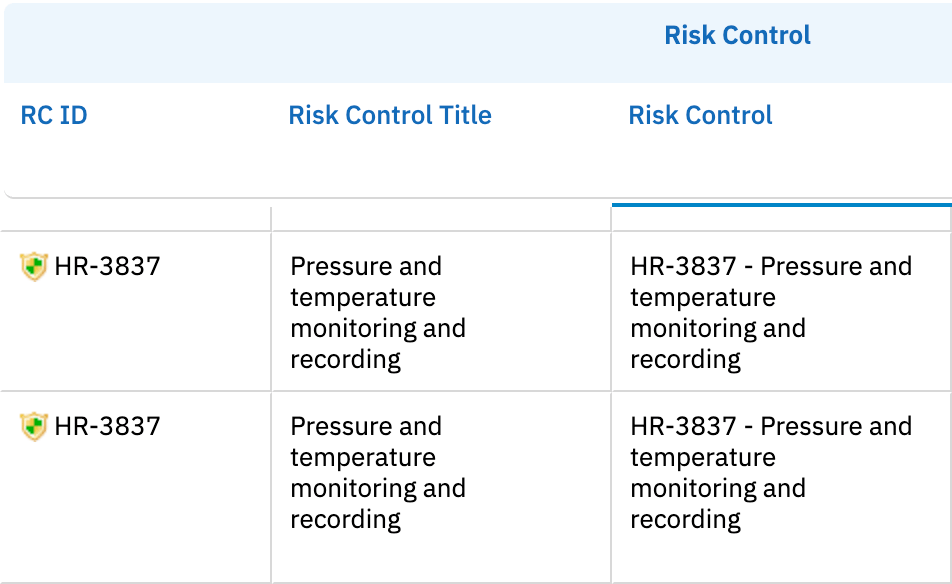
> Combine the ID and title of downstream task items into a single, compact column to save horizontal space and improve readability of mitigation, control, or safety-requirement links.
export const LastReviewed = ({date}) => {
if (!date) return null;
const formatted = new Date(`${date}T00:00:00Z`).toLocaleDateString("en-US", {
year: "numeric",
month: "long",
day: "numeric",
timeZone: "UTC"
});
return
Last reviewed on {formatted}
;
};
## When to use this pattern
By default, you might use two separate columns to show the downstream item ID and the downstream item title. That works, but it doubles the horizontal footprint of every linked task. A single combined column is especially useful when:
* You are showing several downstream task types side by side (mitigation, verification, safety requirement)
* The grid is already wide and you want to reclaim horizontal space
* You want a clickable, copy-friendly summary like `MIT-0042 — Add fuse to power input`
The combined column uses a server-rendered Velocity template that produces the ID, a separator, and the title in one cell, with the task object exposed through the `task.$item` binding pattern.

 ## Before you start
You will need:
* A sheet configuration where `dataTypes.task` is already configured (work item type, link role, name)
* Permission to edit the sheet configuration through **Menu > Configuration > Edit Risksheet Configuration**
* Familiarity with combining server-rendered columns and the `task.$item` binding (see [Render Custom Data](/risksheet/guides/columns/custom-data-rendering))
Start from your existing solution template — pick the closest template for your methodology and modify it. Do not start from a blank configuration.
Open the sheet configuration. Locate the `dataTypes` block and make sure the `task` entry is present:
```yaml theme={null}
dataTypes:
risk:
type: failureMode
task:
type: mitigationTask
role: mitigates
name: Mitigation
zoomColumn: taskIdTitle
```
The `name` is what appears in toolbar menus. The `zoomColumn` should be the ID of the combined column you are about to create — this lets users click into the column when they zoom into a task.
"Risk" and "task" are naming conventions, not constraints. The same pattern works for any two work item types, including requirements linked to test cases, or hazards linked to safety goals.
Add a new column entry under `columns`. The key trick is binding to `task.$item` and using a Velocity `serverRender` template to format the output:
```yaml theme={null}
columns:
- id: taskIdTitle
header: Task
bindings: task.$item
width: 280
serverRender: |
#if($item)
$item.fields().id().get() — $item.fields().title().get()
#end
```
Key points:
* `bindings: task.$item` exposes the entire downstream task work item as `$item` in the Velocity context
* The column is **implicitly read-only** because it is server-rendered
* The `#if($item)` guard prevents rendering when a row has no linked task
* The em-dash (`—`) is a visual separator — adapt to your house style (colon, pipe, line break)
For richer formatting, wrap the ID in a clickable link. Velocity's `$item.render().linkTo()` helper or the standard Polarion link helpers produce a hyperlink to the work item. See [Customize Link Rendering](/risksheet/guides/columns/custom-link-rendering) for the patterns Risksheet supports.
The most common formats are:
| Style | Example | Best for |
| --------------------- | -------------------------- | ---------------------------- |
| Em-dash | `MIT-0042 — Add fuse` | Print-friendly, easy to scan |
| Colon | `MIT-0042: Add fuse` | Compact lists |
| Line break (`
## Before you start
You will need:
* A sheet configuration where `dataTypes.task` is already configured (work item type, link role, name)
* Permission to edit the sheet configuration through **Menu > Configuration > Edit Risksheet Configuration**
* Familiarity with combining server-rendered columns and the `task.$item` binding (see [Render Custom Data](/risksheet/guides/columns/custom-data-rendering))
Start from your existing solution template — pick the closest template for your methodology and modify it. Do not start from a blank configuration.
Open the sheet configuration. Locate the `dataTypes` block and make sure the `task` entry is present:
```yaml theme={null}
dataTypes:
risk:
type: failureMode
task:
type: mitigationTask
role: mitigates
name: Mitigation
zoomColumn: taskIdTitle
```
The `name` is what appears in toolbar menus. The `zoomColumn` should be the ID of the combined column you are about to create — this lets users click into the column when they zoom into a task.
"Risk" and "task" are naming conventions, not constraints. The same pattern works for any two work item types, including requirements linked to test cases, or hazards linked to safety goals.
Add a new column entry under `columns`. The key trick is binding to `task.$item` and using a Velocity `serverRender` template to format the output:
```yaml theme={null}
columns:
- id: taskIdTitle
header: Task
bindings: task.$item
width: 280
serverRender: |
#if($item)
$item.fields().id().get() — $item.fields().title().get()
#end
```
Key points:
* `bindings: task.$item` exposes the entire downstream task work item as `$item` in the Velocity context
* The column is **implicitly read-only** because it is server-rendered
* The `#if($item)` guard prevents rendering when a row has no linked task
* The em-dash (`—`) is a visual separator — adapt to your house style (colon, pipe, line break)
For richer formatting, wrap the ID in a clickable link. Velocity's `$item.render().linkTo()` helper or the standard Polarion link helpers produce a hyperlink to the work item. See [Customize Link Rendering](/risksheet/guides/columns/custom-link-rendering) for the patterns Risksheet supports.
The most common formats are:
| Style | Example | Best for |
| --------------------- | -------------------------- | ---------------------------- |
| Em-dash | `MIT-0042 — Add fuse` | Print-friendly, easy to scan |
| Colon | `MIT-0042: Add fuse` | Compact lists |
| Line break (`
`) | `MIT-0042`\
`Add fuse` | Long titles, narrow columns |
| Bold ID + plain title | **MIT-0042** Add fuse | Maximum visual contrast |
For a two-line layout that wraps the title under a bold ID:
```yaml theme={null}
- id: taskIdTitle
header: Task
bindings: task.$item
width: 240
serverRender: |
#if($item)
$item.fields().id().get()
$item.fields().title().get()
#end
```
If you previously had separate `taskId` and `taskTitle` columns, remove or hide them. The cleanest approach is to delete them entirely from the `columns` array. If you need them available for power users, keep them in the configuration and exclude them from your default view:
```yaml theme={null}
views:
- name: Compact
defaultView: true
columnIds:
- "@all"
- "-taskId"
- "-taskTitle"
- name: Detailed
columnIds:
- "@all"
```
The `@all` shorthand includes every column, and the `-columnId` prefix removes specific columns from that set. See [Configure Column Visibility](/risksheet/guides/columns/column-visibility) for more on view filtering.
Combined columns are typically task-scope columns and therefore should have **no `level` property** — task columns merge by parent risk item plus task ID, not by visual level. Check that the column entry does not include a `level: N` setting that would push it into a risk-row hierarchy.
Adding a `level` to a task-bound column makes Risksheet try to merge cells across rows that share the same parent risk, which collapses several distinct tasks into a single cell. If your combined column shows one row per risk instead of one row per task, remove the `level` property.
1. Save the sheet configuration through the editor
2. Reload the risksheet document
3. Confirm that the combined column displays both the ID and the title for every linked downstream task
You should now see one column per downstream task showing `ID — Title`, with no separate ID/title columns cluttering the view. Clicking the column header should sort by the rendered value, and the column should remain read-only.
## Working with multiple downstream types
If your sheet has more than one downstream type (for example, mitigations and verifications), repeat the pattern with one combined column per type. Reference your `dataTypes.task` configuration and assign distinct `id` values to each combined column. See [Configure Multiple Downstream Types](/risksheet/guides/risk-management/multiple-downstream-types) for the broader pattern.
Use a `cellDecorator` to color-code the combined column by task work item type. The decorator can inspect the rendered cell text or the underlying `info.item` and apply a CSS class through `$(info.cell).toggleClass('mitigation-row', condition)`.
## Troubleshooting
| Symptom | Likely cause | Fix |
| ---------------------------------------------------------- | -------------------------------------------------------- | ----------------------------------------------------------------------------------- |
| Cell renders empty | No downstream task linked, or `#if($item)` guard missing | Confirm a task is linked; verify the Velocity template wraps output in `#if($item)` |
| Cell shows raw `$item.fields()...` | `bindings: task.$item` is missing or wrong | Re-check the column `bindings` value — the `$item` suffix is required |
| Column is editable | `serverRender` was removed or misspelled | Add the `serverRender` template back — server-rendered columns are read-only |
| Both ID and title appear blank but other task columns work | Different downstream task type without these fields | Confirm the task work item type actually has `id` and `title` fields populated |
| Long titles overflow | Column width too narrow | Increase `width` or switch to the two-line layout in Step 3 |
## See also
* [Render Custom Data](/risksheet/guides/columns/custom-data-rendering)
* [Customize Link Rendering](/risksheet/guides/columns/custom-link-rendering)
* [Configure Downstream Traceability Columns](/risksheet/guides/columns/downstream-traceability)
* [Configure Multiple Downstream Types](/risksheet/guides/risk-management/multiple-downstream-types)
* [Configure Downstream Tasks](/risksheet/guides/risk-management/downstream-tasks)
* [Control Column Visibility](/risksheet/guides/columns/column-visibility)
* [Configure Column Sorting](/risksheet/guides/columns/sorting)