> ## Documentation Index
> Fetch the complete documentation index at: https://learn.nextedy.com/llms.txt
> Use this file to discover all available pages before exploring further.
# Configure the AI Assistant
> Enable the AI Assistant in Nextedy RISKSHEET — connect a language model, license and switch on the assistant per project, define your first action, and point a sheet at it.
export const LastReviewed = ({date}) => {
if (!date) return null;
const formatted = new Date(`${date}T00:00:00Z`).toLocaleDateString("en-US", {
year: "numeric",
month: "long",
day: "numeric",
timeZone: "UTC"
});
return
Last reviewed on {formatted}
;
};
The **AI Assistant** offers no actions until you define them. This guide takes a Risksheet project from nothing to a working action on a risk row, in the order the pieces have to be in place.
For the model behind actions, see [AI Assistant](/risksheet/concepts/ai-assistant). For every field of the action file, see [AI Action Configuration](/risksheet/reference/configuration/ai-action-configuration).
## Prerequisites
* Polarion administrator rights on the server and on the project.
* The **Nextedy AI** package installed, and a valid **Nextedy AI** license — see [Nextedy AI](/overview/resources/nextedy-ai) and [Installing a License](/overview/resources/installing-the-license).
* A Risksheet document whose configuration you can edit.
* Access to a language-model endpoint. The in-sheet assistant calls the model from your Polarion server, so the server needs an endpoint and a key it can use.
**The in-sheet assistant needs a model endpoint configured on the server.** This is separate from the license. Until a key resolves, the assistant reports itself unavailable and the toolbar button stays disabled — the most common reason a correctly licensed installation offers no AI at all.
## Connect a language model
Set these in Polarion's global context properties (`.polarion/context.properties`):
```properties theme={null}
nextedy.ai.baseUrl=https://api.openai.com/v1
nextedy.ai.model=gpt-4o-mini
```
| Property | Default | Description |
| -------------------- | --------------------------- | --------------------------------------------------------------------------------------------------------------- |
| `nextedy.ai.baseUrl` | `https://api.openai.com/v1` | Base URL of the model API. Point it at your own compatible endpoint to keep traffic inside your infrastructure. |
| `nextedy.ai.model` | `gpt-4o-mini` | Model identifier sent with each request. |
The API key is resolved from the first of these that holds a value:
A credential stored under the key `nextedy-openai-apikey`. This is the option to prefer — the vault keeps the secret encrypted and access-controlled.
`nextedy-openai-apikey`, passed to the Polarion process.
`OPENAI_API_KEY` in the Polarion process environment.
If none of them resolves, the assistant is unavailable.
The endpoint, model, and key are re-read per request, so changing any of them takes effect on the next action — no Polarion restart needed.
These properties are read from the **global** context only. They cannot be varied per project.
## Switch the assistant on for a project
Three project properties control what a project offers. All default to on, so a licensed server with a configured endpoint offers the assistant everywhere unless you opt out.
| Property | Default | Description |
| ---------------------------------- | ------- | ----------------------------------------------------------------------------------------------- |
| `nextedy.risksheet.aiAssistant` | `true` | The in-sheet AI Assistant in Risksheet documents. Set to `false` to keep a project AI-free. |
| `nextedy.risksheet.adminAssistant` | `true` | The assistant inside the Risksheet configuration editor. |
| `nextedy.risksheet.promotions` | `true` | Whether the toolbar advertises the assistant on installations that are **not** licensed for it. |
### Hiding a feature versus hiding an advert
These are two different jobs, and it is worth being clear which one you want:
* **You do not have the assistant, and do not want it advertised.** On an unlicensed installation the toolbar still shows the sparkle button, disabled, whose tooltip explains what the Nextedy AI package would add and how to get it. That is deliberate promotion. Setting `nextedy.risksheet.promotions` to `false` removes it.
* **You have the assistant, but not in this project.** Setting `nextedy.risksheet.aiAssistant` to `false` removes the in-sheet assistant from that project's documents entirely — no button, no cell-menu entries — while other projects on the same server keep it.
`nextedy.risksheet.promotions` only takes effect while the instance is unlicensed; on a licensed server it changes nothing, because there is no advert to suppress.
## Write an action
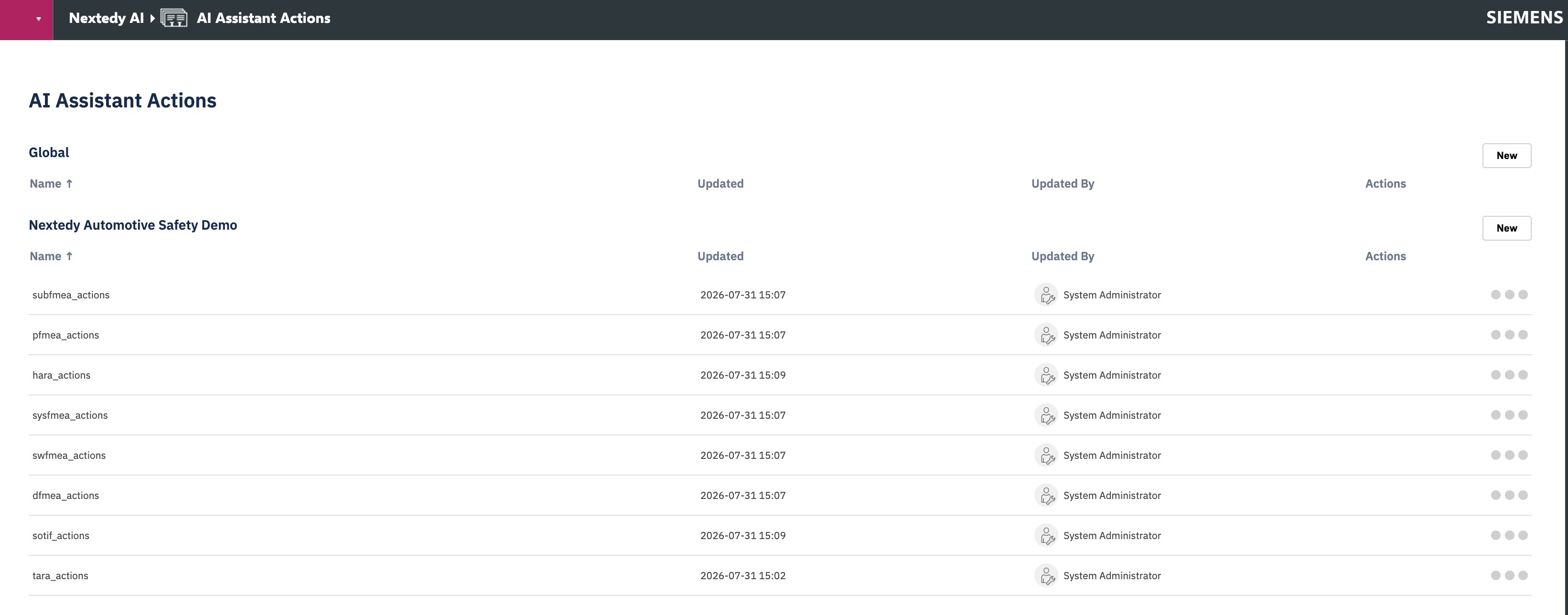
Action files are YAML, and they live in the Polarion configuration folder `.polarion/nextedy/ai/` — either in the project, or globally so several projects can share them. You can edit them through **Administration → Nextedy AI → AI Assistant Actions**, which lists the files in that folder.
Start with one action. This one looks for existing harm work items to link onto a HARA row:
```yaml actions.yaml theme={null}
globals:
systemContext: "An infusion pump delivering medication intravenously in a clinical setting."
actions:
find-harms:
label: "Find Harms"
message: "Suggest potential harms for this hazardous situation"
scope:
columns:
- hazardousSituation
- hazard_title
contextSources:
row:
fields:
useStep: "Use step"
hazardousSituation: "Hazardous situation"
hazard_title: "Hazard"
discover:
keywordPrompt: >
${globals.systemContext}
Generate keywords naming the types of HARM a patient or operator could suffer
as a consequence of the hazardous situation described in the context.
rankPrompt: >
Select the harms that could plausibly result from this hazardous situation.
If none of the candidates applies, return none rather than the closest match.
search:
maxCandidates: 30
output:
limit: 5
sortBy: "relevance"
apply:
field: harm
```
What each part is doing:
* **`label`** is the text in the cell menu and the panel list. **`message`** is the prompt title the analyst sees above the results.
* **`scope.columns`** restricts the action to those columns in the cell menu. Omit it and the action is offered on every column.
* **`contextSources.row.fields`** maps sheet field ids to the labels the model reads. Write the labels as prose — they are the model's only description of the row.
* **`discover.keywordPrompt`** tells the assistant what kind of thing to look for; **`discover.rankPrompt`** tells it which of the items it finds are worth proposing.
* **`apply.field`** names the column a recommendation is written into — and it also determines which work-item types the assistant proposes, since those come from the column's own configuration.
* **`globals`** are reusable strings; a `${globals.}` placeholder is substituted into an action's prompts.
**A misspelled field name has no effect.** A dropped letter in `rankPrompt`, for instance, leaves the action behaving as if you had not set it at all. Check names against [AI Action Configuration](/risksheet/reference/configuration/ai-action-configuration) when an action ignores something you configured.
## Point the sheet at the file
In the Risksheet configuration, name the file in the `global` block:
```yaml theme={null}
global:
assistantConfig: actions
```
The `.yaml` extension is optional. To share one project's file with another, qualify it with the project id — `"OtherProject/actions"`.
Until `assistantConfig` is set, the sheet requests no actions and the assistant has nothing to offer even on a fully configured server.
## Verify
Actions are read once when the sheet loads, so a configuration change needs a reload — not just a refresh of the grid.
A sparkle **AI Assistant** button sits at the right-hand end of the toolbar. Hover it: an enabled button tooltipped *"AI Assistant"* means everything resolved. A disabled one names the problem — the promotional text when the package or endpoint is unreachable, the license when the license is invalid, or *"AI Assistant — configure AI actions for this risksheet to enable it."* when the actions have not loaded.
Right-click a cell in one of the columns named in `scope.columns`. Your action should appear in its own group, after the **Open … Item** entries and before the **New …** entries. If the toolbar button is greyed out, no cell-menu entries appear at all.
Pick a row whose descriptive fields are filled in. An empty row gives the assistant nothing to work with, and a thin result is easy to misread as a broken configuration.
 ## Tune the results
Most disappointing results are a prompt problem rather than a plumbing problem.
* **Put the direction in the right prompt.** `keywordPrompt` should describe the *kind of result* you want found; `rankPrompt` should describe what makes a suggestion acceptable. Judgements about plausibility belong in `rankPrompt`; keep `keywordPrompt` to a plain description of the subject matter.
* **State the system context once** in `globals` and reuse it, rather than repeating it per action.
* **Give the model permission to return nothing.** An explicit "return none rather than the closest match" measurably reduces weak suggestions being offered as real ones.
* **Write distinctive words, and expect loose matching.** Matching is deliberately broad, so precision comes from `rankPrompt` rather than from a cleverer choice of words. Very short abbreviations do not help — prefer whole, distinctive terms in the fields the action reads.
### Overriding the built-in prompts
Four global context properties replace the assistant's built-in prompt wording for every action. Leave them unset to keep the defaults.
| Property | Replaces |
| ---------------------------- | ----------------------------------------------------------------------------------- |
| `nextedy.ai.keywordPrompt` | The built-in wording behind an action's `keywordPrompt`. |
| `nextedy.ai.processorPrompt` | The default used when an action defines no `rankPrompt`. |
| `nextedy.ai.relevancePrompt` | The built-in instruction on how closely a suggestion must fit before it is offered. |
| `nextedy.ai.jsonPrompt` | The built-in instruction that fixes the format the assistant expects an answer in. |
`nextedy.ai.jsonPrompt` governs the format the assistant expects the model's answer in. Changing it can stop recommendations appearing at all. Override it only when you know the shape you are asking for.
## Troubleshoot
Turn on logging while diagnosing, then turn it off again:
| Property | Default | Description |
| ---------------------- | ------- | ------------------------------------------------------------------------------- |
| `nextedy.ai.telemetry` | `false` | Logs action requests and their results at INFO. Safe to leave on in production. |
Warnings and errors are always logged regardless.
| Symptom | Likely cause |
| ------------------------------------------------------------------- | ------------------------------------------------------------------------------------------------------------------------------------------------------ |
| Button disabled, tooltip is the promotional text | No model key resolves, or the Nextedy AI package is not installed. |
| Button disabled, tooltip names the license | The Nextedy AI license is missing or invalid, or no Polarion user could be identified. |
| Button disabled, tooltip asks for AI actions | `assistantConfig` is unset, names a file that does not exist, or the file defines no `actions`. |
| No button at all | The assistant is switched off for the project, or promotion of AI features is switched off. |
| An action is missing from a cell menu but present in the panel list | The column is not in that action's `scope.columns`. |
| Every run says no matching items were found | No items of the target column's work-item types are found — check the column's configured types, and that the items exist and are visible to the user. |
## See Also
* [AI Assistant](/risksheet/concepts/ai-assistant) — the model behind actions and what has to be in place
* [Use the AI Assistant](/risksheet/guides/risk-management/use-the-ai-assistant) — the analyst's task
* [AI Action Configuration](/risksheet/reference/configuration/ai-action-configuration) — every field, with defaults
* [Nextedy AI](/overview/resources/nextedy-ai) — the package and its license
* [Configure Permissions](/risksheet/guides/administration/permissions) — how sheet permissions apply to what the assistant can see
* [Customize the Top Panel](/risksheet/guides/customization/top-panel) — where a script can add extra context to an action
## Tune the results
Most disappointing results are a prompt problem rather than a plumbing problem.
* **Put the direction in the right prompt.** `keywordPrompt` should describe the *kind of result* you want found; `rankPrompt` should describe what makes a suggestion acceptable. Judgements about plausibility belong in `rankPrompt`; keep `keywordPrompt` to a plain description of the subject matter.
* **State the system context once** in `globals` and reuse it, rather than repeating it per action.
* **Give the model permission to return nothing.** An explicit "return none rather than the closest match" measurably reduces weak suggestions being offered as real ones.
* **Write distinctive words, and expect loose matching.** Matching is deliberately broad, so precision comes from `rankPrompt` rather than from a cleverer choice of words. Very short abbreviations do not help — prefer whole, distinctive terms in the fields the action reads.
### Overriding the built-in prompts
Four global context properties replace the assistant's built-in prompt wording for every action. Leave them unset to keep the defaults.
| Property | Replaces |
| ---------------------------- | ----------------------------------------------------------------------------------- |
| `nextedy.ai.keywordPrompt` | The built-in wording behind an action's `keywordPrompt`. |
| `nextedy.ai.processorPrompt` | The default used when an action defines no `rankPrompt`. |
| `nextedy.ai.relevancePrompt` | The built-in instruction on how closely a suggestion must fit before it is offered. |
| `nextedy.ai.jsonPrompt` | The built-in instruction that fixes the format the assistant expects an answer in. |
`nextedy.ai.jsonPrompt` governs the format the assistant expects the model's answer in. Changing it can stop recommendations appearing at all. Override it only when you know the shape you are asking for.
## Troubleshoot
Turn on logging while diagnosing, then turn it off again:
| Property | Default | Description |
| ---------------------- | ------- | ------------------------------------------------------------------------------- |
| `nextedy.ai.telemetry` | `false` | Logs action requests and their results at INFO. Safe to leave on in production. |
Warnings and errors are always logged regardless.
| Symptom | Likely cause |
| ------------------------------------------------------------------- | ------------------------------------------------------------------------------------------------------------------------------------------------------ |
| Button disabled, tooltip is the promotional text | No model key resolves, or the Nextedy AI package is not installed. |
| Button disabled, tooltip names the license | The Nextedy AI license is missing or invalid, or no Polarion user could be identified. |
| Button disabled, tooltip asks for AI actions | `assistantConfig` is unset, names a file that does not exist, or the file defines no `actions`. |
| No button at all | The assistant is switched off for the project, or promotion of AI features is switched off. |
| An action is missing from a cell menu but present in the panel list | The column is not in that action's `scope.columns`. |
| Every run says no matching items were found | No items of the target column's work-item types are found — check the column's configured types, and that the items exist and are visible to the user. |
## See Also
* [AI Assistant](/risksheet/concepts/ai-assistant) — the model behind actions and what has to be in place
* [Use the AI Assistant](/risksheet/guides/risk-management/use-the-ai-assistant) — the analyst's task
* [AI Action Configuration](/risksheet/reference/configuration/ai-action-configuration) — every field, with defaults
* [Nextedy AI](/overview/resources/nextedy-ai) — the package and its license
* [Configure Permissions](/risksheet/guides/administration/permissions) — how sheet permissions apply to what the assistant can see
* [Customize the Top Panel](/risksheet/guides/customization/top-panel) — where a script can add extra context to an action