> ## Documentation Index
> Fetch the complete documentation index at: https://learn.nextedy.com/llms.txt
> Use this file to discover all available pages before exploring further.
# Views
> Views in Nextedy POWERSHEET are named column visibility presets that let users switch between different column layouts for the same data source.
export const LastReviewed = ({date}) => {
if (!date) return null;
const formatted = new Date(`${date}T00:00:00Z`).toLocaleDateString("en-US", {
year: "numeric",
month: "long",
day: "numeric",
timeZone: "UTC"
});
return
Last reviewed on {formatted}
;
};
See also: [Columns](/powersheet/reference/sheet-config/columns) | [Column Groups](/powersheet/reference/sheet-config/column-groups) | [Styles](/powersheet/reference/sheet-config/styles)
 ## Views Structure
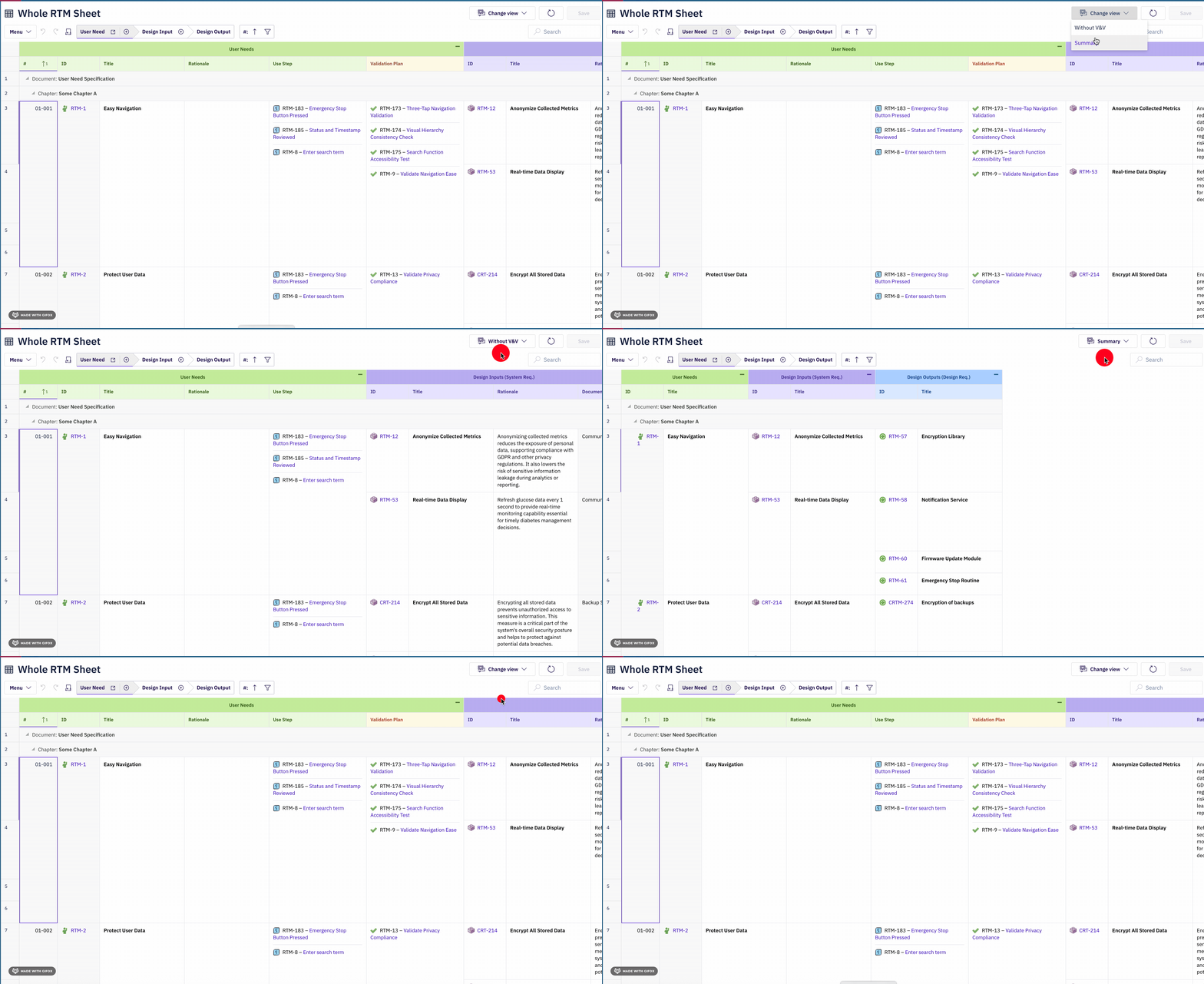
 The base view is defined by the `columns` section. Each entry in `views` extends the base view by overriding column visibility. The views selector UI presents all configured views to the user.
## View Properties
Each view is defined as a keyed entry under the `views` map. The key becomes the display name shown in the views selector.
In the property table below, `` is a placeholder for the actual YAML map key you define, such as `Without V&V`, `Compact`, or `Requirements Only`. This key is the user-visible label in the views selector dropdown.
| Name | Type | Default | Description |
| -------------------------------------- | --------- | -------- | --------------------------------------------------------------------------------------------------------------------------------------------------------------------------------------------------------------- |
| `` | `object` | -- | Top-level key in the `views` map. The key string is the display name shown to users in the views selector. |
| `.name` | `string` | Key name | Human-readable label for the view. Visible in the views selector list. If omitted, the YAML key is used as the name. |
| `.default` | `boolean` | `false` | When set to `true`, this view is applied automatically when the document loads. Only one view should have `default: true`. When a default view is configured, the base view option may be hidden from the menu. |
| `.columns` | `object` | -- | **Required.** Column visibility overrides for this view. Keys must be binding paths that match column definitions in the top-level `columns` section. |
| `.columns.` | `object` | -- | Override object for a specific column identified by its binding path. |
| `.columns..visible` | `boolean` | `true` | Set to `false` to hide this column in the view. Columns not listed in the view inherit their `visible` setting from the base `columns` section. |
## Defining Views
Views are defined in the top-level `views` section of the sheet configuration. Each key in the `views` map becomes a selectable view in the UI:
```yaml theme={null}
views:
Without V&V:
columns:
validationTestCases.validationTestCase:
visible: false
systemRequirements.systemRequirement.verificationTestCases.verificationTestCase:
visible: false
systemRequirements.systemRequirement.designRequirements.designRequirement.verificationTestCases.verificationTestCase:
visible: false
```
In this example, the "Without V\&V" view hides validation and verification test case columns while keeping all other columns at their default visibility.
Views only need to list columns that differ from the base state. Columns not mentioned in a view retain their `visible` setting from the `columns` section. This means most views are short -- you only specify what you want to hide (or show, if hidden by default).
## Base View
The **base view** is the column layout defined by the top-level `columns` section in the sheet configuration. It represents the complete set of columns at their configured `visible` state. The base view serves as the foundation that all named views extend.
| Scenario | Behavior |
| ------------------------------------- | ------------------------------------------------------------------------------------------ |
| No `views` section defined | Only the base view is available. No views selector appears. |
| `views` defined but no `default` view | Base view is active on document load. Labelled "Default view" in the selector. |
| `views` defined with a `default` view | The default view is active on document load. Base view option may be hidden from the menu. |
| Invalid view requested | Falls back to the base view column configuration. |
| View cleared by user | Returns to the base view. |
The base view can be given a custom name by defining an empty view entry:
```yaml theme={null}
views:
Full RTM:
columns: {}
Without V&V:
columns:
validationTestCases.validationTestCase:
visible: false
```
In this example, the base view is labelled "Full RTM" in the selector, with an empty `columns` override meaning no visibility changes from the base.
## Default View
One view can be designated as the default view by setting `default: true`. When configured, this view is applied automatically when the document loads, instead of the base view:
```yaml theme={null}
views:
Compact:
default: true
columns:
systemRequirements.systemRequirement.designRequirements.designRequirement:
visible: false
validationTestCases.validationTestCase:
visible: false
```
| Property | Value | Effect |
| --------- | -------------------- | --------------------------------------------------------- |
| `default` | `true` | This view loads automatically on document initialization. |
| `default` | `false` (or omitted) | Base view loads on document initialization. |
Only one view should have `default: true`. If multiple views set `default: true`, the behavior is undefined and may vary. When a default view is set, the base view option may be hidden from the views menu.
## View Selection Methods
Users can switch between views at runtime through two mechanisms:
| Method | Description |
| --------------------- | ------------------------------------------------------------------------------------------------------------------------------------------------ |
| **Menu** | Access via the alternative views menu item in the sheet toolbar. Shows all configured views with a "Selected" indicator next to the active view. |
| **Dropdown selector** | Quick-access dropdown list showing view names. Selecting a view immediately applies its column visibility overrides. |
Both methods present the same list of available views. The currently active view is visually indicated in both the menu and the dropdown.
The base view is defined by the `columns` section. Each entry in `views` extends the base view by overriding column visibility. The views selector UI presents all configured views to the user.
## View Properties
Each view is defined as a keyed entry under the `views` map. The key becomes the display name shown in the views selector.
In the property table below, `` is a placeholder for the actual YAML map key you define, such as `Without V&V`, `Compact`, or `Requirements Only`. This key is the user-visible label in the views selector dropdown.
| Name | Type | Default | Description |
| -------------------------------------- | --------- | -------- | --------------------------------------------------------------------------------------------------------------------------------------------------------------------------------------------------------------- |
| `` | `object` | -- | Top-level key in the `views` map. The key string is the display name shown to users in the views selector. |
| `.name` | `string` | Key name | Human-readable label for the view. Visible in the views selector list. If omitted, the YAML key is used as the name. |
| `.default` | `boolean` | `false` | When set to `true`, this view is applied automatically when the document loads. Only one view should have `default: true`. When a default view is configured, the base view option may be hidden from the menu. |
| `.columns` | `object` | -- | **Required.** Column visibility overrides for this view. Keys must be binding paths that match column definitions in the top-level `columns` section. |
| `.columns.` | `object` | -- | Override object for a specific column identified by its binding path. |
| `.columns..visible` | `boolean` | `true` | Set to `false` to hide this column in the view. Columns not listed in the view inherit their `visible` setting from the base `columns` section. |
## Defining Views
Views are defined in the top-level `views` section of the sheet configuration. Each key in the `views` map becomes a selectable view in the UI:
```yaml theme={null}
views:
Without V&V:
columns:
validationTestCases.validationTestCase:
visible: false
systemRequirements.systemRequirement.verificationTestCases.verificationTestCase:
visible: false
systemRequirements.systemRequirement.designRequirements.designRequirement.verificationTestCases.verificationTestCase:
visible: false
```
In this example, the "Without V\&V" view hides validation and verification test case columns while keeping all other columns at their default visibility.
Views only need to list columns that differ from the base state. Columns not mentioned in a view retain their `visible` setting from the `columns` section. This means most views are short -- you only specify what you want to hide (or show, if hidden by default).
## Base View
The **base view** is the column layout defined by the top-level `columns` section in the sheet configuration. It represents the complete set of columns at their configured `visible` state. The base view serves as the foundation that all named views extend.
| Scenario | Behavior |
| ------------------------------------- | ------------------------------------------------------------------------------------------ |
| No `views` section defined | Only the base view is available. No views selector appears. |
| `views` defined but no `default` view | Base view is active on document load. Labelled "Default view" in the selector. |
| `views` defined with a `default` view | The default view is active on document load. Base view option may be hidden from the menu. |
| Invalid view requested | Falls back to the base view column configuration. |
| View cleared by user | Returns to the base view. |
The base view can be given a custom name by defining an empty view entry:
```yaml theme={null}
views:
Full RTM:
columns: {}
Without V&V:
columns:
validationTestCases.validationTestCase:
visible: false
```
In this example, the base view is labelled "Full RTM" in the selector, with an empty `columns` override meaning no visibility changes from the base.
## Default View
One view can be designated as the default view by setting `default: true`. When configured, this view is applied automatically when the document loads, instead of the base view:
```yaml theme={null}
views:
Compact:
default: true
columns:
systemRequirements.systemRequirement.designRequirements.designRequirement:
visible: false
validationTestCases.validationTestCase:
visible: false
```
| Property | Value | Effect |
| --------- | -------------------- | --------------------------------------------------------- |
| `default` | `true` | This view loads automatically on document initialization. |
| `default` | `false` (or omitted) | Base view loads on document initialization. |
Only one view should have `default: true`. If multiple views set `default: true`, the behavior is undefined and may vary. When a default view is set, the base view option may be hidden from the views menu.
## View Selection Methods
Users can switch between views at runtime through two mechanisms:
| Method | Description |
| --------------------- | ------------------------------------------------------------------------------------------------------------------------------------------------ |
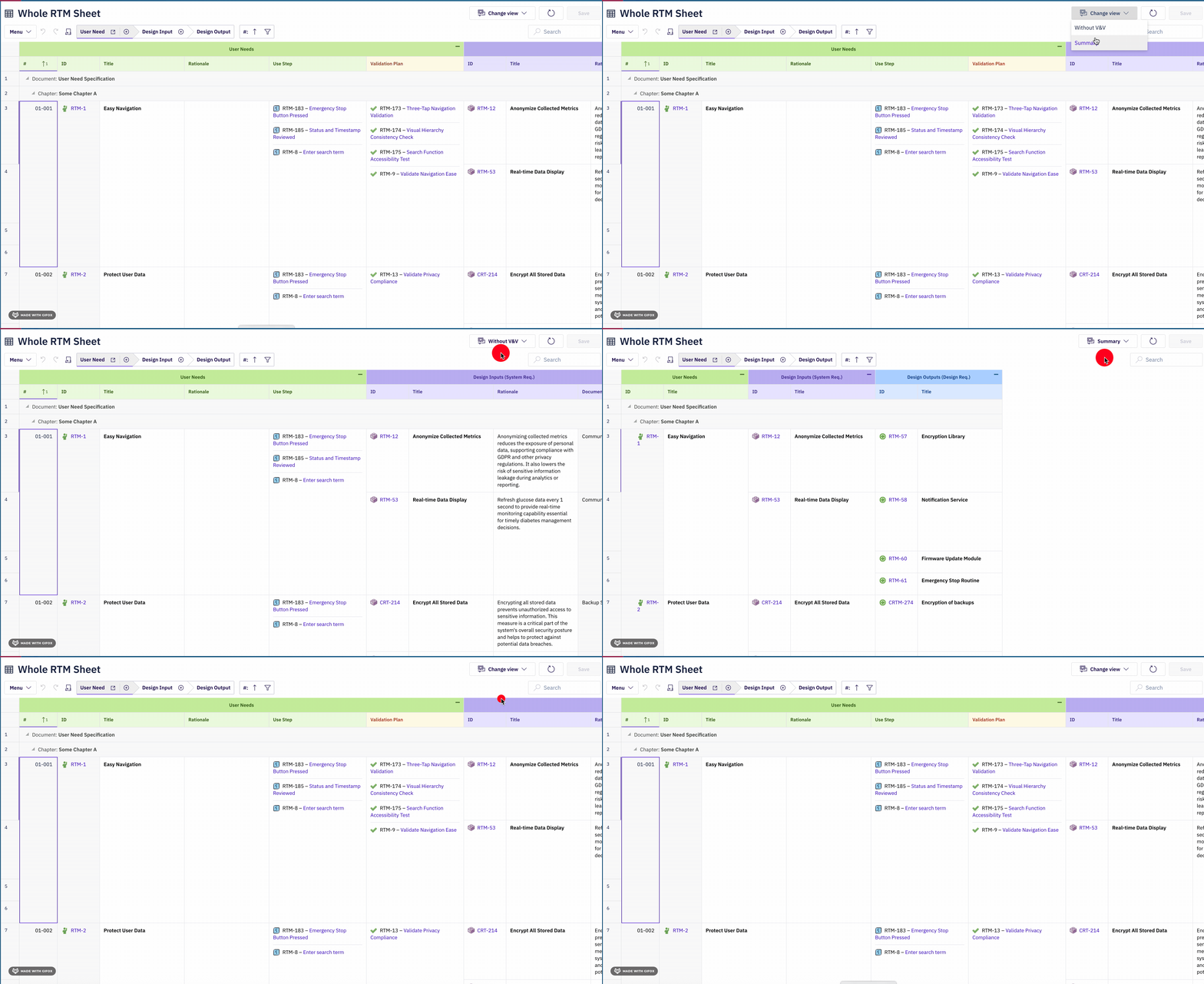
| **Menu** | Access via the alternative views menu item in the sheet toolbar. Shows all configured views with a "Selected" indicator next to the active view. |
| **Dropdown selector** | Quick-access dropdown list showing view names. Selecting a view immediately applies its column visibility overrides. |
Both methods present the same list of available views. The currently active view is visually indicated in both the menu and the dropdown.
 ## View-Specific Column Visibility
Each view independently controls which columns are visible. Views can hide entire entity-level columns (hiding all related child data) or selectively hide individual property columns:
```yaml theme={null}
views:
Requirements Only:
columns:
systemRequirements.systemRequirement.designRequirements.designRequirement:
visible: false
validationTestCases.validationTestCase:
visible: false
systemRequirements.systemRequirement.verificationTestCases.verificationTestCase:
visible: false
Design Focus:
columns:
severity:
visible: false
validationTestCases.validationTestCase:
visible: false
```
**How column binding paths work in views:**
The `columns` keys in a view must match the binding paths defined in the top-level `columns` section. A binding path follows the `navigationProperty.childProperty.propertyName` pattern from the data model. For details on binding path syntax, see [Binding Syntax](/powersheet/reference/sheet-config/binding-syntax).
| Binding Path Example | What It Hides |
| ---------------------------------------------------------------------------------------------------------------------- | -------------------------------------------------------- |
| `severity` | Root-level severity column |
| `validationTestCases.validationTestCase` | Entire validation test case entity column |
| `systemRequirements.systemRequirement.verificationTestCases.verificationTestCase` | Verification tests nested under system requirements |
| `systemRequirements.systemRequirement.designRequirements.designRequirement.verificationTestCases.verificationTestCase` | Deep-nested verification tests under design requirements |
## Cross-Document View Linking
Views can reference alternative documents with the same name, enabling switching between different tool representations of related data. When configured, the views selector dropdown shows both view names and linked document names, allowing users to navigate between different perspectives.
Cross-document view linking depends on the `alternativeViewDocument` property on the document configuration. The views selector displays both in-document views and alternative document links in the same dropdown.
## Error Handling
Views handle configuration errors gracefully:
| Error Condition | Behavior |
| ----------------------------------------------- | -------------------------------------------------------------------------------------------------------------- |
| Non-existent binding path in view `columns` | View still loads; unrecognized paths are silently ignored. Base view columns remain unchanged for those paths. |
| Invalid view definition (missing `columns`) | Falls back to the base view. |
| View references column not in `columns` section | No effect; the column override is skipped. |
Start with a minimal view configuration and extend gradually. A view with a single column override is valid and useful for quickly creating focused perspectives.
## Runtime Behavior
The following details describe how views behave at runtime:
* **View switching is instant.** Changing views only toggles column visibility; it does not re-fetch data from the server.
* **Data remains loaded.** Hidden columns still have their data loaded in memory. Showing them again via a different view is instantaneous.
* **Views do not affect sorting or filtering.** Column sort state and filter state are independent of the active view. Sorting by a hidden column still applies.
* **Views persist during the session.** The selected view remains active until the user switches to another view or reloads the document.
* **Configuration is read-only at runtime.** Users cannot create or edit views from the UI; views must be defined in the YAML configuration by an administrator.
## Complete YAML Example
The following example demonstrates a full sheet configuration with multiple views for an RTM (Requirements Traceability Matrix) use case using the standard entity hierarchy (`UserNeed` -> `SystemRequirement` -> `DesignRequirement` -> `Hazard` -> `RiskControl`):
```yaml theme={null}
columns:
outlineNumber:
title: "#"
width: 80
isReadOnly: true
frozen: true
title:
title: User Need
width: 200
hasFocus: true
severity:
title: Severity
width: 100
systemRequirements.systemRequirement.title:
title: Sys Req Title
width: 200
columnGroup: sysReq
systemRequirements.systemRequirement.severity:
title: Sys Req Severity
width: 100
columnGroup: sysReq
systemRequirements.systemRequirement.designRequirements.designRequirement:
title: Design Outputs
width: 180
multiItem: true
display: title
validationTestCases.validationTestCase:
title: Validation Tests
width: 180
multiItem: true
display: title
systemRequirements.systemRequirement.verificationTestCases.verificationTestCase:
title: Verification Tests
width: 180
multiItem: true
display: title
columnGroups:
sysReq:
groupName: System Requirements
groupStyle: darkblue
headerStyle: blue
collapseTo: systemRequirements.systemRequirement.title
views:
Without V&V:
columns:
validationTestCases.validationTestCase:
visible: false
systemRequirements.systemRequirement.verificationTestCases.verificationTestCase:
visible: false
Requirements Only:
columns:
systemRequirements.systemRequirement.designRequirements.designRequirement:
visible: false
validationTestCases.validationTestCase:
visible: false
systemRequirements.systemRequirement.verificationTestCases.verificationTestCase:
visible: false
Compact:
default: true
columns:
systemRequirements.systemRequirement.severity:
visible: false
systemRequirements.systemRequirement.designRequirements.designRequirement:
visible: false
validationTestCases.validationTestCase:
visible: false
systemRequirements.systemRequirement.verificationTestCases.verificationTestCase:
visible: false
sources:
- id: rtm
query:
from: UserNeed
expand:
- name: systemRequirements
expand:
- name: designRequirements
- name: verificationTestCases
- name: validationTestCases
```
In this configuration:
* The **base view** shows all eight columns including system requirements, design outputs, and both test types.
* **Without V\&V** hides both test columns, focusing on requirements and design.
* **Requirements Only** hides design outputs and both test types, showing only user needs and system requirements.
* **Compact** is the default view (`default: true`), loading automatically. It shows only user need columns and system requirement titles, hiding severity details, design outputs, and all tests.
## Configuration Tips
Use descriptive view names that communicate the analysis perspective: "Without V\&V", "Requirements Only", "Risk Analysis", "Compliance Review". The view name appears directly in the dropdown selector.
Views work with [column groups](/powersheet/reference/sheet-config/column-groups). Hiding all columns in a group effectively hides the entire group header. Consider defining views that align with your column group boundaries for clean visual results.
View column keys must exactly match the binding paths in the `columns` section. A typo in the binding path (e.g., `systemRequirement.title` instead of `systemRequirements.systemRequirement.title`) will be silently ignored, and the column will remain visible.
***
**Related pages:** [Columns](/powersheet/reference/sheet-config/columns) | [Column Groups](/powersheet/reference/sheet-config/column-groups) | [Binding Syntax](/powersheet/reference/sheet-config/binding-syntax) | [Styles](/powersheet/reference/sheet-config/styles)
## View-Specific Column Visibility
Each view independently controls which columns are visible. Views can hide entire entity-level columns (hiding all related child data) or selectively hide individual property columns:
```yaml theme={null}
views:
Requirements Only:
columns:
systemRequirements.systemRequirement.designRequirements.designRequirement:
visible: false
validationTestCases.validationTestCase:
visible: false
systemRequirements.systemRequirement.verificationTestCases.verificationTestCase:
visible: false
Design Focus:
columns:
severity:
visible: false
validationTestCases.validationTestCase:
visible: false
```
**How column binding paths work in views:**
The `columns` keys in a view must match the binding paths defined in the top-level `columns` section. A binding path follows the `navigationProperty.childProperty.propertyName` pattern from the data model. For details on binding path syntax, see [Binding Syntax](/powersheet/reference/sheet-config/binding-syntax).
| Binding Path Example | What It Hides |
| ---------------------------------------------------------------------------------------------------------------------- | -------------------------------------------------------- |
| `severity` | Root-level severity column |
| `validationTestCases.validationTestCase` | Entire validation test case entity column |
| `systemRequirements.systemRequirement.verificationTestCases.verificationTestCase` | Verification tests nested under system requirements |
| `systemRequirements.systemRequirement.designRequirements.designRequirement.verificationTestCases.verificationTestCase` | Deep-nested verification tests under design requirements |
## Cross-Document View Linking
Views can reference alternative documents with the same name, enabling switching between different tool representations of related data. When configured, the views selector dropdown shows both view names and linked document names, allowing users to navigate between different perspectives.
Cross-document view linking depends on the `alternativeViewDocument` property on the document configuration. The views selector displays both in-document views and alternative document links in the same dropdown.
## Error Handling
Views handle configuration errors gracefully:
| Error Condition | Behavior |
| ----------------------------------------------- | -------------------------------------------------------------------------------------------------------------- |
| Non-existent binding path in view `columns` | View still loads; unrecognized paths are silently ignored. Base view columns remain unchanged for those paths. |
| Invalid view definition (missing `columns`) | Falls back to the base view. |
| View references column not in `columns` section | No effect; the column override is skipped. |
Start with a minimal view configuration and extend gradually. A view with a single column override is valid and useful for quickly creating focused perspectives.
## Runtime Behavior
The following details describe how views behave at runtime:
* **View switching is instant.** Changing views only toggles column visibility; it does not re-fetch data from the server.
* **Data remains loaded.** Hidden columns still have their data loaded in memory. Showing them again via a different view is instantaneous.
* **Views do not affect sorting or filtering.** Column sort state and filter state are independent of the active view. Sorting by a hidden column still applies.
* **Views persist during the session.** The selected view remains active until the user switches to another view or reloads the document.
* **Configuration is read-only at runtime.** Users cannot create or edit views from the UI; views must be defined in the YAML configuration by an administrator.
## Complete YAML Example
The following example demonstrates a full sheet configuration with multiple views for an RTM (Requirements Traceability Matrix) use case using the standard entity hierarchy (`UserNeed` -> `SystemRequirement` -> `DesignRequirement` -> `Hazard` -> `RiskControl`):
```yaml theme={null}
columns:
outlineNumber:
title: "#"
width: 80
isReadOnly: true
frozen: true
title:
title: User Need
width: 200
hasFocus: true
severity:
title: Severity
width: 100
systemRequirements.systemRequirement.title:
title: Sys Req Title
width: 200
columnGroup: sysReq
systemRequirements.systemRequirement.severity:
title: Sys Req Severity
width: 100
columnGroup: sysReq
systemRequirements.systemRequirement.designRequirements.designRequirement:
title: Design Outputs
width: 180
multiItem: true
display: title
validationTestCases.validationTestCase:
title: Validation Tests
width: 180
multiItem: true
display: title
systemRequirements.systemRequirement.verificationTestCases.verificationTestCase:
title: Verification Tests
width: 180
multiItem: true
display: title
columnGroups:
sysReq:
groupName: System Requirements
groupStyle: darkblue
headerStyle: blue
collapseTo: systemRequirements.systemRequirement.title
views:
Without V&V:
columns:
validationTestCases.validationTestCase:
visible: false
systemRequirements.systemRequirement.verificationTestCases.verificationTestCase:
visible: false
Requirements Only:
columns:
systemRequirements.systemRequirement.designRequirements.designRequirement:
visible: false
validationTestCases.validationTestCase:
visible: false
systemRequirements.systemRequirement.verificationTestCases.verificationTestCase:
visible: false
Compact:
default: true
columns:
systemRequirements.systemRequirement.severity:
visible: false
systemRequirements.systemRequirement.designRequirements.designRequirement:
visible: false
validationTestCases.validationTestCase:
visible: false
systemRequirements.systemRequirement.verificationTestCases.verificationTestCase:
visible: false
sources:
- id: rtm
query:
from: UserNeed
expand:
- name: systemRequirements
expand:
- name: designRequirements
- name: verificationTestCases
- name: validationTestCases
```
In this configuration:
* The **base view** shows all eight columns including system requirements, design outputs, and both test types.
* **Without V\&V** hides both test columns, focusing on requirements and design.
* **Requirements Only** hides design outputs and both test types, showing only user needs and system requirements.
* **Compact** is the default view (`default: true`), loading automatically. It shows only user need columns and system requirement titles, hiding severity details, design outputs, and all tests.
## Configuration Tips
Use descriptive view names that communicate the analysis perspective: "Without V\&V", "Requirements Only", "Risk Analysis", "Compliance Review". The view name appears directly in the dropdown selector.
Views work with [column groups](/powersheet/reference/sheet-config/column-groups). Hiding all columns in a group effectively hides the entire group header. Consider defining views that align with your column group boundaries for clean visual results.
View column keys must exactly match the binding paths in the `columns` section. A typo in the binding path (e.g., `systemRequirement.title` instead of `systemRequirements.systemRequirement.title`) will be silently ignored, and the column will remain visible.
***
**Related pages:** [Columns](/powersheet/reference/sheet-config/columns) | [Column Groups](/powersheet/reference/sheet-config/column-groups) | [Binding Syntax](/powersheet/reference/sheet-config/binding-syntax) | [Styles](/powersheet/reference/sheet-config/styles)