> ## Documentation Index
> Fetch the complete documentation index at: https://learn.nextedy.com/llms.txt
> Use this file to discover all available pages before exploring further.
# Keyboard Shortcuts
> Nextedy POWERSHEET provides keyboard shortcuts for efficient sheet interaction. All shortcuts require the sheet to have focus and a valid cell to be selected.
export const LastReviewed = ({date}) => {
if (!date) return null;
const formatted = new Date(`${date}T00:00:00Z`).toLocaleDateString("en-US", {
year: "numeric",
month: "long",
day: "numeric",
timeZone: "UTC"
});
return
Last reviewed on {formatted}
;
};
Powersheet uses a unified command key detection (`Ctrl` on Windows/Linux, `Cmd` on macOS) for all shortcuts listed below. The sheet automatically adapts to the current operating system.
***
## Quick Reference

 ***
## Row Operations
Shortcuts for adding, removing, and managing rows within the sheet. Row operations are also available as toolbar icons in the work items tree (Add
***
## Row Operations
Shortcuts for adding, removing, and managing rows within the sheet. Row operations are also available as toolbar icons in the work items tree (Add  , Delete
  ).
| Shortcut | Action | Description |
| ---------------- | ---------------------- | -------------------------------------------------------------------------------------------------------------------------------------------------- |
| `Ctrl+Space` | Add row | Inserts a new row at the same hierarchy level as the currently selected cell. Default values are pre-filled from the entity factory configuration. |
| `Ctrl+Backspace` | Delete row | Marks the selected row for deletion. Displays a confirmation dialog before removing. The row can be restored with undo before saving. |
| `Ctrl+Delete` | Delete row (alternate) | Same behavior as `Ctrl+Backspace`. |
| `Ctrl+Z` | Undo | Reverts the last change, including edits, row additions, deletions, and link operations. The undo stack is scoped to the current session. |
| `Ctrl+Y` | Redo | Reapplies the last undone change. Available only when an undo has been performed. |
The undo/redo history is scoped to the current sheet session. Navigating away from the sheet clears the history. Save operations cannot be undone from the client side -- once changes are saved to Polarion, they are committed.
***
## Column Freezing
Shortcuts for pinning columns to keep them visible during horizontal scrolling.
| Shortcut | Action | Description |
| -------------- | ---------------------------- | --------------------------------------------------------------------------------------------------------------- |
| `Ctrl+F` | Freeze columns | Freezes columns up to the currently selected column. Frozen columns remain visible when scrolling horizontally. |
| `Ctrl+Alt+F` | Freeze up to selected column | Freezes all columns from the left edge up to and including the selected column. |
| `Ctrl+Shift+F` | Unfreeze all columns | Removes all column freezing and restores free horizontal scrolling. |
Frozen columns can also be set in the sheet configuration YAML using the `frozen` property on individual columns. Keyboard freezing overrides the configured default for the current session. See [Columns](/powersheet/reference/sheet-config/columns) for configuration details.
***
## Row Grouping
Shortcuts for organizing rows into collapsible groups based on column values.
| Shortcut | Action | Description |
| -------------- | ---------------------- | ---------------------------------------------------------------------------------------------------------------------------------------------- |
| `Ctrl+G` | Group by column | Groups all rows by the values in the currently selected column. Displays collapsible group headers with item counts (e.g., "Open: (5 items)"). |
| `Ctrl+Alt+G` | Add to existing groups | Adds the selected column as an additional grouping level without clearing existing groups. Builds hierarchical multi-column grouping. |
| `Ctrl+Shift+G` | Clear all groups | Removes all row grouping and restores the flat row display. |
The `showGroupRowCounter` configuration property controls whether the item count is displayed in group headers.
***
## Column Sorting
Shortcuts for ordering rows by column values.
| Shortcut | Action | Description |
| -------------------------- | ------------------------- | -------------------------------------------------------------------------------------------------------------------------------------------------------- |
| Click column header | Sort ascending/descending | Clicking a column header toggles the sort direction: ascending, descending, then unsorted. |
| `Ctrl+Click` column header | Multi-column sort | Adds the clicked column to the existing sort chain as a secondary (or tertiary, etc.) sort criterion. Small sort-order numbers appear in column headers. |
The default sort order defined in the [Sort By](/powersheet/reference/sheet-config/sortby) configuration is always re-applied after user sorting to maintain hierarchy consistency. User sort criteria are applied on top of the configured default.
***
## Cell Editing
Shortcuts for entering, committing, and canceling cell edits.
| Shortcut | Action | Description |
| -------------- | --------------------------- | --------------------------------------------------------------------------------------------------------------------------- |
| `Double-click` | Enter edit mode | Opens the cell for editing. For dropdown columns, a picklist appears. For text columns, the cell becomes an editable input. |
| `F2` | Enter edit mode (alternate) | Same as double-click -- enters edit mode on the currently selected cell. |
| `Enter` | Commit edit | Commits the current cell value and moves the selection down to the next row. |
| `Escape` | Cancel edit | Discards the current edit and restores the original cell value. Also exits linking mode if active. |
| Type directly | Quick edit | Start typing while a cell is selected to overwrite the current value. The cell enters edit mode automatically. |
Cells protected by the `isReadOnly` column property, document permissions, or workflow rules cannot be edited. Read-only cells display a distinct visual indicator (different marquee style) when selected. See [Permissions](/powersheet/reference/data-model/permissions) for details.
***
## Copy and Paste
Shortcuts for transferring cell data within the sheet.
| Shortcut | Action | Description |
| -------- | ------ | ------------------------------------------------------------------------------------------------------------------------------------------- |
| `Ctrl+C` | Copy | Copies the selected cell or cell range to the clipboard. A toast notification confirms the number of cells copied (e.g., "5 cells copied"). |
| `Ctrl+V` | Paste | Pastes clipboard content into the selected cells. A toast notification confirms the target (e.g., "Pasted to 2 Requirements"). |
Pasting across different hierarchy levels is not supported. If you attempt to paste cells from one entity type level to a different level, the sheet displays a warning and the paste operation is blocked. Only cells at the same hierarchy level can be pasted together.
***
## Cell Navigation
Shortcuts for moving between cells and selecting ranges.
| Shortcut | Action | Description |
| --------------------------- | ------------------ | -------------------------------------------------------------------------------------------------------------------------------------- |
| Arrow keys | Move between cells | Moves the active cell selection one cell in the pressed direction (up, down, left, right). |
| `Tab` | Move to next cell | Advances the selection to the next cell in the row. |
| `Enter` (outside edit mode) | Move down | Moves the selection down to the next row in the same column. |
| Click | Select single cell | Selects the clicked cell, showing a blue selection border (marquee). |
| Click and drag | Select range | Selects a rectangular range of cells. When numeric cells are selected, the status bar shows aggregate statistics (Sum, Avg, Min, Max). |
Only the active cell has keyboard focus (`tabindex="0"`). All other cells have `tabindex="-1"` for accessibility. The active cell is indicated by the `.wj-state-active` visual class.
***
## Excel Export
| Shortcut | Action | Description |
| -------- | --------------- | ----------------------------------------------------------------------------------------------------------------------------------------------------------------------------------------- |
| `Ctrl+E` | Export to Excel | Downloads the current sheet view as an Excel (`.xlsx`) file. The export includes all visible columns, applied filters, current sort order, and row grouping. Hidden columns are excluded. |
Large sheets with many rows or complex grouping may take several seconds to generate the Excel file. The export reflects the exact view state at the time the shortcut is pressed.
***
## Linking Mode
Shortcuts specific to the work item linking workflow.
| Shortcut | Action | Description |
| ----------------------- | ----------------- | ---------------------------------------------------------------------------------------------------------------------------------------------------------------- |
| `Escape` | Exit linking mode | Cancels the active linking operation and returns to normal selection mode. |
| Click (in linking mode) | Link target cell | While in linking mode, clicking a valid target cell creates a link between the source and target work items. Valid targets are highlighted with a green marquee. |
Linking mode is activated via the **Link** toolbar button. It supports only many-to-many relationships defined in the [data model](/powersheet/reference/data-model/relationships). All link operations support undo/redo.
***
## Search
| Shortcut | Action | Description |
| ------------------ | -------------------- | --------------------------------------------------------------------------------------------------------------------------------------------------- |
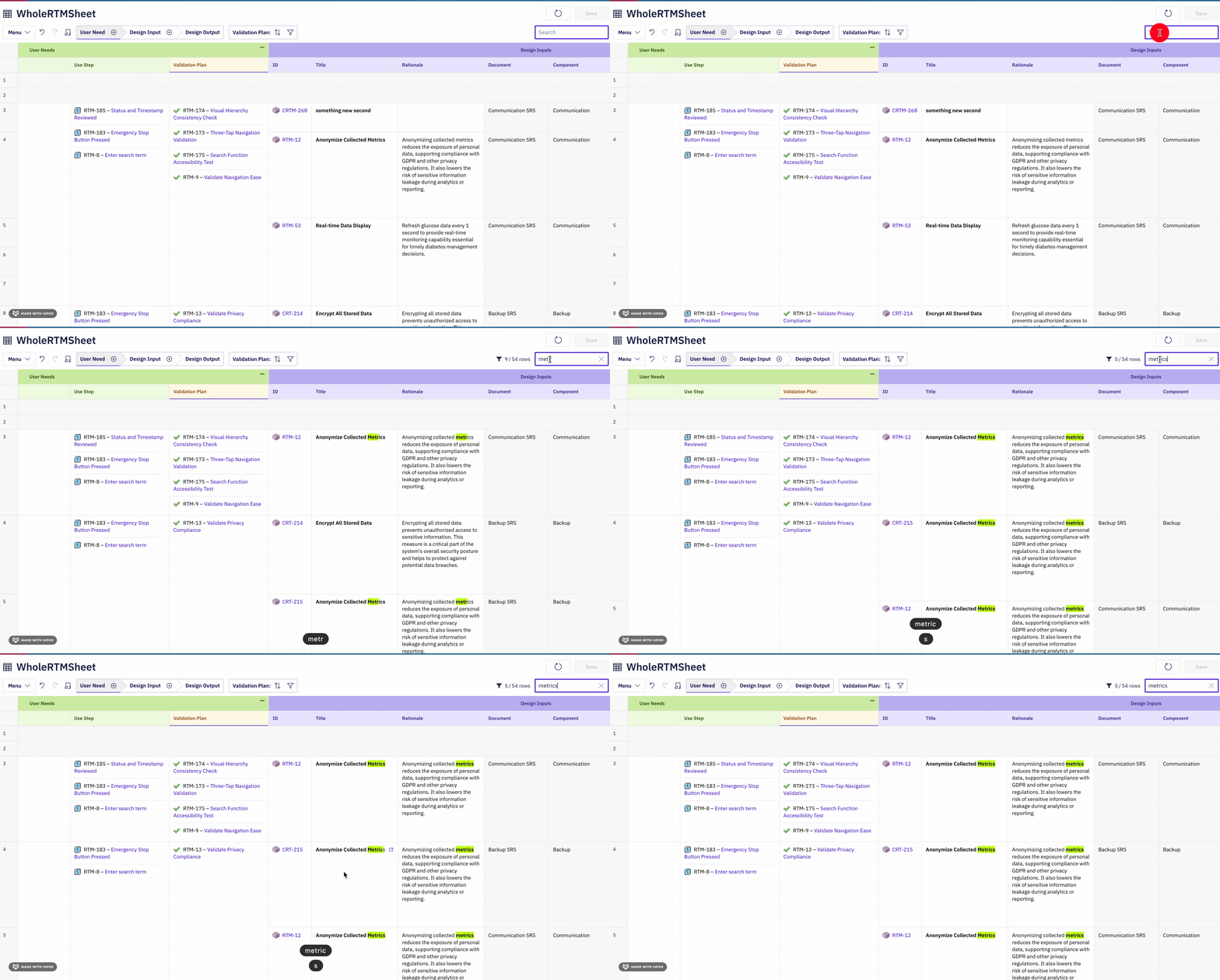
| Type in search box | Filter and highlight | Enter text in the toolbar search box to find and highlight matching cells across all columns. Matches are highlighted with a yellow background. |
| Clear button | Clear search | Click the clear button (or select all text with `Ctrl+A` and press `Backspace`) in the search box to remove the search filter and restore all rows. |
).
| Shortcut | Action | Description |
| ---------------- | ---------------------- | -------------------------------------------------------------------------------------------------------------------------------------------------- |
| `Ctrl+Space` | Add row | Inserts a new row at the same hierarchy level as the currently selected cell. Default values are pre-filled from the entity factory configuration. |
| `Ctrl+Backspace` | Delete row | Marks the selected row for deletion. Displays a confirmation dialog before removing. The row can be restored with undo before saving. |
| `Ctrl+Delete` | Delete row (alternate) | Same behavior as `Ctrl+Backspace`. |
| `Ctrl+Z` | Undo | Reverts the last change, including edits, row additions, deletions, and link operations. The undo stack is scoped to the current session. |
| `Ctrl+Y` | Redo | Reapplies the last undone change. Available only when an undo has been performed. |
The undo/redo history is scoped to the current sheet session. Navigating away from the sheet clears the history. Save operations cannot be undone from the client side -- once changes are saved to Polarion, they are committed.
***
## Column Freezing
Shortcuts for pinning columns to keep them visible during horizontal scrolling.
| Shortcut | Action | Description |
| -------------- | ---------------------------- | --------------------------------------------------------------------------------------------------------------- |
| `Ctrl+F` | Freeze columns | Freezes columns up to the currently selected column. Frozen columns remain visible when scrolling horizontally. |
| `Ctrl+Alt+F` | Freeze up to selected column | Freezes all columns from the left edge up to and including the selected column. |
| `Ctrl+Shift+F` | Unfreeze all columns | Removes all column freezing and restores free horizontal scrolling. |
Frozen columns can also be set in the sheet configuration YAML using the `frozen` property on individual columns. Keyboard freezing overrides the configured default for the current session. See [Columns](/powersheet/reference/sheet-config/columns) for configuration details.
***
## Row Grouping
Shortcuts for organizing rows into collapsible groups based on column values.
| Shortcut | Action | Description |
| -------------- | ---------------------- | ---------------------------------------------------------------------------------------------------------------------------------------------- |
| `Ctrl+G` | Group by column | Groups all rows by the values in the currently selected column. Displays collapsible group headers with item counts (e.g., "Open: (5 items)"). |
| `Ctrl+Alt+G` | Add to existing groups | Adds the selected column as an additional grouping level without clearing existing groups. Builds hierarchical multi-column grouping. |
| `Ctrl+Shift+G` | Clear all groups | Removes all row grouping and restores the flat row display. |
The `showGroupRowCounter` configuration property controls whether the item count is displayed in group headers.
***
## Column Sorting
Shortcuts for ordering rows by column values.
| Shortcut | Action | Description |
| -------------------------- | ------------------------- | -------------------------------------------------------------------------------------------------------------------------------------------------------- |
| Click column header | Sort ascending/descending | Clicking a column header toggles the sort direction: ascending, descending, then unsorted. |
| `Ctrl+Click` column header | Multi-column sort | Adds the clicked column to the existing sort chain as a secondary (or tertiary, etc.) sort criterion. Small sort-order numbers appear in column headers. |
The default sort order defined in the [Sort By](/powersheet/reference/sheet-config/sortby) configuration is always re-applied after user sorting to maintain hierarchy consistency. User sort criteria are applied on top of the configured default.
***
## Cell Editing
Shortcuts for entering, committing, and canceling cell edits.
| Shortcut | Action | Description |
| -------------- | --------------------------- | --------------------------------------------------------------------------------------------------------------------------- |
| `Double-click` | Enter edit mode | Opens the cell for editing. For dropdown columns, a picklist appears. For text columns, the cell becomes an editable input. |
| `F2` | Enter edit mode (alternate) | Same as double-click -- enters edit mode on the currently selected cell. |
| `Enter` | Commit edit | Commits the current cell value and moves the selection down to the next row. |
| `Escape` | Cancel edit | Discards the current edit and restores the original cell value. Also exits linking mode if active. |
| Type directly | Quick edit | Start typing while a cell is selected to overwrite the current value. The cell enters edit mode automatically. |
Cells protected by the `isReadOnly` column property, document permissions, or workflow rules cannot be edited. Read-only cells display a distinct visual indicator (different marquee style) when selected. See [Permissions](/powersheet/reference/data-model/permissions) for details.
***
## Copy and Paste
Shortcuts for transferring cell data within the sheet.
| Shortcut | Action | Description |
| -------- | ------ | ------------------------------------------------------------------------------------------------------------------------------------------- |
| `Ctrl+C` | Copy | Copies the selected cell or cell range to the clipboard. A toast notification confirms the number of cells copied (e.g., "5 cells copied"). |
| `Ctrl+V` | Paste | Pastes clipboard content into the selected cells. A toast notification confirms the target (e.g., "Pasted to 2 Requirements"). |
Pasting across different hierarchy levels is not supported. If you attempt to paste cells from one entity type level to a different level, the sheet displays a warning and the paste operation is blocked. Only cells at the same hierarchy level can be pasted together.
***
## Cell Navigation
Shortcuts for moving between cells and selecting ranges.
| Shortcut | Action | Description |
| --------------------------- | ------------------ | -------------------------------------------------------------------------------------------------------------------------------------- |
| Arrow keys | Move between cells | Moves the active cell selection one cell in the pressed direction (up, down, left, right). |
| `Tab` | Move to next cell | Advances the selection to the next cell in the row. |
| `Enter` (outside edit mode) | Move down | Moves the selection down to the next row in the same column. |
| Click | Select single cell | Selects the clicked cell, showing a blue selection border (marquee). |
| Click and drag | Select range | Selects a rectangular range of cells. When numeric cells are selected, the status bar shows aggregate statistics (Sum, Avg, Min, Max). |
Only the active cell has keyboard focus (`tabindex="0"`). All other cells have `tabindex="-1"` for accessibility. The active cell is indicated by the `.wj-state-active` visual class.
***
## Excel Export
| Shortcut | Action | Description |
| -------- | --------------- | ----------------------------------------------------------------------------------------------------------------------------------------------------------------------------------------- |
| `Ctrl+E` | Export to Excel | Downloads the current sheet view as an Excel (`.xlsx`) file. The export includes all visible columns, applied filters, current sort order, and row grouping. Hidden columns are excluded. |
Large sheets with many rows or complex grouping may take several seconds to generate the Excel file. The export reflects the exact view state at the time the shortcut is pressed.
***
## Linking Mode
Shortcuts specific to the work item linking workflow.
| Shortcut | Action | Description |
| ----------------------- | ----------------- | ---------------------------------------------------------------------------------------------------------------------------------------------------------------- |
| `Escape` | Exit linking mode | Cancels the active linking operation and returns to normal selection mode. |
| Click (in linking mode) | Link target cell | While in linking mode, clicking a valid target cell creates a link between the source and target work items. Valid targets are highlighted with a green marquee. |
Linking mode is activated via the **Link** toolbar button. It supports only many-to-many relationships defined in the [data model](/powersheet/reference/data-model/relationships). All link operations support undo/redo.
***
## Search
| Shortcut | Action | Description |
| ------------------ | -------------------- | --------------------------------------------------------------------------------------------------------------------------------------------------- |
| Type in search box | Filter and highlight | Enter text in the toolbar search box to find and highlight matching cells across all columns. Matches are highlighted with a yellow background. |
| Clear button | Clear search | Click the clear button (or select all text with `Ctrl+A` and press `Backspace`) in the search box to remove the search filter and restore all rows. |
 ***
## Complete Shortcut Table
A consolidated reference of all keyboard shortcuts sorted by category.
| Category | Shortcut | Action |
| ------------------- | --------------------- | ------------------------------- |
| **Row Operations** | `Ctrl+Space` | Add row at current level |
| | `Ctrl+Backspace` | Delete selected row |
| | `Ctrl+Delete` | Delete selected row (alternate) |
| | `Ctrl+Z` | Undo last change |
| | `Ctrl+Y` | Redo last undone change |
| **Column Freezing** | `Ctrl+F` | Freeze columns |
| | `Ctrl+Alt+F` | Freeze up to selected column |
| | `Ctrl+Shift+F` | Unfreeze all columns |
| **Row Grouping** | `Ctrl+G` | Group by selected column |
| | `Ctrl+Alt+G` | Add column to existing groups |
| | `Ctrl+Shift+G` | Clear all row grouping |
| **Sorting** | Click header | Toggle sort direction |
| | `Ctrl+Click` header | Add to multi-column sort |
| **Cell Editing** | `Double-click` / `F2` | Enter edit mode |
| | `Enter` | Commit edit, move down |
| | `Escape` | Cancel edit / exit linking |
| | Type directly | Quick-edit cell |
| **Clipboard** | `Ctrl+C` | Copy selected cells |
| | `Ctrl+V` | Paste cells |
| **Navigation** | Arrow keys | Move between cells |
| | `Tab` | Move to next cell |
| | Click | Select cell |
| | Click + drag | Select range |
| **Export** | `Ctrl+E` | Export to Excel |
***
## Shortcut Availability
Keyboard shortcuts are only active when the following conditions are met:
| Condition | Requirement |
| ------------------- | ----------------------------------------------------------------------------------------------------------------------------------------------------------------- |
| Sheet focus | The sheet must have keyboard focus. Click anywhere within the sheet to ensure focus. |
| Valid cell selected | A cell must be actively selected (blue marquee visible). |
| Edit mode state | Some shortcuts (e.g., `Ctrl+Space`, `Ctrl+G`) require the cell to not be in edit mode. |
| Permissions | Row operations (`Ctrl+Space`, `Ctrl+Backspace`) respect entity-level permissions. If the entity type is not deletable, the delete shortcut shows a warning toast. |
| Linking mode | During active linking mode, only `Escape` and click-to-link are available. Other shortcuts are suspended until linking mode is exited. |
***
## macOS Equivalents
On macOS, Powersheet automatically maps `Ctrl` to `Cmd` for all shortcuts.
| Windows / Linux | macOS |
| ---------------- | --------------- |
| `Ctrl+Space` | `Cmd+Space` |
| `Ctrl+Backspace` | `Cmd+Backspace` |
| `Ctrl+Z` | `Cmd+Z` |
| `Ctrl+Y` | `Cmd+Y` |
| `Ctrl+C` | `Cmd+C` |
| `Ctrl+V` | `Cmd+V` |
| `Ctrl+E` | `Cmd+E` |
| `Ctrl+G` | `Cmd+G` |
| `Ctrl+Shift+G` | `Cmd+Shift+G` |
| `Ctrl+Alt+G` | `Cmd+Option+G` |
| `Ctrl+F` | `Cmd+F` |
| `Ctrl+Shift+F` | `Cmd+Shift+F` |
| `Ctrl+Alt+F` | `Cmd+Option+F` |
| `Ctrl+Click` | `Cmd+Click` |
***
## Related Pages
* [Columns](/powersheet/reference/sheet-config/columns) -- Column configuration including `frozen` and `isReadOnly` properties
* [Sort By](/powersheet/reference/sheet-config/sortby) -- Default sort order configuration
* [Views](/powersheet/reference/sheet-config/views) -- Named column visibility presets
* [Permissions](/powersheet/reference/data-model/permissions) -- Entity and property-level access control
* [Relationships](/powersheet/reference/data-model/relationships) -- Relationship definitions for linking mode
***
## Complete Shortcut Table
A consolidated reference of all keyboard shortcuts sorted by category.
| Category | Shortcut | Action |
| ------------------- | --------------------- | ------------------------------- |
| **Row Operations** | `Ctrl+Space` | Add row at current level |
| | `Ctrl+Backspace` | Delete selected row |
| | `Ctrl+Delete` | Delete selected row (alternate) |
| | `Ctrl+Z` | Undo last change |
| | `Ctrl+Y` | Redo last undone change |
| **Column Freezing** | `Ctrl+F` | Freeze columns |
| | `Ctrl+Alt+F` | Freeze up to selected column |
| | `Ctrl+Shift+F` | Unfreeze all columns |
| **Row Grouping** | `Ctrl+G` | Group by selected column |
| | `Ctrl+Alt+G` | Add column to existing groups |
| | `Ctrl+Shift+G` | Clear all row grouping |
| **Sorting** | Click header | Toggle sort direction |
| | `Ctrl+Click` header | Add to multi-column sort |
| **Cell Editing** | `Double-click` / `F2` | Enter edit mode |
| | `Enter` | Commit edit, move down |
| | `Escape` | Cancel edit / exit linking |
| | Type directly | Quick-edit cell |
| **Clipboard** | `Ctrl+C` | Copy selected cells |
| | `Ctrl+V` | Paste cells |
| **Navigation** | Arrow keys | Move between cells |
| | `Tab` | Move to next cell |
| | Click | Select cell |
| | Click + drag | Select range |
| **Export** | `Ctrl+E` | Export to Excel |
***
## Shortcut Availability
Keyboard shortcuts are only active when the following conditions are met:
| Condition | Requirement |
| ------------------- | ----------------------------------------------------------------------------------------------------------------------------------------------------------------- |
| Sheet focus | The sheet must have keyboard focus. Click anywhere within the sheet to ensure focus. |
| Valid cell selected | A cell must be actively selected (blue marquee visible). |
| Edit mode state | Some shortcuts (e.g., `Ctrl+Space`, `Ctrl+G`) require the cell to not be in edit mode. |
| Permissions | Row operations (`Ctrl+Space`, `Ctrl+Backspace`) respect entity-level permissions. If the entity type is not deletable, the delete shortcut shows a warning toast. |
| Linking mode | During active linking mode, only `Escape` and click-to-link are available. Other shortcuts are suspended until linking mode is exited. |
***
## macOS Equivalents
On macOS, Powersheet automatically maps `Ctrl` to `Cmd` for all shortcuts.
| Windows / Linux | macOS |
| ---------------- | --------------- |
| `Ctrl+Space` | `Cmd+Space` |
| `Ctrl+Backspace` | `Cmd+Backspace` |
| `Ctrl+Z` | `Cmd+Z` |
| `Ctrl+Y` | `Cmd+Y` |
| `Ctrl+C` | `Cmd+C` |
| `Ctrl+V` | `Cmd+V` |
| `Ctrl+E` | `Cmd+E` |
| `Ctrl+G` | `Cmd+G` |
| `Ctrl+Shift+G` | `Cmd+Shift+G` |
| `Ctrl+Alt+G` | `Cmd+Option+G` |
| `Ctrl+F` | `Cmd+F` |
| `Ctrl+Shift+F` | `Cmd+Shift+F` |
| `Ctrl+Alt+F` | `Cmd+Option+F` |
| `Ctrl+Click` | `Cmd+Click` |
***
## Related Pages
* [Columns](/powersheet/reference/sheet-config/columns) -- Column configuration including `frozen` and `isReadOnly` properties
* [Sort By](/powersheet/reference/sheet-config/sortby) -- Default sort order configuration
* [Views](/powersheet/reference/sheet-config/views) -- Named column visibility presets
* [Permissions](/powersheet/reference/data-model/permissions) -- Entity and property-level access control
* [Relationships](/powersheet/reference/data-model/relationships) -- Relationship definitions for linking mode