> ## Documentation Index
> Fetch the complete documentation index at: https://learn.nextedy.com/llms.txt
> Use this file to discover all available pages before exploring further.
# Open a Scoped Sheet with URL Parameters
> Configure a Nextedy POWERSHEET sheet to read values from its URL and scope the Siemens Polarion ALM query server-side, so a single configuration serves many shareable, pre-filtered views.
export const LastReviewed = ({date}) => {
if (!date) return null;
const formatted = new Date(`${date}T00:00:00Z`).toLocaleDateString("en-US", {
year: "numeric",
month: "long",
day: "numeric",
timeZone: "UTC"
});
return
Last reviewed on {formatted}
;
};
This guide shows how to make one sheet configuration serve many pre-filtered views by reading values from the URL. Each parametrised URL scopes the query on the server, is shareable, and survives a refresh. For the underlying ideas, see [URL Parameters](/powersheet/concepts/url-parameters) (how values reach the configuration) and [Server-Side Filtering](/powersheet/concepts/server-side-filtering) (how a `where` scopes the query on the server).
## Prerequisites
* A [sheet configuration](/powersheet/guides/sheet-configuration/index) with at least one data source
* Familiarity with [dynamic value expressions](/powersheet/guides/sheet-configuration/configure-dynamic-expressions) (`() => …`)
* A property you want to filter on (a primitive field or an enum id)
In the source `query.where`, replace a fixed value with a dynamic expression that reads a URL parameter. The parameter name (`domain` here) is yours to choose:
```yaml theme={null}
sources:
- id: user_needs
query:
from: UserNeed
where:
severity: "() => context.parameters.domain"
```
Each key in a `where` object is combined with **AND**, so you can keep fixed conditions alongside parameter-driven ones.
Append the parameter to the sheet's URL as a normal query parameter:
```
…?_document=&domain=HW
```
The value `HW` is injected into the query before it runs, so Polarion returns only the matching rows. Change `domain=SW` and the same configuration returns the software slice instead. The URL is shareable and reloads to the same data.
 In a typical setup the parametrised link is constructed by the entry point that opens the sheet -- for example a Polarion custom report or a document link that appends the parameter. The sheet itself only reads whatever parameters are present on its URL.
A parameter can also scope a downstream (expanded) entity level, independently of the current document. Add a `query.where` to the expand node:
```yaml theme={null}
sources:
- id: chapters
query:
from: Chapter
expand:
- name: requirements
expand:
- name: requirement
query:
where:
targetSystem: "() => context.parameters.system"
```
Opening the sheet with `…&system=iOS` shows only the expanded requirements whose `targetSystem` is `iOS`, while the parent rows are unaffected. See [Expand Navigation Properties](/powersheet/guides/queries/expand-navigation-properties#filter-an-expanded-level-with-a-subquery) for expand subqueries in depth.
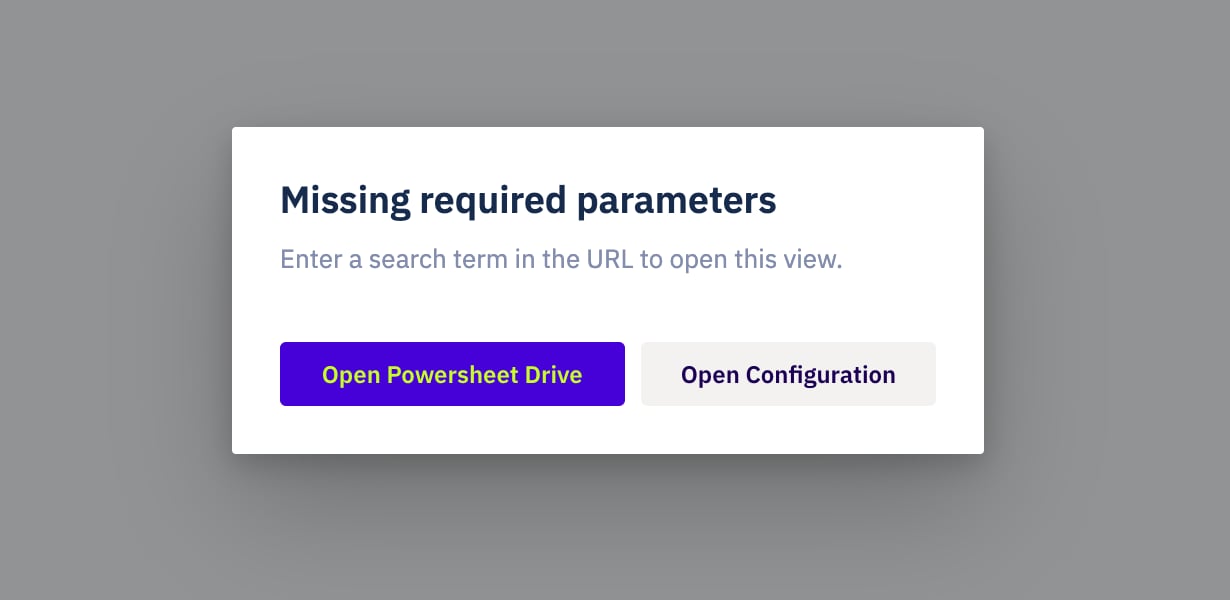
Without a value, a parameter-driven `where` condition is simply dropped and the sheet loads the broader set. When loading everything would be too heavy, declare the parameter in a top-level `parameters` block and mark it `required`, optionally giving it a `default`:
```yaml theme={null}
parameters:
domain:
required: true
ifMissing:
message: "Choose a domain to open this view."
button:
label: "Open selection page"
url: "/polarion/…/select-domain"
status:
default: "open"
```
* A **required** parameter with neither a URL value nor a `default` blocks the sheet and shows the `ifMissing` message and button (administrators additionally get an **Open Configuration** action).
* A **`default`** fills in the value when the URL omits it.
In a typical setup the parametrised link is constructed by the entry point that opens the sheet -- for example a Polarion custom report or a document link that appends the parameter. The sheet itself only reads whatever parameters are present on its URL.
A parameter can also scope a downstream (expanded) entity level, independently of the current document. Add a `query.where` to the expand node:
```yaml theme={null}
sources:
- id: chapters
query:
from: Chapter
expand:
- name: requirements
expand:
- name: requirement
query:
where:
targetSystem: "() => context.parameters.system"
```
Opening the sheet with `…&system=iOS` shows only the expanded requirements whose `targetSystem` is `iOS`, while the parent rows are unaffected. See [Expand Navigation Properties](/powersheet/guides/queries/expand-navigation-properties#filter-an-expanded-level-with-a-subquery) for expand subqueries in depth.
Without a value, a parameter-driven `where` condition is simply dropped and the sheet loads the broader set. When loading everything would be too heavy, declare the parameter in a top-level `parameters` block and mark it `required`, optionally giving it a `default`:
```yaml theme={null}
parameters:
domain:
required: true
ifMissing:
message: "Choose a domain to open this view."
button:
label: "Open selection page"
url: "/polarion/…/select-domain"
status:
default: "open"
```
* A **required** parameter with neither a URL value nor a `default` blocks the sheet and shows the `ifMissing` message and button (administrators additionally get an **Open Configuration** action).
* A **`default`** fills in the value when the URL omits it.
 The [sheet header](/powersheet/reference/sheet-config/sheet-header) -- `title`, `subtitle`, and `icon` -- accepts dynamic values too, so it can state which slice a parametrised URL opened. Reflect the parameter in the sheet's name, add the project name, and pick an icon per variant:
```yaml theme={null}
title: "() => context.parameters.viewLabel"
subtitle: "() => `${context.project.name}: Domain ${context.parameters.domain}`"
icon: "() => context.parameters.domain === 'HW' ? 'DeveloperTools' : 'Code'"
```
The whole value must be a single `() => …` expression -- build any surrounding text inside it (a template literal or concatenation) rather than mixing literal text with `() =>`. When an expression resolves to nothing, `title` falls back to the document name, while `subtitle` and `icon` are hidden. See the [Sheet Header reference](/powersheet/reference/sheet-config/sheet-header) for icon glyph-vs-image values and the full fallback rules.
The [sheet header](/powersheet/reference/sheet-config/sheet-header) -- `title`, `subtitle`, and `icon` -- accepts dynamic values too, so it can state which slice a parametrised URL opened. Reflect the parameter in the sheet's name, add the project name, and pick an icon per variant:
```yaml theme={null}
title: "() => context.parameters.viewLabel"
subtitle: "() => `${context.project.name}: Domain ${context.parameters.domain}`"
icon: "() => context.parameters.domain === 'HW' ? 'DeveloperTools' : 'Code'"
```
The whole value must be a single `() => …` expression -- build any surrounding text inside it (a template literal or concatenation) rather than mixing literal text with `() =>`. When an expression resolves to nothing, `title` falls back to the document name, while `subtitle` and `icon` are hidden. See the [Sheet Header reference](/powersheet/reference/sheet-config/sheet-header) for icon glyph-vs-image values and the full fallback rules.
 Saved [views](/powersheet/guides/sheet-configuration/create-view) can be selected from the URL with the reserved `_view` system parameter, using the view's id:
```
…?_document=&_view=traceability
```
On load, the sheet applies the referenced view (or the configured default view when `_view` is absent). Because `_view` is part of the URL, the chosen perspective is shareable along with the data scope.
## Verify Your Configuration
1. Open the sheet with a parameter value in the URL and confirm only the matching rows load.
2. Change the value and reload -- the data slice should change accordingly.
3. Remove a **required** parameter from the URL and confirm the sheet shows the missing-parameter message rather than loading everything.
4. Copy the full URL into a new tab and confirm it resolves to the same scoped view.
Saved [views](/powersheet/guides/sheet-configuration/create-view) can be selected from the URL with the reserved `_view` system parameter, using the view's id:
```
…?_document=&_view=traceability
```
On load, the sheet applies the referenced view (or the configured default view when `_view` is absent). Because `_view` is part of the URL, the chosen perspective is shareable along with the data scope.
## Verify Your Configuration
1. Open the sheet with a parameter value in the URL and confirm only the matching rows load.
2. Change the value and reload -- the data slice should change accordingly.
3. Remove a **required** parameter from the URL and confirm the sheet shows the missing-parameter message rather than loading everything.
4. Copy the full URL into a new tab and confirm it resolves to the same scoped view.
 ## See Also
* [URL Parameters](/powersheet/concepts/url-parameters) -- how a URL value reaches the configuration through `context.parameters`
* [Server-Side Filtering](/powersheet/concepts/server-side-filtering) -- why a `where` scopes the query on the server, at the root and on expand levels
* [URL Parameters Reference](/powersheet/reference/sheet-config/url-parameters) -- the `parameters` block schema and reserved names
* [Sheet Header](/powersheet/reference/sheet-config/sheet-header) -- title, subtitle, and icon; glyph-vs-image icons and fallback rules
* [Configure Dynamic Expressions](/powersheet/guides/sheet-configuration/configure-dynamic-expressions) -- the `() => …` syntax
* [Expand Navigation Properties](/powersheet/guides/queries/expand-navigation-properties) -- expand subqueries for downstream levels
* [Create a View](/powersheet/guides/sheet-configuration/create-view) -- saved perspectives selectable via `?_view=`
## See Also
* [URL Parameters](/powersheet/concepts/url-parameters) -- how a URL value reaches the configuration through `context.parameters`
* [Server-Side Filtering](/powersheet/concepts/server-side-filtering) -- why a `where` scopes the query on the server, at the root and on expand levels
* [URL Parameters Reference](/powersheet/reference/sheet-config/url-parameters) -- the `parameters` block schema and reserved names
* [Sheet Header](/powersheet/reference/sheet-config/sheet-header) -- title, subtitle, and icon; glyph-vs-image icons and fallback rules
* [Configure Dynamic Expressions](/powersheet/guides/sheet-configuration/configure-dynamic-expressions) -- the `() => …` syntax
* [Expand Navigation Properties](/powersheet/guides/queries/expand-navigation-properties) -- expand subqueries for downstream levels
* [Create a View](/powersheet/guides/sheet-configuration/create-view) -- saved perspectives selectable via `?_view=`