> ## Documentation Index
> Fetch the complete documentation index at: https://learn.nextedy.com/llms.txt
> Use this file to discover all available pages before exploring further.
# Download Configuration as YAML
> Export an existing Nextedy POWERSHEET sheet configuration as a YAML file for offline editing, version control, or migration to another project.
export const LastReviewed = ({date}) => {
if (!date) return null;
const formatted = new Date(`${date}T00:00:00Z`).toLocaleDateString("en-US", {
year: "numeric",
month: "long",
day: "numeric",
timeZone: "UTC"
});
return
Last reviewed on {formatted}
;
};
## Prerequisites
* Access to **Administration > Nextedy Powersheet > Configurations** in your Siemens Polarion ALM project
* An existing sheet configuration you want to download
1. Navigate to **Administration > Nextedy Powersheet > Configurations**
2. You will see a list of all available sheet configurations for the current scope (project, project group, or global)
The configuration manager is available at three scope levels:
| Scope | What It Shows |
| ------------------- | ----------------------------------------------- |
| Project | Configurations stored in the project repository |
| Project Group | Configurations shared across a project group |
| Global (Repository) | Configurations available to all projects |
Find the configuration you want to download. Project-specific configurations appear by filename. Global configurations are listed with their full repository path.
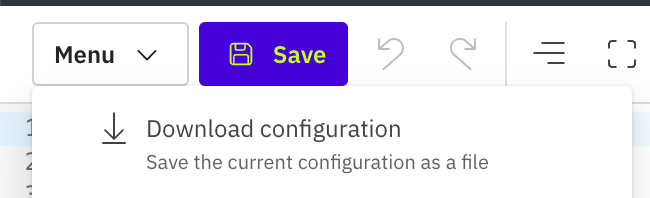
The configuration manager provides a file manager interface where you can browse, open, and download YAML files. Look for the download or export option for the configuration you want to retrieve.
Open the desired configuration entry. The YAML content is displayed in the editor. You can:
1. **Copy the YAML content** directly from the editor and paste it into your local text editor
2. **Use the file manager download** option if available in your Powersheet version
 The downloaded file contains the complete sheet configuration including:
```yaml theme={null}
columnGroups:
Requirements:
groupName: Requirements
groupStyle: blue
collapseTo: systemRequirements.systemRequirement.title
columns:
title:
title: Title
width: 250
hasFocus: true
systemRequirements.systemRequirement.title:
title: Sys Req
width: 200
columnGroup: Requirements
views:
Summary:
title:
visible: true
systemRequirements.systemRequirement.title:
visible: false
formatters:
readOnly:
- expression: "true"
style: readonly
sources:
- id: main
title: User Needs
model: rtm-model
query:
from: UserNeed
expand:
- name: systemRequirements
title: System Requirements
```
The exact download mechanism may vary depending on your Powersheet version and the file manager interface. If a direct download button is not available, copy the YAML content from the configuration editor.
Once you have the YAML file locally, you can edit it with any text editor or IDE that supports YAML syntax highlighting. Common modifications include:
* Adding or removing columns
* Adjusting column widths and formatters
* Modifying expansion paths in sources
* Creating new views
Powersheet does not validate YAML content before saving to the repository. Syntax errors in your YAML (incorrect indentation, missing colons, tab characters) will cause the configuration to fail when loaded. Always validate your YAML with a linter before uploading.
After making changes:
1. Return to **Administration > Nextedy Powersheet > Configurations**
2. Open the configuration you downloaded or create a new entry
3. Paste or upload the modified YAML content
4. Save the configuration
The updated configuration takes effect immediately for any document referencing it. Users need to reload the powersheet document to see changes.
## Verification
After downloading and re-uploading a configuration:
1. Open a LiveDoc that references the configuration
2. You should now see the sheet reflect any changes you made to the YAML
3. Verify that all columns load correctly and data sources return expected results
## See Also
* [Assign Configuration to Document](/powersheet/guides/sheet-configuration/assign-config-to-document) -- link a configuration to a LiveDoc
* [Creating Your First Sheet Configuration](/powersheet/getting-started/first-sheet-configuration) -- build a new configuration from scratch
* [Configure Sources](/powersheet/guides/sheet-configuration/configure-sources) -- define data sources within the YAML
* [Add a Column](/powersheet/guides/sheet-configuration/add-column) -- add columns to your configuration
The downloaded file contains the complete sheet configuration including:
```yaml theme={null}
columnGroups:
Requirements:
groupName: Requirements
groupStyle: blue
collapseTo: systemRequirements.systemRequirement.title
columns:
title:
title: Title
width: 250
hasFocus: true
systemRequirements.systemRequirement.title:
title: Sys Req
width: 200
columnGroup: Requirements
views:
Summary:
title:
visible: true
systemRequirements.systemRequirement.title:
visible: false
formatters:
readOnly:
- expression: "true"
style: readonly
sources:
- id: main
title: User Needs
model: rtm-model
query:
from: UserNeed
expand:
- name: systemRequirements
title: System Requirements
```
The exact download mechanism may vary depending on your Powersheet version and the file manager interface. If a direct download button is not available, copy the YAML content from the configuration editor.
Once you have the YAML file locally, you can edit it with any text editor or IDE that supports YAML syntax highlighting. Common modifications include:
* Adding or removing columns
* Adjusting column widths and formatters
* Modifying expansion paths in sources
* Creating new views
Powersheet does not validate YAML content before saving to the repository. Syntax errors in your YAML (incorrect indentation, missing colons, tab characters) will cause the configuration to fail when loaded. Always validate your YAML with a linter before uploading.
After making changes:
1. Return to **Administration > Nextedy Powersheet > Configurations**
2. Open the configuration you downloaded or create a new entry
3. Paste or upload the modified YAML content
4. Save the configuration
The updated configuration takes effect immediately for any document referencing it. Users need to reload the powersheet document to see changes.
## Verification
After downloading and re-uploading a configuration:
1. Open a LiveDoc that references the configuration
2. You should now see the sheet reflect any changes you made to the YAML
3. Verify that all columns load correctly and data sources return expected results
## See Also
* [Assign Configuration to Document](/powersheet/guides/sheet-configuration/assign-config-to-document) -- link a configuration to a LiveDoc
* [Creating Your First Sheet Configuration](/powersheet/getting-started/first-sheet-configuration) -- build a new configuration from scratch
* [Configure Sources](/powersheet/guides/sheet-configuration/configure-sources) -- define data sources within the YAML
* [Add a Column](/powersheet/guides/sheet-configuration/add-column) -- add columns to your configuration