> ## Documentation Index
> Fetch the complete documentation index at: https://learn.nextedy.com/llms.txt
> Use this file to discover all available pages before exploring further.
# Create a View
> Define named views in your Nextedy POWERSHEET sheet configuration to create switchable column visibility presets, allowing users to focus on different analysis perspectives without changing the underlying data.
export const LastReviewed = ({date}) => {
if (!date) return null;
const formatted = new Date(`${date}T00:00:00Z`).toLocaleDateString("en-US", {
year: "numeric",
month: "long",
day: "numeric",
timeZone: "UTC"
});
return
Last reviewed on {formatted}
;
};
1. Open your powersheet document
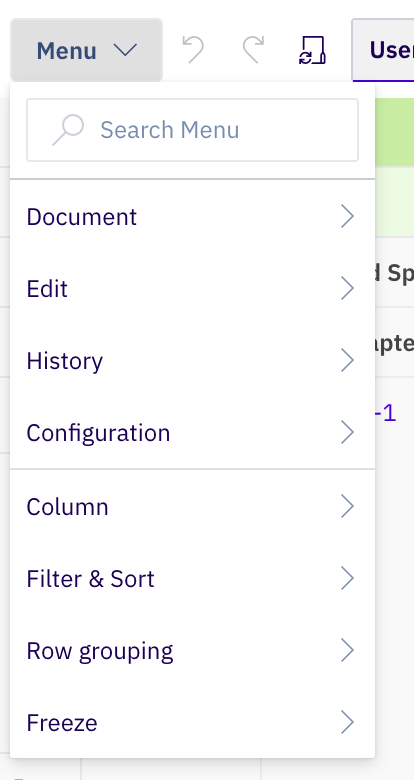
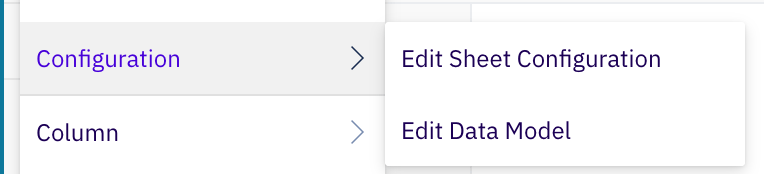
2. Go to **Menu > Configuration > Edit Sheet Configuration**
3. Locate or add a `views` section in the YAML
 Each view is a named entry under the `views` section. It specifies which columns to hide by setting their `visible` property to `false`:
```yaml theme={null}
views:
Without V&V:
columns:
validationTestCases.validationTestCase:
visible: false
systemRequirements.systemRequirement.verificationTestCases.verificationTestCase:
visible: false
```
This creates a view called "Without V\&V" that hides the validation and verification test case columns while keeping all other columns visible.
| Property | Description |
| --------------------------- | ---------------------------------------------------------------------------------------------------------------------- |
| View name (key) | Display name shown in the view switcher (e.g., `Without V&V`) |
| `default` | Set to `true` to apply this view automatically when the document loads. Only one view should be marked as the default. |
| `columns` | Object defining column visibility overrides for this view |
| `columns.` | Column identified by its binding path from the `columns` section |
| `columns..visible` | Set to `false` to hide the column in this view |
Mark a view as the default by adding `default: true` to it; that view then loads automatically instead of the base view. See the [Views reference](/powersheet/reference/sheet-config/views) for full default-view behavior.
Views control which columns are shown or hidden. They do not change column widths, formatters, or other properties. All columns not mentioned in the view remain visible at their default settings.
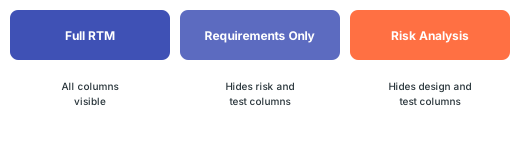
Define several views for different analysis needs:
```yaml theme={null}
views:
Full RTM:
columns: {}
Requirements Only:
columns:
hazard:
visible: false
riskControls.riskControl:
visible: false
verificationTestCases.verificationTestCase:
visible: false
validationTestCases.validationTestCase:
visible: false
Risk Analysis:
columns:
systemRequirements.systemRequirement.designRequirements.designRequirement:
visible: false
verificationTestCases.verificationTestCase:
visible: false
validationTestCases.validationTestCase:
visible: false
```
Each view is a named entry under the `views` section. It specifies which columns to hide by setting their `visible` property to `false`:
```yaml theme={null}
views:
Without V&V:
columns:
validationTestCases.validationTestCase:
visible: false
systemRequirements.systemRequirement.verificationTestCases.verificationTestCase:
visible: false
```
This creates a view called "Without V\&V" that hides the validation and verification test case columns while keeping all other columns visible.
| Property | Description |
| --------------------------- | ---------------------------------------------------------------------------------------------------------------------- |
| View name (key) | Display name shown in the view switcher (e.g., `Without V&V`) |
| `default` | Set to `true` to apply this view automatically when the document loads. Only one view should be marked as the default. |
| `columns` | Object defining column visibility overrides for this view |
| `columns.` | Column identified by its binding path from the `columns` section |
| `columns..visible` | Set to `false` to hide the column in this view |
Mark a view as the default by adding `default: true` to it; that view then loads automatically instead of the base view. See the [Views reference](/powersheet/reference/sheet-config/views) for full default-view behavior.
Views control which columns are shown or hidden. They do not change column widths, formatters, or other properties. All columns not mentioned in the view remain visible at their default settings.
Define several views for different analysis needs:
```yaml theme={null}
views:
Full RTM:
columns: {}
Requirements Only:
columns:
hazard:
visible: false
riskControls.riskControl:
visible: false
verificationTestCases.verificationTestCase:
visible: false
validationTestCases.validationTestCase:
visible: false
Risk Analysis:
columns:
systemRequirements.systemRequirement.designRequirements.designRequirement:
visible: false
verificationTestCases.verificationTestCase:
visible: false
validationTestCases.validationTestCase:
visible: false
```
 In the sheet UI, users switch views using the view selector in the toolbar. When a view is applied:
1. Column visibility updates immediately based on the view definition
2. To return to the base view, clear the view selection
Views are especially helpful for RTM configurations with 20+ columns spanning requirements, design, risks, and tests. Define task-specific views so users see only what they need for their current work.
The column binding paths in the view definition must match the binding paths used in the `columns` section exactly. A mismatch will cause the visibility override to be silently ignored.
## Complete Example
```yaml theme={null}
columns:
title:
title: User Need
width: 200
systemRequirements.systemRequirement:
title: System Req
multiItem: true
display: title
hazard:
title: Hazard
display: title
riskControls.riskControl:
title: Risk Control
multiItem: true
display: title
views:
Requirements Focus:
default: true
columns:
hazard:
visible: false
riskControls.riskControl:
visible: false
Risk Focus:
columns:
systemRequirements.systemRequirement:
visible: false
```
## Verify
After saving the sheet configuration, reload the powersheet document. You should now see:
* The view selector appears in the toolbar with your defined view names
* Selecting a view hides the specified columns immediately
* Clearing the view selection restores all columns to their default visibility
## See Also
* [Add a Column](/powersheet/guides/sheet-configuration/add-column) -- define the columns that views control
* [Configure a Column Group](/powersheet/guides/sheet-configuration/configure-column-group) -- visually organize columns
* [Configure Collapsible Groups](/powersheet/guides/sheet-configuration/configure-collapsible-groups) -- collapse column groups as an alternative to views
* [Assign Configuration to Document](/powersheet/guides/sheet-configuration/assign-config-to-document) -- link configuration to documents
In the sheet UI, users switch views using the view selector in the toolbar. When a view is applied:
1. Column visibility updates immediately based on the view definition
2. To return to the base view, clear the view selection
Views are especially helpful for RTM configurations with 20+ columns spanning requirements, design, risks, and tests. Define task-specific views so users see only what they need for their current work.
The column binding paths in the view definition must match the binding paths used in the `columns` section exactly. A mismatch will cause the visibility override to be silently ignored.
## Complete Example
```yaml theme={null}
columns:
title:
title: User Need
width: 200
systemRequirements.systemRequirement:
title: System Req
multiItem: true
display: title
hazard:
title: Hazard
display: title
riskControls.riskControl:
title: Risk Control
multiItem: true
display: title
views:
Requirements Focus:
default: true
columns:
hazard:
visible: false
riskControls.riskControl:
visible: false
Risk Focus:
columns:
systemRequirements.systemRequirement:
visible: false
```
## Verify
After saving the sheet configuration, reload the powersheet document. You should now see:
* The view selector appears in the toolbar with your defined view names
* Selecting a view hides the specified columns immediately
* Clearing the view selection restores all columns to their default visibility
## See Also
* [Add a Column](/powersheet/guides/sheet-configuration/add-column) -- define the columns that views control
* [Configure a Column Group](/powersheet/guides/sheet-configuration/configure-column-group) -- visually organize columns
* [Configure Collapsible Groups](/powersheet/guides/sheet-configuration/configure-collapsible-groups) -- collapse column groups as an alternative to views
* [Assign Configuration to Document](/powersheet/guides/sheet-configuration/assign-config-to-document) -- link configuration to documents