> ## Documentation Index
> Fetch the complete documentation index at: https://learn.nextedy.com/llms.txt
> Use this file to discover all available pages before exploring further.
# Assign Configuration to Document
> Link a Nextedy POWERSHEET sheet configuration to a Polarion LiveDoc so that opening the document displays the configured sheet view.
export const LastReviewed = ({date}) => {
if (!date) return null;
const formatted = new Date(`${date}T00:00:00Z`).toLocaleDateString("en-US", {
year: "numeric",
month: "long",
day: "numeric",
timeZone: "UTC"
});
return
Last reviewed on {formatted}
;
};
## Prerequisites
* At least one sheet configuration created in **Administration > Nextedy Powersheet > Sheet Configurations**
* A data model configured in **Administration > Nextedy Powersheet > Data Models**
* The `nextedySheetConfig` custom field defined for your document type
If the `nextedySheetConfig` custom field does not yet exist, create it in Siemens Polarion ALM:
1. Navigate to **Administration > Documents & Pages > Document Custom Fields**
2. Decide whether the field applies to all documents or only a specific document type (e.g., `powersheet`, `userNeedsSpec`)
3. Create a new field with these settings:
| Property | Value |
| -------- | ---------------------------- |
| **Id** | `nextedySheetConfig` |
| **Name** | Sheet Config |
| **Type** | Enum: Nextedy - Sheet Config |
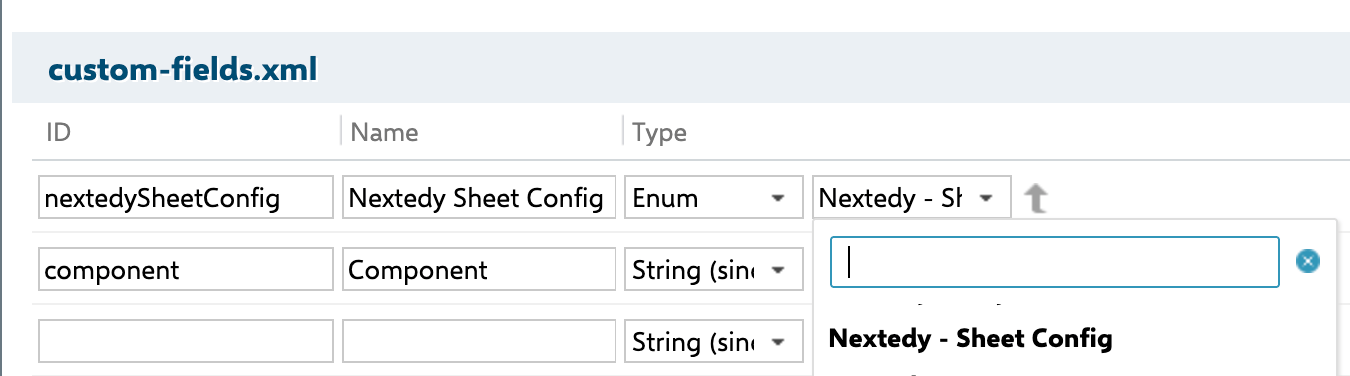 The enum provider automatically discovers configuration files from both global and project-specific repository locations. Global configurations appear with a `(Global)` suffix in the dropdown. There is no default configuration -- users must explicitly select one.
1. Open the Polarion LiveDoc you want to connect to Powersheet
2. Open the document properties panel
3. In the **Sheet Config** field, select the desired sheet configuration from the dropdown
The enum provider automatically discovers configuration files from both global and project-specific repository locations. Global configurations appear with a `(Global)` suffix in the dropdown. There is no default configuration -- users must explicitly select one.
1. Open the Polarion LiveDoc you want to connect to Powersheet
2. Open the document properties panel
3. In the **Sheet Config** field, select the desired sheet configuration from the dropdown
 The dropdown lists all available configurations:
* **Project-specific configurations** -- shown by filename without path
* **Global configurations** -- shown with `(Global)` suffix, ID starts with `/`
Powersheet discovers configurations at two levels:
| Scope | Repository Location | ID Format | Use Case |
| ------- | ----------------------------------------------------------------------------------------------------------- | --------------- | ------------------------------- |
| Project | `.polarion/nextedy/sheet-configurations/` | Filename only | Project-specific layouts |
| Global | Global repository location (see [Configuration Hierarchy](/powersheet/concepts/global-vs-project-specific)) | Starts with `/` | Shared across multiple projects |
A single sheet configuration can be reused across multiple documents. Each document references the configuration independently through its `nextedySheetConfig` field.
The sheet configuration references column binding paths that must exist in the associated data model. If you assign a configuration designed for one data model to a document using a different model, columns with unresolvable bindings will fail to display correctly.
New users should begin with a minimal single-entity configuration and extend incrementally. Jumping directly to complex multi-entity configurations leads to hard-to-diagnose errors. See [Incremental Configuration Approach](/powersheet/getting-started/incremental-configuration) for guidance.
Once a configuration is linked to a document, authors can open it directly from the Powersheet toolbar without returning to the administration page. Inside the document, open **Menu > Configuration > Edit Sheet Configuration** to jump straight into the YAML editor for the currently assigned configuration. The same submenu also exposes **Edit Data Model** to reach the associated data model.
The dropdown lists all available configurations:
* **Project-specific configurations** -- shown by filename without path
* **Global configurations** -- shown with `(Global)` suffix, ID starts with `/`
Powersheet discovers configurations at two levels:
| Scope | Repository Location | ID Format | Use Case |
| ------- | ----------------------------------------------------------------------------------------------------------- | --------------- | ------------------------------- |
| Project | `.polarion/nextedy/sheet-configurations/` | Filename only | Project-specific layouts |
| Global | Global repository location (see [Configuration Hierarchy](/powersheet/concepts/global-vs-project-specific)) | Starts with `/` | Shared across multiple projects |
A single sheet configuration can be reused across multiple documents. Each document references the configuration independently through its `nextedySheetConfig` field.
The sheet configuration references column binding paths that must exist in the associated data model. If you assign a configuration designed for one data model to a document using a different model, columns with unresolvable bindings will fail to display correctly.
New users should begin with a minimal single-entity configuration and extend incrementally. Jumping directly to complex multi-entity configurations leads to hard-to-diagnose errors. See [Incremental Configuration Approach](/powersheet/getting-started/incremental-configuration) for guidance.
Once a configuration is linked to a document, authors can open it directly from the Powersheet toolbar without returning to the administration page. Inside the document, open **Menu > Configuration > Edit Sheet Configuration** to jump straight into the YAML editor for the currently assigned configuration. The same submenu also exposes **Edit Data Model** to reach the associated data model.
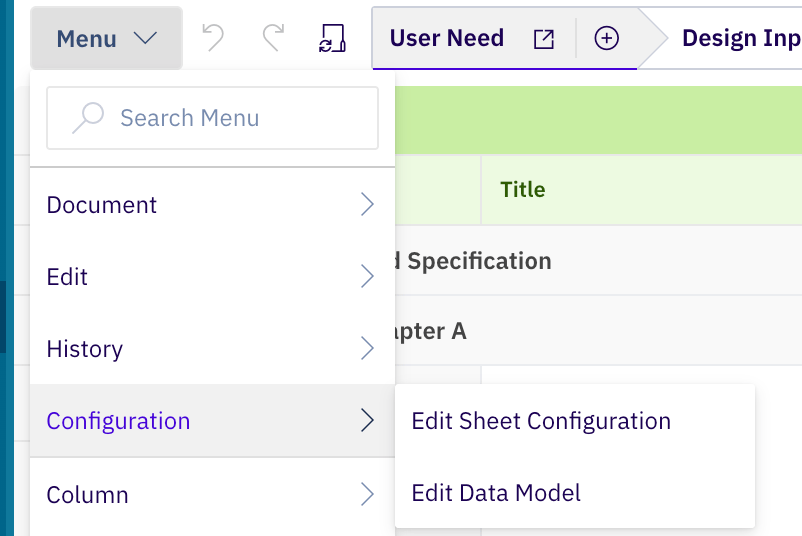 This shortcut is the fastest way to iterate on a configuration while testing it against real data in the document.
For standardized deployments, you can create **template documents** that already have the sheet configuration pre-assigned. New documents duplicated from the template inherit the configuration assignment, saving administrators from manually assigning configurations for each new document.
Templates can be duplicated across projects. The configuration and data model are resolved in the target project context.
## Verification
After assigning the configuration and saving the document:
1. Open the LiveDoc in Polarion
2. You should now see the Powersheet table view embedded in the document, displaying columns and data according to your configuration
3. The sheet should load data from the sources defined in the configuration
4. The Powersheet Drive sidebar topic should list your document
## See Also
* [Creating Your First Sheet Configuration](/powersheet/getting-started/first-sheet-configuration) -- build a configuration from scratch
* [Creating Your First Powersheet Document](/powersheet/getting-started/first-document) -- end-to-end document setup tutorial
* [Download Configuration as YAML](/powersheet/guides/sheet-configuration/download-config-as-yaml) -- export an existing configuration for editing
* [Configure Sources](/powersheet/guides/sheet-configuration/configure-sources) -- define data sources within a sheet configuration
* [Incremental Configuration Approach](/powersheet/getting-started/incremental-configuration) -- best practices for building configurations gradually
This shortcut is the fastest way to iterate on a configuration while testing it against real data in the document.
For standardized deployments, you can create **template documents** that already have the sheet configuration pre-assigned. New documents duplicated from the template inherit the configuration assignment, saving administrators from manually assigning configurations for each new document.
Templates can be duplicated across projects. The configuration and data model are resolved in the target project context.
## Verification
After assigning the configuration and saving the document:
1. Open the LiveDoc in Polarion
2. You should now see the Powersheet table view embedded in the document, displaying columns and data according to your configuration
3. The sheet should load data from the sources defined in the configuration
4. The Powersheet Drive sidebar topic should list your document
## See Also
* [Creating Your First Sheet Configuration](/powersheet/getting-started/first-sheet-configuration) -- build a configuration from scratch
* [Creating Your First Powersheet Document](/powersheet/getting-started/first-document) -- end-to-end document setup tutorial
* [Download Configuration as YAML](/powersheet/guides/sheet-configuration/download-config-as-yaml) -- export an existing configuration for editing
* [Configure Sources](/powersheet/guides/sheet-configuration/configure-sources) -- define data sources within a sheet configuration
* [Incremental Configuration Approach](/powersheet/getting-started/incremental-configuration) -- best practices for building configurations gradually