> ## Documentation Index
> Fetch the complete documentation index at: https://learn.nextedy.com/llms.txt
> Use this file to discover all available pages before exploring further.
# Add External Reference Column
> Display external reference work items linked to entities in your Nextedy POWERSHEET sheet by configuring the data model, sources, and column definition.
export const LastReviewed = ({date}) => {
if (!date) return null;
const formatted = new Date(`${date}T00:00:00Z`).toLocaleDateString("en-US", {
year: "numeric",
month: "long",
day: "numeric",
timeZone: "UTC"
});
return
Last reviewed on {formatted}
;
};
## Verify the ExternalReference Entity Type
Open the data model for your sheet (**Menu > Configuration > Edit Data Model**). In the `domainModelTypes` section, confirm that `ExternalReference` is defined:
```yaml theme={null}
domainModelTypes:
ExternalReference:
```
The `ExternalReference` entity type may already exist if it is used elsewhere in your model (for example, linked to verification or validation test cases).
## Add the Relationship
In the `relationships` section of your data model, add a relationship from `ExternalReference` to the target entity. For example, to link external references to `DesignRequirement`:
```yaml theme={null}
relationships:
- from: ExternalReference
to: DesignRequirement
cardinality: many-to-many
storage: linkedWorkItems
linkRole: relatesTo
direct:
name: designRequirement
back:
name: externalReferences
```
Because this relationship is backed by a Polarion work item link, set `storage: linkedWorkItems` and `linkRole` to the link role configured in the next step (for example, `relatesTo`). Without `storage` and `linkRole`, the relationship cannot traverse the underlying Polarion links and the column stays empty.
The `back.name` value (`externalReferences`) becomes the expansion path used in the sources and column binding.
## Configure the Link Role in Polarion
Go to **Administration > Work Items > Enumerations** in Polarion and open the **`workitem-link-role-enum.xml`** configuration (this is where work item link roles are defined). Verify that the link role (for example, `relatesTo`):
* Can be created from `externalReference` to the target work item type (for example, `designRequirement`)
* Is bidirectional (recommended)
This link role must match the `linkRole` value set on the relationship in the previous step.
## Update the Sources Section
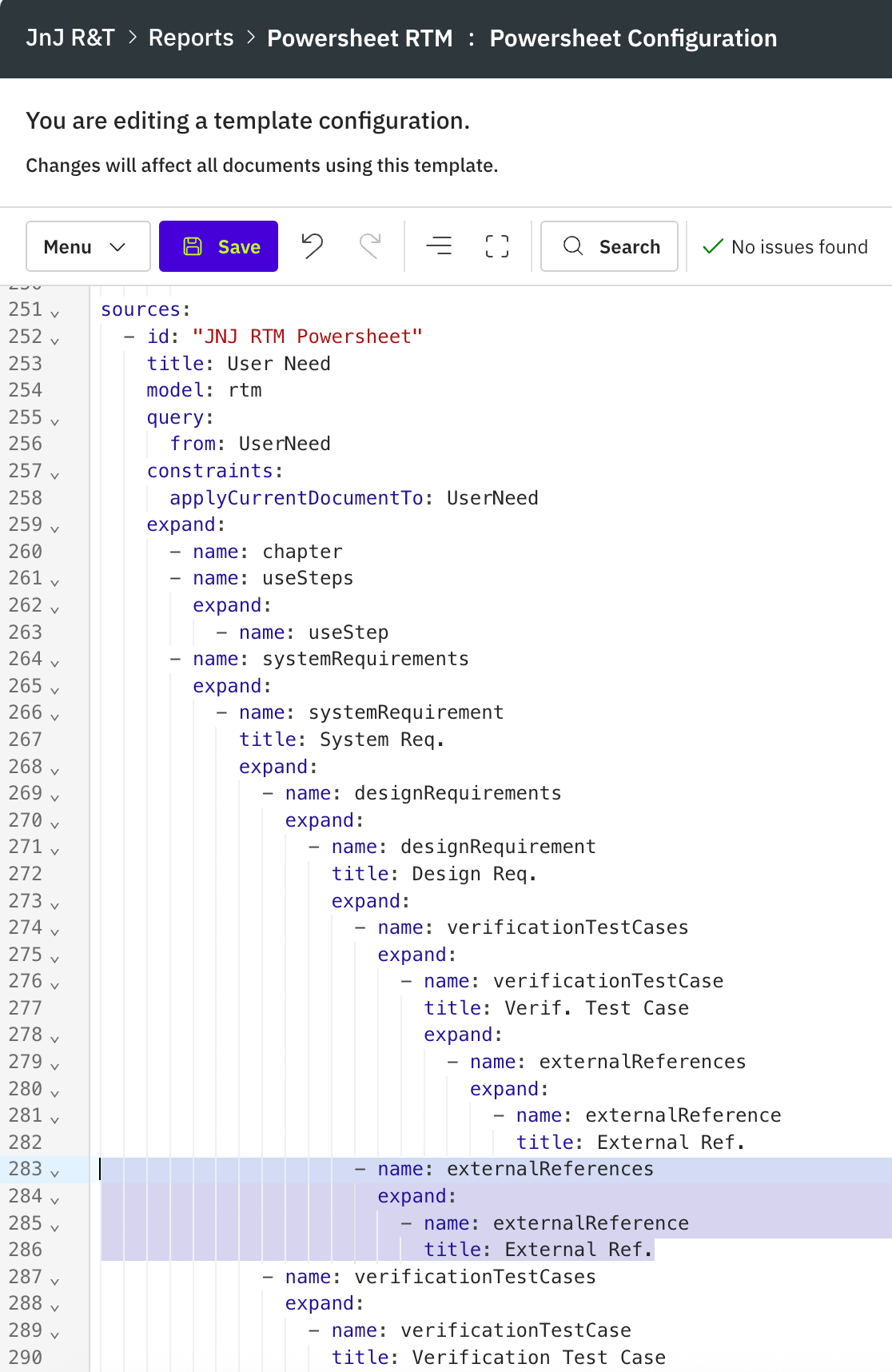 Open the sheet configuration (**Menu > Configuration > Edit Sheet Configuration**), locate the `sources` section, and add the `externalReferences` expansion under the appropriate entity:
```yaml theme={null}
sources:
- model: rtm
query:
from: UserNeed
where: "type = 'UserNeed'"
take: 50
expand:
- name: systemRequirements
expand:
- name: systemRequirement
expand:
- name: designRequirements
expand:
- name: designRequirement
expand:
- name: verificationTestCases
expand:
- name: verificationTestCase
- name: externalReferences
expand:
- name: externalReference
```
Each relationship navigation (the plural `back.name`, such as `externalReferences`) must be followed by a nested `expand` that names the related entity (the singular `direct.name`, such as `externalReference`). The `externalReferences` entry sits at the same level as other relationships on `designRequirement`.
Open the sheet configuration (**Menu > Configuration > Edit Sheet Configuration**), locate the `sources` section, and add the `externalReferences` expansion under the appropriate entity:
```yaml theme={null}
sources:
- model: rtm
query:
from: UserNeed
where: "type = 'UserNeed'"
take: 50
expand:
- name: systemRequirements
expand:
- name: systemRequirement
expand:
- name: designRequirements
expand:
- name: designRequirement
expand:
- name: verificationTestCases
expand:
- name: verificationTestCase
- name: externalReferences
expand:
- name: externalReference
```
Each relationship navigation (the plural `back.name`, such as `externalReferences`) must be followed by a nested `expand` that names the related entity (the singular `direct.name`, such as `externalReference`). The `externalReferences` entry sits at the same level as other relationships on `designRequirement`.
 ## Add the Column
In the same sheet configuration, define the column in the `columns` section using the full binding path through the entity hierarchy. Set `multiItem: true` to enable multi-reference picker behavior:
```yaml theme={null}
header: &blue
style: blue
columns:
systemRequirements.systemRequirement.designRequirements.designRequirement.externalReferences.externalReference:
title: External References
multiItem: true
header: *blue
minWidth: 200
```
The binding path specifies the full hierarchy from the root entity down to the `externalReference` entity. The YAML anchor `&blue` reuses a previously defined header style.
The column binding path must exactly mirror the expansion path defined in the `sources` section. A mismatch between expansion and column binding results in an empty column with no data.
## Complete Example
```yaml theme={null}
sources:
- model: rtm
query:
from: UserNeed
where: "type = 'UserNeed'"
take: 50
expand:
- name: systemRequirements
expand:
- name: systemRequirement
expand:
- name: designRequirements
expand:
- name: designRequirement
expand:
- name: externalReferences
expand:
- name: externalReference
header: &blue
style: blue
columns:
outlineNumber:
title: "#"
width: 80
isReadOnly: true
title:
title: Title
width: "*"
hasFocus: true
systemRequirements.systemRequirement.designRequirements.designRequirement.externalReferences.externalReference:
title: External References
multiItem: true
header: *blue
minWidth: 200
```
## Verify
After saving the sheet configuration, reload the powersheet document. You should now see a new column displaying external references linked to each design requirement. Users can select or add external references using the multi-reference picker in each cell.
## See also
* [Add a Column](/powersheet/guides/sheet-configuration/add-column)
* [Configure Multi-Item Column](/powersheet/guides/sheet-configuration/configure-multi-item-column)
* [Configure Sources](/powersheet/guides/sheet-configuration/configure-sources)
* [Expand Navigation Properties](/powersheet/guides/queries/expand-navigation-properties)
* [Configure a Relationship](/powersheet/guides/data-model/configure-relationship)
## Add the Column
In the same sheet configuration, define the column in the `columns` section using the full binding path through the entity hierarchy. Set `multiItem: true` to enable multi-reference picker behavior:
```yaml theme={null}
header: &blue
style: blue
columns:
systemRequirements.systemRequirement.designRequirements.designRequirement.externalReferences.externalReference:
title: External References
multiItem: true
header: *blue
minWidth: 200
```
The binding path specifies the full hierarchy from the root entity down to the `externalReference` entity. The YAML anchor `&blue` reuses a previously defined header style.
The column binding path must exactly mirror the expansion path defined in the `sources` section. A mismatch between expansion and column binding results in an empty column with no data.
## Complete Example
```yaml theme={null}
sources:
- model: rtm
query:
from: UserNeed
where: "type = 'UserNeed'"
take: 50
expand:
- name: systemRequirements
expand:
- name: systemRequirement
expand:
- name: designRequirements
expand:
- name: designRequirement
expand:
- name: externalReferences
expand:
- name: externalReference
header: &blue
style: blue
columns:
outlineNumber:
title: "#"
width: 80
isReadOnly: true
title:
title: Title
width: "*"
hasFocus: true
systemRequirements.systemRequirement.designRequirements.designRequirement.externalReferences.externalReference:
title: External References
multiItem: true
header: *blue
minWidth: 200
```
## Verify
After saving the sheet configuration, reload the powersheet document. You should now see a new column displaying external references linked to each design requirement. Users can select or add external references using the multi-reference picker in each cell.
## See also
* [Add a Column](/powersheet/guides/sheet-configuration/add-column)
* [Configure Multi-Item Column](/powersheet/guides/sheet-configuration/configure-multi-item-column)
* [Configure Sources](/powersheet/guides/sheet-configuration/configure-sources)
* [Expand Navigation Properties](/powersheet/guides/queries/expand-navigation-properties)
* [Configure a Relationship](/powersheet/guides/data-model/configure-relationship)