> ## Documentation Index
> Fetch the complete documentation index at: https://learn.nextedy.com/llms.txt
> Use this file to discover all available pages before exploring further.
# Handle Validation Errors
> This guide shows you how to identify, review, and resolve validation errors that occur during save operations in Nextedy POWERSHEET for Siemens Polarion ALM.
export const LastReviewed = ({date}) => {
if (!date) return null;
const formatted = new Date(`${date}T00:00:00Z`).toLocaleDateString("en-US", {
year: "numeric",
month: "long",
day: "numeric",
timeZone: "UTC"
});
return
Last reviewed on {formatted}
;
};
## Prerequisites
* A powersheet document with pending changes that you are attempting to save
* Familiarity with the review mode toolbar controls
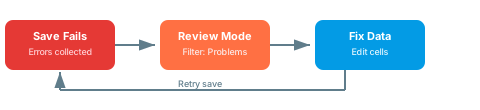
When a save operation encounters validation errors, Powersheet collects all errors across all entities and presents them as a single aggregated error message. The sheet does not lose your changes -- all pending modifications remain in place for correction.
Errors fall into two categories:
| Error Type | Behavior | Recovery |
| ----------------------- | ------------------------------------------------------- | --------------------------- |
| Entity validation error | Collected per entity, reported after all saves complete | Fix the data and retry save |
| Application error | Save is interrupted immediately | Reload the browser |
If an application-level error occurs (such as a server timeout or connectivity issue), the save process stops immediately. Entity validation errors, by contrast, are collected for all entities and reported together after the save cycle completes.
After a failed save, the review mode remains active. Use it to locate problematic rows:
1. Click the **Review** toggle if it is not already active
2. Open the review filter menu and select **Problems** to filter to rows with validation errors
3. The row count display shows how many rows have issues (e.g., "2/45 rows")
 Rows with validation errors display both the modified and error visual indicators on the row header. The review filter menu shows the count of problem rows (e.g., "Problem rows: 2").
Individual cells contributing to errors may also show a modified state indicator. Check the following common causes:
* **Missing required fields** -- a required Polarion field has no value
* **Invalid enum value** -- the selected value is not in the allowed options for the work item type
* **Constraint violations** -- the entity does not match the document routing constraints
* **Workflow state conflicts** -- attempting a workflow transition on an unsaved entity
Workflow transitions require the entity to be persisted first. If you attempt a transition on a newly created (unsaved) work item, you will receive a validation error. Save the entity first, then apply the workflow transition.
Edit the problematic cells directly in the sheet:
1. Click into the cell with the error
2. Enter a valid value
3. The error indicator should clear when you commit the edit
If you cannot determine the correct value, use `Ctrl+Z` to undo the change and restore the original value. You can then re-attempt the edit with the correct data.
After correcting all validation errors, click **Save** again. Entities are saved in topologically sorted order (parents before dependents) to prevent foreign key violations.
If the sheet entered an error state during the previous save attempt, you may see a blocking message: "There is an error in the app and save should not happen. Please, reload the browser." In this case, reload the page. Your unsaved changes may need to be re-entered.
You should now see all rows saved successfully. The review mode toggle disappears when no pending changes remain. The **Save** button is disabled, and row headers show no modification or error indicators.
## See Also
* [Create a Work Item](/powersheet/guides/save-operations/create-work-item) -- understand the creation flow and constraints
* [Update a Work Item](/powersheet/guides/save-operations/update-work-item) -- edit existing fields with change tracking
* [Resolve Validation Errors](/powersheet/guides/troubleshooting/resolve-validation-errors) -- troubleshoot persistent validation problems
* [Configure Constraints](/powersheet/guides/data-model/configure-constraints) -- adjust constraints that may cause routing errors
Rows with validation errors display both the modified and error visual indicators on the row header. The review filter menu shows the count of problem rows (e.g., "Problem rows: 2").
Individual cells contributing to errors may also show a modified state indicator. Check the following common causes:
* **Missing required fields** -- a required Polarion field has no value
* **Invalid enum value** -- the selected value is not in the allowed options for the work item type
* **Constraint violations** -- the entity does not match the document routing constraints
* **Workflow state conflicts** -- attempting a workflow transition on an unsaved entity
Workflow transitions require the entity to be persisted first. If you attempt a transition on a newly created (unsaved) work item, you will receive a validation error. Save the entity first, then apply the workflow transition.
Edit the problematic cells directly in the sheet:
1. Click into the cell with the error
2. Enter a valid value
3. The error indicator should clear when you commit the edit
If you cannot determine the correct value, use `Ctrl+Z` to undo the change and restore the original value. You can then re-attempt the edit with the correct data.
After correcting all validation errors, click **Save** again. Entities are saved in topologically sorted order (parents before dependents) to prevent foreign key violations.
If the sheet entered an error state during the previous save attempt, you may see a blocking message: "There is an error in the app and save should not happen. Please, reload the browser." In this case, reload the page. Your unsaved changes may need to be re-entered.
You should now see all rows saved successfully. The review mode toggle disappears when no pending changes remain. The **Save** button is disabled, and row headers show no modification or error indicators.
## See Also
* [Create a Work Item](/powersheet/guides/save-operations/create-work-item) -- understand the creation flow and constraints
* [Update a Work Item](/powersheet/guides/save-operations/update-work-item) -- edit existing fields with change tracking
* [Resolve Validation Errors](/powersheet/guides/troubleshooting/resolve-validation-errors) -- troubleshoot persistent validation problems
* [Configure Constraints](/powersheet/guides/data-model/configure-constraints) -- adjust constraints that may cause routing errors