> ## Documentation Index
> Fetch the complete documentation index at: https://learn.nextedy.com/llms.txt
> Use this file to discover all available pages before exploring further.

# Open a Sheet in a Polarion Collection

> Open a Nextedy POWERSHEET sheet scoped to a Siemens Polarion ALM Collection from Powersheet Drive, from a document, or with the _collection URL parameter, and check that the sheet shows the Collection's revisions.

export const LastReviewed = ({date, state}) => {
  if (!date) return null;
  const formatted = new Date(`${date}T00:00:00Z`).toLocaleDateString("en-US", {
    year: "numeric",
    month: "long",
    day: "numeric",
    timeZone: "UTC"
  });
  const label = state === "reviewed" ? `Last reviewed and confirmed up to date on ${formatted}` : `Last updated on ${formatted}`;
  return <p className="mt-10 text-sm text-gray-400 dark:text-zinc-500 not-prose">
      {label}
    </p>;
};

Opening a sheet inside a Collection limits it to the work items of the Collection's documents, each at the revision the Collection pins. For what that changes in the sheet, see [Collection-Scoped Sheets](/powersheet/concepts/collection-scoped-sheets).

## Prerequisites

* A Polarion Collection **in the same project as the sheet's document**. A sheet cannot open a Collection from another projects.
* The Collection contains the documents whose work items the sheet shows. A sheet which is bound to the current document needs that document in the Collection.
* A working powersheet document. No change to the sheet configuration or the data model is needed.
* Read access to the Collection's documents. To edit, you also need write access to the documents the Collection leaves live.

There are three ways in. All of them end in the same sheet URL, carrying `_collection=<id>`. Which one you use depends on where you start:

<table>
  <colgroup>
    <col width="269" />

    <col width="490" />
  </colgroup>

  <thead>
    <tr>
      <th>You are</th>
      <th>Use</th>
    </tr>
  </thead>

  <tbody>
    <tr>
      <td>In Polarion, outside the Collection</td>
      <td>**Powersheet Drive** and its Collection selector</td>
    </tr>

    <tr>
      <td>In Polarion, inside the Collection</td>
      <td>The **Open with Nextedy POWERSHEET** button on a document of the Collection. Powersheet Drive is not in the sidebar while you are inside a Collection: Polarion shows only the Collection's own topics there.</td>
    </tr>

    <tr>
      <td>Holding a link to the sheet</td>
      <td>Add `_collection=<id>` to it</td>
    </tr>
  </tbody>
</table>

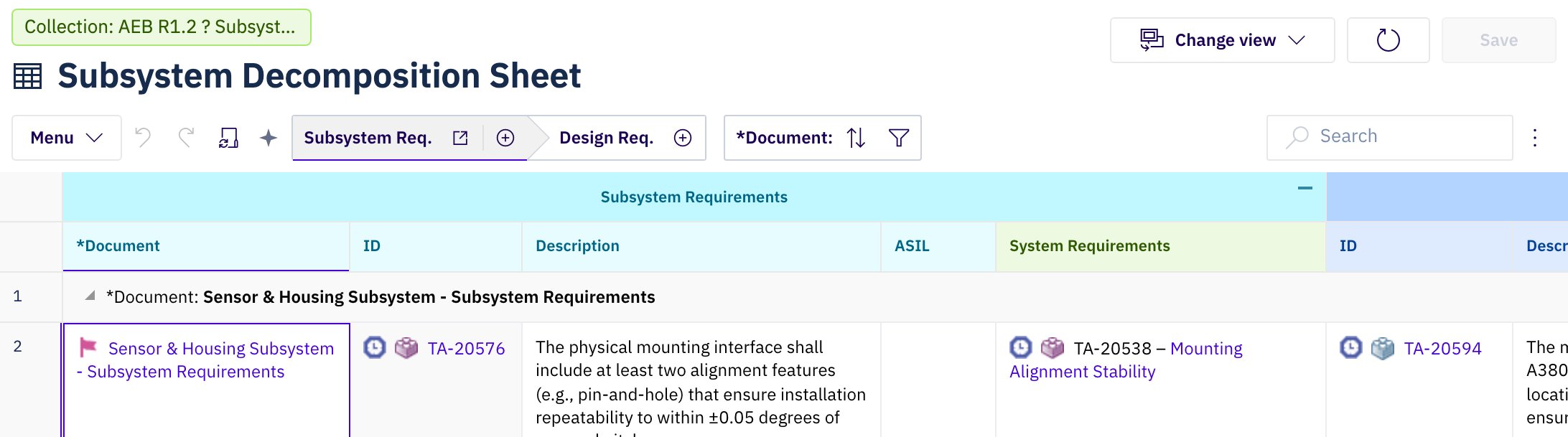
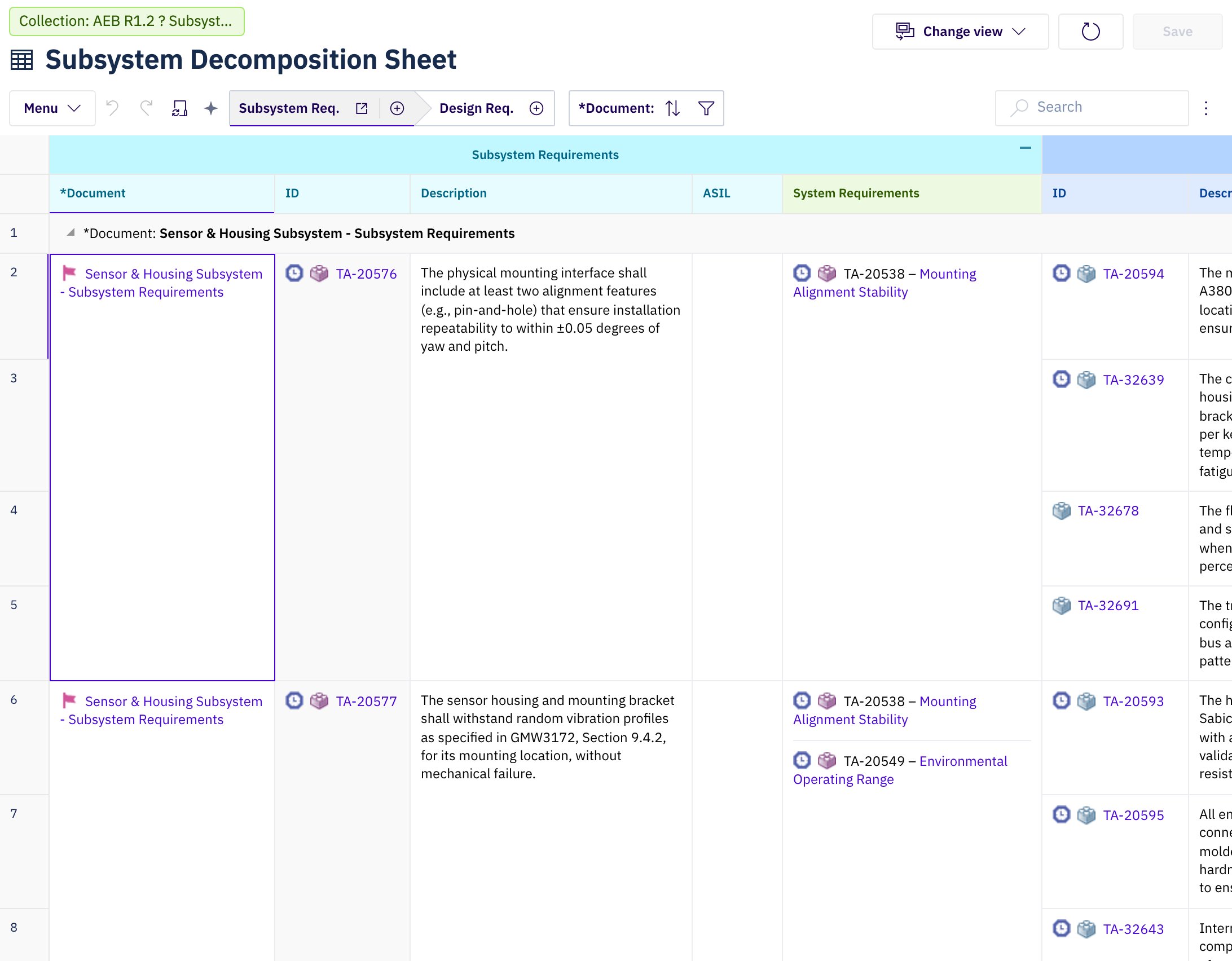
The scope of the sheet is stated by its own `Collection:` chip, not by Polarion's Collection banner. A sheet URL without `_collection` opens unscoped even when Polarion is showing the Collection.

<img src="https://mintcdn.com/none-17b4493f/bdDYx9C816H2qIvk/images/image-3.png?fit=max&auto=format&n=bdDYx9C816H2qIvk&q=85&s=d6d377ede7bd2177afa3e1a7c57cc2ec" alt="Image" width="2184" height="609" data-path="images/image-3.png" />

## Open from Powersheet Drive

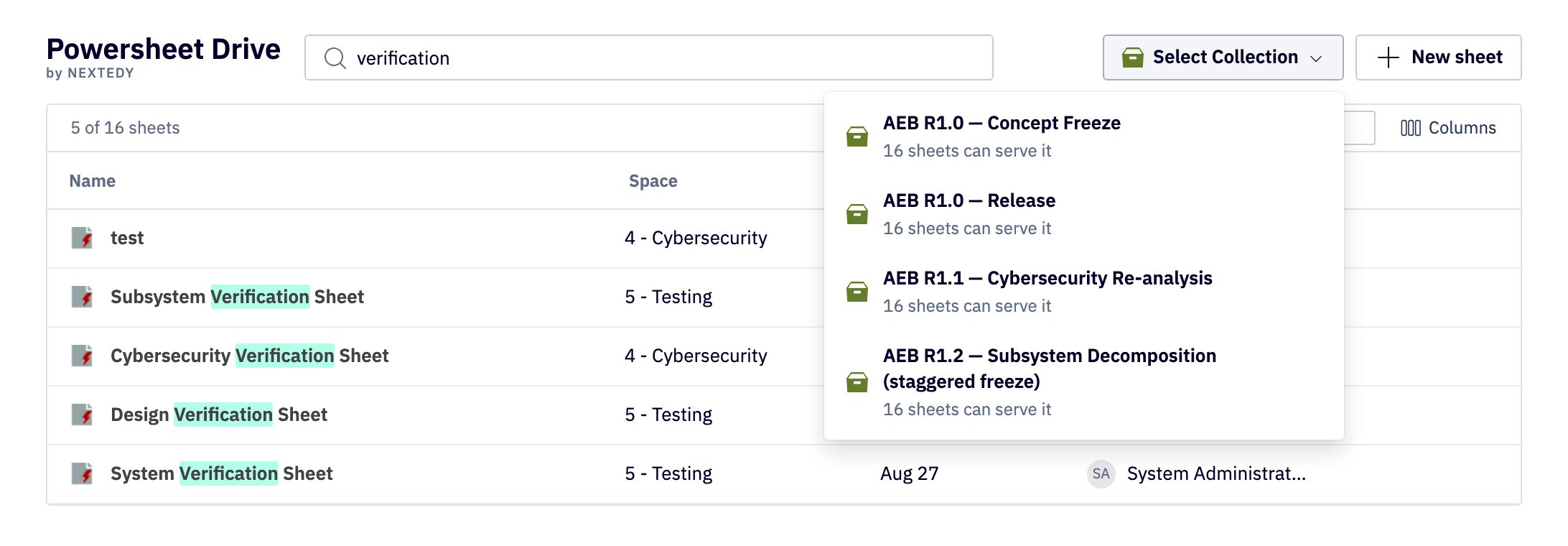
Powersheet Drive shows a Collection selector when the project has at least one Collection.
<Steps>
  <Step title="Select the Collection">
    Open **Powersheet Drive** and choose **Select Collection**. The menu lists the project's Collections, newest first, each with the number of sheets that can open inside it.

    <Frame caption="The Collection selector in Powersheet Drive lists the project's Collections.">
      <img src="https://mintcdn.com/none-17b4493f/Rb04oY7aklieJIYQ/powersheet/images/open-a-sheet-in-a-polarion-collection/drive-select-collection.png?fit=max&auto=format&n=Rb04oY7aklieJIYQ&q=85&s=d3341054aa46512b65b94ba7ec7b5e34" alt="Powersheet Drive with the Select Collection menu open beside the search box and the New sheet button, listing four Collections, each with the note that 16 sheets can serve it." style={{ maxWidth: "900px", width: "100%" }} width="2184" height="760" data-path="powersheet/images/open-a-sheet-in-a-polarion-collection/drive-select-collection.png" />
    </Frame>
  </Step>

  <Step title="Open a sheet">
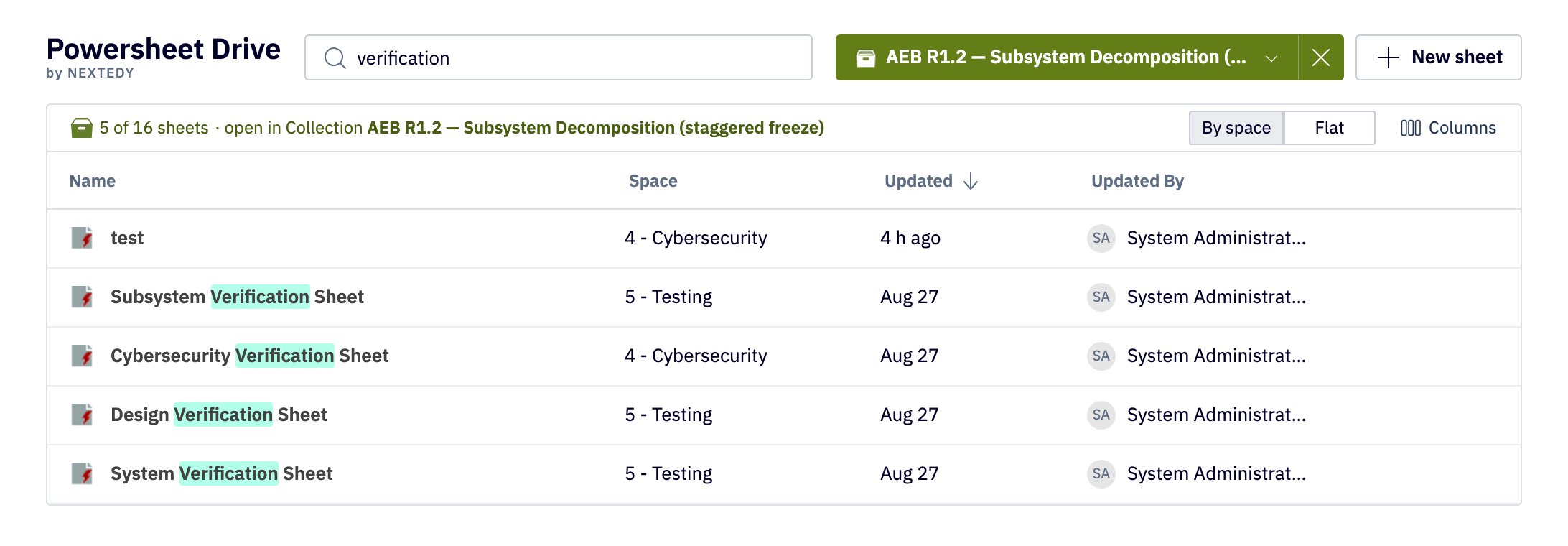
    The selector now shows the Collection's name, and the sheet count reads **open in Collection** followed by that name. Select a sheet. It opens in a new browser tab, inside the Collection.

    While a Collection is selected, the Drive lists only the sheets that can open inside it. A sheet which is  bound to the current document is listed only when the Collection contains that document.

    <Frame caption="With a Collection selected, every sheet in the list opens inside it.">
      <img src="https://mintcdn.com/none-17b4493f/Rb04oY7aklieJIYQ/powersheet/images/open-a-sheet-in-a-polarion-collection/drive-in-collection.png?fit=max&auto=format&n=Rb04oY7aklieJIYQ&q=85&s=80f94b3c1fa9ec1cd576012988f90bf1" alt="Powersheet Drive with a Collection selected. The selector is green and shows the Collection's name with a cross beside it, and the count above the list reads 5 of 16 sheets, open in Collection, followed by the name." style={{ maxWidth: "900px", width: "100%" }} width="2184" height="760" data-path="powersheet/images/open-a-sheet-in-a-polarion-collection/drive-in-collection.png" />
    </Frame>
  </Step>

  <Step title="Leave the Collection">
    To return to the unscoped list, open the selector and choose **Leave Collection**, or select the cross beside the Collection's name.
  </Step>
</Steps>

## Open from a Document in the Collection

This is the way in while you are inside the Collection in Polarion, where Powersheet Drive is not available.

<Steps>
  <Step title="Enter the Collection">
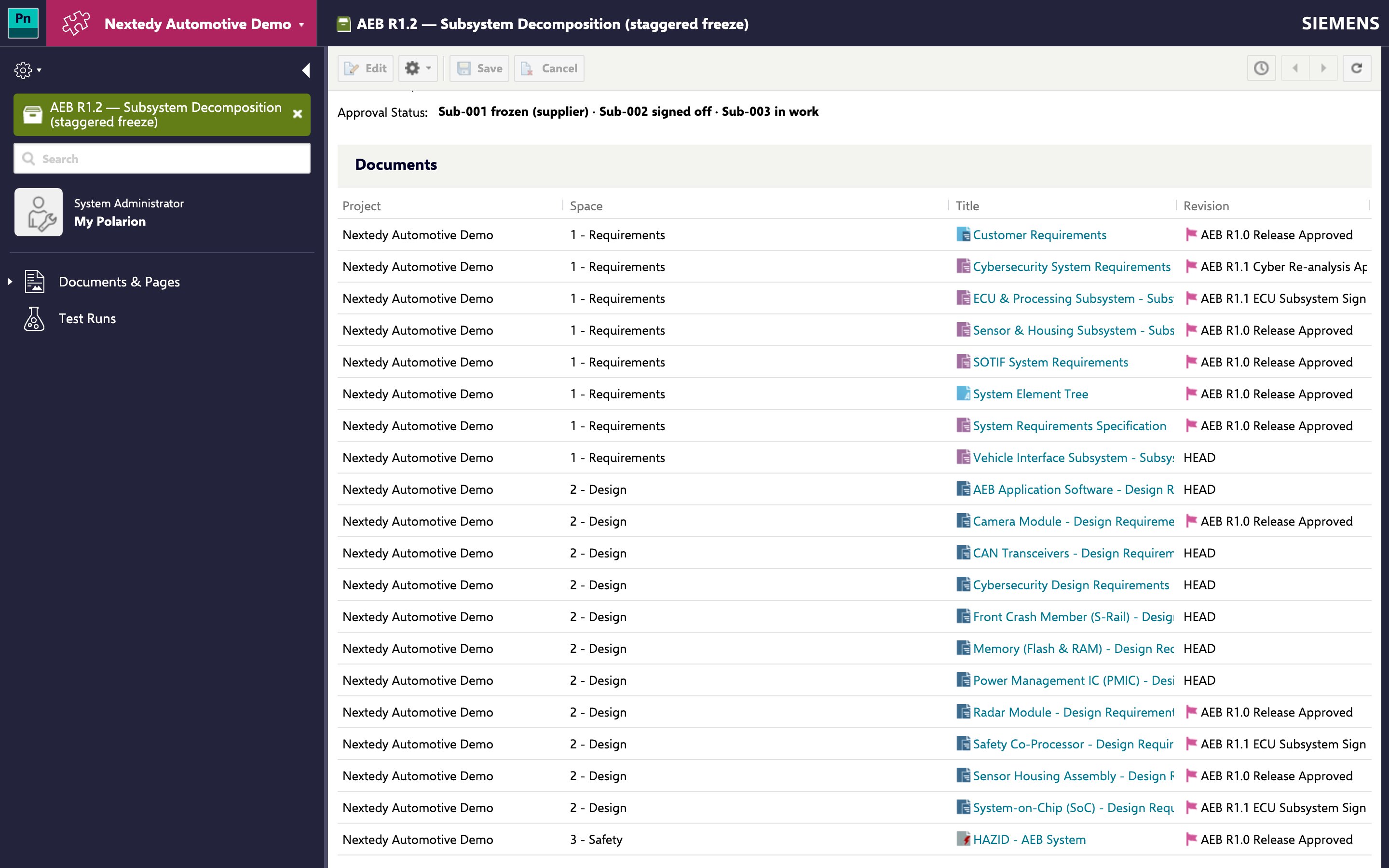
    Open the **Collections** topic in the Polarion sidebar and select **Enter Collection** on the Collection. Polarion shows a green banner naming the Collection, and **Documents & Pages** now lists only the Collection's documents.

    <Note>
      **The Collections topic is not in Polarion's default navigation**

      An administrator adds it under **Administration > Portal > Topics**, the same way the Powersheet topic is added in [Setting Up Navigation](/powersheet/getting-started/setup-navigation).
    </Note>
  </Step>

  <Step title="Open the document and select the _Open with Nextedy POWERSHEET_ ">
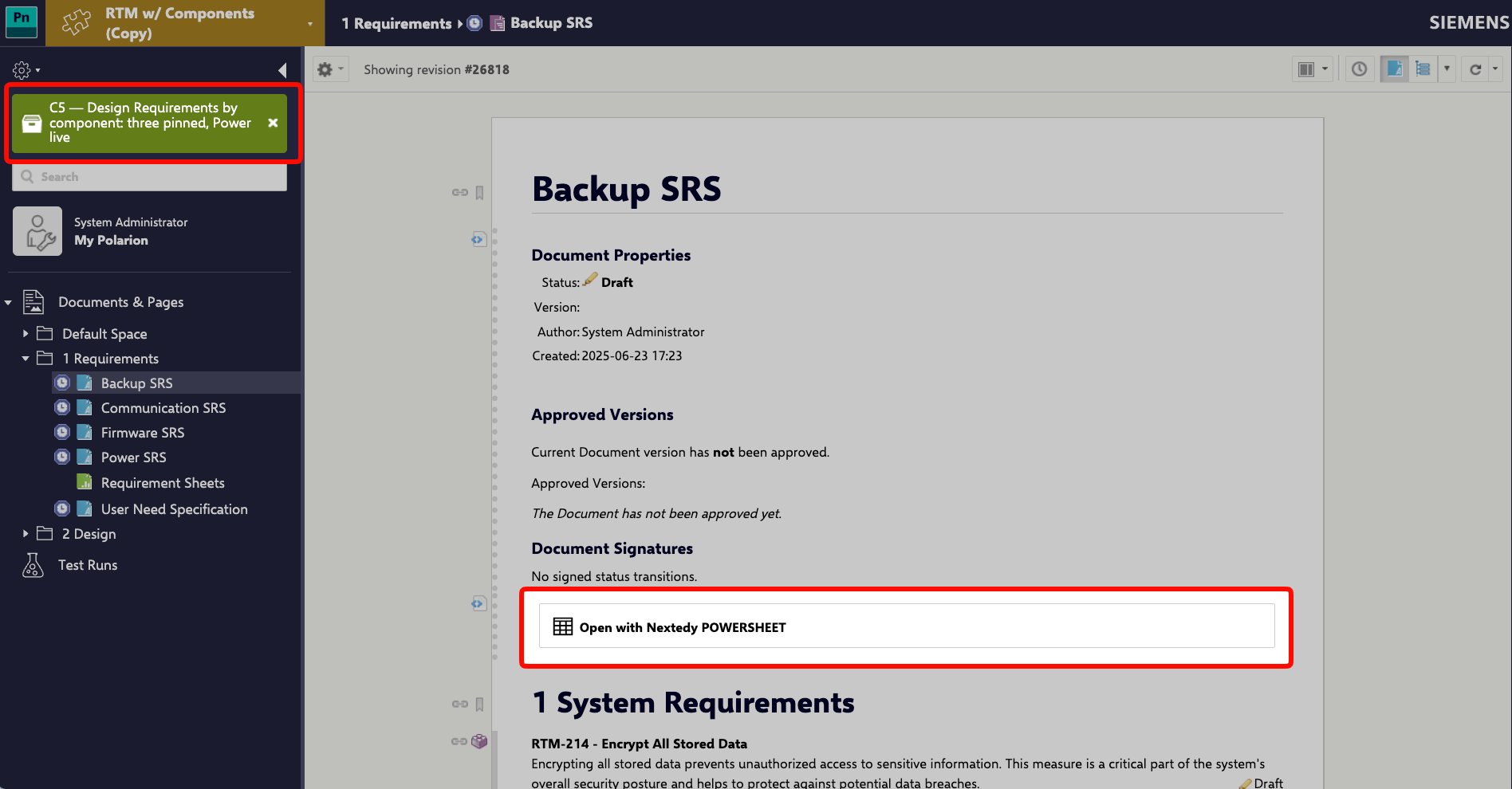
    Open the sheet's document from **Documents & Pages** and select **Open with Nextedy POWERSHEET**, the button a document carries when it was set up as in [Creating Your First Powersheet Document](/powersheet/getting-started/first-document). The sheet opens inside the Collection you came from, with the `Collection:` chip above its title.

    <img src="https://mintcdn.com/none-17b4493f/bdDYx9C816H2qIvk/images/image-2.png?fit=max&auto=format&n=bdDYx9C816H2qIvk&q=85&s=39b1894783f8c11716c8242db2c0d058" alt="Image" title="Image" style={{ width:"100%" }} width="1896" height="990" data-path="images/image-2.png" />
  </Step>
</Steps>

The button carries the scope the document is shown in: the Collection when you are inside one; otherwise the revision, when the document is shown at a historical revision; otherwise nothing.

<Warning>
  **Polarion leaves the Collection; the sheet does not**

  The button opens the sheet in the same browser tab, and Polarion is no longer inside the Collection there: its green banner is gone, and the sidebar shows the project's topics again. The sheet stays scoped, as its `Collection:` chip shows, and the links in its cells still open work items and documents inside the Collection. Anything you open from Polarion's own navigation in that tab shows the live project. To keep working in Polarion inside the Collection, enter it again from the **Collections** topic.
</Warning>

<Warning>
  **After leaving a Collection, check that the document is live**

  When you leave a Collection, Polarion may keep showing the document at the revision the Collection pinned. The button then opens the sheet at that revision: read-only as a whole, with the revision in the title and no `Collection:` chip. Open the document's current version first if you want the live sheet.
</Warning>

## Open with a URL

<Steps>
  <Step title="Find the Collection's id">
    Open the Collection in Polarion and read its id from the browser's address bar. It is the number after `collection/`:

    ```text theme={null}
    /polarion/#/project/MyProject/collection/4/collection?id=4
    ```

    The id is a number. The Collection's name does not work in its place.

    <Frame caption="A Collection in Polarion. The Revision column shows which documents are pinned to a baseline and which are live (HEAD).">
      <img src="https://mintcdn.com/none-17b4493f/Rb04oY7aklieJIYQ/powersheet/images/open-a-sheet-in-a-polarion-collection/collection-documents.png?fit=max&auto=format&n=Rb04oY7aklieJIYQ&q=85&s=78a489254825ccb2780d24b4c3b749fb" alt="A Polarion Collection page with its Documents table. The Revision column shows a named baseline with a flag for the pinned documents and HEAD for the live ones." style={{ maxWidth: "900px", width: "100%" }} width="2880" height="1800" data-path="powersheet/images/open-a-sheet-in-a-polarion-collection/collection-documents.png" />
    </Frame>
  </Step>

  <Step title="Add the parameter to the sheet URL">
    Open the sheet and add `_collection=<id>` to its URL:

    ```text theme={null}
    /polarion/#/project/MyProject/powersheet?_document=Requirements/SystemReqs&_collection=4
    ```

    The URL can be bookmarked and shared. Everyone who opens it sees the same Collection.

    Only `_collection` scopes the sheet. A link that opens the sheet from inside a Collection in Polarion, but does not carry `_collection`, opens the unscoped sheet.

    <Tip>
      **Building links from a page inside the Collection**

      In a LiveReport or LiveDoc script block, `$transaction.context().contextCollection()` is set while the page is rendered inside a Collection. A page that is a member of the Collection can use its `id()` to build sheet links that carry `_collection`.
    </Tip>
  </Step>
</Steps>

## Verify

You should now see:

1. A green chip above the sheet title reading `Collection:` followed by the Collection's name.
2. Only rows from the Collection's documents.
3. A revision badge before the icon of every work item that comes from a pinned document, with the revision number in its tooltip.

<Frame caption="A sheet opened inside a Collection: the chip above the title names the Collection, and pinned work items carry a revision badge.">
  <img src="https://mintcdn.com/none-17b4493f/Rb04oY7aklieJIYQ/powersheet/images/open-a-sheet-in-a-polarion-collection/sheet-in-collection.png?fit=max&auto=format&n=Rb04oY7aklieJIYQ&q=85&s=f7d3f5c62b5e2f1bd4b27cc7e5cc682b" alt="A Powersheet sheet opened inside a Collection. A green chip above the title starts with Collection, and requirement rows show a clock badge before the work item icon." style={{ maxWidth: "900px", width: "100%" }} width="2184" height="1704" data-path="powersheet/images/open-a-sheet-in-a-polarion-collection/sheet-in-collection.png" />
</Frame>

Following a work item link from the sheet opens the item in Polarion inside the same Collection.

## Work in the Scoped Sheet

The fields of rows from pinned documents are read-only. Rows from live documents are edited as usual: change a cell and select **Save**, and the change is written to the work item's current revision. Unsaved changes are lost when you reload or close the tab, as in any sheet.

New rows are created in a live document of the Collection. See [Editing Inside a Collection](/powersheet/concepts/collection-scoped-sheets#editing-inside-a-collection) for the rules on creating and linking.

To leave the Collection, select **Menu** > **History** > **Exit Collection**.

## Troubleshooting

| Symptom | Cause | Fix |
| - | - | - |
| The sheet opens but shows no rows | The Collection does not contain the documents the sheet reads | Add the documents to the Collection in Polarion, or open a sheet whose documents the Collection contains. |
| A sheet is missing from Powersheet Drive while a Collection is selected | The sheet's source is bound to the current document, and the Collection does not contain that document | Choose **Leave Collection**, or add the document to the Collection. |
| Powersheet Drive shows no Collection selector | The project has no Collection | Create the Collection in Polarion, in the same project. |
| Powersheet Drive is missing from the sidebar | You are inside a Collection in Polarion, which shows only the Collection's own topics | Open the sheet from a document of the Collection, or leave the Collection and use the Drive's Collection selector. |
| The button opened a read-only sheet with a revision in the title, not the Collection | After you left the Collection, Polarion kept showing the document at its pinned revision | Open the document's current version, then select the button. |
| After opening the sheet with the document's button, Polarion no longer shows the Collection banner | The button opens the sheet in the same tab, outside Polarion's Collection; only the sheet stays scoped | Check the sheet's `Collection:` chip for its scope. To work in Polarion inside the Collection again, enter it from the **Collections** topic. |
| Polarion shows the Collection banner, but the sheet has no `Collection:` chip | The link to the sheet does not carry `_collection` | Add `_collection=<id>` to the link, or open the sheet with the document's button. |
| A cell does not open for editing | The row comes from a pinned document | Edit the work item outside the Collection, or leave the document live in the Collection. |
| The toolbar offers no add action | No live document in the Collection accepts the new work item's type | Leave a document that accepts the type live in the Collection. |

## See Also

* [Collection-Scoped Sheets](/powersheet/concepts/collection-scoped-sheets) — what the Collection scopes and which rows stay editable
* [Query Baseline or Revision](/powersheet/guides/queries/query-baseline-revision) — open a whole sheet at one historical revision
* [URL Parameters](/powersheet/reference/sheet-config/url-parameters) — `_collection` and the other system parameters

<LastReviewed date="2026-10-02" />


This documentation is built and hosted on [Mintlify](https://mintlify.com), a developer documentation platform.