> ## Documentation Index
> Fetch the complete documentation index at: https://learn.nextedy.com/llms.txt
> Use this file to discover all available pages before exploring further.
# Filter by Document
> Restrict Nextedy POWERSHEET query results to work items that belong to or are linked within a specific Siemens Polarion ALM document.
export const LastReviewed = ({date}) => {
if (!date) return null;
const formatted = new Date(`${date}T00:00:00Z`).toLocaleDateString("en-US", {
year: "numeric",
month: "long",
day: "numeric",
timeZone: "UTC"
});
return
Last reviewed on {formatted}
;
};
## Prerequisites
* A data model with entity types and `constraints` configured
* A sheet configuration with at least one data source
* A Polarion LiveDoc containing the work items you want to filter
Powersheet can automatically scope queries to the current document. This happens through the `constraints` section of your data model, which defines how entity types relate to documents.
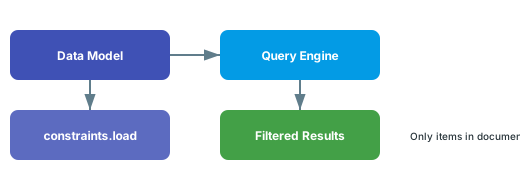 In your data model YAML, add a `constraints` block with a `load` section that defines document filtering criteria:
```yaml theme={null}
domainModelTypes:
SystemRequirement:
polarionType: systemRequirement
constraints:
load:
document:
moduleFolder: Requirements
moduleName: System-Requirements
properties:
title:
type: string
```
This restricts the `SystemRequirement` entity to only load items from the document at `Requirements/System-Requirements`.
For more flexible filtering, use `$context.source.document` to dynamically reference the current document:
```yaml theme={null}
domainModelTypes:
SystemRequirement:
polarionType: systemRequirement
constraints:
load:
document:
moduleFolder: $context.source.document.moduleFolder
moduleName: $context.source.document.moduleName
properties:
title:
type: string
```
Using `$context.source.document` allows a single data model to work across multiple documents without hardcoding paths. The current document path is resolved at runtime.
You can also constrain entity loading by document `type`:
```yaml theme={null}
domainModelTypes:
Hazard:
polarionType: hazard
constraints:
load:
document:
type: riskAnalysis
```
This loads only `Hazard` work items from documents whose Polarion type is `riskAnalysis`.
When creating links between entities, you may want the picker dropdown to show only items from specific documents. Use `pick` constraints:
```yaml theme={null}
domainModelTypes:
DesignRequirement:
polarionType: designRequirement
constraints:
pick:
document:
moduleName: Categorized
```
`load` constraints filter what appears in the sheet. `pick` constraints filter what appears in the dropdown picker when selecting linked items. Mixing them up can cause items to appear in the picker but not in the sheet, or vice versa.
For precise scoping, combine document constraints with the `allowedWITypes` property:
```yaml theme={null}
domainModelTypes:
Requirement:
polarionType:
- sys_req
- des_req
constraints:
load:
document:
allowedWITypes: $context.source.type
create:
document:
moduleFolder: $context.source.document.moduleFolder
moduleName: $context.source.document.moduleName
```
The `allowedWITypes` property enables document-based routing of entities when multiple work item types map to a single entity type. Verify the exact behavior for your configuration.
## Verify
After applying document constraints:
1. Open the powersheet document in Polarion
2. You should now see only work items that match the document filter criteria
3. If using picker constraints, click a relationship cell and confirm the dropdown only shows items from the constrained documents
4. Items from other documents should not appear in the sheet
## See Also
* [Configure Constraints](/powersheet/guides/data-model/configure-constraints) -- full constraint configuration guide
* [Write an Entity Query](/powersheet/guides/queries/write-entity-query) -- general query writing
* [Use Predicates](/powersheet/guides/queries/use-predicates) -- query predicate syntax
In your data model YAML, add a `constraints` block with a `load` section that defines document filtering criteria:
```yaml theme={null}
domainModelTypes:
SystemRequirement:
polarionType: systemRequirement
constraints:
load:
document:
moduleFolder: Requirements
moduleName: System-Requirements
properties:
title:
type: string
```
This restricts the `SystemRequirement` entity to only load items from the document at `Requirements/System-Requirements`.
For more flexible filtering, use `$context.source.document` to dynamically reference the current document:
```yaml theme={null}
domainModelTypes:
SystemRequirement:
polarionType: systemRequirement
constraints:
load:
document:
moduleFolder: $context.source.document.moduleFolder
moduleName: $context.source.document.moduleName
properties:
title:
type: string
```
Using `$context.source.document` allows a single data model to work across multiple documents without hardcoding paths. The current document path is resolved at runtime.
You can also constrain entity loading by document `type`:
```yaml theme={null}
domainModelTypes:
Hazard:
polarionType: hazard
constraints:
load:
document:
type: riskAnalysis
```
This loads only `Hazard` work items from documents whose Polarion type is `riskAnalysis`.
When creating links between entities, you may want the picker dropdown to show only items from specific documents. Use `pick` constraints:
```yaml theme={null}
domainModelTypes:
DesignRequirement:
polarionType: designRequirement
constraints:
pick:
document:
moduleName: Categorized
```
`load` constraints filter what appears in the sheet. `pick` constraints filter what appears in the dropdown picker when selecting linked items. Mixing them up can cause items to appear in the picker but not in the sheet, or vice versa.
For precise scoping, combine document constraints with the `allowedWITypes` property:
```yaml theme={null}
domainModelTypes:
Requirement:
polarionType:
- sys_req
- des_req
constraints:
load:
document:
allowedWITypes: $context.source.type
create:
document:
moduleFolder: $context.source.document.moduleFolder
moduleName: $context.source.document.moduleName
```
The `allowedWITypes` property enables document-based routing of entities when multiple work item types map to a single entity type. Verify the exact behavior for your configuration.
## Verify
After applying document constraints:
1. Open the powersheet document in Polarion
2. You should now see only work items that match the document filter criteria
3. If using picker constraints, click a relationship cell and confirm the dropdown only shows items from the constrained documents
4. Items from other documents should not appear in the sheet
## See Also
* [Configure Constraints](/powersheet/guides/data-model/configure-constraints) -- full constraint configuration guide
* [Write an Entity Query](/powersheet/guides/queries/write-entity-query) -- general query writing
* [Use Predicates](/powersheet/guides/queries/use-predicates) -- query predicate syntax