> ## Documentation Index
> Fetch the complete documentation index at: https://learn.nextedy.com/llms.txt
> Use this file to discover all available pages before exploring further.
# Validate Your Data Model
> Verify your Nextedy POWERSHEET data model configuration against common errors before deploying it to a live sheet, catching mismatches between entity types, relationships, and Polarion settings early.
export const LastReviewed = ({date}) => {
if (!date) return null;
const formatted = new Date(`${date}T00:00:00Z`).toLocaleDateString("en-US", {
year: "numeric",
month: "long",
day: "numeric",
timeZone: "UTC"
});
return
Last reviewed on {formatted}
;
};
Open your data model YAML file and confirm each entity type under `domainModelTypes` has a valid structure. Entity type names should follow PascalCase convention (e.g., `UserNeed`, `SystemRequirement`) for consistency across the configuration:
```yaml theme={null}
domainModelTypes:
UserNeed:
polarionType: user_need
properties:
description:
severity:
SystemRequirement:
polarionType: sys_req
properties:
description:
severity:
DesignRequirement:
polarionType: des_req
properties:
description:
```
Each entry must have:
* A **unique name** as the map key (the `name` field is automatically set from the key)
* A `polarionType` value that maps to a Polarion work item type ID
* An optional `properties` map defining available fields
Names like `User Need` (with a space) or `System-Requirement` (with a hyphen) cause parsing errors. PascalCase without separators is the recommended convention: `UserNeed`, `SystemRequirement`, `DesignRequirement`.
Each `polarionType` value must match an actual Polarion work item type **ID** -- not the display name. Navigate to **Administration > Work Item Types** in Polarion to find the correct IDs.
| Data Model Entity | `polarionType` | Where to Verify |
| ------------------- | -------------- | ------------------------------------ |
| `UserNeed` | `user_need` | **Administration > Work Item Types** |
| `SystemRequirement` | `sys_req` | **Administration > Work Item Types** |
| `DesignRequirement` | `des_req` | **Administration > Work Item Types** |
| `Hazard` | `hazard` | **Administration > Work Item Types** |
| `RiskControl` | `riskControl` | **Administration > Work Item Types** |
A frequent first-time setup mistake: writing `polarionType: System Requirement` (the display name) instead of `polarionType: sys_req` (the type ID). The data model requires the **ID** value. Check Polarion administration to find the correct ID for each work item type.
In the `relationships` section, both `from` and `to` values must reference entity type names defined in `domainModelTypes` -- never Polarion work item type IDs:
```yaml theme={null}
relationships:
- from: UserNeed
to: Chapter
cardinality: many-to-one
storage: linkedWorkItems
linkRole: parent
direct:
name: chapter
back:
name: userNeeds
- from: SystemRequirement
to: UserNeed
cardinality: many-to-many
storage: linkedWorkItems
linkRole: decomposes
direct:
name: userNeeds
back:
name: systemRequirements
```
Check each relationship for:
1. **`from`** and **`to`** -- must exactly match a `domainModelTypes` key (case-sensitive)
2. **`cardinality`** -- one of: `one-to-one`, `many-to-one`, `one-to-many`, `many-to-many`
3. **`storage`** -- set to `linkedWorkItems` for Polarion link-based relationships
4. **`linkRole`** -- must match a link role ID defined in Polarion
5. **`direct.name`** and **`back.name`** -- navigation property names used in sources and column bindings
Writing `from: user_need` (Polarion type ID) instead of `from: UserNeed` (data model entity name) is a common error. The `from` and `to` fields must match `domainModelTypes` keys exactly, including case.
Navigation property names defined in `direct.name` and `back.name` must be unique within each entity type. These names are how sources and columns reference the relationship.
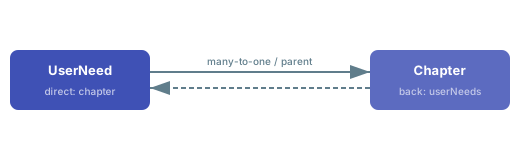 The `direct` direction navigates from the `from` entity to the `to` entity. The `back` direction navigates in reverse. Verify that:
* **Scalar nav properties** (N:1 direct side) use singular names: `chapter`, `userNeed`
* **Collection nav properties** (1:N back side, or M:N) use plural names: `userNeeds`, `systemRequirements`
* No two relationships define the same nav property name on the same entity type
The `direct.name` and `back.name` values appear directly in your sheet source `expand` entries and column binding paths. Getting these right in the data model prevents cascading errors in sheet configuration. See [Configure Many-to-Many Relationships](/powersheet/guides/data-model/configure-many-to-many) for expand patterns per cardinality type.
Each `linkRole` in a relationship must correspond to a link role configured in your Polarion project:
1. Go to **Administration > Work Item Link Roles** in Polarion
2. Confirm the link role ID exists (e.g., `parent`, `decomposes`, `verifies`, `relatesTo`)
3. Verify the link role allows connections between the work item types specified by `polarionType` on both sides of the relationship
Like work item types, link roles have an internal ID and a display name. The `linkRole` field requires the **ID**, not the display name. For example, use `relatesTo` not `Relates To`.
Properties listed under entity type definitions should correspond to valid Polarion fields -- either built-in fields or custom fields defined in the project:
```yaml theme={null}
domainModelTypes:
UserNeed:
polarionType: user_need
properties:
description: # built-in Polarion field
severity: # built-in Polarion field
```
Key rules for properties:
* **Property names** map to Polarion field identifiers
* **Custom fields** require matching `customFieldName` if the property name differs from the Polarion field name
* The `storage` property on a relationship definition determines how the link is persisted — `linkedWorkItems` is the only supported storage mechanism
* **Reserved names**: `project` and `document` have special handling and should not be defined as custom properties
To expose a custom Polarion field in the sheet, you need two configuration steps: (1) add the property to the entity type definition in the data model, and (2) add a corresponding column in the sheet configuration. See [Add a Custom Property](/powersheet/guides/data-model/add-custom-property) for the full walkthrough.
The Model Helper widget provides a visual tree of your data model structure, letting you verify that entity types and relationships are correctly connected before opening a full sheet:
1. Open a LiveReport page in Polarion
2. Add the Model Helper widget and configure its parameters:
* **model**: your model name (must match the `sources.model` value in your sheet configuration)
* **projectId**: your Polarion project ID
* **startEntity**: the root entity type to visualize (e.g., `UserNeed`)
* **depth**: number of relationship levels to display
3. Review the displayed tree structure and confirm:
* All expected entity types appear at the correct levels
* Navigation property names match what you defined in `direct.name` and `back.name`
* No missing branches that indicate broken relationship references
The `sources.model` property in your sheet configuration must match the name of your data model file (without the `_model.yaml` suffix). For example, if your file is `rtm_model.yaml`, set `sources.model: rtm`. Using the wrong name (such as leaving the default when you have a custom model name) is one of the most common first-time configuration errors.
After validating the data model itself, verify that your sheet configuration `sources` section correctly references the navigation properties you defined. The expand path must match the cardinality:
| Cardinality | Model Config | Source Expand | Column Binding |
| ----------- | ------------------------------- | ------------------------------------------------------------- | -------------------------------------- |
| **N:1** | `direct.name: chapter` | `- name: chapter` | `chapter`, `chapter.title` |
| **1:N** | `back.name: userNeeds` | `- name: userNeeds` | `userNeeds` (child rows) |
| **M:N** | `back.name: systemRequirements` | `- name: systemRequirements` then `- name: systemRequirement` | `systemRequirements.systemRequirement` |
Many-to-many relationships use an association entity between the two types. The source expand must be two levels deep: first the association collection, then the target entity. Column bindings use dot-notation through both levels: `systemRequirements.systemRequirement`.
When a sheet has two work item types linked to the same parent entity (for example, design outputs and design verifications both linked to system requirements), the second linked column must be declared with `multiItem: true` in the sheet configuration. This is a non-obvious requirement that commonly blocks new users during initial setup.
## Validation Checklist
Use this checklist before deploying your data model to a sheet:
* [ ] Entity type names use PascalCase without spaces or special characters
* [ ] Each `polarionType` matches a Polarion work item type **ID** (not display name)
* [ ] All `from` and `to` values in relationships match `domainModelTypes` keys exactly
* [ ] All `linkRole` values match link role IDs in Polarion configuration
* [ ] Navigation property names (`direct.name`, `back.name`) are unique per entity type
* [ ] Scalar nav properties use singular names; collection nav properties use plural names
* [ ] Property names reference valid Polarion field names (built-in or custom)
* [ ] `cardinality` is one of: `one-to-one`, `many-to-one`, `one-to-many`, `many-to-many`
* [ ] `storage` is set to `linkedWorkItems` for Polarion link-based relationships
* [ ] `sources.model` in the sheet configuration matches the data model file name
* [ ] Source expand paths match the navigation property names and follow cardinality patterns
## Verify
After correcting any issues found during validation, save the data model and open a Powersheet document. You should now see:
* The sheet loads without model connection errors
* All entity types display the correct Polarion work items
* Relationships expand correctly in the hierarchy, with child rows appearing at the expected levels
* Picker dialogs show items of the correct types when editing reference columns
* Navigation property names in column bindings resolve without errors
## See Also
* [Fix Model Connection Errors](/powersheet/guides/troubleshooting/fix-model-connection-errors) -- resolve model loading failures
* [Fix Type Name Errors](/powersheet/guides/troubleshooting/fix-type-name-errors) -- troubleshoot entity type mapping issues
* [Fix Relationship Errors](/powersheet/guides/troubleshooting/fix-relationship-errors) -- diagnose broken relationship definitions
* [Create an Entity Type](/powersheet/guides/data-model/create-entity-type) -- add a new entity type to the data model
* [Configure a Relationship](/powersheet/guides/data-model/configure-relationship) -- set up relationships between entity types
* [Create an Entity Type](/powersheet/guides/data-model/create-entity-type) -- map entity types to Polarion work item types
* [Use Model Helper Widget](/powersheet/guides/customization/use-model-helper) -- detailed Model Helper reference
The `direct` direction navigates from the `from` entity to the `to` entity. The `back` direction navigates in reverse. Verify that:
* **Scalar nav properties** (N:1 direct side) use singular names: `chapter`, `userNeed`
* **Collection nav properties** (1:N back side, or M:N) use plural names: `userNeeds`, `systemRequirements`
* No two relationships define the same nav property name on the same entity type
The `direct.name` and `back.name` values appear directly in your sheet source `expand` entries and column binding paths. Getting these right in the data model prevents cascading errors in sheet configuration. See [Configure Many-to-Many Relationships](/powersheet/guides/data-model/configure-many-to-many) for expand patterns per cardinality type.
Each `linkRole` in a relationship must correspond to a link role configured in your Polarion project:
1. Go to **Administration > Work Item Link Roles** in Polarion
2. Confirm the link role ID exists (e.g., `parent`, `decomposes`, `verifies`, `relatesTo`)
3. Verify the link role allows connections between the work item types specified by `polarionType` on both sides of the relationship
Like work item types, link roles have an internal ID and a display name. The `linkRole` field requires the **ID**, not the display name. For example, use `relatesTo` not `Relates To`.
Properties listed under entity type definitions should correspond to valid Polarion fields -- either built-in fields or custom fields defined in the project:
```yaml theme={null}
domainModelTypes:
UserNeed:
polarionType: user_need
properties:
description: # built-in Polarion field
severity: # built-in Polarion field
```
Key rules for properties:
* **Property names** map to Polarion field identifiers
* **Custom fields** require matching `customFieldName` if the property name differs from the Polarion field name
* The `storage` property on a relationship definition determines how the link is persisted — `linkedWorkItems` is the only supported storage mechanism
* **Reserved names**: `project` and `document` have special handling and should not be defined as custom properties
To expose a custom Polarion field in the sheet, you need two configuration steps: (1) add the property to the entity type definition in the data model, and (2) add a corresponding column in the sheet configuration. See [Add a Custom Property](/powersheet/guides/data-model/add-custom-property) for the full walkthrough.
The Model Helper widget provides a visual tree of your data model structure, letting you verify that entity types and relationships are correctly connected before opening a full sheet:
1. Open a LiveReport page in Polarion
2. Add the Model Helper widget and configure its parameters:
* **model**: your model name (must match the `sources.model` value in your sheet configuration)
* **projectId**: your Polarion project ID
* **startEntity**: the root entity type to visualize (e.g., `UserNeed`)
* **depth**: number of relationship levels to display
3. Review the displayed tree structure and confirm:
* All expected entity types appear at the correct levels
* Navigation property names match what you defined in `direct.name` and `back.name`
* No missing branches that indicate broken relationship references
The `sources.model` property in your sheet configuration must match the name of your data model file (without the `_model.yaml` suffix). For example, if your file is `rtm_model.yaml`, set `sources.model: rtm`. Using the wrong name (such as leaving the default when you have a custom model name) is one of the most common first-time configuration errors.
After validating the data model itself, verify that your sheet configuration `sources` section correctly references the navigation properties you defined. The expand path must match the cardinality:
| Cardinality | Model Config | Source Expand | Column Binding |
| ----------- | ------------------------------- | ------------------------------------------------------------- | -------------------------------------- |
| **N:1** | `direct.name: chapter` | `- name: chapter` | `chapter`, `chapter.title` |
| **1:N** | `back.name: userNeeds` | `- name: userNeeds` | `userNeeds` (child rows) |
| **M:N** | `back.name: systemRequirements` | `- name: systemRequirements` then `- name: systemRequirement` | `systemRequirements.systemRequirement` |
Many-to-many relationships use an association entity between the two types. The source expand must be two levels deep: first the association collection, then the target entity. Column bindings use dot-notation through both levels: `systemRequirements.systemRequirement`.
When a sheet has two work item types linked to the same parent entity (for example, design outputs and design verifications both linked to system requirements), the second linked column must be declared with `multiItem: true` in the sheet configuration. This is a non-obvious requirement that commonly blocks new users during initial setup.
## Validation Checklist
Use this checklist before deploying your data model to a sheet:
* [ ] Entity type names use PascalCase without spaces or special characters
* [ ] Each `polarionType` matches a Polarion work item type **ID** (not display name)
* [ ] All `from` and `to` values in relationships match `domainModelTypes` keys exactly
* [ ] All `linkRole` values match link role IDs in Polarion configuration
* [ ] Navigation property names (`direct.name`, `back.name`) are unique per entity type
* [ ] Scalar nav properties use singular names; collection nav properties use plural names
* [ ] Property names reference valid Polarion field names (built-in or custom)
* [ ] `cardinality` is one of: `one-to-one`, `many-to-one`, `one-to-many`, `many-to-many`
* [ ] `storage` is set to `linkedWorkItems` for Polarion link-based relationships
* [ ] `sources.model` in the sheet configuration matches the data model file name
* [ ] Source expand paths match the navigation property names and follow cardinality patterns
## Verify
After correcting any issues found during validation, save the data model and open a Powersheet document. You should now see:
* The sheet loads without model connection errors
* All entity types display the correct Polarion work items
* Relationships expand correctly in the hierarchy, with child rows appearing at the expected levels
* Picker dialogs show items of the correct types when editing reference columns
* Navigation property names in column bindings resolve without errors
## See Also
* [Fix Model Connection Errors](/powersheet/guides/troubleshooting/fix-model-connection-errors) -- resolve model loading failures
* [Fix Type Name Errors](/powersheet/guides/troubleshooting/fix-type-name-errors) -- troubleshoot entity type mapping issues
* [Fix Relationship Errors](/powersheet/guides/troubleshooting/fix-relationship-errors) -- diagnose broken relationship definitions
* [Create an Entity Type](/powersheet/guides/data-model/create-entity-type) -- add a new entity type to the data model
* [Configure a Relationship](/powersheet/guides/data-model/configure-relationship) -- set up relationships between entity types
* [Create an Entity Type](/powersheet/guides/data-model/create-entity-type) -- map entity types to Polarion work item types
* [Use Model Helper Widget](/powersheet/guides/customization/use-model-helper) -- detailed Model Helper reference