> ## Documentation Index
> Fetch the complete documentation index at: https://learn.nextedy.com/llms.txt
> Use this file to discover all available pages before exploring further.
# Create an Entity Type
> Add a new entity type to your Nextedy POWERSHEET data model and map it to a Siemens Polarion ALM work item type so it can be queried, displayed, and linked in your sheets.
export const LastReviewed = ({date}) => {
if (!date) return null;
const formatted = new Date(`${date}T00:00:00Z`).toLocaleDateString("en-US", {
year: "numeric",
month: "long",
day: "numeric",
timeZone: "UTC"
});
return
Last reviewed on {formatted}
;
};
## Prerequisites
* Access to your project's data model YAML file via **Administration > Nextedy Powersheet > Data Models** or through **Menu > Configuration > Edit Data Model** within a powersheet document
* The Polarion work item type you want to map to must already exist in your project configuration
1. Open your powersheet document
2. Go to **Menu > Configuration > Edit Data Model**
3. Locate the `domainModelTypes` section in the YAML editor
If this is a new data model, the `domainModelTypes` section may be empty or contain only a placeholder. You will add your entity types as keys under this section.
Add a new key under `domainModelTypes`. The key becomes the entity type name used throughout Powersheet for relationships, source queries, and column bindings.
```yaml theme={null}
domainModelTypes:
UserNeed:
polarionType: user_need
properties:
description:
severity:
```
PascalCase (e.g., `UserNeed`, `SystemRequirement`) is the recommended naming convention for entity type names but is not enforced by the system. Type names must be single words without spaces or special characters. `SystemRequirement` is valid; `System Requirement` is not. Invalid names cause silent errors during model loading.
### Entity Type Fields
| Field | Required | Description |
| -------------- | ----------- | ---------------------------------------------------------------------------------------------------------------------------------------------- |
| `polarionType` | Recommended | Maps to one or more Polarion work item type IDs. If omitted, the entity type name is used as-is. Accepts a single string or a list of strings. |
| `properties` | Yes | Map of property names to expose. Use `null` values (empty after the colon) for default configuration. |
| `constraints` | No | Optional filtering constraints that scope which Polarion items this entity type includes. |
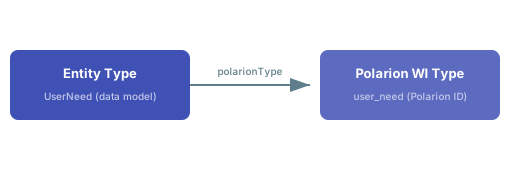 The entity type name (e.g., `UserNeed`) is the Powersheet-internal identifier used in relationships, queries, and column binding paths. The `polarionType` value (e.g., `user_need`) is the Polarion work item type ID used for server queries. These can and often do differ. A common mistake is using the Polarion display name instead of the type ID.
List the Polarion work item fields you want to expose on this entity type. Each key in `properties` must match a built-in field name or custom field name in Polarion.
```yaml theme={null}
SystemRequirement:
polarionType: sys_req
properties:
description:
severity:
component:
type:
status:
```
Common built-in properties:
| Property Name | Description |
| ------------- | ----------------------------------------------------------- |
| `title` | Work item title (automatically included even if not listed) |
| `description` | Work item description (rich text) |
| `severity` | Severity enum field |
| `status` | Workflow status |
| `component` | Component assignment |
| `type` | Work item sub-type |
Properties with a `null` value (empty after the colon) use default configuration. For advanced property configuration including custom field mappings and enum values, see [Add a Custom Property](/powersheet/guides/data-model/add-custom-property).
Begin with only the properties you need to display in your sheet. You can add more properties later without breaking existing configurations. Starting with a simple single-entity setup makes it easier to diagnose errors during initial setup.
The data model supports the `Document` built-in entity type that does not require a `polarionType` mapping:
```yaml theme={null}
domainModelTypes:
Document:
UserNeed:
polarionType: user_need
properties:
description:
```
* **`Document`** -- represents Polarion LiveDoc modules. Automatically includes module-level properties.
Other structural types such as headings may need explicit `polarionType` mapping (e.g., `Chapter` with `polarionType: heading`). Check your project's work item type configuration to confirm which types are available.
An entity type can map to more than one Polarion work item type by providing a list:
```yaml theme={null}
DesignOutput:
polarionType:
- design_output
- design_verification
properties:
description:
severity:
```
This is useful when a single domain concept spans multiple Polarion types and you want to query them together in one sheet source.
1. Save the data model YAML
2. Reload the powersheet document
3. You should now see the new entity type available in source queries and relationship configurations
To verify the entity type is loaded correctly, use the **Model Helper** widget:
* Set **model** to your model name
* Set **startEntity** to your new entity type name
* Set **depth** to `1`
The Model Helper displays the entity type with its properties and any configured relationships.
The `sources.model` property in your sheet configuration must match the name of your custom data model, not the default `rtm`. If the model name does not match, Powersheet silently falls back to the default model and your entity types will not appear.
## Complete Example: RTM Entity Types
A typical requirements traceability matrix uses several entity types connected through relationships:
```yaml theme={null}
domainModelTypes:
Chapter:
polarionType: heading
UserNeed:
polarionType: user_need
properties:
description:
severity:
component:
SystemRequirement:
polarionType: sys_req
properties:
description:
severity:
component:
DesignRequirement:
polarionType: des_req
properties:
description:
relationships:
- from: UserNeed
to: Chapter
cardinality: many-to-one
storage: linkedWorkItems
linkRole: parent
direct:
name: chapter
back:
name: userNeeds
- from: SystemRequirement
to: UserNeed
cardinality: many-to-many
storage: linkedWorkItems
linkRole: decomposes
direct:
name: userNeeds
back:
name: systemRequirements
```
After defining entity types, the `relationships` section connects them using `from`/`to` references, `direct`/`back` navigation property names, and a Polarion `linkRole`. See [Configure a Relationship](/powersheet/guides/data-model/configure-relationship) for the full walkthrough.
Any `relationships` entry that references an entity type by name in `from` or `to` fields must use the exact type name including capitalization. A mismatch causes a "left error" (invalid `from` entity) or "right error" (invalid `to` entity) during model loading.
## Verification Checklist
After saving your data model, confirm the following:
| Check | Expected Result |
| ------------------------------ | ------------------------------------------------------------------------- |
| Model Helper shows entity type | Type appears with listed properties |
| Sheet source query works | `query: { from: YourType }` returns Polarion work items |
| Columns display data | Properties defined in the entity type can be used as column binding paths |
| No console errors | Browser console shows no metadata loading errors |
You should now see your new entity type available in the Model Helper, ready for use in source queries and sheet column configurations.
## Map Multiple Polarion Types to One Entity
When several Polarion work item types share the same structure, map them all to a single data model entity type using an array:
```yaml theme={null}
domainModelTypes:
Requirement:
polarionType:
- systemRequirement
- softwareRequirement
- hardwareRequirement
properties:
description:
severity:
```
The entity type name (e.g., `UserNeed`) is the Powersheet-internal identifier used in relationships, queries, and column binding paths. The `polarionType` value (e.g., `user_need`) is the Polarion work item type ID used for server queries. These can and often do differ. A common mistake is using the Polarion display name instead of the type ID.
List the Polarion work item fields you want to expose on this entity type. Each key in `properties` must match a built-in field name or custom field name in Polarion.
```yaml theme={null}
SystemRequirement:
polarionType: sys_req
properties:
description:
severity:
component:
type:
status:
```
Common built-in properties:
| Property Name | Description |
| ------------- | ----------------------------------------------------------- |
| `title` | Work item title (automatically included even if not listed) |
| `description` | Work item description (rich text) |
| `severity` | Severity enum field |
| `status` | Workflow status |
| `component` | Component assignment |
| `type` | Work item sub-type |
Properties with a `null` value (empty after the colon) use default configuration. For advanced property configuration including custom field mappings and enum values, see [Add a Custom Property](/powersheet/guides/data-model/add-custom-property).
Begin with only the properties you need to display in your sheet. You can add more properties later without breaking existing configurations. Starting with a simple single-entity setup makes it easier to diagnose errors during initial setup.
The data model supports the `Document` built-in entity type that does not require a `polarionType` mapping:
```yaml theme={null}
domainModelTypes:
Document:
UserNeed:
polarionType: user_need
properties:
description:
```
* **`Document`** -- represents Polarion LiveDoc modules. Automatically includes module-level properties.
Other structural types such as headings may need explicit `polarionType` mapping (e.g., `Chapter` with `polarionType: heading`). Check your project's work item type configuration to confirm which types are available.
An entity type can map to more than one Polarion work item type by providing a list:
```yaml theme={null}
DesignOutput:
polarionType:
- design_output
- design_verification
properties:
description:
severity:
```
This is useful when a single domain concept spans multiple Polarion types and you want to query them together in one sheet source.
1. Save the data model YAML
2. Reload the powersheet document
3. You should now see the new entity type available in source queries and relationship configurations
To verify the entity type is loaded correctly, use the **Model Helper** widget:
* Set **model** to your model name
* Set **startEntity** to your new entity type name
* Set **depth** to `1`
The Model Helper displays the entity type with its properties and any configured relationships.
The `sources.model` property in your sheet configuration must match the name of your custom data model, not the default `rtm`. If the model name does not match, Powersheet silently falls back to the default model and your entity types will not appear.
## Complete Example: RTM Entity Types
A typical requirements traceability matrix uses several entity types connected through relationships:
```yaml theme={null}
domainModelTypes:
Chapter:
polarionType: heading
UserNeed:
polarionType: user_need
properties:
description:
severity:
component:
SystemRequirement:
polarionType: sys_req
properties:
description:
severity:
component:
DesignRequirement:
polarionType: des_req
properties:
description:
relationships:
- from: UserNeed
to: Chapter
cardinality: many-to-one
storage: linkedWorkItems
linkRole: parent
direct:
name: chapter
back:
name: userNeeds
- from: SystemRequirement
to: UserNeed
cardinality: many-to-many
storage: linkedWorkItems
linkRole: decomposes
direct:
name: userNeeds
back:
name: systemRequirements
```
After defining entity types, the `relationships` section connects them using `from`/`to` references, `direct`/`back` navigation property names, and a Polarion `linkRole`. See [Configure a Relationship](/powersheet/guides/data-model/configure-relationship) for the full walkthrough.
Any `relationships` entry that references an entity type by name in `from` or `to` fields must use the exact type name including capitalization. A mismatch causes a "left error" (invalid `from` entity) or "right error" (invalid `to` entity) during model loading.
## Verification Checklist
After saving your data model, confirm the following:
| Check | Expected Result |
| ------------------------------ | ------------------------------------------------------------------------- |
| Model Helper shows entity type | Type appears with listed properties |
| Sheet source query works | `query: { from: YourType }` returns Polarion work items |
| Columns display data | Properties defined in the entity type can be used as column binding paths |
| No console errors | Browser console shows no metadata loading errors |
You should now see your new entity type available in the Model Helper, ready for use in source queries and sheet column configurations.
## Map Multiple Polarion Types to One Entity
When several Polarion work item types share the same structure, map them all to a single data model entity type using an array:
```yaml theme={null}
domainModelTypes:
Requirement:
polarionType:
- systemRequirement
- softwareRequirement
- hardwareRequirement
properties:
description:
severity:
```
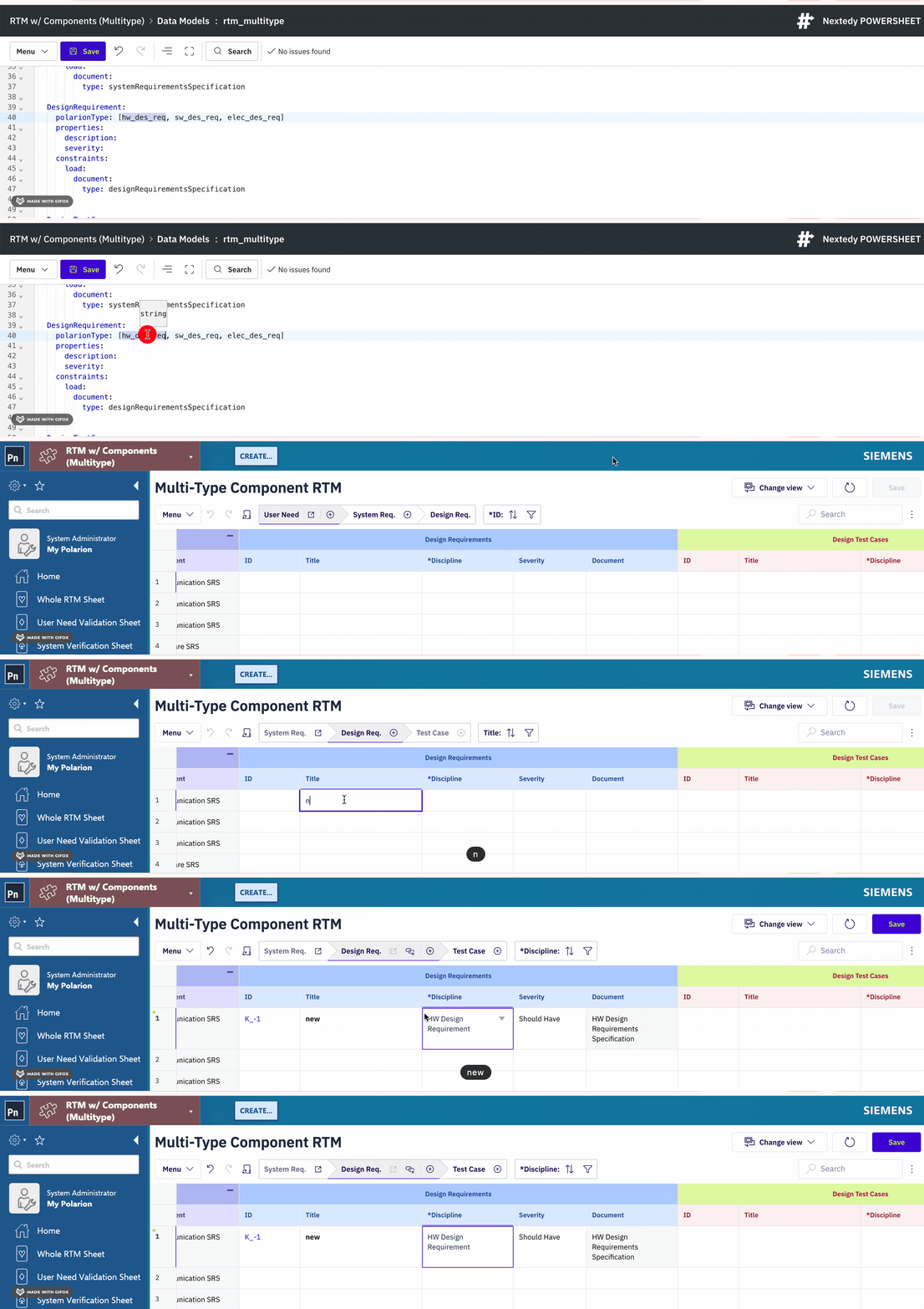 Powersheet queries for the `Requirement` entity type return work items of all three Polarion types. This is useful for consolidated views where you want to display different requirement subtypes in a single sheet level.
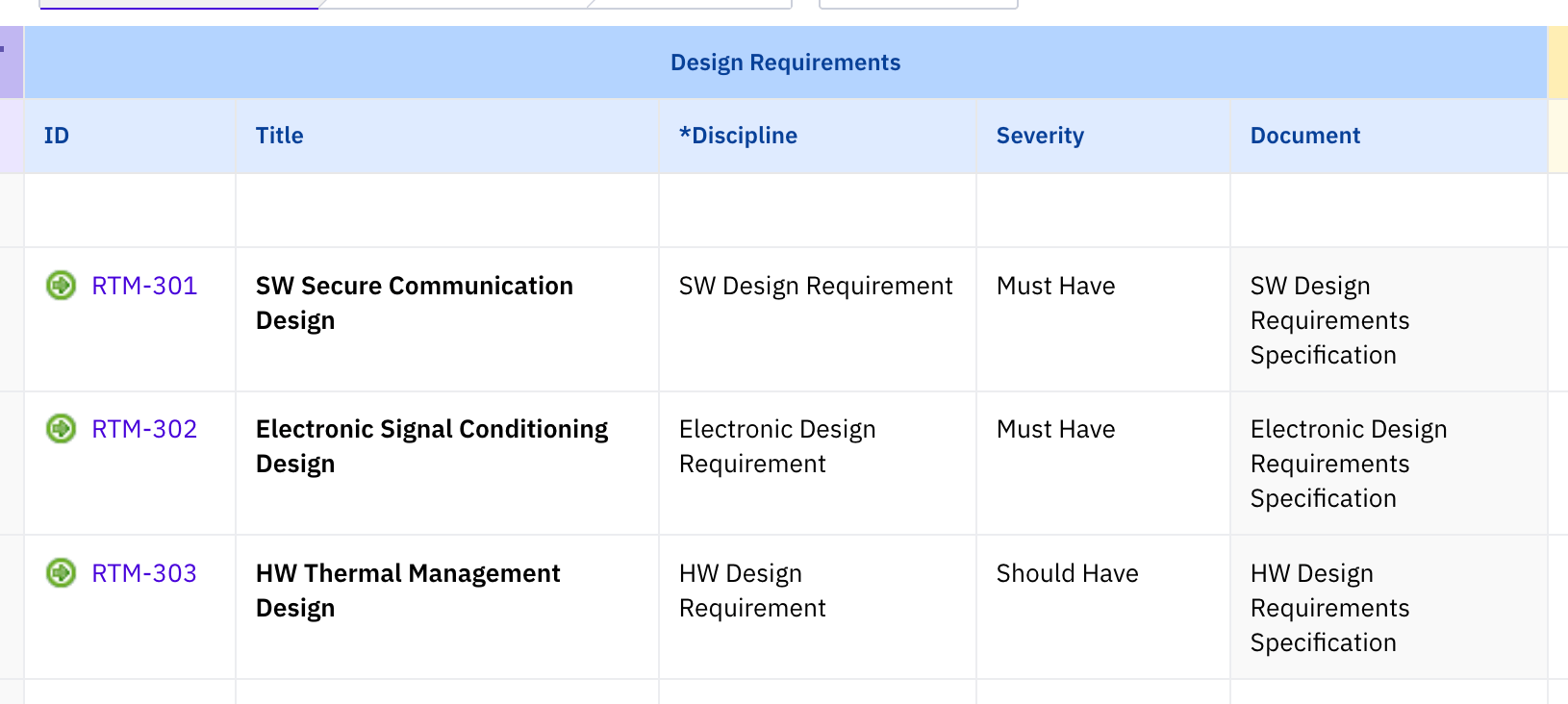
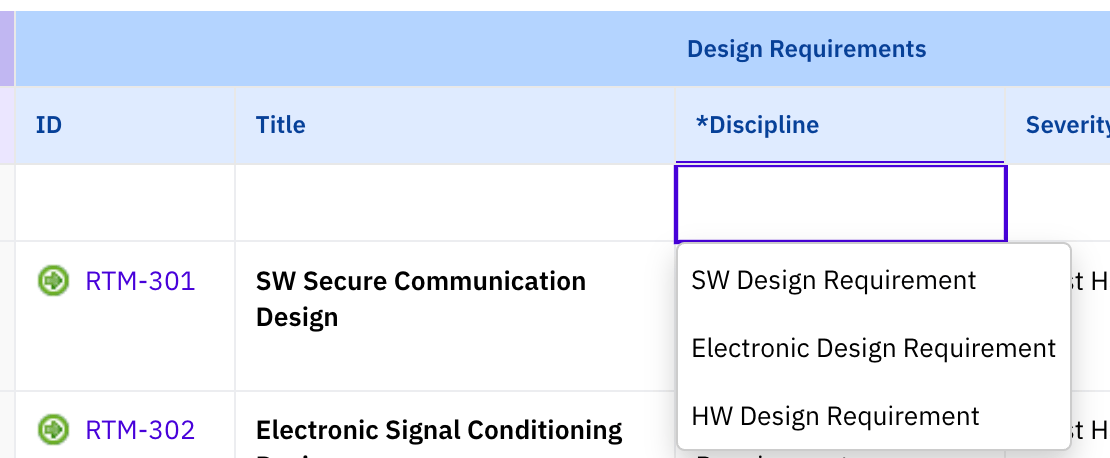

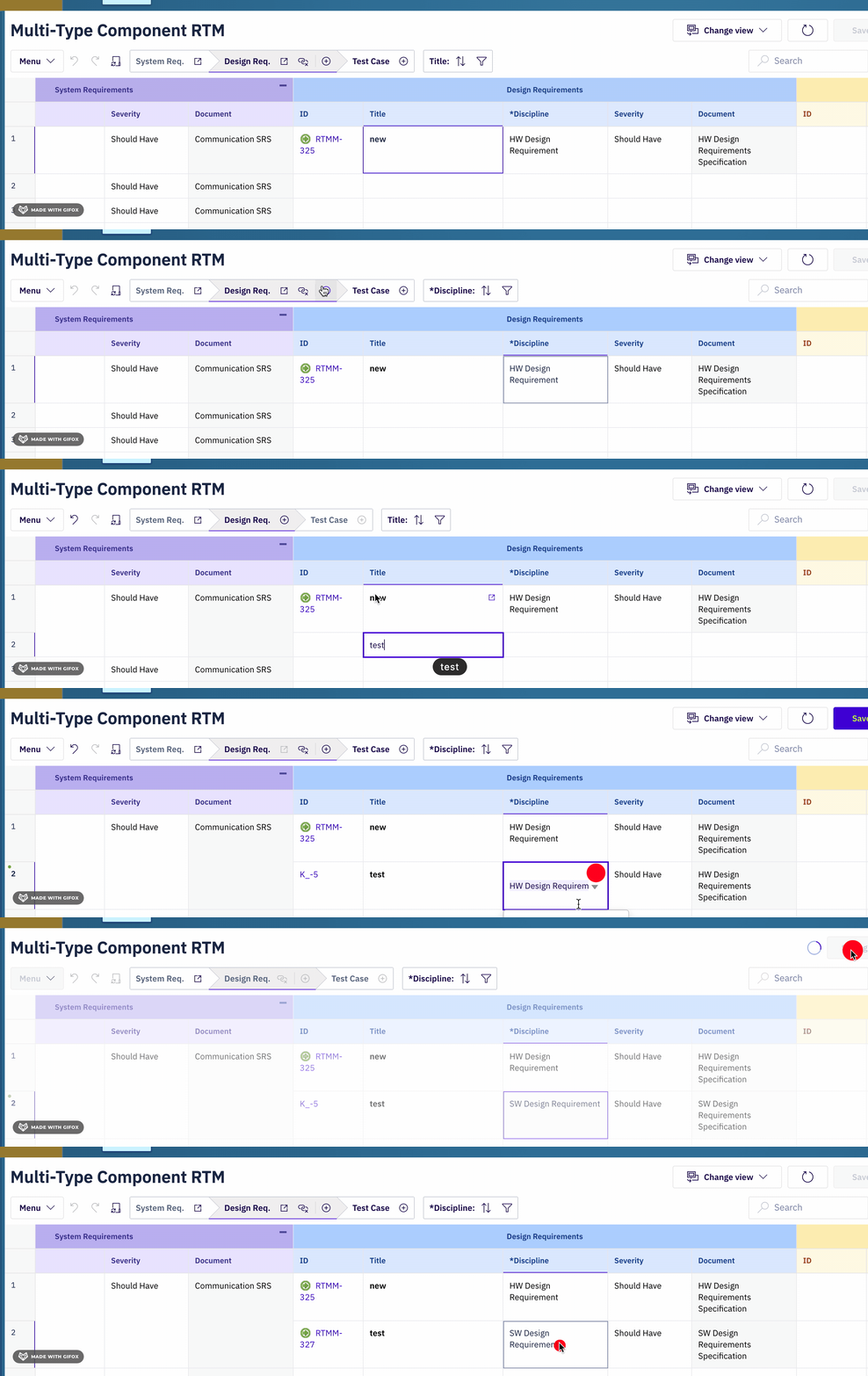 Use array-style `polarionType` when the Polarion types share the same custom fields and you want to view them together. If they have different properties, create separate entity types instead so you can define distinct property sets for each.
## Map Relationship Link Roles
Relationships between entity types use the `linkRole` property to reference a Polarion link role. The link role must already exist in your Polarion project configuration under **Administration > Work Items > Link Roles**.
```yaml theme={null}
relationships:
- from: UserNeed
to: Chapter
cardinality: many-to-one
storage: linkedWorkItems
linkRole: parent
direct:
name: chapter
back:
name: userNeeds
- from: SystemRequirement
to: UserNeed
cardinality: many-to-many
storage: linkedWorkItems
linkRole: decomposes
direct:
name: userNeeds
back:
name: systemRequirements
```
Key properties in each relationship definition:
| Property | Purpose |
| ------------- | --------------------------------------------------------------------------------- |
| `from` / `to` | Source and target entity type names (must match keys in `domainModelTypes`) |
| `cardinality` | `many-to-one`, `one-to-many`, or `many-to-many` |
| `storage` | `linkedWorkItems` -- the only supported storage mechanism (Polarion native links) |
| `linkRole` | Polarion link role ID used to persist the relationship |
| `direct.name` | Forward navigation property name (source to target) |
| `back.name` | Reverse navigation property name (target back to source) |
If the `linkRole` value does not match a link role defined in your Polarion project, Powersheet fails to load related items. Verify available link roles under **Administration > Work Items > Link Roles** before configuring relationships.
## Connect Mappings to Sheet Sources and Columns
After mapping entity types and relationships, wire them into a sheet configuration. The three configuration layers -- data model, sheet sources, and sheet columns -- connect through navigation property names.
**Source configuration** uses the navigation property names from `direct.name` and `back.name` to expand related entities:
```yaml theme={null}
sources:
- id: user_needs
query:
from: UserNeed
expand:
- name: chapter
```
**Column configuration** uses the same navigation property names for binding paths:
```yaml theme={null}
columns:
title:
title: Title
hasFocus: true
chapter:
title: Chapter
display: title
list:
search:
- title
chapter.title:
title: Chapter Title
isReadOnly: true
```
The cardinality of the relationship determines how columns behave:
| Cardinality | Source expand | Column binding | UI behavior |
| ---------------------- | ------------------------------------------------------------- | -------------------------------------- | ----------------------------- |
| **N:1** (many-to-one) | `- name: chapter` | `chapter`, `chapter.title` | Single-value reference picker |
| **1:N** (one-to-many) | `- name: userNeeds` | `userNeeds` | Child rows (new sheet level) |
| **M:N** (many-to-many) | `- name: systemRequirements` then `- name: systemRequirement` | `systemRequirements.systemRequirement` | Multi-item reference picker |
When a parent entity links to two different work item types (e.g., design outputs and design verifications both linked to system requirements), declare the second linked column with `multiItem: true` in the sheet configuration. Without this flag, only the first linked type displays correctly.
## See Also
* [Configure a Relationship](/powersheet/guides/data-model/configure-relationship) -- connect entity types with navigation properties
* [Add a Custom Property](/powersheet/guides/data-model/add-custom-property) -- expose custom fields on entity types
* [Configure Constraints](/powersheet/guides/data-model/configure-constraints) -- add filtering constraints to entity types
* [Set Entity Permissions](/powersheet/guides/data-model/set-permissions) -- control CRUD access on entity types
* [Validate Your Data Model](/powersheet/guides/data-model/validate-model) -- check your model for errors
* [Data Model Reference](/powersheet/reference/data-model/index) -- full data model property reference
Use array-style `polarionType` when the Polarion types share the same custom fields and you want to view them together. If they have different properties, create separate entity types instead so you can define distinct property sets for each.
## Map Relationship Link Roles
Relationships between entity types use the `linkRole` property to reference a Polarion link role. The link role must already exist in your Polarion project configuration under **Administration > Work Items > Link Roles**.
```yaml theme={null}
relationships:
- from: UserNeed
to: Chapter
cardinality: many-to-one
storage: linkedWorkItems
linkRole: parent
direct:
name: chapter
back:
name: userNeeds
- from: SystemRequirement
to: UserNeed
cardinality: many-to-many
storage: linkedWorkItems
linkRole: decomposes
direct:
name: userNeeds
back:
name: systemRequirements
```
Key properties in each relationship definition:
| Property | Purpose |
| ------------- | --------------------------------------------------------------------------------- |
| `from` / `to` | Source and target entity type names (must match keys in `domainModelTypes`) |
| `cardinality` | `many-to-one`, `one-to-many`, or `many-to-many` |
| `storage` | `linkedWorkItems` -- the only supported storage mechanism (Polarion native links) |
| `linkRole` | Polarion link role ID used to persist the relationship |
| `direct.name` | Forward navigation property name (source to target) |
| `back.name` | Reverse navigation property name (target back to source) |
If the `linkRole` value does not match a link role defined in your Polarion project, Powersheet fails to load related items. Verify available link roles under **Administration > Work Items > Link Roles** before configuring relationships.
## Connect Mappings to Sheet Sources and Columns
After mapping entity types and relationships, wire them into a sheet configuration. The three configuration layers -- data model, sheet sources, and sheet columns -- connect through navigation property names.
**Source configuration** uses the navigation property names from `direct.name` and `back.name` to expand related entities:
```yaml theme={null}
sources:
- id: user_needs
query:
from: UserNeed
expand:
- name: chapter
```
**Column configuration** uses the same navigation property names for binding paths:
```yaml theme={null}
columns:
title:
title: Title
hasFocus: true
chapter:
title: Chapter
display: title
list:
search:
- title
chapter.title:
title: Chapter Title
isReadOnly: true
```
The cardinality of the relationship determines how columns behave:
| Cardinality | Source expand | Column binding | UI behavior |
| ---------------------- | ------------------------------------------------------------- | -------------------------------------- | ----------------------------- |
| **N:1** (many-to-one) | `- name: chapter` | `chapter`, `chapter.title` | Single-value reference picker |
| **1:N** (one-to-many) | `- name: userNeeds` | `userNeeds` | Child rows (new sheet level) |
| **M:N** (many-to-many) | `- name: systemRequirements` then `- name: systemRequirement` | `systemRequirements.systemRequirement` | Multi-item reference picker |
When a parent entity links to two different work item types (e.g., design outputs and design verifications both linked to system requirements), declare the second linked column with `multiItem: true` in the sheet configuration. Without this flag, only the first linked type displays correctly.
## See Also
* [Configure a Relationship](/powersheet/guides/data-model/configure-relationship) -- connect entity types with navigation properties
* [Add a Custom Property](/powersheet/guides/data-model/add-custom-property) -- expose custom fields on entity types
* [Configure Constraints](/powersheet/guides/data-model/configure-constraints) -- add filtering constraints to entity types
* [Set Entity Permissions](/powersheet/guides/data-model/set-permissions) -- control CRUD access on entity types
* [Validate Your Data Model](/powersheet/guides/data-model/validate-model) -- check your model for errors
* [Data Model Reference](/powersheet/reference/data-model/index) -- full data model property reference