> ## Documentation Index
> Fetch the complete documentation index at: https://learn.nextedy.com/llms.txt
> Use this file to discover all available pages before exploring further.
# Create Bidirectional Links
> Define bidirectional relationships in your Nextedy POWERSHEET data model so that entity types can be navigated in both directions -- from source to target and from target back to source.
export const LastReviewed = ({date}) => {
if (!date) return null;
const formatted = new Date(`${date}T00:00:00Z`).toLocaleDateString("en-US", {
year: "numeric",
month: "long",
day: "numeric",
timeZone: "UTC"
});
return
Last reviewed on {formatted}
;
};
## Prerequisites
* Both entity types must already exist in your `domainModelTypes` section (see [Create an Entity Type](/powersheet/guides/data-model/create-entity-type))
* A Polarion link role must be configured in your project for the relationship
* Basic familiarity with the data model `relationships` array (see [Configure a Relationship](/powersheet/guides/data-model/configure-relationship))
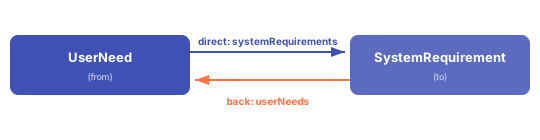
Every relationship in the data model supports two navigation directions through the `direct` and `back` properties. The `direct` direction navigates from the `from` entity to the `to` entity. The `back` direction navigates in reverse -- from `to` back to `from`.
Add a relationship entry with both `direct` and `back` names defined:
```yaml theme={null}
relationships:
- from: UserNeed
to: SystemRequirement
cardinality: many-to-many
storage: linkedWorkItems
linkRole: decomposes
direct:
name: systemRequirements
back:
name: userNeeds
```
This single relationship definition creates two navigation properties:
| Direction | Property Name | Added To | Navigates To |
| --------- | -------------------- | ------------------- | ---------------------------- |
| `direct` | `systemRequirements` | `UserNeed` | `SystemRequirement` entities |
| `back` | `userNeeds` | `SystemRequirement` | `UserNeed` entities |
 The cardinality determines how navigation properties behave in sources and columns. Pick the pattern that matches your traceability structure:
| Cardinality | When to Use | Direct Property | Back Property |
| -------------- | ---------------------------------------- | ------------------- | ------------------- |
| `many-to-one` | Each child belongs to exactly one parent | Singular (scalar) | Plural (collection) |
| `one-to-many` | One parent has many children | Plural (collection) | Singular (scalar) |
| `many-to-many` | Items linked freely in both directions | Plural (collection) | Plural (collection) |
### Many-to-One Example
Each `UserNeed` belongs to exactly one `Chapter`:
```yaml theme={null}
relationships:
- from: UserNeed
to: Chapter
cardinality: many-to-one
storage: linkedWorkItems
linkRole: parent
direct:
name: chapter
back:
name: userNeeds
```
* The `direct` property `chapter` is **singular** -- it returns one `Chapter` entity
* The `back` property `userNeeds` is **plural** -- it returns a collection of `UserNeed` entities
### Many-to-Many Example
`UserNeed` links to multiple `SystemRequirement` items and vice versa:
```yaml theme={null}
relationships:
- from: UserNeed
to: SystemRequirement
cardinality: many-to-many
storage: linkedWorkItems
linkRole: decomposes
direct:
name: systemRequirements
back:
name: userNeeds
```
Both navigation properties return collections in this cardinality.
Each entity type can only have one navigation property with a given name. If `SystemRequirement` already has a `userNeeds` property from another relationship, you will get a conflict error. Use distinct, descriptive names for each navigation property.
Once the data model defines both directions, configure your sheet sources to expand the navigation properties. The direction you expand determines which entities appear as child rows.
**Expanding the direct direction** (from `UserNeed` to `SystemRequirement`):
```yaml theme={null}
sources:
- id: user_needs
model: rtm
query:
from: UserNeed
expand:
- name: systemRequirements
expand:
- name: systemRequirement
```
**Expanding the back direction** (from `SystemRequirement` to `UserNeed`):
```yaml theme={null}
sources:
- id: sys_reqs
model: rtm
query:
from: SystemRequirement
expand:
- name: userNeeds
expand:
- name: userNeed
```
The same relationship serves both views -- no need to define a separate relationship for each direction.
For `many-to-many` cardinality, the source expand is two levels deep: first the collection (e.g., `systemRequirements`), then the target entity (e.g., `systemRequirement`). This intermediate association entity is what enables the many-to-many link.
Reference the navigation properties in your column configuration to display data from both sides of the relationship.
**Columns for a UserNeed-centric sheet** (expanding toward `SystemRequirement`):
```yaml theme={null}
columns:
title:
title: User Need
hasFocus: true
systemRequirements.systemRequirement:
title: System Requirement
list:
search:
- objectId
- title
createNew: true
systemRequirements.systemRequirement.title:
title: SysReq Title
isReadOnly: true
```
**Columns for a SystemRequirement-centric sheet** (expanding back toward `UserNeed`):
```yaml theme={null}
columns:
title:
title: System Requirement
hasFocus: true
userNeeds.userNeed:
title: User Need
list:
search:
- objectId
- title
userNeeds.userNeed.description:
title: UN Description
isReadOnly: true
```
The binding path follows the pattern: `navigationProperty.targetEntity.field`. For many-to-one relationships, the binding is simpler since the property is scalar:
```yaml theme={null}
columns:
chapter:
title: Chapter
display: title
list:
search:
- title
chapter.title:
title: Chapter Title
isReadOnly: true
```
Chain multiple bidirectional relationships to create a full requirements traceability matrix:
```yaml theme={null}
domainModelTypes:
UserNeed:
polarionType: user_need
properties:
description:
severity:
SystemRequirement:
polarionType: sys_req
properties:
description:
severity:
DesignRequirement:
polarionType: des_req
properties:
description:
relationships:
- from: UserNeed
to: SystemRequirement
cardinality: many-to-many
storage: linkedWorkItems
linkRole: decomposes
direct:
name: systemRequirements
back:
name: userNeeds
- from: SystemRequirement
to: DesignRequirement
cardinality: many-to-many
storage: linkedWorkItems
linkRole: decomposes
direct:
name: designRequirements
back:
name: systemRequirements
```
With this model, you can build a sheet that navigates the full chain: `UserNeed` → `SystemRequirement` → `DesignRequirement` -- or traverse it in reverse from any level using the `back` navigation properties.
In the example above, `SystemRequirement` has a `back` property named `systemRequirements` from the second relationship. Make sure this does not conflict with any other navigation property on the same entity type. If the name is already taken, use a more specific name such as `parentSystemRequirements` or `relatedUserNeeds`.
1. Open the [Model Helper widget](/powersheet/guides/customization/use-model-helper) in your Polarion project
2. Set the **depth** parameter to at least 2 to see multi-level relationships
3. Confirm that each entity type shows both its `direct` and `back` navigation properties
4. Open a sheet that uses the data model and expand a row -- you should see child items loaded through the navigation property
5. Switch to a sheet using the reverse direction and verify the `back` property loads the expected parent items
You should now see navigation working in both directions: expanding a `UserNeed` shows its linked `SystemRequirement` items, and expanding a `SystemRequirement` shows the `UserNeed` items that reference it.
If one direction works but the reverse does not, open the Model Helper and verify that both `direct.name` and `back.name` appear on their respective entity types. A missing `back` property usually means the relationship was defined without the `back` section.
## Common Pitfalls
When a sheet has two work item types linked to the same parent entity (for example, both design outputs and design verifications linked to system requirements), the second linked column must be declared with `multiItem: true` in the sheet configuration. This is a non-obvious requirement that frequently blocks first-time setups.
Ensure the `sources.model` property in your sheet configuration matches the custom model name defined in your YAML file, not the default `rtm`. A mismatch causes model connection errors.
## See Also
* [Configure a Relationship](/powersheet/guides/data-model/configure-relationship) -- core relationship setup
* [Configure Many-to-Many Relationships](/powersheet/guides/data-model/configure-many-to-many) -- association entity patterns and advanced M:N configuration
* [Add a Column](/powersheet/guides/sheet-configuration/add-column) -- column binding path syntax
* [Expand Navigation Properties](/powersheet/guides/queries/expand-navigation-properties) -- query-level navigation property expansion
* [Use Model Helper Widget](/powersheet/guides/customization/use-model-helper) -- visual model verification tool
* [Data Model Reference](/powersheet/reference/data-model/index) -- full property reference for relationships
***
The cardinality determines how navigation properties behave in sources and columns. Pick the pattern that matches your traceability structure:
| Cardinality | When to Use | Direct Property | Back Property |
| -------------- | ---------------------------------------- | ------------------- | ------------------- |
| `many-to-one` | Each child belongs to exactly one parent | Singular (scalar) | Plural (collection) |
| `one-to-many` | One parent has many children | Plural (collection) | Singular (scalar) |
| `many-to-many` | Items linked freely in both directions | Plural (collection) | Plural (collection) |
### Many-to-One Example
Each `UserNeed` belongs to exactly one `Chapter`:
```yaml theme={null}
relationships:
- from: UserNeed
to: Chapter
cardinality: many-to-one
storage: linkedWorkItems
linkRole: parent
direct:
name: chapter
back:
name: userNeeds
```
* The `direct` property `chapter` is **singular** -- it returns one `Chapter` entity
* The `back` property `userNeeds` is **plural** -- it returns a collection of `UserNeed` entities
### Many-to-Many Example
`UserNeed` links to multiple `SystemRequirement` items and vice versa:
```yaml theme={null}
relationships:
- from: UserNeed
to: SystemRequirement
cardinality: many-to-many
storage: linkedWorkItems
linkRole: decomposes
direct:
name: systemRequirements
back:
name: userNeeds
```
Both navigation properties return collections in this cardinality.
Each entity type can only have one navigation property with a given name. If `SystemRequirement` already has a `userNeeds` property from another relationship, you will get a conflict error. Use distinct, descriptive names for each navigation property.
Once the data model defines both directions, configure your sheet sources to expand the navigation properties. The direction you expand determines which entities appear as child rows.
**Expanding the direct direction** (from `UserNeed` to `SystemRequirement`):
```yaml theme={null}
sources:
- id: user_needs
model: rtm
query:
from: UserNeed
expand:
- name: systemRequirements
expand:
- name: systemRequirement
```
**Expanding the back direction** (from `SystemRequirement` to `UserNeed`):
```yaml theme={null}
sources:
- id: sys_reqs
model: rtm
query:
from: SystemRequirement
expand:
- name: userNeeds
expand:
- name: userNeed
```
The same relationship serves both views -- no need to define a separate relationship for each direction.
For `many-to-many` cardinality, the source expand is two levels deep: first the collection (e.g., `systemRequirements`), then the target entity (e.g., `systemRequirement`). This intermediate association entity is what enables the many-to-many link.
Reference the navigation properties in your column configuration to display data from both sides of the relationship.
**Columns for a UserNeed-centric sheet** (expanding toward `SystemRequirement`):
```yaml theme={null}
columns:
title:
title: User Need
hasFocus: true
systemRequirements.systemRequirement:
title: System Requirement
list:
search:
- objectId
- title
createNew: true
systemRequirements.systemRequirement.title:
title: SysReq Title
isReadOnly: true
```
**Columns for a SystemRequirement-centric sheet** (expanding back toward `UserNeed`):
```yaml theme={null}
columns:
title:
title: System Requirement
hasFocus: true
userNeeds.userNeed:
title: User Need
list:
search:
- objectId
- title
userNeeds.userNeed.description:
title: UN Description
isReadOnly: true
```
The binding path follows the pattern: `navigationProperty.targetEntity.field`. For many-to-one relationships, the binding is simpler since the property is scalar:
```yaml theme={null}
columns:
chapter:
title: Chapter
display: title
list:
search:
- title
chapter.title:
title: Chapter Title
isReadOnly: true
```
Chain multiple bidirectional relationships to create a full requirements traceability matrix:
```yaml theme={null}
domainModelTypes:
UserNeed:
polarionType: user_need
properties:
description:
severity:
SystemRequirement:
polarionType: sys_req
properties:
description:
severity:
DesignRequirement:
polarionType: des_req
properties:
description:
relationships:
- from: UserNeed
to: SystemRequirement
cardinality: many-to-many
storage: linkedWorkItems
linkRole: decomposes
direct:
name: systemRequirements
back:
name: userNeeds
- from: SystemRequirement
to: DesignRequirement
cardinality: many-to-many
storage: linkedWorkItems
linkRole: decomposes
direct:
name: designRequirements
back:
name: systemRequirements
```
With this model, you can build a sheet that navigates the full chain: `UserNeed` → `SystemRequirement` → `DesignRequirement` -- or traverse it in reverse from any level using the `back` navigation properties.
In the example above, `SystemRequirement` has a `back` property named `systemRequirements` from the second relationship. Make sure this does not conflict with any other navigation property on the same entity type. If the name is already taken, use a more specific name such as `parentSystemRequirements` or `relatedUserNeeds`.
1. Open the [Model Helper widget](/powersheet/guides/customization/use-model-helper) in your Polarion project
2. Set the **depth** parameter to at least 2 to see multi-level relationships
3. Confirm that each entity type shows both its `direct` and `back` navigation properties
4. Open a sheet that uses the data model and expand a row -- you should see child items loaded through the navigation property
5. Switch to a sheet using the reverse direction and verify the `back` property loads the expected parent items
You should now see navigation working in both directions: expanding a `UserNeed` shows its linked `SystemRequirement` items, and expanding a `SystemRequirement` shows the `UserNeed` items that reference it.
If one direction works but the reverse does not, open the Model Helper and verify that both `direct.name` and `back.name` appear on their respective entity types. A missing `back` property usually means the relationship was defined without the `back` section.
## Common Pitfalls
When a sheet has two work item types linked to the same parent entity (for example, both design outputs and design verifications linked to system requirements), the second linked column must be declared with `multiItem: true` in the sheet configuration. This is a non-obvious requirement that frequently blocks first-time setups.
Ensure the `sources.model` property in your sheet configuration matches the custom model name defined in your YAML file, not the default `rtm`. A mismatch causes model connection errors.
## See Also
* [Configure a Relationship](/powersheet/guides/data-model/configure-relationship) -- core relationship setup
* [Configure Many-to-Many Relationships](/powersheet/guides/data-model/configure-many-to-many) -- association entity patterns and advanced M:N configuration
* [Add a Column](/powersheet/guides/sheet-configuration/add-column) -- column binding path syntax
* [Expand Navigation Properties](/powersheet/guides/queries/expand-navigation-properties) -- query-level navigation property expansion
* [Use Model Helper Widget](/powersheet/guides/customization/use-model-helper) -- visual model verification tool
* [Data Model Reference](/powersheet/reference/data-model/index) -- full property reference for relationships
***