> ## Documentation Index
> Fetch the complete documentation index at: https://learn.nextedy.com/llms.txt
> Use this file to discover all available pages before exploring further.
# Configure Picker Filters
> Restrict which work items appear in picker dropdowns by configuring `constraints.pick` in your Nextedy POWERSHEET data model, ensuring users only see relevant items when creating or editing relationships.
export const LastReviewed = ({date}) => {
if (!date) return null;
const formatted = new Date(`${date}T00:00:00Z`).toLocaleDateString("en-US", {
year: "numeric",
month: "long",
day: "numeric",
timeZone: "UTC"
});
return
Last reviewed on {formatted}
;
};
## Prerequisites
* A working data model with entity types and relationships defined
* Access to **Administration > Nextedy Powersheet > Data Models**
* Knowledge of your Polarion document structure (module folders, document types, components)
Open your data model YAML and locate the entity type whose picker you want to filter. Pick constraints are defined on the **target** entity type -- the type that appears in the dropdown when a user selects a related item.
For example, to control which `SystemRequirement` items appear when linking from a `UserNeed`, you add constraints to `SystemRequirement`:
```yaml theme={null}
domainModelTypes:
UserNeed:
polarionType: requirement
properties:
description:
SystemRequirement:
polarionType: systemRequirement
properties:
description:
```
Add a `constraints` section with a `pick` sub-section to the target entity type. The `document` property within `pick` controls filtering by document location:
```yaml theme={null}
domainModelTypes:
SystemRequirement:
polarionType: systemRequirement
properties:
description:
constraints:
pick:
document:
moduleFolder: "Requirements"
type: "systemRequirementsSpec"
```
This restricts the picker to show only system requirements located in documents within the `Requirements` folder that have the document type `systemRequirementsSpec`.
The `constraints` section supports three sub-sections: `pick` (picker dropdown filtering), `load` (data loading filters), and `create` (new item defaults). This guide focuses on `pick`. For a broader overview of all constraint types, see [Configure Constraints](/powersheet/guides/data-model/configure-constraints).
Use the following properties inside `constraints.pick.document` to narrow picker results:
| Property | Description | Example Value |
| -------------- | ---------------------------------------------------------------------------------------- | -------------------------- |
| `moduleFolder` | Restricts to work items within a specific module folder (space) in the project hierarchy | `"Requirements"` |
| `moduleName` | Restricts to work items within a specific document by exact name | `"System Requirements"` |
| `type` | Restricts to documents of a specific document type | `"systemRequirementsSpec"` |
| `component` | Restricts by document component property | `"Braking"` |
The `type` property must use the Polarion document type **ID** (e.g., `systemRequirementsSpec`), not the human-readable display name (e.g., "System Requirements Specification"). Using the display name silently returns no results. Find type IDs in **Administration > Documents & Pages > Document Types**.
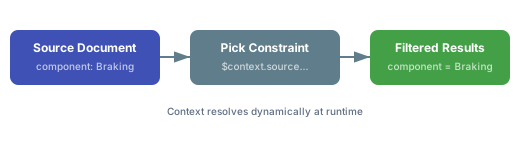
For component-scoped filtering, use `$context.source.document.component` to dynamically match the source entity's component at runtime. This is especially useful in multi-component projects where each component maintains its own set of documents:
```yaml theme={null}
domainModelTypes:
DesignRequirement:
polarionType: designRequirement
properties:
description:
constraints:
pick:
document:
moduleFolder: "Design"
type: "designSpec"
component: $context.source.document.component
```
When a user picks a `DesignRequirement` from within a document whose component is "Braking", the picker shows only design requirements from "Braking" documents. Switching to an "Engine" document automatically filters to "Engine" design requirements.
 You can specify multiple filter properties together. All conditions are applied as a logical AND -- every condition must match for an item to appear in the picker:
```yaml theme={null}
domainModelTypes:
Hazard:
polarionType: hazard
properties:
severity:
likelihood:
constraints:
pick:
document:
moduleFolder: "Risks"
type: "hazardAnalysis"
component: $context.source.document.component
```
In this example, the `Hazard` picker only shows items that satisfy **all three** conditions:
1. Located in the `Risks` module folder
2. In a document of type `hazardAnalysis`
3. Belonging to the same component as the source document
Begin with a single constraint (e.g., `moduleFolder`) and verify it works before combining additional filters. This makes it easier to identify which constraint causes unexpected filtering.
When a relationship column uses a picker, you can configure which fields are searchable in the dropdown. Add a `list` property to the column definition in your sheet configuration:
```yaml theme={null}
columns:
riskControls.riskControl:
title: "Risk Control"
multiItem: true
display: title
list:
searchableFields:
- title
- id
```
The `searchableFields` array controls which entity properties the user can type to search and filter the picker dropdown. Common choices include `title`, `id`, and custom property names.
Here is a complete data model excerpt demonstrating pick constraints across a requirements traceability hierarchy:
```yaml theme={null}
domainModelTypes:
UserNeed:
polarionType: requirement
properties:
description:
SystemRequirement:
polarionType: systemRequirement
properties:
description:
constraints:
pick:
document:
moduleFolder: "Requirements"
type: "systemRequirementsSpec"
DesignRequirement:
polarionType: designRequirement
properties:
description:
constraints:
pick:
document:
moduleFolder: "Design"
type: "designSpec"
component: $context.source.document.component
Hazard:
polarionType: hazard
properties:
severity:
constraints:
pick:
document:
moduleFolder: "Risks"
type: "hazardAnalysis"
RiskControl:
polarionType: riskControl
properties:
controlType:
constraints:
pick:
document:
moduleFolder: "Risks"
type: "riskControlSpec"
component: $context.source.document.component
```
A common mistake is placing `constraints.pick` on the **source** entity type (e.g., `UserNeed`) instead of the **target** (e.g., `SystemRequirement`). The constraint must be on the entity type that **appears in the picker dropdown**, not the one initiating the link.
## Verify Your Configuration
After saving your data model changes:
1. Reload the sheet in Polarion (refresh the page or re-open the document)
2. Click a cell in a relationship column that references the constrained entity type
3. The picker dropdown should now show only items matching your filter criteria
4. If using `$context.source.document.component`, verify that switching to a document with a different component changes the picker results accordingly
You should now see a filtered picker dropdown showing only work items that match your `moduleFolder`, `type`, `moduleName`, or `component` constraints.
If the picker shows no results after adding constraints, verify: (1) the `moduleFolder` value matches the exact Polarion space name, (2) the `type` uses the document type ID (not the display name), and (3) work items actually exist in the constrained location. Remove constraints one at a time to isolate which filter is too restrictive.
## See Also
* [Configure Constraints](/powersheet/guides/data-model/configure-constraints) -- full overview of pick, load, and create constraint types
* [Configure a Relationship](/powersheet/guides/data-model/configure-relationship) -- set up relationships between entity types
* [Configure a Formatter](/powersheet/guides/sheet-configuration/configure-formatter) -- apply conditional styling to picker columns
* [Add a Column](/powersheet/guides/sheet-configuration/add-column) -- column configuration basics including `display` and `list` properties
* [Data Model Reference](/powersheet/reference/data-model/index) -- complete data model YAML reference
***
You can specify multiple filter properties together. All conditions are applied as a logical AND -- every condition must match for an item to appear in the picker:
```yaml theme={null}
domainModelTypes:
Hazard:
polarionType: hazard
properties:
severity:
likelihood:
constraints:
pick:
document:
moduleFolder: "Risks"
type: "hazardAnalysis"
component: $context.source.document.component
```
In this example, the `Hazard` picker only shows items that satisfy **all three** conditions:
1. Located in the `Risks` module folder
2. In a document of type `hazardAnalysis`
3. Belonging to the same component as the source document
Begin with a single constraint (e.g., `moduleFolder`) and verify it works before combining additional filters. This makes it easier to identify which constraint causes unexpected filtering.
When a relationship column uses a picker, you can configure which fields are searchable in the dropdown. Add a `list` property to the column definition in your sheet configuration:
```yaml theme={null}
columns:
riskControls.riskControl:
title: "Risk Control"
multiItem: true
display: title
list:
searchableFields:
- title
- id
```
The `searchableFields` array controls which entity properties the user can type to search and filter the picker dropdown. Common choices include `title`, `id`, and custom property names.
Here is a complete data model excerpt demonstrating pick constraints across a requirements traceability hierarchy:
```yaml theme={null}
domainModelTypes:
UserNeed:
polarionType: requirement
properties:
description:
SystemRequirement:
polarionType: systemRequirement
properties:
description:
constraints:
pick:
document:
moduleFolder: "Requirements"
type: "systemRequirementsSpec"
DesignRequirement:
polarionType: designRequirement
properties:
description:
constraints:
pick:
document:
moduleFolder: "Design"
type: "designSpec"
component: $context.source.document.component
Hazard:
polarionType: hazard
properties:
severity:
constraints:
pick:
document:
moduleFolder: "Risks"
type: "hazardAnalysis"
RiskControl:
polarionType: riskControl
properties:
controlType:
constraints:
pick:
document:
moduleFolder: "Risks"
type: "riskControlSpec"
component: $context.source.document.component
```
A common mistake is placing `constraints.pick` on the **source** entity type (e.g., `UserNeed`) instead of the **target** (e.g., `SystemRequirement`). The constraint must be on the entity type that **appears in the picker dropdown**, not the one initiating the link.
## Verify Your Configuration
After saving your data model changes:
1. Reload the sheet in Polarion (refresh the page or re-open the document)
2. Click a cell in a relationship column that references the constrained entity type
3. The picker dropdown should now show only items matching your filter criteria
4. If using `$context.source.document.component`, verify that switching to a document with a different component changes the picker results accordingly
You should now see a filtered picker dropdown showing only work items that match your `moduleFolder`, `type`, `moduleName`, or `component` constraints.
If the picker shows no results after adding constraints, verify: (1) the `moduleFolder` value matches the exact Polarion space name, (2) the `type` uses the document type ID (not the display name), and (3) work items actually exist in the constrained location. Remove constraints one at a time to isolate which filter is too restrictive.
## See Also
* [Configure Constraints](/powersheet/guides/data-model/configure-constraints) -- full overview of pick, load, and create constraint types
* [Configure a Relationship](/powersheet/guides/data-model/configure-relationship) -- set up relationships between entity types
* [Configure a Formatter](/powersheet/guides/sheet-configuration/configure-formatter) -- apply conditional styling to picker columns
* [Add a Column](/powersheet/guides/sheet-configuration/add-column) -- column configuration basics including `display` and `list` properties
* [Data Model Reference](/powersheet/reference/data-model/index) -- complete data model YAML reference
***