> ## Documentation Index
> Fetch the complete documentation index at: https://learn.nextedy.com/llms.txt
> Use this file to discover all available pages before exploring further.
# Use the Admin AI Assistant
> Ask configuration questions directly inside the Nextedy POWERSHEET configuration editor. The Admin AI Assistant answers from the Powersheet documentation so you can solve setup problems without leaving your workflow.
The **Admin AI Assistant** is a documentation-grounded chat in the Powersheet configuration editor, added by the separately installed **Nextedy AI** package — opened from the sparkle button in the editor toolbar, its window titled **✦ Powersheet AI**. While you are editing a sheet configuration or data model, you can ask natural-language questions about Powersheet configuration -- "How do I make this column read-only?", "What property controls this behavior?", "Why is this column not updating?" -- and get answers drawn from the Powersheet documentation, with the relevant pages linked. The answer is one click away from where the question arises, so you do not have to switch to a separate documentation site or support channel.
The Admin AI Assistant answers questions and points you to the right configuration. It does **not** change, save, or apply configuration on your behalf -- you stay in control of your YAML. Use its guidance to make the edit yourself in the editor.
## Before you begin
* The assistant is available to administrators working in the **configuration editor** (the browser-based YAML editor you reach via **Menu > Configuration > Edit Sheet Configuration** or **Edit Data Model**, or by opening a data model or sheet configuration from the administration page).
* **No Nextedy AI license is required.** The assistant is free with the **Nextedy AI plugin**, which must be installed on your Polarion server, and you must be signed in to Polarion.
* The assistant connects to the Nextedy AI service. If the plugin or that service is unavailable, the rest of Powersheet continues to work normally -- only the assistant is affected: the button is disabled with the tooltip *"AI Assistant is currently unavailable"*.
* If the button is disabled with the tooltip *"AI Assistant requires a valid Nextedy AI license"*, this is not actually a licensing problem -- Polarion could not identify your signed-in user. Sign in again.
## Open the assistant
Open a sheet configuration or data model in the configuration editor. From an open Powersheet document, use **Menu > Configuration > Edit Sheet Configuration** (or **Edit Data Model**); from the administration page, open the model or configuration entry. The editor opens in its own browser tab.
In the editor toolbar, select the **AI Assistant** button (the sparkle chat icon). The **✦ Powersheet AI** window opens. You can dock it to the side of the editor as a sidebar -- the editor reflows to make room -- or float it freely; its mode, position, and size are remembered between sessions.
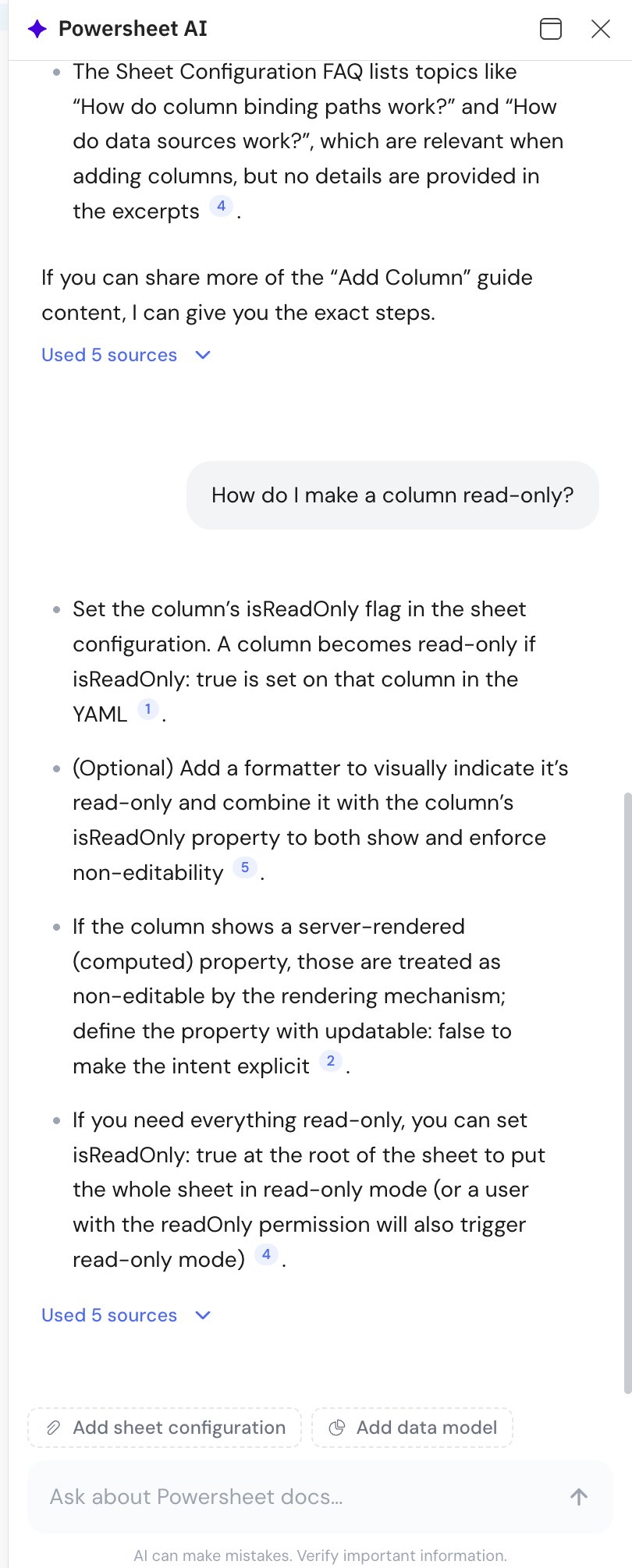
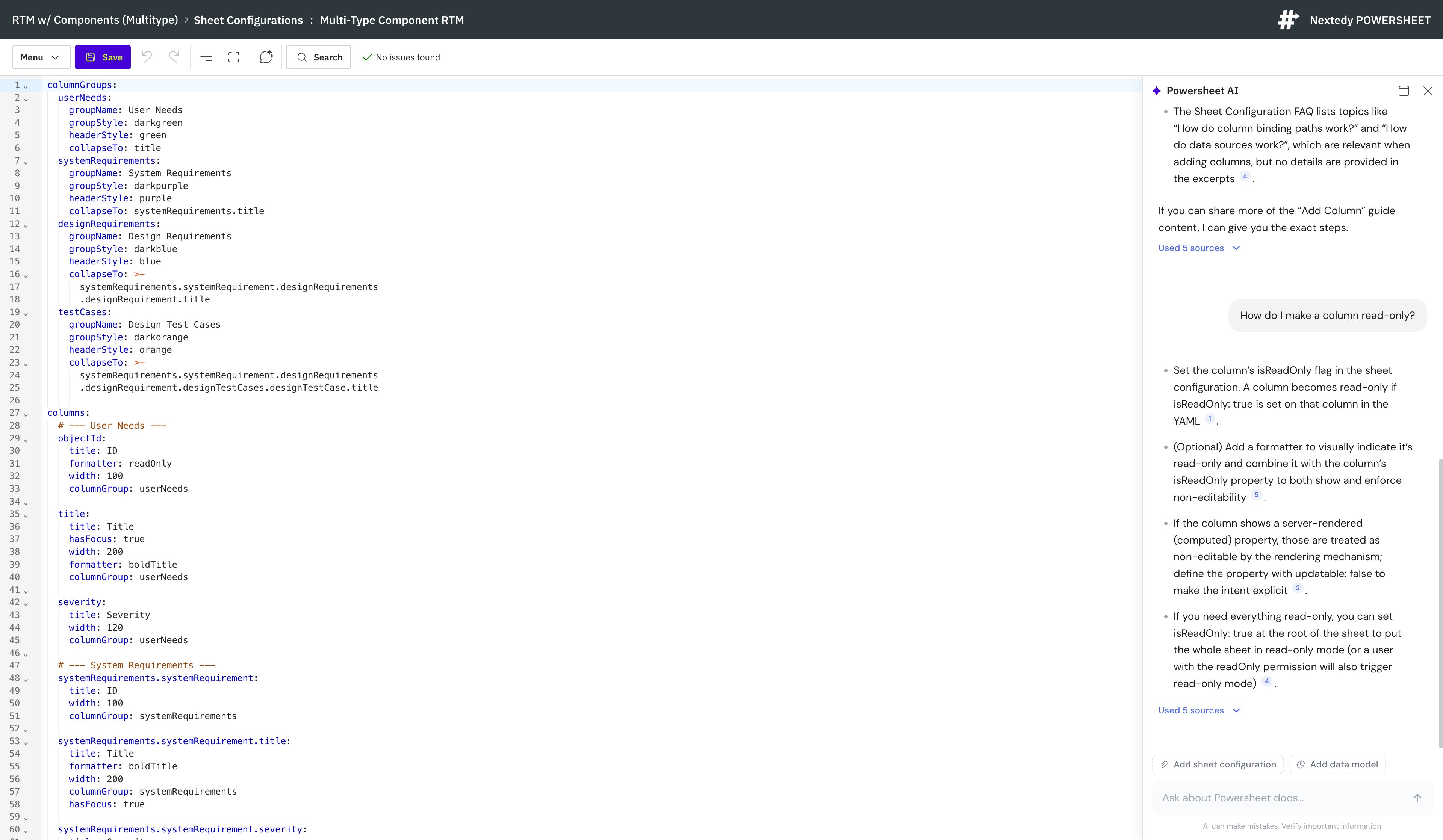 Type your question in the input box, or pick one of the suggested **starter questions** shown when the panel is empty. The answer streams in as it is generated, and links to the relevant documentation pages appear alongside it so you can read further.
 ## What you can ask
The assistant is meant for the questions that come up while you configure Powersheet. For example:
| You want to... | Ask something like |
| ----------------------------- | --------------------------------------------------------------------- |
| Configure a specific behavior | "How do I make this column read-only?" / "How do I hide this field?" |
| Find the right property | "What property controls this behavior?" / "Where is this configured?" |
| See example YAML | "Show me YAML for this setup" / "How would this configuration look?" |
| Understand existing config | "What does this do?" / "Why is this behaving like this?" |
| Troubleshoot | "Why is this not working?" / "Why is this column not updating?" |
| Compare concepts | "What is the difference between a field and a column?" |
| Combine multiple aspects | "How do I configure this scenario end-to-end?" |
The assistant keeps the context of your conversation. After a broad question such as "How do I configure read-only columns?", you can refine it with a short follow-up like "only for computed fields" -- references to "it" or "that" are understood from the earlier turns. The conversation survives closing and reopening the panel. It is not kept indefinitely, though: once the service has dropped it, the panel starts fresh and your follow-up needs its context again.
## Give the assistant context (optional)
By default the assistant answers from the documentation alone. When a question is about the configuration you are editing, you can attach the open file so the answer takes it into account:
* **Add sheet configuration** -- attaches the YAML currently open in the editor. The button is labelled after what you are editing, so it reads **Add model** when you have a data model open.
* **Add data model** -- when you are editing a sheet configuration, attaches the data model it references, so the assistant can reason about the entity types and relationships behind your columns. This option is specific to Powersheet.
Attachments are added explicitly by you and apply to the questions you ask after attaching them. Remove an attachment with the dismiss control on its chip when you no longer want it considered.
## Verify
* The **AI Assistant** button appears in the configuration editor toolbar.
* Selecting it opens the **✦ Powersheet AI** window with starter questions in the empty state.
* Asking a question returns a streamed answer with links to documentation pages.
* Closing and reopening the panel brings your conversation back.
The assistant shows a reminder that "AI can make mistakes. Verify important information." Treat its answers as guidance: confirm property names and behavior against the linked documentation before relying on them in a production configuration.
## See Also
* [Admin AI Assistant](/powersheet/concepts/admin-ai-assistant) -- how the assistant works: documentation grounding, availability, and the authentication architecture behind it
* [Install and Manage License](/powersheet/guides/administration/install-manage-license) -- activate a Nextedy AI license, required for in-product assistants but not for this one
* [Add a Column](/powersheet/guides/sheet-configuration/add-column) -- a typical task you can ask the assistant about
* [Configure Read-Only Column](/powersheet/guides/sheet-configuration/configure-read-only-column) -- make a column non-editable
* [Sheet Configuration Reference](/powersheet/reference/sheet-config/index) -- the full property reference the assistant draws on
## What you can ask
The assistant is meant for the questions that come up while you configure Powersheet. For example:
| You want to... | Ask something like |
| ----------------------------- | --------------------------------------------------------------------- |
| Configure a specific behavior | "How do I make this column read-only?" / "How do I hide this field?" |
| Find the right property | "What property controls this behavior?" / "Where is this configured?" |
| See example YAML | "Show me YAML for this setup" / "How would this configuration look?" |
| Understand existing config | "What does this do?" / "Why is this behaving like this?" |
| Troubleshoot | "Why is this not working?" / "Why is this column not updating?" |
| Compare concepts | "What is the difference between a field and a column?" |
| Combine multiple aspects | "How do I configure this scenario end-to-end?" |
The assistant keeps the context of your conversation. After a broad question such as "How do I configure read-only columns?", you can refine it with a short follow-up like "only for computed fields" -- references to "it" or "that" are understood from the earlier turns. The conversation survives closing and reopening the panel. It is not kept indefinitely, though: once the service has dropped it, the panel starts fresh and your follow-up needs its context again.
## Give the assistant context (optional)
By default the assistant answers from the documentation alone. When a question is about the configuration you are editing, you can attach the open file so the answer takes it into account:
* **Add sheet configuration** -- attaches the YAML currently open in the editor. The button is labelled after what you are editing, so it reads **Add model** when you have a data model open.
* **Add data model** -- when you are editing a sheet configuration, attaches the data model it references, so the assistant can reason about the entity types and relationships behind your columns. This option is specific to Powersheet.
Attachments are added explicitly by you and apply to the questions you ask after attaching them. Remove an attachment with the dismiss control on its chip when you no longer want it considered.
## Verify
* The **AI Assistant** button appears in the configuration editor toolbar.
* Selecting it opens the **✦ Powersheet AI** window with starter questions in the empty state.
* Asking a question returns a streamed answer with links to documentation pages.
* Closing and reopening the panel brings your conversation back.
The assistant shows a reminder that "AI can make mistakes. Verify important information." Treat its answers as guidance: confirm property names and behavior against the linked documentation before relying on them in a production configuration.
## See Also
* [Admin AI Assistant](/powersheet/concepts/admin-ai-assistant) -- how the assistant works: documentation grounding, availability, and the authentication architecture behind it
* [Install and Manage License](/powersheet/guides/administration/install-manage-license) -- activate a Nextedy AI license, required for in-product assistants but not for this one
* [Add a Column](/powersheet/guides/sheet-configuration/add-column) -- a typical task you can ask the assistant about
* [Configure Read-Only Column](/powersheet/guides/sheet-configuration/configure-read-only-column) -- make a column non-editable
* [Sheet Configuration Reference](/powersheet/reference/sheet-config/index) -- the full property reference the assistant draws on