> ## Documentation Index
> Fetch the complete documentation index at: https://learn.nextedy.com/llms.txt
> Use this file to discover all available pages before exploring further.
# Install and Manage License
> This guide walks you through installing Nextedy POWERSHEET on your Siemens Polarion ALM server and activating, renewing, or troubleshooting your license.
export const LastReviewed = ({date}) => {
if (!date) return null;
const formatted = new Date(`${date}T00:00:00Z`).toLocaleDateString("en-US", {
year: "numeric",
month: "long",
day: "numeric",
timeZone: "UTC"
});
return
Last reviewed on {formatted}
;
};
## Prerequisites
Before you begin, ensure the following:
* **Polarion ALM** is installed and running (version 2304 or later recommended)
* You have **administrator access** to the Polarion server file system
* You have received a Powersheet license file (`.lic`) or license key from Nextedy
* The Polarion service can be restarted during the installation window
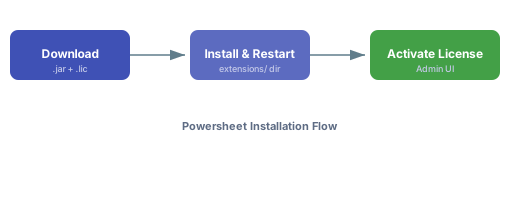
1. Download the Powersheet distribution package (`.jar` file) from the Nextedy customer portal
2. Copy the `.jar` file into the Polarion extensions directory:
```
/polarion/extensions/
```
3. Restart the Polarion server service to load the extension
After restart, check the Polarion server log for a line confirming Powersheet initialization. If the extension does not appear, verify that the `.jar` file has the correct read permissions.
Powersheet requires a valid license to operate. You can activate it through the Polarion administration interface.
1. Log in to Polarion as an administrator
2. Navigate to **Administration > Nextedy Powersheet > License**
3. Choose one of the activation methods below
### Option A: Upload License File
1. Click **Upload License**
2. Select the `.lic` file provided by Nextedy
3. Click **Activate**
4. The license details (type, expiration date, licensed user count) will appear on screen
### Option B: Enter License Key
1. Click **Enter License Key**
2. Paste the license key string into the text field
3. Click **Activate**
 After activation, confirm the license is active:
1. Navigate to **Administration > Nextedy Powersheet > License**
2. Review the license information panel:
| Field | Description |
| ------------------- | --------------------------------- |
| **License Type** | Named-user or site license |
| **Status** | Active, Expired, or Trial |
| **Expiration Date** | Date the license expires |
| **Licensed Users** | Maximum concurrent users allowed |
| **Product Version** | Licensed Powersheet version range |
The exact fields displayed on the license panel may vary by Powersheet version. Check your administration panel for the current layout.
## Renew an Expiring License
When your license approaches its expiration date, Powersheet displays a notification banner to administrators.
1. Contact Nextedy support or your account manager to obtain a renewed license file
2. Navigate to **Administration > Nextedy Powersheet > License**
3. Click **Update License** and upload the new `.lic` file
4. The new expiration date should appear immediately — no server restart required
Once expired, Powersheet sheets will display in **read-only mode**. Users will not be able to save changes or create new work items through the sheet. Upload the renewed license before the expiration date to avoid disruption.
## Manage License on Clustered Deployments
If your Polarion installation runs in a clustered (multi-node) configuration:
1. Install the Powersheet `.jar` on **every cluster node** in the same extensions directory path
2. Activate the license on the **primary node** only — the license state is stored centrally in the Polarion repository
3. Restart all cluster nodes after installation
4. Verify the license status from any node's administration panel
If your cluster nodes share a common file system for the extensions directory, you only need to copy the `.jar` file once. Each node will pick it up after its individual restart.
## Switch Between License Types
To upgrade from a trial or named-user license to a site license:
1. Navigate to **Administration > Nextedy Powersheet > License**
2. Click **Update License**
3. Upload the new license file — the new license type replaces the previous one
4. Confirm the updated **License Type** and **Licensed Users** values in the panel
No uninstallation or removal of the previous license is necessary. The new license file overwrites the old activation.
## Uninstall Powersheet
If you need to remove Powersheet from your Polarion server:
1. Stop the Polarion server service
2. Remove the Powersheet `.jar` file from:
```
/polarion/extensions/
```
3. Restart the Polarion server
Uninstalling the extension does not remove data model or sheet configuration YAML files from your project repositories. These files remain in SVN and are harmless without the extension installed. If you reinstall later, your configurations will still be available.
## Troubleshoot Common License Issues
| Symptom | Likely Cause | Resolution |
| --------------------------------- | ------------------------------------------------- | --------------------------------------------------------------------------------- |
| "License not found" after restart | `.lic` file not uploaded through Admin UI | Navigate to **Administration > Nextedy Powersheet > License** and upload the file |
| Sheet opens in read-only mode | License expired or user count exceeded | Check license status; renew or upgrade |
| License page not visible in Admin | Extension `.jar` not loaded | Verify the `.jar` is in the extensions directory and restart the server |
| "Invalid license" error on upload | License file corrupted or for a different product | Re-download the `.lic` file from the customer portal or contact support |
## Verification
You should now see:
* ✅ The Powersheet extension loaded in **Administration > Extensions**
* ✅ An active license with a valid expiration date on the **Administration > Nextedy Powersheet > License** page
* ✅ Powersheet sheets rendering and allowing edits in your project documents
## See Also
* [Administration Guides](/powersheet/guides/administration/index) — overview of all administration tasks
* [Configure Permissions](/powersheet/guides/administration/configure-permissions) — set up user and role access controls
* [Getting Started](/powersheet/getting-started/index) — first steps after installation
After activation, confirm the license is active:
1. Navigate to **Administration > Nextedy Powersheet > License**
2. Review the license information panel:
| Field | Description |
| ------------------- | --------------------------------- |
| **License Type** | Named-user or site license |
| **Status** | Active, Expired, or Trial |
| **Expiration Date** | Date the license expires |
| **Licensed Users** | Maximum concurrent users allowed |
| **Product Version** | Licensed Powersheet version range |
The exact fields displayed on the license panel may vary by Powersheet version. Check your administration panel for the current layout.
## Renew an Expiring License
When your license approaches its expiration date, Powersheet displays a notification banner to administrators.
1. Contact Nextedy support or your account manager to obtain a renewed license file
2. Navigate to **Administration > Nextedy Powersheet > License**
3. Click **Update License** and upload the new `.lic` file
4. The new expiration date should appear immediately — no server restart required
Once expired, Powersheet sheets will display in **read-only mode**. Users will not be able to save changes or create new work items through the sheet. Upload the renewed license before the expiration date to avoid disruption.
## Manage License on Clustered Deployments
If your Polarion installation runs in a clustered (multi-node) configuration:
1. Install the Powersheet `.jar` on **every cluster node** in the same extensions directory path
2. Activate the license on the **primary node** only — the license state is stored centrally in the Polarion repository
3. Restart all cluster nodes after installation
4. Verify the license status from any node's administration panel
If your cluster nodes share a common file system for the extensions directory, you only need to copy the `.jar` file once. Each node will pick it up after its individual restart.
## Switch Between License Types
To upgrade from a trial or named-user license to a site license:
1. Navigate to **Administration > Nextedy Powersheet > License**
2. Click **Update License**
3. Upload the new license file — the new license type replaces the previous one
4. Confirm the updated **License Type** and **Licensed Users** values in the panel
No uninstallation or removal of the previous license is necessary. The new license file overwrites the old activation.
## Uninstall Powersheet
If you need to remove Powersheet from your Polarion server:
1. Stop the Polarion server service
2. Remove the Powersheet `.jar` file from:
```
/polarion/extensions/
```
3. Restart the Polarion server
Uninstalling the extension does not remove data model or sheet configuration YAML files from your project repositories. These files remain in SVN and are harmless without the extension installed. If you reinstall later, your configurations will still be available.
## Troubleshoot Common License Issues
| Symptom | Likely Cause | Resolution |
| --------------------------------- | ------------------------------------------------- | --------------------------------------------------------------------------------- |
| "License not found" after restart | `.lic` file not uploaded through Admin UI | Navigate to **Administration > Nextedy Powersheet > License** and upload the file |
| Sheet opens in read-only mode | License expired or user count exceeded | Check license status; renew or upgrade |
| License page not visible in Admin | Extension `.jar` not loaded | Verify the `.jar` is in the extensions directory and restart the server |
| "Invalid license" error on upload | License file corrupted or for a different product | Re-download the `.lic` file from the customer portal or contact support |
## Verification
You should now see:
* ✅ The Powersheet extension loaded in **Administration > Extensions**
* ✅ An active license with a valid expiration date on the **Administration > Nextedy Powersheet > License** page
* ✅ Powersheet sheets rendering and allowing edits in your project documents
## See Also
* [Administration Guides](/powersheet/guides/administration/index) — overview of all administration tasks
* [Configure Permissions](/powersheet/guides/administration/configure-permissions) — set up user and role access controls
* [Getting Started](/powersheet/getting-started/index) — first steps after installation