Last reviewed on {formatted}
; }; ## The Problem Powersheet Solves Polarion ALM stores data as individual work items connected through link roles, but viewing and editing those relationships at scale is cumbersome. Any team managing structured hierarchical data -- whether requirements traceability, risk registers, task boards, or custom data models -- faces the same challenge: they need to see the full chain at once, not click through dozens of separate pages. This is especially acute in regulated industries (automotive, aerospace, and medical devices) where traceability evidence must be complete and auditable. Nextedy Powersheet solves this by projecting those multi-level relationships into a single, configurable sheet where every column, row hierarchy, and edit behavior is defined through YAML configuration. ## Core Architecture Powersheet separates concerns into three distinct layers: a **data model** that defines the data structure, a **sheet configuration** that controls presentation and interaction, and a **document** that serves as the entry point within Polarion. ### 1. Data Model
The **data model** is a YAML file that defines what slice of the Polarion data model is visible and editable within Powersheet. It acts as a semantic layer that maps Polarion's native elements -- work item types, link roles, document types -- into structured entity types and relationships.
Key responsibilities of the data model:
* **Mapping and normalization** -- Enables centralized configuration even across projects with slightly different Polarion setups. You can reuse the same sheet configuration while only adjusting the data model mapping.
* **Process constraints** -- Defines custom rules not natively enforceable in Polarion, such as link cardinality (for example, a `SystemRequirement` may link to only one `UserNeed` in an RTM model) and document rules (an entity must exist in documents of a specific type).
* **Reusability** -- You can define both global models and project-specific models. Multiple models can exist and be reused across projects.
Data models are managed in Polarion at **Administration > Nextedy Powersheet > Data Models**. Powersheet ships with ready-to-use RTM traceability.
### 2. Sheet Configuration
The **sheet configuration** defines how data from the model is displayed and interacted with. Stored as a YAML file, it specifies:
* **Columns** -- Which attributes and relationships are visible, which are editable, and how they are formatted
* **Sources** -- Where to query data and how to expand related entities through expansion paths
* **Views** -- Named column visibility presets for different analysis perspectives (for example, one view for coverage analysis, another for risk assessment)
A single sheet configuration can be referenced from multiple documents. Each configuration is tied to a data model, so the column binding paths must match the entity types and relationships defined in the model.
### 3. Document Entry Point
Each powersheet is anchored to a Polarion LiveDoc. There are two patterns:
* **Self-contained** -- The document is associated with a sheet configuration and visualizes data defined by that configuration.
* **Template-based** -- The document references a shared sheet configuration that can be reused across many documents.
From the user's perspective, they open a Polarion document as usual. If a sheet configuration is assigned, they see the powersheet view and can begin editing, creating, and linking work items directly in the sheet.
## Powersheet Drive
Powersheet introduces **Powersheet Drive**, a dedicated topic in the Polarion sidebar that serves as a navigator for all configured powersheet documents. By default, it lists all documents with an assigned sheet configuration, providing a central entry point into structured traceability and planning views.
### 1. Data Model
The **data model** is a YAML file that defines what slice of the Polarion data model is visible and editable within Powersheet. It acts as a semantic layer that maps Polarion's native elements -- work item types, link roles, document types -- into structured entity types and relationships.
Key responsibilities of the data model:
* **Mapping and normalization** -- Enables centralized configuration even across projects with slightly different Polarion setups. You can reuse the same sheet configuration while only adjusting the data model mapping.
* **Process constraints** -- Defines custom rules not natively enforceable in Polarion, such as link cardinality (for example, a `SystemRequirement` may link to only one `UserNeed` in an RTM model) and document rules (an entity must exist in documents of a specific type).
* **Reusability** -- You can define both global models and project-specific models. Multiple models can exist and be reused across projects.
Data models are managed in Polarion at **Administration > Nextedy Powersheet > Data Models**. Powersheet ships with ready-to-use RTM traceability.
### 2. Sheet Configuration
The **sheet configuration** defines how data from the model is displayed and interacted with. Stored as a YAML file, it specifies:
* **Columns** -- Which attributes and relationships are visible, which are editable, and how they are formatted
* **Sources** -- Where to query data and how to expand related entities through expansion paths
* **Views** -- Named column visibility presets for different analysis perspectives (for example, one view for coverage analysis, another for risk assessment)
A single sheet configuration can be referenced from multiple documents. Each configuration is tied to a data model, so the column binding paths must match the entity types and relationships defined in the model.
### 3. Document Entry Point
Each powersheet is anchored to a Polarion LiveDoc. There are two patterns:
* **Self-contained** -- The document is associated with a sheet configuration and visualizes data defined by that configuration.
* **Template-based** -- The document references a shared sheet configuration that can be reused across many documents.
From the user's perspective, they open a Polarion document as usual. If a sheet configuration is assigned, they see the powersheet view and can begin editing, creating, and linking work items directly in the sheet.
## Powersheet Drive
Powersheet introduces **Powersheet Drive**, a dedicated topic in the Polarion sidebar that serves as a navigator for all configured powersheet documents. By default, it lists all documents with an assigned sheet configuration, providing a central entry point into structured traceability and planning views.
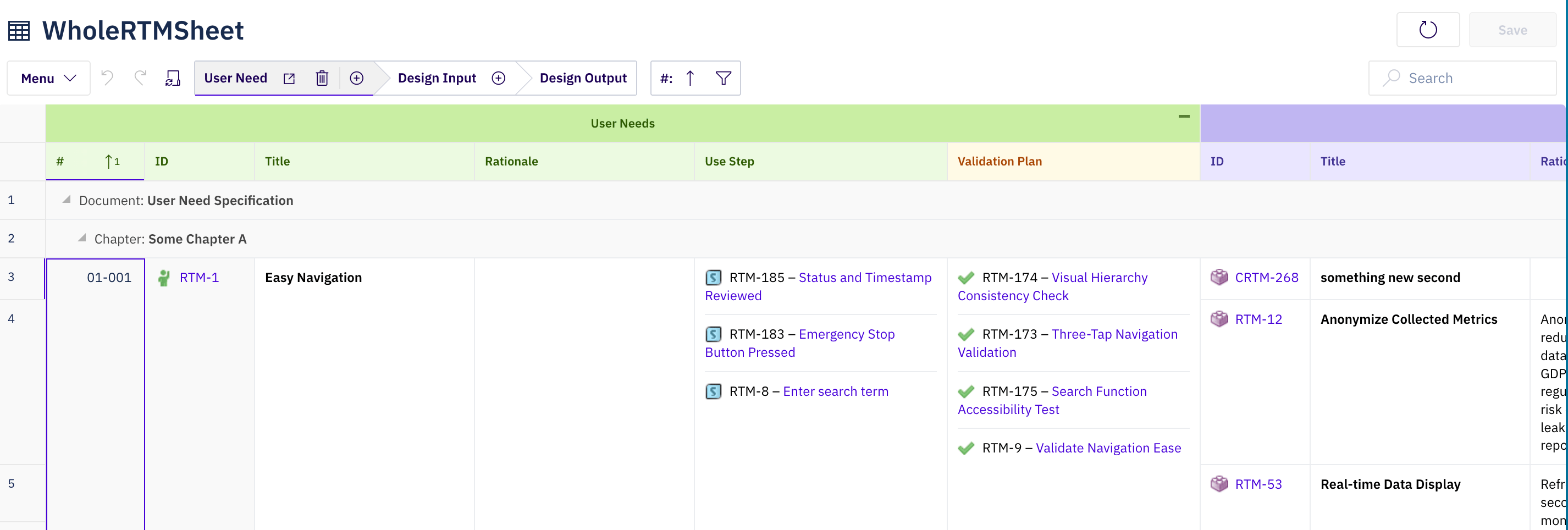 Once configured, end users can:
* View hierarchical data with expandable rows showing related entities
* Edit work item properties inline with type-aware editors
* Create new work items and links directly in the sheet
* Filter and sort across all columns, including related entity properties
* Group rows by column values with collapsible group headers
* Switch between named views for different analysis perspectives
* Copy and paste cell ranges within the sheet
* Use keyboard shortcuts for common operations
Once configured, end users can:
* View hierarchical data with expandable rows showing related entities
* Edit work item properties inline with type-aware editors
* Create new work items and links directly in the sheet
* Filter and sort across all columns, including related entity properties
* Group rows by column values with collapsible group headers
* Switch between named views for different analysis perspectives
* Copy and paste cell ranges within the sheet
* Use keyboard shortcuts for common operations