> ## Documentation Index
> Fetch the complete documentation index at: https://learn.nextedy.com/llms.txt
> Use this file to discover all available pages before exploring further.
# Setting Up Navigation
> This tutorial walks you through enabling the Nextedy POWERSHEET navigation topic in Siemens Polarion ALM, creating the required custom field for documents, and verifying that Powersheet Drive appears in the project sidebar.
export const LastReviewed = ({date}) => {
if (!date) return null;
const formatted = new Date(`${date}T00:00:00Z`).toLocaleDateString("en-US", {
year: "numeric",
month: "long",
day: "numeric",
timeZone: "UTC"
});
return
Last reviewed on {formatted}
;
};
## What you will achieve
By the end of this tutorial you will have:
* The `nextedySheetConfig` custom field created for documents in your project
* The Powersheet topic added to your project's navigation views
* Powersheet Drive visible in the left sidebar, listing all configured powersheet documents
## Prerequisites
* Powersheet plugin installed and licensed (see [Installing Powersheet](/powersheet/getting-started/installation))
* Administrator access to the Polarion project
* At least one sheet configuration uploaded to **Administration > Nextedy Powersheet > Sheet Configurations**
Without completing these steps, Powersheet Drive will not appear in the sidebar and documents cannot be associated with sheet configurations. Both the custom field and the navigation topic are required.
Before Powersheet Drive can discover documents, each document needs a custom field that stores the reference to its sheet configuration file. You must create this field at the project level.
1. Navigate to **Administration > Documents & Pages > Document Custom Fields**
2. Add a new custom field with these settings:
| Setting | Value |
| -------- | -------------------- |
| **ID** | `nextedySheetConfig` |
| **Name** | Nextedy Sheet Config |
| **Type** | Enum (single value) |
3. Save the custom field definition
**You should see:** The `nextedySheetConfig` field listed among your document custom fields. Powersheet automatically populates the enum options through the `@NextedySheetConfigs` enum provider, which discovers all uploaded sheet configuration files.
The enum provider dynamically lists all sheet configuration YAML files that have been uploaded through **Administration > Nextedy Powersheet > Sheet Configurations**. You do not need to manually define the enum values.
Navigate to **Administration > Portal > Topics** in your Polarion project.
**You should see:** A list of views (such as `admin`, `team`, `docspec`) with their configured topics. Each view defines which sidebar topics are visible for users assigned to that view.
Add the following topic entry to each view where Powersheet should be available:
```xml theme={null}
```
Add this entry to the `admin`, `team`, and `docspec` views so that all relevant user roles can see the Powersheet Drive in the sidebar.
**You should see:** The topic entry appears in the view configuration alongside other topics like Documents, Work Items, and Plans.
Adding the topic to a view makes Powersheet Drive visible for all users assigned to that view. You can selectively enable it for specific roles by only adding it to certain views.
For Powersheet Drive to list a document, the document must have its `nextedySheetConfig` field set to a valid sheet configuration.
1. Open a LiveDoc in your project
2. Open the document properties panel
3. Set the **Nextedy Sheet Config** field to one of the available sheet configurations
4. Save the document
**You should see:** The selected sheet configuration name appears in the document properties. This document will now be discoverable by Powersheet Drive.
Save the topics configuration and navigate to your project home page. In the left sidebar, you should now see the **Powersheet Drive** entry.
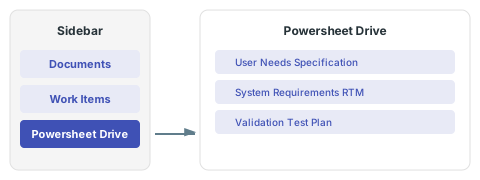 **You should see:** Clicking **Powersheet Drive** displays a list of all documents in your project that have a valid `nextedySheetConfig` custom field value. Each document entry opens directly in the Powersheet sheet view.
If no documents appear in Powersheet Drive, verify that at least one document has a sheet configuration assigned in its `nextedySheetConfig` field. The drive discovers documents by querying for all documents where this field is populated.
Click any document listed in Powersheet Drive. Powersheet loads the associated sheet configuration and data model, then renders the hierarchical sheet with your configured columns and expansion paths.
**You should see:** The document opens in the Powersheet sheet view showing the configured columns, entity types, and hierarchical data. The toolbar provides access to editing, filtering, sorting, and export features.
You can also open any document with Powersheet using the **Open with Powersheet** button that appears in the Polarion document toolbar. This button is available on any document that has a sheet configuration assigned.
## Configuration scope
Data model and sheet configuration files can be managed at multiple levels through the Polarion administration interface:
* **Administration > Nextedy Powersheet > Data Models** -- for data model YAML files
* **Administration > Nextedy Powersheet > Sheet Configurations** -- for sheet configuration YAML files
| Configuration scope | Description |
| ------------------- | ----------------------------------------------------- |
| **Project** | Configuration files specific to one project |
| **Project Group** | Configuration files shared across projects in a group |
| **Global** | Configuration files shared across all projects |
## Troubleshooting
| Symptom | Cause | Solution |
| ---------------------------------------- | ------------------------ | -------------------------------------------------------------------------------------------------------------- |
| Powersheet Drive not in sidebar | Topic not added to view | Add `` to the relevant view in **Administration > Portal > Topics** |
| Drive shows empty list | No documents configured | Assign a sheet configuration to at least one document via its `nextedySheetConfig` field |
| `nextedySheetConfig` field not available | Custom field not created | Create the custom field in **Administration > Documents & Pages > Document Custom Fields** |
| No enum options in config field | No configs uploaded | Upload at least one sheet configuration through **Administration > Nextedy Powersheet > Sheet Configurations** |
## Next steps
* [Creating Your First Data Model](/powersheet/getting-started/first-data-model) -- define entity types and relationships for your project
* [Creating Your First Sheet Configuration](/powersheet/getting-started/first-sheet-configuration) -- configure columns, formatters, and views
* [Creating Your First Powersheet Document](/powersheet/getting-started/first-document) -- build your first working powersheet document
* [Incremental Configuration Approach](/powersheet/getting-started/incremental-configuration) -- learn how to extend configurations step by step
**You should see:** Clicking **Powersheet Drive** displays a list of all documents in your project that have a valid `nextedySheetConfig` custom field value. Each document entry opens directly in the Powersheet sheet view.
If no documents appear in Powersheet Drive, verify that at least one document has a sheet configuration assigned in its `nextedySheetConfig` field. The drive discovers documents by querying for all documents where this field is populated.
Click any document listed in Powersheet Drive. Powersheet loads the associated sheet configuration and data model, then renders the hierarchical sheet with your configured columns and expansion paths.
**You should see:** The document opens in the Powersheet sheet view showing the configured columns, entity types, and hierarchical data. The toolbar provides access to editing, filtering, sorting, and export features.
You can also open any document with Powersheet using the **Open with Powersheet** button that appears in the Polarion document toolbar. This button is available on any document that has a sheet configuration assigned.
## Configuration scope
Data model and sheet configuration files can be managed at multiple levels through the Polarion administration interface:
* **Administration > Nextedy Powersheet > Data Models** -- for data model YAML files
* **Administration > Nextedy Powersheet > Sheet Configurations** -- for sheet configuration YAML files
| Configuration scope | Description |
| ------------------- | ----------------------------------------------------- |
| **Project** | Configuration files specific to one project |
| **Project Group** | Configuration files shared across projects in a group |
| **Global** | Configuration files shared across all projects |
## Troubleshooting
| Symptom | Cause | Solution |
| ---------------------------------------- | ------------------------ | -------------------------------------------------------------------------------------------------------------- |
| Powersheet Drive not in sidebar | Topic not added to view | Add `` to the relevant view in **Administration > Portal > Topics** |
| Drive shows empty list | No documents configured | Assign a sheet configuration to at least one document via its `nextedySheetConfig` field |
| `nextedySheetConfig` field not available | Custom field not created | Create the custom field in **Administration > Documents & Pages > Document Custom Fields** |
| No enum options in config field | No configs uploaded | Upload at least one sheet configuration through **Administration > Nextedy Powersheet > Sheet Configurations** |
## Next steps
* [Creating Your First Data Model](/powersheet/getting-started/first-data-model) -- define entity types and relationships for your project
* [Creating Your First Sheet Configuration](/powersheet/getting-started/first-sheet-configuration) -- configure columns, formatters, and views
* [Creating Your First Powersheet Document](/powersheet/getting-started/first-document) -- build your first working powersheet document
* [Incremental Configuration Approach](/powersheet/getting-started/incremental-configuration) -- learn how to extend configurations step by step