> ## Documentation Index
> Fetch the complete documentation index at: https://learn.nextedy.com/llms.txt
> Use this file to discover all available pages before exploring further.
# Installation
export const LastReviewed = ({date}) => {
if (!date) return null;
const formatted = new Date(`${date}T00:00:00Z`).toLocaleDateString("en-US", {
year: "numeric",
month: "long",
day: "numeric",
timeZone: "UTC"
});
return
Last reviewed on {formatted}
;
};
## What you will achieve
By the end of this tutorial you will have:
* The Nextedy POWERSHEET plugin deployed on your Polarion server
* A valid license applied through the administration interface
* Either a demo project with sample data or Powersheet enabled in an existing project
## Prerequisites
* A running Polarion server with a [version still supported by Nextedy](/overview/resources/polarion-version-support)
* Administrator access to the Polarion server filesystem and web interface
* A Powersheet distribution package (`nextedy_powersheet.zip`) downloaded from the [Powersheet Download](https://go.nextedy.com/powersheet-download-page) page
* A valid license file (trial or production) provided by Nextedy
 Unpack the downloaded `nextedy_powersheet.zip`. Inside you will find a folder named `com.nextedy.powersheet`.
Copy this entire folder into your Polarion extensions directory:
```text theme={null}
[POLARION_INSTALL]/polarion/extensions/
```
After copying, delete the cached configuration folders to avoid plugin conflicts:
```text theme={null}
[POLARION_DATA]/workspace/.config
[POLARION_DATA]/workspace/.metadata
```
Deleting the `.config` and `.metadata` folders only removes cached data. This is safe and recommended by Polarion support to ensure the extension is recognized correctly. Clearing **both** caches is important: a stale `.metadata` cache can otherwise cause server-side rendering to fail even after the plugin is deployed.
Restart the Polarion server.
**You should see:** After the server restarts and you open **Administration**, a new section called **Nextedy Powersheet** appears in the sidebar. This confirms the plugin is installed. Look for it near the **bottom** of the Administration sidebar, below **Configuration Properties**.
If the **Nextedy Powersheet** section does not appear immediately after the restart, perform a hard refresh of your browser (**Ctrl+F5** on Windows/Linux, **Cmd+Shift+R** on macOS) to clear cached UI assets, then reopen **Administration**.
Polarion ships its own native **License** and **Maintenance** Administration topics. After installing Powersheet you will see a *separate* **License** topic under the **Nextedy Powersheet** section. When applying or checking your Powersheet license, always use the one under **Administration > Nextedy Powersheet**, not the similarly named native Polarion topic.
You can apply the license either through the administration interface (Option A) or by placing the file on the server filesystem (Option B). Whichever method you use, the verification below applies.
Unlike some other Nextedy products, Powersheet licenses are managed directly in the Polarion administration interface -- not via a separate license server. Make sure you apply the license through **Administration > Nextedy Powersheet > License** or via the server filesystem.
### Option A: Upload through the administration interface
1. Navigate to **Administration > Nextedy Powersheet > License**
2. Drag and drop your license file onto the upload area, or select it from your filesystem
The license is persisted automatically as soon as it is uploaded -- there is no separate save action.
### Option B: Place the license file on the server filesystem
You can also upload the license by placing the file directly on the Polarion server filesystem. Copy the license file into the extension's license directory and restart Polarion. For the exact filesystem path and step-by-step instructions, see the [Nextedy license installation guide](/overview/resources/installing-the-license).
The filesystem method is useful in automated deployments, Docker containers, or environments where browser access to the administration interface is restricted.
**You should see (either method):** Open **Administration > Nextedy Powersheet > License**. The license page displays the license details (expiration date, user count) and no red or warning banner is shown. The absence of a banner means the license is valid.
Navigate to **Administration > Nextedy Powersheet > Setup**.
Install the demo template by selecting **Demo Project Template > Install Demo Template**. (Depending on your Powersheet version, the in-product button may read slightly differently, e.g. **Install Demo**. The label also varies by state: it reads **Install Demo Template** on first use, but **Update Demo Template** once a demo template is already installed -- both perform the same action.)
Once installed, create a new project:
1. Select **Create New Project**
2. Choose the template **Powersheet RTM Demo**. The template list shows all installed Polarion templates, so type `powersheet` into the template dropdown's filter to narrow it down and surface the **Powersheet RTM Demo** entry.
3. Complete the wizard (the standard Polarion new-project wizard: **Basics > Template > Summary**) and open the project home page
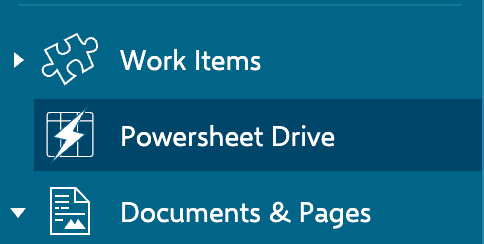
4. In the left navigator, select **Powersheet Drive**
Installing the demo template uploads it to the Polarion server filesystem at `.polarion/projects/templates/`, where it becomes available to the new-project wizard like any other Polarion project template.
Unpack the downloaded `nextedy_powersheet.zip`. Inside you will find a folder named `com.nextedy.powersheet`.
Copy this entire folder into your Polarion extensions directory:
```text theme={null}
[POLARION_INSTALL]/polarion/extensions/
```
After copying, delete the cached configuration folders to avoid plugin conflicts:
```text theme={null}
[POLARION_DATA]/workspace/.config
[POLARION_DATA]/workspace/.metadata
```
Deleting the `.config` and `.metadata` folders only removes cached data. This is safe and recommended by Polarion support to ensure the extension is recognized correctly. Clearing **both** caches is important: a stale `.metadata` cache can otherwise cause server-side rendering to fail even after the plugin is deployed.
Restart the Polarion server.
**You should see:** After the server restarts and you open **Administration**, a new section called **Nextedy Powersheet** appears in the sidebar. This confirms the plugin is installed. Look for it near the **bottom** of the Administration sidebar, below **Configuration Properties**.
If the **Nextedy Powersheet** section does not appear immediately after the restart, perform a hard refresh of your browser (**Ctrl+F5** on Windows/Linux, **Cmd+Shift+R** on macOS) to clear cached UI assets, then reopen **Administration**.
Polarion ships its own native **License** and **Maintenance** Administration topics. After installing Powersheet you will see a *separate* **License** topic under the **Nextedy Powersheet** section. When applying or checking your Powersheet license, always use the one under **Administration > Nextedy Powersheet**, not the similarly named native Polarion topic.
You can apply the license either through the administration interface (Option A) or by placing the file on the server filesystem (Option B). Whichever method you use, the verification below applies.
Unlike some other Nextedy products, Powersheet licenses are managed directly in the Polarion administration interface -- not via a separate license server. Make sure you apply the license through **Administration > Nextedy Powersheet > License** or via the server filesystem.
### Option A: Upload through the administration interface
1. Navigate to **Administration > Nextedy Powersheet > License**
2. Drag and drop your license file onto the upload area, or select it from your filesystem
The license is persisted automatically as soon as it is uploaded -- there is no separate save action.
### Option B: Place the license file on the server filesystem
You can also upload the license by placing the file directly on the Polarion server filesystem. Copy the license file into the extension's license directory and restart Polarion. For the exact filesystem path and step-by-step instructions, see the [Nextedy license installation guide](/overview/resources/installing-the-license).
The filesystem method is useful in automated deployments, Docker containers, or environments where browser access to the administration interface is restricted.
**You should see (either method):** Open **Administration > Nextedy Powersheet > License**. The license page displays the license details (expiration date, user count) and no red or warning banner is shown. The absence of a banner means the license is valid.
Navigate to **Administration > Nextedy Powersheet > Setup**.
Install the demo template by selecting **Demo Project Template > Install Demo Template**. (Depending on your Powersheet version, the in-product button may read slightly differently, e.g. **Install Demo**. The label also varies by state: it reads **Install Demo Template** on first use, but **Update Demo Template** once a demo template is already installed -- both perform the same action.)
Once installed, create a new project:
1. Select **Create New Project**
2. Choose the template **Powersheet RTM Demo**. The template list shows all installed Polarion templates, so type `powersheet` into the template dropdown's filter to narrow it down and surface the **Powersheet RTM Demo** entry.
3. Complete the wizard (the standard Polarion new-project wizard: **Basics > Template > Summary**) and open the project home page
4. In the left navigator, select **Powersheet Drive**
Installing the demo template uploads it to the Polarion server filesystem at `.polarion/projects/templates/`, where it becomes available to the new-project wizard like any other Polarion project template.
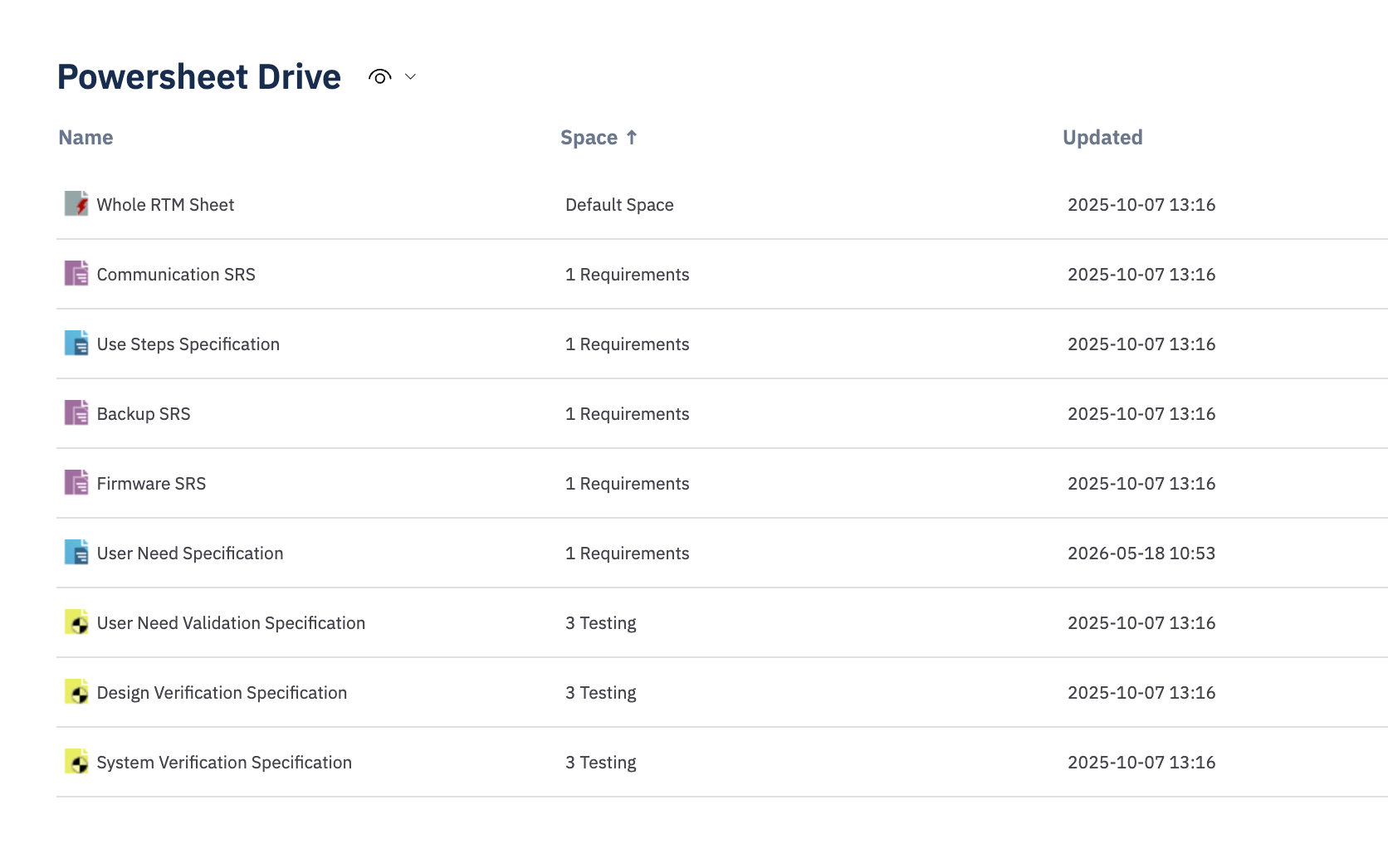
 **You should see:** The Powersheet Drive displays a list of preconfigured documents with sample data, including example User Needs Specifications and an RTM configuration covering User Needs, System Requirements, Design Requirements, and Tests.
The demo dataset is richer than this summary suggests. Alongside the requirements documents, your demo project also contains additional sample documents such as Backup, Communication, and Firmware SRS -- so don't be surprised to see more entries than the ones described here.
**You should see:** The Powersheet Drive displays a list of preconfigured documents with sample data, including example User Needs Specifications and an RTM configuration covering User Needs, System Requirements, Design Requirements, and Tests.
The demo dataset is richer than this summary suggests. Alongside the requirements documents, your demo project also contains additional sample documents such as Backup, Communication, and Firmware SRS -- so don't be surprised to see more entries than the ones described here.
 The demo project is the fastest way to explore Powersheet capabilities. It includes pre-populated data so you can immediately try editing, linking, and navigating the traceability hierarchy.
Open one of the demo documents from the Powersheet Drive. The sheet loads and displays a hierarchical table with editable cells, column headers, and expansion controls.
Opening a document from the Powersheet Drive launches it in a **new browser tab**, leaving the Drive open in the original tab. This is expected behavior.
It is also possible to open the sheet from the document in the standard Polarion view. To switch to the sheet view, click the **Open with Nextedy Powersheet** button (shown below).
The demo project is the fastest way to explore Powersheet capabilities. It includes pre-populated data so you can immediately try editing, linking, and navigating the traceability hierarchy.
Open one of the demo documents from the Powersheet Drive. The sheet loads and displays a hierarchical table with editable cells, column headers, and expansion controls.
Opening a document from the Powersheet Drive launches it in a **new browser tab**, leaving the Drive open in the original tab. This is expected behavior.
It is also possible to open the sheet from the document in the standard Polarion view. To switch to the sheet view, click the **Open with Nextedy Powersheet** button (shown below).
 Verify the following:
| Check | Expected result |
| ------------------------------------------------------- | ----------------------------------- |
| **Administration > Nextedy Powersheet** section visible | Plugin installed correctly |
| License page shows no red or warning banner | License applied and valid |
| Powersheet Drive lists documents | Navigation topic enabled |
| Demo document opens in sheet view | Configuration and data model loaded |
If the license page shows no warning or error banner, the license is valid -- the UI does not display a separate OK indicator.
## Troubleshooting
If Powersheet does not appear after installation:
1. Stop Polarion
2. Delete the cache folders: `[POLARION_DATA]/workspace/.config` and `[POLARION_DATA]/workspace/.metadata`
3. Restart Polarion
This forces Polarion to reinitialize the extension configuration and usually resolves recognition issues.
If the license page shows an **INVALID** or **WARNING** banner, check the following common causes:
* **Wrong product license:** Confirm you uploaded the license file for Powersheet specifically, not a license for a different Nextedy product (such as Risksheet or Checklist).
* **Expired license:** Check the expiration date displayed on the license page. Trial licenses have a fixed duration -- contact Nextedy to request a renewal if yours has expired.
* **Server hostname mismatch:** Some production licenses are bound to a specific server hostname. Verify that the hostname in the license matches your Polarion server's actual hostname.
* **Corrupted or truncated file:** If the license file was forwarded via email or downloaded multiple times, it may have been corrupted. Re-download the original file from the link provided by Nextedy.
* **Incomplete restart after filesystem upload:** When uploading a license via the server filesystem, a full Polarion restart is required. A partial restart or service reload may not pick up the new license file.
If none of these resolve the issue, contact [Nextedy support](https://support.nextedy.com/support/tickets/new) with a screenshot of the license status page and the exact error message shown.
## Next steps
* [Setting Up Navigation](/powersheet/getting-started/setup-navigation) -- configure the Powersheet topic in your project's sidebar
* [Creating Your First Data Model](/powersheet/getting-started/first-data-model) -- define entity types and relationships for your project
* [Creating Your First Sheet Configuration](/powersheet/getting-started/first-sheet-configuration) -- set up columns and views for your sheet
* [How to Evaluate Powersheet](/powersheet/getting-started/evaluation) -- explore hosted and local trial options
- [What is a Powersheet?](/powersheet/getting-started/what-is-powersheet)
- [Setting Up Navigation](/powersheet/getting-started/setup-navigation) -- enable Powersheet in an existing project
- [How to Evaluate Powersheet](/powersheet/getting-started/evaluation)
Verify the following:
| Check | Expected result |
| ------------------------------------------------------- | ----------------------------------- |
| **Administration > Nextedy Powersheet** section visible | Plugin installed correctly |
| License page shows no red or warning banner | License applied and valid |
| Powersheet Drive lists documents | Navigation topic enabled |
| Demo document opens in sheet view | Configuration and data model loaded |
If the license page shows no warning or error banner, the license is valid -- the UI does not display a separate OK indicator.
## Troubleshooting
If Powersheet does not appear after installation:
1. Stop Polarion
2. Delete the cache folders: `[POLARION_DATA]/workspace/.config` and `[POLARION_DATA]/workspace/.metadata`
3. Restart Polarion
This forces Polarion to reinitialize the extension configuration and usually resolves recognition issues.
If the license page shows an **INVALID** or **WARNING** banner, check the following common causes:
* **Wrong product license:** Confirm you uploaded the license file for Powersheet specifically, not a license for a different Nextedy product (such as Risksheet or Checklist).
* **Expired license:** Check the expiration date displayed on the license page. Trial licenses have a fixed duration -- contact Nextedy to request a renewal if yours has expired.
* **Server hostname mismatch:** Some production licenses are bound to a specific server hostname. Verify that the hostname in the license matches your Polarion server's actual hostname.
* **Corrupted or truncated file:** If the license file was forwarded via email or downloaded multiple times, it may have been corrupted. Re-download the original file from the link provided by Nextedy.
* **Incomplete restart after filesystem upload:** When uploading a license via the server filesystem, a full Polarion restart is required. A partial restart or service reload may not pick up the new license file.
If none of these resolve the issue, contact [Nextedy support](https://support.nextedy.com/support/tickets/new) with a screenshot of the license status page and the exact error message shown.
## Next steps
* [Setting Up Navigation](/powersheet/getting-started/setup-navigation) -- configure the Powersheet topic in your project's sidebar
* [Creating Your First Data Model](/powersheet/getting-started/first-data-model) -- define entity types and relationships for your project
* [Creating Your First Sheet Configuration](/powersheet/getting-started/first-sheet-configuration) -- set up columns and views for your sheet
* [How to Evaluate Powersheet](/powersheet/getting-started/evaluation) -- explore hosted and local trial options
- [What is a Powersheet?](/powersheet/getting-started/what-is-powersheet)
- [Setting Up Navigation](/powersheet/getting-started/setup-navigation) -- enable Powersheet in an existing project
- [How to Evaluate Powersheet](/powersheet/getting-started/evaluation)