> ## Documentation Index
> Fetch the complete documentation index at: https://learn.nextedy.com/llms.txt
> Use this file to discover all available pages before exploring further.
# How to Evaluate Powersheet
> This guide walks you through the two ways to evaluate Nextedy POWERSHEET -- a hosted trial with zero setup, or a local installation in your own Siemens Polarion ALM instance.
export const LastReviewed = ({date}) => {
if (!date) return null;
const formatted = new Date(`${date}T00:00:00Z`).toLocaleDateString("en-US", {
year: "numeric",
month: "long",
day: "numeric",
timeZone: "UTC"
});
return
Last reviewed on {formatted}
;
};
## Evaluation options at a glance
| | Hosted Trial | Local Trial |
| ------------------ | ----------------- | -------------------------- |
| **Setup time** | Minutes | 30-60 minutes |
| **Infrastructure** | Nextedy-hosted | Your Polarion server |
| **License** | Automatic | 30-day trial file |
| **Best for** | Quick exploration | Testing with your own data |
## Option 1: Hosted trial (recommended)
1. Go to the trial signup page at [Try Nextedy Solutions Online](https://go.nextedy.com/online-trial-powersheet-rtm)
2. Fill in your details
3. Your evaluation account and dedicated demo project are created automatically
4. You will receive login credentials by email
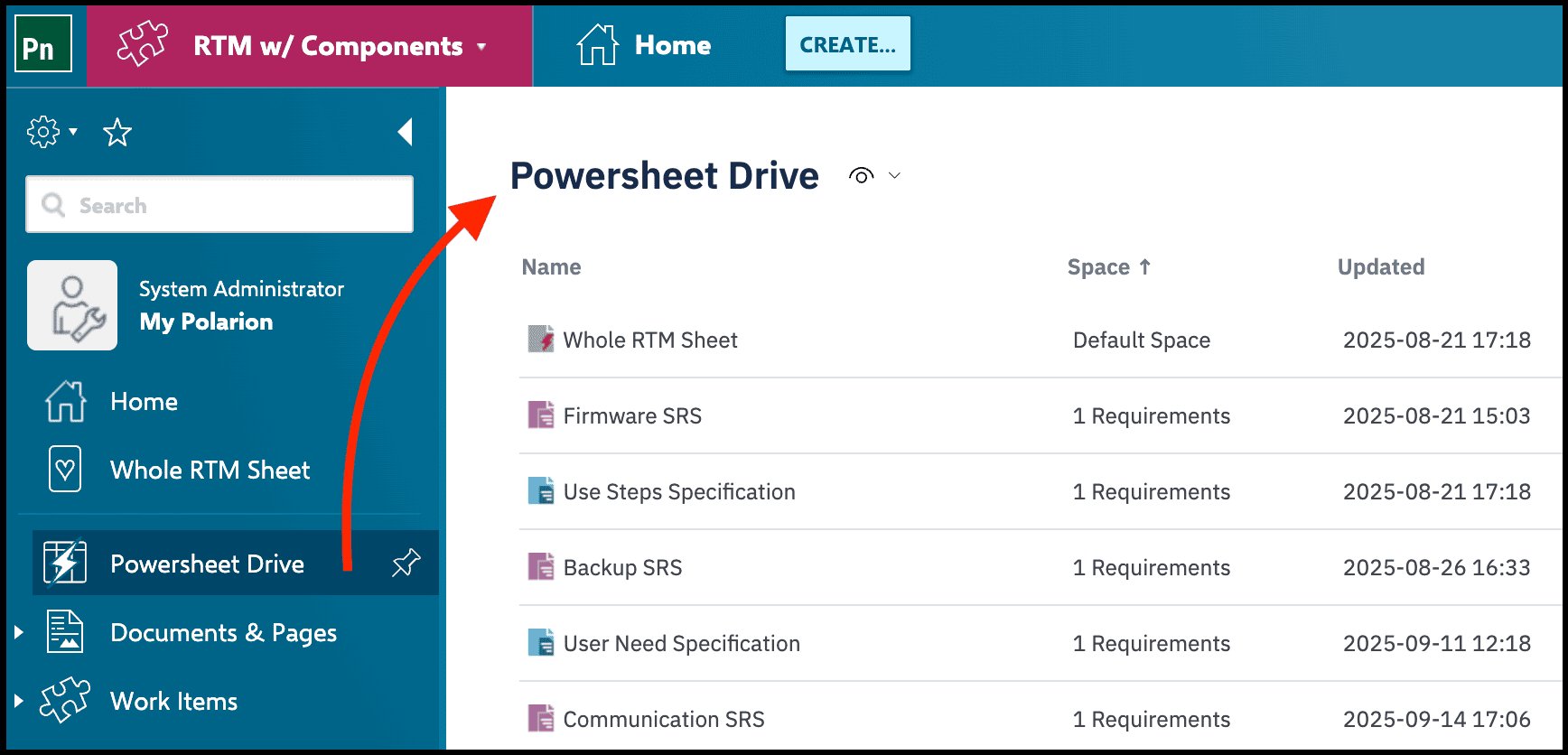
5. Log into the demo server, open the demo project, and use the **Powersheet Drive** in the left-hand navigation to explore the available views
Nextedy can schedule an introductory call to guide you through Powersheet basics and discuss how it fits your workflow. Request this when signing up.
 ## Option 2: Local trial
1. [Request the trial package](https://go.nextedy.com/powersheet-download-page) and license from Nextedy. You will receive a download link and a trial license (unlimited users, valid for 30 days)
2. Install the package following the [installation guide](/powersheet/getting-started/installation)
3. Upload the license in **Administration > Nextedy Powersheet > License** and assign the named Powersheet users following the guidance on the administration page
4. Instantiate the **Powersheet RTM Demo Project** from the installed template via **Administration > Nextedy Powersheet > Setup**
5. Open the project and navigate to the **Powersheet Drive** to begin exploring
Make sure your Polarion version is still supported by Siemens. Check the [Polarion versions support policy](https://go.nextedy.com/supported-versions) before installing.
## What the demo project includes
The demo project provides everything needed to explore Powersheet capabilities out of the box:
* Example **User Needs Specifications** with pre-populated work items
* **RTM configuration**: `UserNeed` > `SystemRequirement` > `DesignRequirement` > Tests
* Pre-populated data for trying **guided authoring, linking, and traceability coverage**
When you move from the demo to your own project, start with the simplest possible configuration -- a single entity type with a few columns. Extend incrementally once the basics work. Jumping straight to complex multi-entity configurations leads to hard-to-diagnose errors. See [Incremental Configuration Approach](/powersheet/getting-started/incremental-configuration) for more details...
## Verification
After completing either evaluation option, you should see:
* The **Powersheet Drive** in the left sidebar listing available documents
* A demo document opening in sheet view with a hierarchical table
* Editable cells where you can add, link, and modify work items directly in the sheet
## See also
* [Installing Powersheet](/powersheet/getting-started/installation) -- full installation walkthrough for local setup
* [Setting Up Navigation](/powersheet/getting-started/setup-navigation) -- configure the Powersheet topic in your sidebar
* [Creating Your First Data Model](/powersheet/getting-started/first-data-model) -- begin configuring your own data model
* [Incremental Configuration Approach](/powersheet/getting-started/incremental-configuration) -- why starting simple prevents errors
## Option 2: Local trial
1. [Request the trial package](https://go.nextedy.com/powersheet-download-page) and license from Nextedy. You will receive a download link and a trial license (unlimited users, valid for 30 days)
2. Install the package following the [installation guide](/powersheet/getting-started/installation)
3. Upload the license in **Administration > Nextedy Powersheet > License** and assign the named Powersheet users following the guidance on the administration page
4. Instantiate the **Powersheet RTM Demo Project** from the installed template via **Administration > Nextedy Powersheet > Setup**
5. Open the project and navigate to the **Powersheet Drive** to begin exploring
Make sure your Polarion version is still supported by Siemens. Check the [Polarion versions support policy](https://go.nextedy.com/supported-versions) before installing.
## What the demo project includes
The demo project provides everything needed to explore Powersheet capabilities out of the box:
* Example **User Needs Specifications** with pre-populated work items
* **RTM configuration**: `UserNeed` > `SystemRequirement` > `DesignRequirement` > Tests
* Pre-populated data for trying **guided authoring, linking, and traceability coverage**
When you move from the demo to your own project, start with the simplest possible configuration -- a single entity type with a few columns. Extend incrementally once the basics work. Jumping straight to complex multi-entity configurations leads to hard-to-diagnose errors. See [Incremental Configuration Approach](/powersheet/getting-started/incremental-configuration) for more details...
## Verification
After completing either evaluation option, you should see:
* The **Powersheet Drive** in the left sidebar listing available documents
* A demo document opening in sheet view with a hierarchical table
* Editable cells where you can add, link, and modify work items directly in the sheet
## See also
* [Installing Powersheet](/powersheet/getting-started/installation) -- full installation walkthrough for local setup
* [Setting Up Navigation](/powersheet/getting-started/setup-navigation) -- configure the Powersheet topic in your sidebar
* [Creating Your First Data Model](/powersheet/getting-started/first-data-model) -- begin configuring your own data model
* [Incremental Configuration Approach](/powersheet/getting-started/incremental-configuration) -- why starting simple prevents errors