> ## Documentation Index
> Fetch the complete documentation index at: https://learn.nextedy.com/llms.txt
> Use this file to discover all available pages before exploring further.
# Licensing FAQ
> Common questions about Nextedy POWERSHEET licensing, evaluation, and access control in Siemens Polarion ALM.
export const LastReviewed = ({date}) => {
if (!date) return null;
const formatted = new Date(`${date}T00:00:00Z`).toLocaleDateString("en-US", {
year: "numeric",
month: "long",
day: "numeric",
timeZone: "UTC"
});
return
Last reviewed on {formatted}
;
};
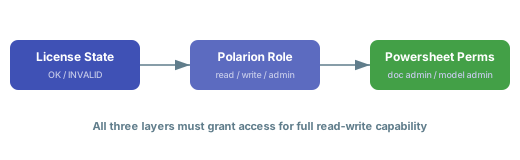
Powersheet access is determined by three factors working together: **license state**, **Polarion user role**, and **Powersheet-level permissions**. All three must be satisfied for full read-write access.
## License Status and Behavior
Powersheet communicates its license state through four severity levels:
| Status | Icon | Meaning | Effect on Users |
| --------- | ---- | ---------------------- | ----------------------------------------- |
| `OK` | ✅ | Valid license | All features enabled |
| `INFO` | ℹ️ | Informational notice | Full functionality with a banner message |
| `WARNING` | ⚠️ | License issue detected | Limited functionality; action recommended |
| `INVALID` | ❌ | No valid license | Entire sheet forced into read-only mode |
When the status is anything other than `OK`, a message in the license panel explains the specific issue, such as an approaching expiration date or exceeded user count.
The license panel renders as a non-blocking banner at the bottom of the Powersheet viewport. It displays the current license state -- including trial, expired, or invalid conditions -- and provides a link to obtain or renew a license from Nextedy. The banner does not prevent you from viewing the sheet, but editing capabilities may be restricted depending on the severity level.
When the license status reaches `INVALID`, Powersheet enforces a global `readOnly` flag across the entire application. All data editing, configuration changes, and save operations are disabled for every user in the project. The effective read-only state is determined by combining the license status with user permissions -- if either the license is invalid or the user lacks write permissions, the sheet becomes read-only.
An invalid license affects **all users** in the project, not just administrators. Plan license renewals before expiration to avoid disrupting active workflows.
## License Management
Contact Nextedy support and provide your Polarion server details (hostname, environment type, and Polarion version). Nextedy will generate a time-limited evaluation license file that you can apply through the Polarion administration interface. Evaluation licenses typically provide full functionality for a fixed trial period.
Navigate to **Administration > Nextedy Powersheet > License** in the Polarion administration interface. The license management page is available at the project, project group, and repository (global) scope levels. From this page you can view the current license status, see expiration details, and apply new license files.
Contact Nextedy support with your server information and current license details before the expiration date. Once you receive the renewal file, apply it through **Administration > Nextedy Powersheet > License** in Polarion. The new license takes effect immediately without requiring a server restart.
The exact renewal workflow may vary depending on your organization's agreement with Nextedy. Contact your account representative for specific renewal procedures and pricing.
## Permissions and Access Control
Powersheet enforces a three-layer access model. Each layer must grant access for the user to have full capabilities:
1. **License layer** -- The license status sets the baseline. An `INVALID` license forces read-only mode for everyone, regardless of other permissions.
2. **Polarion role layer** -- The user's Polarion project role determines what actions are available in the platform (viewing, editing, administering).
3. **Powersheet permission layer** -- Powersheet checks specific capability flags fetched from the server at load time:
* **Document administration** -- `read` to view sheet configuration, `write` to modify it
* **Model administration** -- `read` to view the data model, `write` to modify it
The final effective permission is the intersection of all three layers. For example, a user with full Polarion write permissions will still be read-only if the license is `INVALID`.
 Your effective permissions are determined by Powersheet at load time based on your Polarion user role combined with the current license status. If you cannot edit data or access configuration settings, verify two things with your Polarion administrator: (1) that you have the appropriate project role assigned, and (2) that the license status is `OK`. See the [Configuration FAQ](/powersheet/faq/configuration) for additional permission-related troubleshooting.
Powersheet fetches permissions from the server when the sheet loads. If your Polarion role is changed while you have a sheet open, the change will not take effect until you reload the page. Save any pending edits before asking your administrator to change your role, then refresh the browser to pick up the new permissions.
## Product Registration
Powersheet registers as a product within the Polarion server during initialization. The registration includes identity metadata (product name and version), a license status provider for real-time license checks, and an authorization checker that determines whether the current user can access Powersheet. This registration process is automatic and requires no manual configuration beyond applying a valid license file.
Powersheet also registers a file supplier under the identifier `sheet_configuration`, which enables storage and retrieval of YAML sheet configurations from the project repository. This is why sheet configurations appear under **Administration > Nextedy Powersheet** in the Polarion UI.
Your effective permissions are determined by Powersheet at load time based on your Polarion user role combined with the current license status. If you cannot edit data or access configuration settings, verify two things with your Polarion administrator: (1) that you have the appropriate project role assigned, and (2) that the license status is `OK`. See the [Configuration FAQ](/powersheet/faq/configuration) for additional permission-related troubleshooting.
Powersheet fetches permissions from the server when the sheet loads. If your Polarion role is changed while you have a sheet open, the change will not take effect until you reload the page. Save any pending edits before asking your administrator to change your role, then refresh the browser to pick up the new permissions.
## Product Registration
Powersheet registers as a product within the Polarion server during initialization. The registration includes identity metadata (product name and version), a license status provider for real-time license checks, and an authorization checker that determines whether the current user can access Powersheet. This registration process is automatic and requires no manual configuration beyond applying a valid license file.
Powersheet also registers a file supplier under the identifier `sheet_configuration`, which enables storage and retrieval of YAML sheet configurations from the project repository. This is why sheet configurations appear under **Administration > Nextedy Powersheet** in the Polarion UI.