> ## Documentation Index
> Fetch the complete documentation index at: https://learn.nextedy.com/llms.txt
> Use this file to discover all available pages before exploring further.
# Frequently Asked Questions
> Find quick answers to common questions about Nextedy POWERSHEET.
export const LastReviewed = ({date}) => {
if (!date) return null;
const formatted = new Date(`${date}T00:00:00Z`).toLocaleDateString("en-US", {
year: "numeric",
month: "long",
day: "numeric",
timeZone: "UTC"
});
return
Last reviewed on {formatted}
;
};
***
Powersheet is a hierarchical sheet application for Polarion that provides configurable tabular views over complex work item hierarchies. It enables Excel-like editing and traceability directly inside Polarion, letting teams manage requirements traceability matrices, risk analyses, and structured data without leaving their ALM environment. For a full introduction, see [Getting Started](/powersheet/getting-started/index).
Powersheet serves systems engineers, requirements managers, quality engineers, and safety engineers who work with Polarion. Skill levels range from end users who view and edit data in sheets to administrators who configure data models and sheet configurations. It is particularly useful for teams managing structured hierarchical data in regulated industries — from requirements traceability matrices (RTM) to risk management workflows.
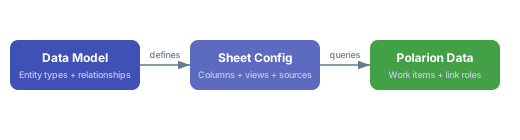
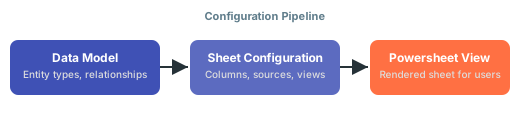
A **data model** defines entity types, their properties, and the relationships between them — it maps Powersheet entity types to Polarion work item types and establishes navigable links via link roles. A **sheet configuration** defines how data from the data model is displayed: column layout, widths, formatters, views, sorting, and expansion paths. Both are YAML files stored in the project SVN.
| Aspect | Data Model | Sheet Configuration |
| ------------ | ----------------------------------- | -------------------------------- |
| Purpose | Entity types and relationships | Column layout and display |
| Key sections | `domainModelTypes`, `relationships` | `columns`, `sources`, `views` |
| Scope | Shared across multiple sheets | Specific to one sheet view |
| Controls | Data structure and navigation paths | Visual presentation and behavior |
For details on each, see the [Data Model Reference](/powersheet/reference/data-model/index) and [Sheet Configuration Reference](/powersheet/reference/sheet-config/index).
Powersheet maps data model entity types to Polarion work item types via the `polarionType` property. Relationships between entity types are stored using Polarion link roles, with `direct` and `back` navigation directions defined in the data model. When users load a sheet, Powersheet queries Polarion for work items matching the source configuration and displays them according to the column definitions. Save operations write changes back to Polarion work items through the server API.
 Data models can be defined at the **global** scope (accessible from `_global`) and referenced by sheet configurations in any project. This lets you maintain a single data model definition used by multiple projects. Note that while the data model definition itself can be shared globally, each sheet still queries data within a single Polarion project scope — cross-project querying is not supported.
Even when using a globally defined data model, each sheet's source configuration queries work items within the project where the sheet is embedded. Cross-project query scoping is not a supported feature.
Powersheet supports ISO 15288 (systems engineering), Automotive SPICE, ISO 26262 (via RTM traceability), and general requirements management processes. The standard RTM example uses the entity hierarchy `UserNeed` > `SystemRequirement` > `DesignRequirement` > `Hazard` > `RiskControl` to demonstrate traceability across these domains. For industry-specific models, see the [Example Models Reference](/powersheet/reference/example-models/index).
Begin with the simplest possible configuration and extend incrementally. Create a data model with one or two entity types and a basic sheet configuration with a few columns. Verify each step works before adding complexity — this avoids hard-to-diagnose errors that arise from multi-level hierarchies with many-to-many relationships on a first attempt. See [Getting Started](/powersheet/getting-started/index) for a guided walkthrough.
Start with a single entity type, a handful of columns, and one source definition. Add relationships, expansion paths, column groups, and formatters one at a time. Test after each addition.
Master-downstream is the hierarchical display pattern where master items (such as `UserNeed`) expand to show their related downstream items (such as `SystemRequirement`). The sheet automatically merges cells for master-level columns to span all downstream rows, providing visual grouping. Users can add or remove items at both levels, and undo/redo is fully supported across all operations.
Review mode is a toggle in the sheet toolbar that filters the view to show only modified, added, or removed rows. It lets users focus on changes they have made before saving, reducing the risk of unintended modifications. Review mode displays counts of changed items and works alongside the standard save validation.
Check the [Troubleshooting Guides](/powersheet/guides/troubleshooting/index) for step-by-step error resolution, or browse the [Troubleshooting FAQ](/powersheet/faq/troubleshooting) for quick answers. For configuration-specific questions, see the [Configuration FAQ](/powersheet/faq/configuration) and [Sheet Configuration FAQ](/powersheet/faq/sheet-configuration). If your issue is not covered in the documentation, submit a support ticket through the [Nextedy support portal](https://support.nextedy.com/support/tickets/new).
## License Status and Behavior
Powersheet communicates its license state through four severity levels:
| Status | Icon | Meaning | Effect on Users |
| --------- | ---- | ---------------------- | ----------------------------------------- |
| `OK` | ✅ | Valid license | All features enabled |
| `INFO` | ℹ️ | Informational notice | Full functionality with a banner message |
| `WARNING` | ⚠️ | License issue detected | Limited functionality; action recommended |
| `INVALID` | ❌ | No valid license | Entire sheet forced into read-only mode |
When the status is anything other than `OK`, a message in the license panel explains the specific issue, such as an approaching expiration date or exceeded user count.
The license panel renders as a non-blocking banner at the bottom of the Powersheet viewport. It displays the current license state -- including trial, expired, or invalid conditions -- and provides a link to obtain or renew a license from Nextedy. The banner does not prevent you from viewing the sheet, but editing capabilities may be restricted depending on the severity level.
When the license status reaches `INVALID`, Powersheet enforces a global `readOnly` flag across the entire application. All data editing, configuration changes, and save operations are disabled for every user in the project. The effective read-only state is determined by combining the license status with user permissions -- if either the license is invalid or the user lacks write permissions, the sheet becomes read-only.
An invalid license affects **all users** in the project, not just administrators. Plan license renewals before expiration to avoid disrupting active workflows.
## License Management
Contact Nextedy support and provide your Polarion server details (hostname, environment type, and Polarion version). Nextedy will generate a time-limited evaluation license file that you can apply through the Polarion administration interface. Evaluation licenses typically provide full functionality for a fixed trial period.
Navigate to **Administration > Nextedy Powersheet > License** in the Polarion administration interface. The license management page is available at the project, project group, and repository (global) scope levels. From this page you can view the current license status, see expiration details, and apply new license files.
Contact Nextedy support with your server information and current license details before the expiration date. Once you receive the renewal file, apply it through **Administration > Nextedy Powersheet > License** in Polarion. The new license takes effect immediately without requiring a server restart.
The exact renewal workflow may vary depending on your organization's agreement with Nextedy. Contact your account representative for specific renewal procedures and pricing.
## Permissions and Access Control
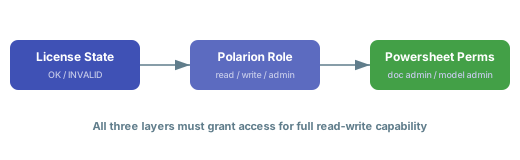
Powersheet enforces a three-layer access model. Each layer must grant access for the user to have full capabilities:
1. **License layer** -- The license status sets the baseline. An `INVALID` license forces read-only mode for everyone, regardless of other permissions.
2. **Polarion role layer** -- The user's Polarion project role determines what actions are available in the platform (viewing, editing, administering).
3. **Powersheet permission layer** -- Powersheet checks specific capability flags fetched from the server at load time:
* **Document administration** -- `read` to view sheet configuration, `write` to modify it
* **Model administration** -- `read` to view the data model, `write` to modify it
The final effective permission is the intersection of all three layers. For example, a user with full Polarion write permissions will still be read-only if the license is `INVALID`.
Data models can be defined at the **global** scope (accessible from `_global`) and referenced by sheet configurations in any project. This lets you maintain a single data model definition used by multiple projects. Note that while the data model definition itself can be shared globally, each sheet still queries data within a single Polarion project scope — cross-project querying is not supported.
Even when using a globally defined data model, each sheet's source configuration queries work items within the project where the sheet is embedded. Cross-project query scoping is not a supported feature.
Powersheet supports ISO 15288 (systems engineering), Automotive SPICE, ISO 26262 (via RTM traceability), and general requirements management processes. The standard RTM example uses the entity hierarchy `UserNeed` > `SystemRequirement` > `DesignRequirement` > `Hazard` > `RiskControl` to demonstrate traceability across these domains. For industry-specific models, see the [Example Models Reference](/powersheet/reference/example-models/index).
Begin with the simplest possible configuration and extend incrementally. Create a data model with one or two entity types and a basic sheet configuration with a few columns. Verify each step works before adding complexity — this avoids hard-to-diagnose errors that arise from multi-level hierarchies with many-to-many relationships on a first attempt. See [Getting Started](/powersheet/getting-started/index) for a guided walkthrough.
Start with a single entity type, a handful of columns, and one source definition. Add relationships, expansion paths, column groups, and formatters one at a time. Test after each addition.
Master-downstream is the hierarchical display pattern where master items (such as `UserNeed`) expand to show their related downstream items (such as `SystemRequirement`). The sheet automatically merges cells for master-level columns to span all downstream rows, providing visual grouping. Users can add or remove items at both levels, and undo/redo is fully supported across all operations.
Review mode is a toggle in the sheet toolbar that filters the view to show only modified, added, or removed rows. It lets users focus on changes they have made before saving, reducing the risk of unintended modifications. Review mode displays counts of changed items and works alongside the standard save validation.
Check the [Troubleshooting Guides](/powersheet/guides/troubleshooting/index) for step-by-step error resolution, or browse the [Troubleshooting FAQ](/powersheet/faq/troubleshooting) for quick answers. For configuration-specific questions, see the [Configuration FAQ](/powersheet/faq/configuration) and [Sheet Configuration FAQ](/powersheet/faq/sheet-configuration). If your issue is not covered in the documentation, submit a support ticket through the [Nextedy support portal](https://support.nextedy.com/support/tickets/new).
## License Status and Behavior
Powersheet communicates its license state through four severity levels:
| Status | Icon | Meaning | Effect on Users |
| --------- | ---- | ---------------------- | ----------------------------------------- |
| `OK` | ✅ | Valid license | All features enabled |
| `INFO` | ℹ️ | Informational notice | Full functionality with a banner message |
| `WARNING` | ⚠️ | License issue detected | Limited functionality; action recommended |
| `INVALID` | ❌ | No valid license | Entire sheet forced into read-only mode |
When the status is anything other than `OK`, a message in the license panel explains the specific issue, such as an approaching expiration date or exceeded user count.
The license panel renders as a non-blocking banner at the bottom of the Powersheet viewport. It displays the current license state -- including trial, expired, or invalid conditions -- and provides a link to obtain or renew a license from Nextedy. The banner does not prevent you from viewing the sheet, but editing capabilities may be restricted depending on the severity level.
When the license status reaches `INVALID`, Powersheet enforces a global `readOnly` flag across the entire application. All data editing, configuration changes, and save operations are disabled for every user in the project. The effective read-only state is determined by combining the license status with user permissions -- if either the license is invalid or the user lacks write permissions, the sheet becomes read-only.
An invalid license affects **all users** in the project, not just administrators. Plan license renewals before expiration to avoid disrupting active workflows.
## License Management
Contact Nextedy support and provide your Polarion server details (hostname, environment type, and Polarion version). Nextedy will generate a time-limited evaluation license file that you can apply through the Polarion administration interface. Evaluation licenses typically provide full functionality for a fixed trial period.
Navigate to **Administration > Nextedy Powersheet > License** in the Polarion administration interface. The license management page is available at the project, project group, and repository (global) scope levels. From this page you can view the current license status, see expiration details, and apply new license files.
Contact Nextedy support with your server information and current license details before the expiration date. Once you receive the renewal file, apply it through **Administration > Nextedy Powersheet > License** in Polarion. The new license takes effect immediately without requiring a server restart.
The exact renewal workflow may vary depending on your organization's agreement with Nextedy. Contact your account representative for specific renewal procedures and pricing.
## Permissions and Access Control
Powersheet enforces a three-layer access model. Each layer must grant access for the user to have full capabilities:
1. **License layer** -- The license status sets the baseline. An `INVALID` license forces read-only mode for everyone, regardless of other permissions.
2. **Polarion role layer** -- The user's Polarion project role determines what actions are available in the platform (viewing, editing, administering).
3. **Powersheet permission layer** -- Powersheet checks specific capability flags fetched from the server at load time:
* **Document administration** -- `read` to view sheet configuration, `write` to modify it
* **Model administration** -- `read` to view the data model, `write` to modify it
The final effective permission is the intersection of all three layers. For example, a user with full Polarion write permissions will still be read-only if the license is `INVALID`.
 Your effective permissions are determined by Powersheet at load time based on your Polarion user role combined with the current license status. If you cannot edit data or access configuration settings, verify two things with your Polarion administrator: (1) that you have the appropriate project role assigned, and (2) that the license status is `OK`. See the [Configuration FAQ](/powersheet/faq/configuration) for additional permission-related troubleshooting.
Powersheet fetches permissions from the server when the sheet loads. If your Polarion role is changed while you have a sheet open, the change will not take effect until you reload the page. Save any pending edits before asking your administrator to change your role, then refresh the browser to pick up the new permissions.
## Product Registration
Powersheet registers as a product within the Polarion server during initialization. The registration includes identity metadata (product name and version), a license status provider for real-time license checks, and an authorization checker that determines whether the current user can access Powersheet. This registration process is automatic and requires no manual configuration beyond applying a valid license file.
Powersheet also registers a file supplier under the identifier `sheet_configuration`, which enables storage and retrieval of YAML sheet configurations from the project repository. This is why sheet configurations appear under **Administration > Nextedy Powersheet** in the Polarion UI.
## Administration Access
Powersheet administration pages are integrated into Polarion's standard administration interface under the **Administration > Nextedy Powersheet** section. From there you can access:
* **Data Models** -- manage data model YAML files
* **Sheet Configurations** -- manage sheet configuration YAML files
* **Setup** -- initial Powersheet setup and configuration
* **License** -- license management
These pages are available at project, project group, and repository (global) scope levels.
Powersheet supports two configuration scopes for both data models and sheet configurations. **Global configurations** are stored at the repository level and are available to all projects -- they appear with a "(Global)" suffix in the configuration picker. **Project-specific configurations** are stored within an individual project and are only available in that project context. Project configurations supplement or override global ones.
Use global configurations for organization-wide standards, then create project-specific configurations only when a project needs deviations from the global defaults.
## Configuration Editor
The built-in configuration editor supports three scopes for managing configuration files:
| Scope | Description |
| ---------- | ---------------------------------------------------- |
| `instance` | Per-instance override for a specific document |
| `template` | Template-level configuration shared across documents |
| `default` | Global defaults applied when no override exists |
The scope control can be `ENABLED`, `DISALLOWED`, or `DISABLED` depending on your permissions and the current editing context.
Yes. The configuration editor can attach a JSON Schema to validate your YAML content as you type. This provides real-time feedback on configuration errors, missing required fields, and invalid property values. The schema is auto-generated from the data model definition, ensuring that your configuration references valid Polarion prototypes and entity types.
The editor supports both YAML and JSON as configuration languages. You can switch between them, and the content is automatically converted when you change the language setting. By default, the editor uses YAML (`lang: yaml`). Your language preference is saved in your browser and persists across sessions.
Additional editor features such as line wrapping and keyboard mode preferences are available in the editor toolbar.
## Sheet Configuration Assignment
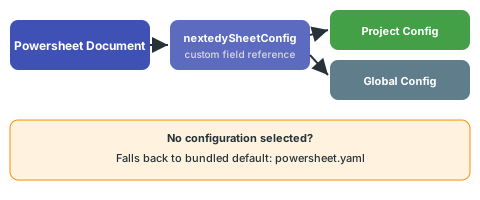
Each Powersheet document has a custom field (`nextedySheetConfig`) that references a sheet configuration YAML file. Powersheet scans both the global and project-specific configuration directories for available YAML files and populates a picklist from which you select the desired configuration. If no configuration is selected, the document uses a bundled default configuration (`powersheet.yaml`).
Your effective permissions are determined by Powersheet at load time based on your Polarion user role combined with the current license status. If you cannot edit data or access configuration settings, verify two things with your Polarion administrator: (1) that you have the appropriate project role assigned, and (2) that the license status is `OK`. See the [Configuration FAQ](/powersheet/faq/configuration) for additional permission-related troubleshooting.
Powersheet fetches permissions from the server when the sheet loads. If your Polarion role is changed while you have a sheet open, the change will not take effect until you reload the page. Save any pending edits before asking your administrator to change your role, then refresh the browser to pick up the new permissions.
## Product Registration
Powersheet registers as a product within the Polarion server during initialization. The registration includes identity metadata (product name and version), a license status provider for real-time license checks, and an authorization checker that determines whether the current user can access Powersheet. This registration process is automatic and requires no manual configuration beyond applying a valid license file.
Powersheet also registers a file supplier under the identifier `sheet_configuration`, which enables storage and retrieval of YAML sheet configurations from the project repository. This is why sheet configurations appear under **Administration > Nextedy Powersheet** in the Polarion UI.
## Administration Access
Powersheet administration pages are integrated into Polarion's standard administration interface under the **Administration > Nextedy Powersheet** section. From there you can access:
* **Data Models** -- manage data model YAML files
* **Sheet Configurations** -- manage sheet configuration YAML files
* **Setup** -- initial Powersheet setup and configuration
* **License** -- license management
These pages are available at project, project group, and repository (global) scope levels.
Powersheet supports two configuration scopes for both data models and sheet configurations. **Global configurations** are stored at the repository level and are available to all projects -- they appear with a "(Global)" suffix in the configuration picker. **Project-specific configurations** are stored within an individual project and are only available in that project context. Project configurations supplement or override global ones.
Use global configurations for organization-wide standards, then create project-specific configurations only when a project needs deviations from the global defaults.
## Configuration Editor
The built-in configuration editor supports three scopes for managing configuration files:
| Scope | Description |
| ---------- | ---------------------------------------------------- |
| `instance` | Per-instance override for a specific document |
| `template` | Template-level configuration shared across documents |
| `default` | Global defaults applied when no override exists |
The scope control can be `ENABLED`, `DISALLOWED`, or `DISABLED` depending on your permissions and the current editing context.
Yes. The configuration editor can attach a JSON Schema to validate your YAML content as you type. This provides real-time feedback on configuration errors, missing required fields, and invalid property values. The schema is auto-generated from the data model definition, ensuring that your configuration references valid Polarion prototypes and entity types.
The editor supports both YAML and JSON as configuration languages. You can switch between them, and the content is automatically converted when you change the language setting. By default, the editor uses YAML (`lang: yaml`). Your language preference is saved in your browser and persists across sessions.
Additional editor features such as line wrapping and keyboard mode preferences are available in the editor toolbar.
## Sheet Configuration Assignment
Each Powersheet document has a custom field (`nextedySheetConfig`) that references a sheet configuration YAML file. Powersheet scans both the global and project-specific configuration directories for available YAML files and populates a picklist from which you select the desired configuration. If no configuration is selected, the document uses a bundled default configuration (`powersheet.yaml`).
 Yes. Sheet configurations are stored as standalone YAML files in the repository, independent of any specific document. Multiple Powersheet documents can reference the same configuration file through their `nextedySheetConfig` custom field. This is the recommended approach for maintaining consistency across related documents in a project.
You can change a document's sheet configuration by updating the `nextedySheetConfig` custom field on the document, either through the Polarion work item editor or programmatically. You can also edit the configuration YAML directly through **Administration > Nextedy Powersheet > Sheet Configurations**, which will affect all documents referencing that configuration.
See [Creating Your First Sheet Configuration](/powersheet/getting-started/first-sheet-configuration) for a guided walkthrough.
## Data Model Basics
The **data model** is a YAML configuration file that defines the semantic layer between Polarion's native work item types and Powersheet's sheet views. It maps Polarion types, link roles, and custom fields into structured entity types and relationships that Powersheet uses for querying, displaying, and editing data. Without a data model, Powersheet cannot understand which work items to load or how they relate to each other.
See the [Data Model Reference](/powersheet/reference/data-model/index) for the complete property reference.
Data models are managed through the Polarion administration interface at **Administration > Nextedy Powersheet > Data Models**. You can create both global models (available to all projects) and project-specific models. Multiple models can coexist, and each sheet configuration references a specific model by name.
The three configuration layers are connected through navigation property names:
* **Data model** defines entity types and relationships (with `direct` and `back` navigation names)
* **Sources** define how to query and expand those relationships (using the navigation names)
* **Columns** define how to display the resulting data (using dot-notation binding paths)
The cardinality of a relationship determines the expand pattern and column binding syntax. See the [Sheet Configuration Reference](/powersheet/reference/sheet-config/index) for column binding details.
Yes. Sheet configurations are stored as standalone YAML files in the repository, independent of any specific document. Multiple Powersheet documents can reference the same configuration file through their `nextedySheetConfig` custom field. This is the recommended approach for maintaining consistency across related documents in a project.
You can change a document's sheet configuration by updating the `nextedySheetConfig` custom field on the document, either through the Polarion work item editor or programmatically. You can also edit the configuration YAML directly through **Administration > Nextedy Powersheet > Sheet Configurations**, which will affect all documents referencing that configuration.
See [Creating Your First Sheet Configuration](/powersheet/getting-started/first-sheet-configuration) for a guided walkthrough.
## Data Model Basics
The **data model** is a YAML configuration file that defines the semantic layer between Polarion's native work item types and Powersheet's sheet views. It maps Polarion types, link roles, and custom fields into structured entity types and relationships that Powersheet uses for querying, displaying, and editing data. Without a data model, Powersheet cannot understand which work items to load or how they relate to each other.
See the [Data Model Reference](/powersheet/reference/data-model/index) for the complete property reference.
Data models are managed through the Polarion administration interface at **Administration > Nextedy Powersheet > Data Models**. You can create both global models (available to all projects) and project-specific models. Multiple models can coexist, and each sheet configuration references a specific model by name.
The three configuration layers are connected through navigation property names:
* **Data model** defines entity types and relationships (with `direct` and `back` navigation names)
* **Sources** define how to query and expand those relationships (using the navigation names)
* **Columns** define how to display the resulting data (using dot-notation binding paths)
The cardinality of a relationship determines the expand pattern and column binding syntax. See the [Sheet Configuration Reference](/powersheet/reference/sheet-config/index) for column binding details.
 ## Entity Types and Properties
Entity types are defined in the `domainModelTypes` section of the YAML file using **map format only** — each key is the entity type name, and the value contains its configuration. The `polarionType` property maps the entity type to a Polarion work item type.
```yaml theme={null}
domainModelTypes:
UserNeed:
polarionType: user_need
properties:
description:
severity:
SystemRequirement:
polarionType: sys_req
properties:
description:
severity:
```
The `domainModelTypes` section must use **map format** (keyed by type name). Array format is not supported and will not work.
Each entry under `properties` defines a field exposed in the Powersheet sheet. Properties are listed as keys under the entity type. Key property attributes include:
| Attribute | Purpose | Default |
| ----------------- | ---------------------------- | -------------- |
| `name` | Client-facing property name | Required |
| `serverName` | Polarion field name override | Same as `name` |
| `customFieldName` | Polarion custom field ID | -- |
| `readable` | Can be read by users | `true` |
| `updatable` | Can be modified by users | `true` |
| `scalar` | Single value vs. collection | `true` |
| `enumValues` | Valid enum option IDs | -- |
Use `serverName` to alias Polarion field names to more user-friendly names, and `customFieldName` when a property maps to a Polarion custom field rather than a built-in field.
## Relationships and Cardinality
Powersheet supports two relationship cardinality types in the data model, plus the implicit reverse of many-to-one:
| Cardinality | Direction | Navigation Property | UI Behavior |
| -------------- | ----------------------- | ------------------------------------------------------- | ----------------------------- |
| `many-to-one` | `direct` | Scalar (e.g., `chapter`) | Single-value reference picker |
| One-to-many | `back` (reverse of N:1) | Collection (e.g., `userNeeds`) | Child rows (new sheet level) |
| `many-to-many` | `back` | Collection via association (e.g., `systemRequirements`) | Multi-item reference picker |
Relationships are defined in the `relationships` array of the data model and map to Polarion link roles via the `linkRole` property. Each relationship specifies a `direct` and `back` navigation property name.
A many-to-one relationship links multiple entities to a single target. Use the `direct` navigation property name in your source expand and column binding:
```yaml theme={null}
relationships:
- from: UserNeed
to: Chapter
cardinality: many-to-one
storage: linkedWorkItems
linkRole: parent
direct:
name: chapter
back:
name: userNeeds
```
In the source, expand using the direct name. In columns, bind with `chapter` for a reference picker or `chapter.title` for a read-only display of the referenced entity's title.
Many-to-many relationships use an **association entity** between the two types. This requires a two-level expand in the source configuration and dot-notation in column bindings:
```yaml theme={null}
# Source: two-level expand
sources:
- id: user_needs
query:
from: UserNeed
expand:
- name: systemRequirements
expand:
- name: systemRequirement
# Columns: dot-notation binding
columns:
systemRequirements.systemRequirement:
title: System Requirement
list:
search:
- objectId
- title
systemRequirements.systemRequirement.title:
title: SysReq Title
hasFocus: true
```
The first level (`systemRequirements`) reaches the association entity; the second level (`systemRequirement`) reaches the actual target entity. See the [Data Model Guides](/powersheet/guides/data-model/index) for walkthrough examples.
## Configuration Tips
Always start with the simplest possible configuration and extend incrementally. Begin with a single entity type and one or two properties, verify it works in a sheet, then add relationships and additional entity types one at a time. Jumping directly to a complex multi-entity model leads to hard-to-diagnose configuration errors.
Start with one entity type, add a source and a few columns, confirm the sheet loads. Then add a relationship and expand one level at a time. This makes it easy to identify which change introduced a problem.
The `linkRole` property in a relationship definition specifies the Polarion link role used to persist the connection. This must match a link role defined in your Polarion project's link role configuration. The `storage` property determines how the relationship is persisted — `linkedWorkItems` is the only supported storage mechanism, using Polarion's native linking to persist connections.
The `constraints` section on an entity type restricts which items appear in picker dialogs. You can filter by document location, type, or component:
```yaml theme={null}
domainModelTypes:
SystemRequirement:
polarionType: sys_req
constraints:
pick:
document:
moduleFolder: Requirements
type: requirements_specification
component: $context.source.document.component
```
The `$context.source.document.component` expression dynamically filters results based on the source entity's document component, enforcing component-scoped relationships. See the [Configuration FAQ](/powersheet/faq/configuration) for more on validation and constraints.
## Configuration Basics
A **sheet configuration** is a YAML file that defines how Nextedy Powersheet displays and interacts with data from the data model. It specifies columns, data sources, views, column groups, formatters, and sorting behavior. Each Powersheet document references a sheet configuration through the `nextedySheetConfig` custom field. Configurations are managed in **Administration > Nextedy Powersheet > Sheet Configurations**.
See [Creating Your First Sheet Configuration](/powersheet/getting-started/first-sheet-configuration) for a step-by-step tutorial.
The sheet configuration depends on the data model for entity type definitions, relationships, and property metadata. Column binding paths in the configuration reference properties and expansion paths defined in the data model. The `model` property in the `sources` section specifies which data model to use. If the model and configuration do not match, you will see errors when loading the sheet.
## Entity Types and Properties
Entity types are defined in the `domainModelTypes` section of the YAML file using **map format only** — each key is the entity type name, and the value contains its configuration. The `polarionType` property maps the entity type to a Polarion work item type.
```yaml theme={null}
domainModelTypes:
UserNeed:
polarionType: user_need
properties:
description:
severity:
SystemRequirement:
polarionType: sys_req
properties:
description:
severity:
```
The `domainModelTypes` section must use **map format** (keyed by type name). Array format is not supported and will not work.
Each entry under `properties` defines a field exposed in the Powersheet sheet. Properties are listed as keys under the entity type. Key property attributes include:
| Attribute | Purpose | Default |
| ----------------- | ---------------------------- | -------------- |
| `name` | Client-facing property name | Required |
| `serverName` | Polarion field name override | Same as `name` |
| `customFieldName` | Polarion custom field ID | -- |
| `readable` | Can be read by users | `true` |
| `updatable` | Can be modified by users | `true` |
| `scalar` | Single value vs. collection | `true` |
| `enumValues` | Valid enum option IDs | -- |
Use `serverName` to alias Polarion field names to more user-friendly names, and `customFieldName` when a property maps to a Polarion custom field rather than a built-in field.
## Relationships and Cardinality
Powersheet supports two relationship cardinality types in the data model, plus the implicit reverse of many-to-one:
| Cardinality | Direction | Navigation Property | UI Behavior |
| -------------- | ----------------------- | ------------------------------------------------------- | ----------------------------- |
| `many-to-one` | `direct` | Scalar (e.g., `chapter`) | Single-value reference picker |
| One-to-many | `back` (reverse of N:1) | Collection (e.g., `userNeeds`) | Child rows (new sheet level) |
| `many-to-many` | `back` | Collection via association (e.g., `systemRequirements`) | Multi-item reference picker |
Relationships are defined in the `relationships` array of the data model and map to Polarion link roles via the `linkRole` property. Each relationship specifies a `direct` and `back` navigation property name.
A many-to-one relationship links multiple entities to a single target. Use the `direct` navigation property name in your source expand and column binding:
```yaml theme={null}
relationships:
- from: UserNeed
to: Chapter
cardinality: many-to-one
storage: linkedWorkItems
linkRole: parent
direct:
name: chapter
back:
name: userNeeds
```
In the source, expand using the direct name. In columns, bind with `chapter` for a reference picker or `chapter.title` for a read-only display of the referenced entity's title.
Many-to-many relationships use an **association entity** between the two types. This requires a two-level expand in the source configuration and dot-notation in column bindings:
```yaml theme={null}
# Source: two-level expand
sources:
- id: user_needs
query:
from: UserNeed
expand:
- name: systemRequirements
expand:
- name: systemRequirement
# Columns: dot-notation binding
columns:
systemRequirements.systemRequirement:
title: System Requirement
list:
search:
- objectId
- title
systemRequirements.systemRequirement.title:
title: SysReq Title
hasFocus: true
```
The first level (`systemRequirements`) reaches the association entity; the second level (`systemRequirement`) reaches the actual target entity. See the [Data Model Guides](/powersheet/guides/data-model/index) for walkthrough examples.
## Configuration Tips
Always start with the simplest possible configuration and extend incrementally. Begin with a single entity type and one or two properties, verify it works in a sheet, then add relationships and additional entity types one at a time. Jumping directly to a complex multi-entity model leads to hard-to-diagnose configuration errors.
Start with one entity type, add a source and a few columns, confirm the sheet loads. Then add a relationship and expand one level at a time. This makes it easy to identify which change introduced a problem.
The `linkRole` property in a relationship definition specifies the Polarion link role used to persist the connection. This must match a link role defined in your Polarion project's link role configuration. The `storage` property determines how the relationship is persisted — `linkedWorkItems` is the only supported storage mechanism, using Polarion's native linking to persist connections.
The `constraints` section on an entity type restricts which items appear in picker dialogs. You can filter by document location, type, or component:
```yaml theme={null}
domainModelTypes:
SystemRequirement:
polarionType: sys_req
constraints:
pick:
document:
moduleFolder: Requirements
type: requirements_specification
component: $context.source.document.component
```
The `$context.source.document.component` expression dynamically filters results based on the source entity's document component, enforcing component-scoped relationships. See the [Configuration FAQ](/powersheet/faq/configuration) for more on validation and constraints.
## Configuration Basics
A **sheet configuration** is a YAML file that defines how Nextedy Powersheet displays and interacts with data from the data model. It specifies columns, data sources, views, column groups, formatters, and sorting behavior. Each Powersheet document references a sheet configuration through the `nextedySheetConfig` custom field. Configurations are managed in **Administration > Nextedy Powersheet > Sheet Configurations**.
See [Creating Your First Sheet Configuration](/powersheet/getting-started/first-sheet-configuration) for a step-by-step tutorial.
The sheet configuration depends on the data model for entity type definitions, relationships, and property metadata. Column binding paths in the configuration reference properties and expansion paths defined in the data model. The `model` property in the `sources` section specifies which data model to use. If the model and configuration do not match, you will see errors when loading the sheet.
 Start with the simplest possible configuration -- a single entity type, a few columns, and one data source. Verify that the basic setup loads correctly, then extend gradually by adding relationships, column groups, and formatters. Jumping to a complex multi-entity configuration leads to difficult-to-diagnose errors.
See [Incremental Configuration Approach](/powersheet/getting-started/incremental-configuration) for a recommended step-by-step build strategy.
## Columns and Binding Paths
Column keys in the YAML use dot-separated **binding paths** that follow the expansion paths defined in the data model. A simple property like `title` maps directly to the base entity, while a multi-level path like `systemRequirements.systemRequirement.severity` navigates through a relationship to access a property on a related entity type. Each segment of the path corresponds to a navigation property in the data model.
```yaml theme={null}
columns:
title:
title: "Title"
width: 250
hasFocus: true
systemRequirements.systemRequirement.severity:
title: "Req Severity"
width: 100
formatter: severity-formatter
```
Each column supports several configuration properties:
| Property | Type | Description |
| ------------- | ------- | ------------------------------------------- |
| `title` | string | Display header text |
| `width` | number | Column width in pixels |
| `visible` | boolean | Show in default view (default: `true`) |
| `hasFocus` | boolean | Receives focus when editing a row |
| `formatter` | string | Name of a formatter for conditional styling |
| `columnGroup` | string | Associates column with a visual group |
Column visibility can be overridden in named views, allowing different analysis perspectives without changing the base configuration.
## Data Sources and Scoping
The `sources` section defines how Powersheet queries data from Polarion. Each data source specifies a `model` reference, a `from` entity type, optional `where` filters, `expand` paths for loading related entities, and `take` limits. Powersheet automatically applies document-scoping constraints to all queries, ensuring data is filtered to the current document context.
```yaml theme={null}
sources:
- model: my-rtm-model
from: UserNeed
where: "type:user_need"
take: 500
expand:
- systemRequirements
```
Yes. Sheet configurations support `$context` expressions that are resolved at runtime. For example, `$context.document.id` resolves the current document path, and `$context.source.project.id` resolves the source entity's project. Dynamic values are also used in constraint definitions to route entity creation based on the source entity type.
Yes. Sheet configurations are standalone YAML files stored in the repository. Multiple Powersheet documents can reference the same configuration file through the `nextedySheetConfig` custom field. This is the recommended approach for maintaining consistent views across related documents. Global configurations (stored at the repository level) can be shared across all projects in your Polarion instance.
## Document Management
Powersheet documents are created as Polarion LiveDoc modules with a specific document type (typically containing "powersheet"). You can create documents through the Powersheet administration interface by specifying a name, folder location, and the sheet configuration to use. Documents can also be created by duplicating an existing template, which copies the module structure and content from another project.
Powersheet Drive displays all documents matching the configured document query in the project. By default, it lists all documents of type `powersheet`. You can customize which documents appear by configuring the `com.powersheet.powersheetDocumentQuery` project property to include additional document types or apply custom filters.
See [Setting Up Navigation](/powersheet/getting-started/setup-navigation) for details on configuring Powersheet Drive.
## Upgrading Powersheet
Upgrading Powersheet follows the standard Polarion server extension upgrade process. Download the new version from Nextedy, replace the extension files on your Polarion server, and restart the server. After restart, verify the installation through **Administration > Nextedy Powersheet > Setup**. Your existing data models and sheet configurations stored in SVN are preserved during the upgrade.
See [Installing Powersheet](/powersheet/getting-started/installation) for the full installation procedure.
Data model and sheet configuration YAML files are stored in the Polarion SVN repository and are not modified during a Powersheet upgrade. The data model includes a `$version` field for schema compatibility checking, which allows Powersheet to handle older configuration formats. In most cases, existing configurations continue to work without changes.
Always review the release notes for any breaking changes to YAML schema, property names, or deprecated features before upgrading in production.
License requirements may change between major versions. After upgrading, open **Administration > Nextedy Powersheet > License** and confirm that no warning or error banner appears on the license page. If a warning or error banner is displayed, contact Nextedy support for an updated license file. See [Licensing FAQ](/powersheet/faq/licensing) for details on license statuses.
## Configuration Migration
Yes. Since sheet configurations and data models are YAML files stored in the Polarion SVN repository, you can copy them between projects. **Global configurations** stored at the repository level are automatically available to all projects. For project-specific configurations, export the YAML file from the source project and import it into the target project through **Administration > Nextedy Powersheet > Sheet Configurations**.
Powersheet supports document duplication across projects through its template system. When creating a new document, you can select a template from any project. The duplication copies the module structure and content but excludes certain fields and link roles to ensure a clean copy in the target project.
Maintain a dedicated template project with your standard Powersheet documents and configurations for consistent deployments across new projects.
The migration path involves three steps: first, create a data model that maps your existing Polarion work item types and link roles to Powersheet entity types. Second, build a sheet configuration with columns matching your current LiveDoc view. Third, create a Powersheet document and assign the configuration. Your underlying Polarion data remains unchanged -- Powersheet provides an alternative view over the same work items.
See [Getting Started](/powersheet/getting-started/index) for the complete setup workflow.
## Loading and Display Issues
A blank sheet typically means the data source query returned no matching work items, the data model referenced in `sources` does not exist, or there is a YAML syntax error in the configuration. Start by verifying the data model exists in **Administration > Nextedy Powersheet > Data Models**, then confirm work items of the expected `polarionType` exist in the project. Check the browser developer console for error messages that pinpoint the failure.
When setting up a new sheet, begin with a minimal single-entity configuration and extend incrementally. Jumping straight to a complex multi-level RTM often leads to hard-to-diagnose errors.
Read-only mode can be triggered by several conditions. Check the following causes in order:
| Cause | Resolution |
| ---------------------------------------- | ----------------------------------------------------------------------- |
| Invalid or expired license | Renew via **Administration > Nextedy Powersheet > License** |
| User lacks write permissions | Ask your Polarion administrator to assign the appropriate role |
| Document opened at a historical revision | Navigate to the current (HEAD) revision |
| Column-level `isReadOnly` set to `true` | Remove or set `isReadOnly: false` on the affected column |
| Formatter applies a read-only style | Check the `formatters` section for rules that force read-only rendering |
See [Licensing FAQ](/powersheet/faq/licensing) for details on license-related access restrictions.
Empty columns usually indicate a mismatch between the column binding path in the sheet configuration and the data model. Verify that the path (e.g., `systemRequirements.systemRequirement.severity`) follows a valid expansion path defined in your data model `relationships`, that the referenced properties exist on the target entity type in `domainModelTypes`, and that your data source `expand` array includes the navigation properties the column path depends on. If the expansion path is missing from `sources`, the related data simply will not be loaded.
## Configuration Issues
Configuration load failures are typically caused by YAML syntax errors, a reference to a non-existent data model, or invalid property paths. The configuration editor in **Administration > Nextedy Powersheet > Sheet Configurations** provides validation that catches many issues at edit time. If the YAML file cannot be parsed at all, Nextedy Powersheet falls back to its bundled default configuration, which usually appears as a generic empty sheet.
Incorrect indentation, missing colons after keys, and unquoted special characters (such as `*` or `&`) are the most frequent causes of parse failures. Always use the built-in editor with schema validation to catch these errors before saving.
Powersheet loads its sheet configuration once when the widget initializes and does not hot-reload changes. After editing a YAML file through the administration interface, ensure the change was saved (committed to SVN) and then reload the Polarion document page in your browser. If you edited the data model rather than the sheet configuration, both the model and every sheet referencing it need a page reload. For global-scope configurations, verify the change was saved to the `_global` project scope if that is where your sheet reads from.
Picker dropdowns are filtered based on `pick` constraints defined in the data model for each entity type. If you see unexpected items, review the `constraints.pick` section on the relevant entity type -- these entries control filtering by `document.moduleFolder`, `document.moduleName`, `document.type`, or `document.component`. The `list.search` property on the column definition controls which fields are searchable when typing in the picker. Missing or overly broad constraints are the most common cause of unfiltered picker results.
For full constraint configuration details, see the [Data Model Reference](/powersheet/reference/data-model/index).
## Data Model Issues
This error occurs when the sheet configuration references an entity type name that does not exist in the data model `domainModelTypes` section. Entity type names are case-sensitive and must match exactly -- `SystemRequirement` is not the same as `systemRequirement` or `Systemrequirement`. Verify naming consistency between your data model, sheet configuration column paths, and `sources` definitions.
Start with the simplest possible configuration -- a single entity type, a few columns, and one data source. Verify that the basic setup loads correctly, then extend gradually by adding relationships, column groups, and formatters. Jumping to a complex multi-entity configuration leads to difficult-to-diagnose errors.
See [Incremental Configuration Approach](/powersheet/getting-started/incremental-configuration) for a recommended step-by-step build strategy.
## Columns and Binding Paths
Column keys in the YAML use dot-separated **binding paths** that follow the expansion paths defined in the data model. A simple property like `title` maps directly to the base entity, while a multi-level path like `systemRequirements.systemRequirement.severity` navigates through a relationship to access a property on a related entity type. Each segment of the path corresponds to a navigation property in the data model.
```yaml theme={null}
columns:
title:
title: "Title"
width: 250
hasFocus: true
systemRequirements.systemRequirement.severity:
title: "Req Severity"
width: 100
formatter: severity-formatter
```
Each column supports several configuration properties:
| Property | Type | Description |
| ------------- | ------- | ------------------------------------------- |
| `title` | string | Display header text |
| `width` | number | Column width in pixels |
| `visible` | boolean | Show in default view (default: `true`) |
| `hasFocus` | boolean | Receives focus when editing a row |
| `formatter` | string | Name of a formatter for conditional styling |
| `columnGroup` | string | Associates column with a visual group |
Column visibility can be overridden in named views, allowing different analysis perspectives without changing the base configuration.
## Data Sources and Scoping
The `sources` section defines how Powersheet queries data from Polarion. Each data source specifies a `model` reference, a `from` entity type, optional `where` filters, `expand` paths for loading related entities, and `take` limits. Powersheet automatically applies document-scoping constraints to all queries, ensuring data is filtered to the current document context.
```yaml theme={null}
sources:
- model: my-rtm-model
from: UserNeed
where: "type:user_need"
take: 500
expand:
- systemRequirements
```
Yes. Sheet configurations support `$context` expressions that are resolved at runtime. For example, `$context.document.id` resolves the current document path, and `$context.source.project.id` resolves the source entity's project. Dynamic values are also used in constraint definitions to route entity creation based on the source entity type.
Yes. Sheet configurations are standalone YAML files stored in the repository. Multiple Powersheet documents can reference the same configuration file through the `nextedySheetConfig` custom field. This is the recommended approach for maintaining consistent views across related documents. Global configurations (stored at the repository level) can be shared across all projects in your Polarion instance.
## Document Management
Powersheet documents are created as Polarion LiveDoc modules with a specific document type (typically containing "powersheet"). You can create documents through the Powersheet administration interface by specifying a name, folder location, and the sheet configuration to use. Documents can also be created by duplicating an existing template, which copies the module structure and content from another project.
Powersheet Drive displays all documents matching the configured document query in the project. By default, it lists all documents of type `powersheet`. You can customize which documents appear by configuring the `com.powersheet.powersheetDocumentQuery` project property to include additional document types or apply custom filters.
See [Setting Up Navigation](/powersheet/getting-started/setup-navigation) for details on configuring Powersheet Drive.
## Upgrading Powersheet
Upgrading Powersheet follows the standard Polarion server extension upgrade process. Download the new version from Nextedy, replace the extension files on your Polarion server, and restart the server. After restart, verify the installation through **Administration > Nextedy Powersheet > Setup**. Your existing data models and sheet configurations stored in SVN are preserved during the upgrade.
See [Installing Powersheet](/powersheet/getting-started/installation) for the full installation procedure.
Data model and sheet configuration YAML files are stored in the Polarion SVN repository and are not modified during a Powersheet upgrade. The data model includes a `$version` field for schema compatibility checking, which allows Powersheet to handle older configuration formats. In most cases, existing configurations continue to work without changes.
Always review the release notes for any breaking changes to YAML schema, property names, or deprecated features before upgrading in production.
License requirements may change between major versions. After upgrading, open **Administration > Nextedy Powersheet > License** and confirm that no warning or error banner appears on the license page. If a warning or error banner is displayed, contact Nextedy support for an updated license file. See [Licensing FAQ](/powersheet/faq/licensing) for details on license statuses.
## Configuration Migration
Yes. Since sheet configurations and data models are YAML files stored in the Polarion SVN repository, you can copy them between projects. **Global configurations** stored at the repository level are automatically available to all projects. For project-specific configurations, export the YAML file from the source project and import it into the target project through **Administration > Nextedy Powersheet > Sheet Configurations**.
Powersheet supports document duplication across projects through its template system. When creating a new document, you can select a template from any project. The duplication copies the module structure and content but excludes certain fields and link roles to ensure a clean copy in the target project.
Maintain a dedicated template project with your standard Powersheet documents and configurations for consistent deployments across new projects.
The migration path involves three steps: first, create a data model that maps your existing Polarion work item types and link roles to Powersheet entity types. Second, build a sheet configuration with columns matching your current LiveDoc view. Third, create a Powersheet document and assign the configuration. Your underlying Polarion data remains unchanged -- Powersheet provides an alternative view over the same work items.
See [Getting Started](/powersheet/getting-started/index) for the complete setup workflow.
## Loading and Display Issues
A blank sheet typically means the data source query returned no matching work items, the data model referenced in `sources` does not exist, or there is a YAML syntax error in the configuration. Start by verifying the data model exists in **Administration > Nextedy Powersheet > Data Models**, then confirm work items of the expected `polarionType` exist in the project. Check the browser developer console for error messages that pinpoint the failure.
When setting up a new sheet, begin with a minimal single-entity configuration and extend incrementally. Jumping straight to a complex multi-level RTM often leads to hard-to-diagnose errors.
Read-only mode can be triggered by several conditions. Check the following causes in order:
| Cause | Resolution |
| ---------------------------------------- | ----------------------------------------------------------------------- |
| Invalid or expired license | Renew via **Administration > Nextedy Powersheet > License** |
| User lacks write permissions | Ask your Polarion administrator to assign the appropriate role |
| Document opened at a historical revision | Navigate to the current (HEAD) revision |
| Column-level `isReadOnly` set to `true` | Remove or set `isReadOnly: false` on the affected column |
| Formatter applies a read-only style | Check the `formatters` section for rules that force read-only rendering |
See [Licensing FAQ](/powersheet/faq/licensing) for details on license-related access restrictions.
Empty columns usually indicate a mismatch between the column binding path in the sheet configuration and the data model. Verify that the path (e.g., `systemRequirements.systemRequirement.severity`) follows a valid expansion path defined in your data model `relationships`, that the referenced properties exist on the target entity type in `domainModelTypes`, and that your data source `expand` array includes the navigation properties the column path depends on. If the expansion path is missing from `sources`, the related data simply will not be loaded.
## Configuration Issues
Configuration load failures are typically caused by YAML syntax errors, a reference to a non-existent data model, or invalid property paths. The configuration editor in **Administration > Nextedy Powersheet > Sheet Configurations** provides validation that catches many issues at edit time. If the YAML file cannot be parsed at all, Nextedy Powersheet falls back to its bundled default configuration, which usually appears as a generic empty sheet.
Incorrect indentation, missing colons after keys, and unquoted special characters (such as `*` or `&`) are the most frequent causes of parse failures. Always use the built-in editor with schema validation to catch these errors before saving.
Powersheet loads its sheet configuration once when the widget initializes and does not hot-reload changes. After editing a YAML file through the administration interface, ensure the change was saved (committed to SVN) and then reload the Polarion document page in your browser. If you edited the data model rather than the sheet configuration, both the model and every sheet referencing it need a page reload. For global-scope configurations, verify the change was saved to the `_global` project scope if that is where your sheet reads from.
Picker dropdowns are filtered based on `pick` constraints defined in the data model for each entity type. If you see unexpected items, review the `constraints.pick` section on the relevant entity type -- these entries control filtering by `document.moduleFolder`, `document.moduleName`, `document.type`, or `document.component`. The `list.search` property on the column definition controls which fields are searchable when typing in the picker. Missing or overly broad constraints are the most common cause of unfiltered picker results.
For full constraint configuration details, see the [Data Model Reference](/powersheet/reference/data-model/index).
## Data Model Issues
This error occurs when the sheet configuration references an entity type name that does not exist in the data model `domainModelTypes` section. Entity type names are case-sensitive and must match exactly -- `SystemRequirement` is not the same as `systemRequirement` or `Systemrequirement`. Verify naming consistency between your data model, sheet configuration column paths, and `sources` definitions.
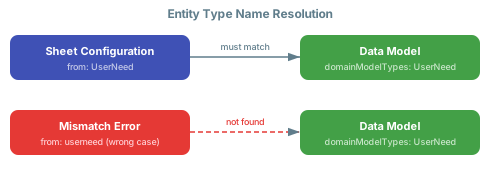 For a detailed walkthrough, see [Fix Type Name Errors](/powersheet/guides/troubleshooting/fix-type-name-errors).
Relationship navigation depends on three things being correctly aligned: the `from` and `to` entity types must exist in `domainModelTypes`, the `linkRole` must match a link role defined in the Polarion project, and the `direct` and `back` navigation property names must be referenced correctly in column binding paths and `expand` arrays. If any of these are mismatched, navigation paths will silently return no data. Review the [Fix Relationship Errors](/powersheet/guides/troubleshooting/fix-relationship-errors) guide for step-by-step diagnosis.
## Administration and Setup Issues
Powersheet administration is integrated into Polarion's standard administration area. Navigate to **Administration > Nextedy Powersheet** to find two sections: **Data Models** for managing entity type and relationship definitions, and **Sheet Configurations** for column layout, views, formatters, and sources. Both sections use an embedded file manager that supports editing YAML files with project-scope and global-scope configurations. Global configurations (stored under the `_global` project) provide system-wide defaults that individual projects can override.
See [Administration Guides](/powersheet/guides/administration/index) for detailed setup instructions.
Global configurations provide defaults that can be overridden at project level. If a project has its own copy of a data model or sheet configuration with the same name, the project-level file takes precedence over the global one. Check whether a project-level override exists in **Administration > Nextedy Powersheet** and either remove it to fall back to the global version, or update it to match your intended configuration.
## Data and Save Issues
Save failures typically occur when data violates constraints defined in the data model or when required fields are empty. Common causes include: attempting to create a relationship that violates cardinality rules (e.g., adding a second link where `cardinality` is set to `many-to-one`), picking entities from outside the allowed `moduleFolder` or `moduleName` scope, or submitting duplicate property values where uniqueness is enforced. The error message usually includes a numbered list of failing conditions.
For detailed resolution steps, see [Resolve Validation Errors](/powersheet/guides/troubleshooting/resolve-validation-errors).
Dynamic value expressions (using `$context` syntax like `$context.source.document.component`) resolve at runtime based on the current document context. If a dynamic expression returns an empty result, verify that the source document has the expected property set. For example, `$context.source.document.component` only works if the Polarion document has a component property assigned. Missing context values resolve to empty strings, which can cause picker constraints to match all items or no items depending on the filter logic.
See [Sheet Configuration Guides](/powersheet/guides/sheet-configuration/index) for more on dynamic values in source configurations.
For a detailed walkthrough, see [Fix Type Name Errors](/powersheet/guides/troubleshooting/fix-type-name-errors).
Relationship navigation depends on three things being correctly aligned: the `from` and `to` entity types must exist in `domainModelTypes`, the `linkRole` must match a link role defined in the Polarion project, and the `direct` and `back` navigation property names must be referenced correctly in column binding paths and `expand` arrays. If any of these are mismatched, navigation paths will silently return no data. Review the [Fix Relationship Errors](/powersheet/guides/troubleshooting/fix-relationship-errors) guide for step-by-step diagnosis.
## Administration and Setup Issues
Powersheet administration is integrated into Polarion's standard administration area. Navigate to **Administration > Nextedy Powersheet** to find two sections: **Data Models** for managing entity type and relationship definitions, and **Sheet Configurations** for column layout, views, formatters, and sources. Both sections use an embedded file manager that supports editing YAML files with project-scope and global-scope configurations. Global configurations (stored under the `_global` project) provide system-wide defaults that individual projects can override.
See [Administration Guides](/powersheet/guides/administration/index) for detailed setup instructions.
Global configurations provide defaults that can be overridden at project level. If a project has its own copy of a data model or sheet configuration with the same name, the project-level file takes precedence over the global one. Check whether a project-level override exists in **Administration > Nextedy Powersheet** and either remove it to fall back to the global version, or update it to match your intended configuration.
## Data and Save Issues
Save failures typically occur when data violates constraints defined in the data model or when required fields are empty. Common causes include: attempting to create a relationship that violates cardinality rules (e.g., adding a second link where `cardinality` is set to `many-to-one`), picking entities from outside the allowed `moduleFolder` or `moduleName` scope, or submitting duplicate property values where uniqueness is enforced. The error message usually includes a numbered list of failing conditions.
For detailed resolution steps, see [Resolve Validation Errors](/powersheet/guides/troubleshooting/resolve-validation-errors).
Dynamic value expressions (using `$context` syntax like `$context.source.document.component`) resolve at runtime based on the current document context. If a dynamic expression returns an empty result, verify that the source document has the expected property set. For example, `$context.source.document.component` only works if the Polarion document has a component property assigned. Missing context values resolve to empty strings, which can cause picker constraints to match all items or no items depending on the filter logic.
See [Sheet Configuration Guides](/powersheet/guides/sheet-configuration/index) for more on dynamic values in source configurations.
If your question is not covered in the FAQ, check the [How-To Guides](/powersheet/guides/index) for step-by-step instructions or the [Reference](/powersheet/reference/index) for detailed property documentation. For troubleshooting specific errors, see the [Troubleshooting Guides](/powersheet/guides/troubleshooting/index).