> ## Documentation Index
> Fetch the complete documentation index at: https://learn.nextedy.com/llms.txt
> Use this file to discover all available pages before exploring further.
# Work Items Parameters
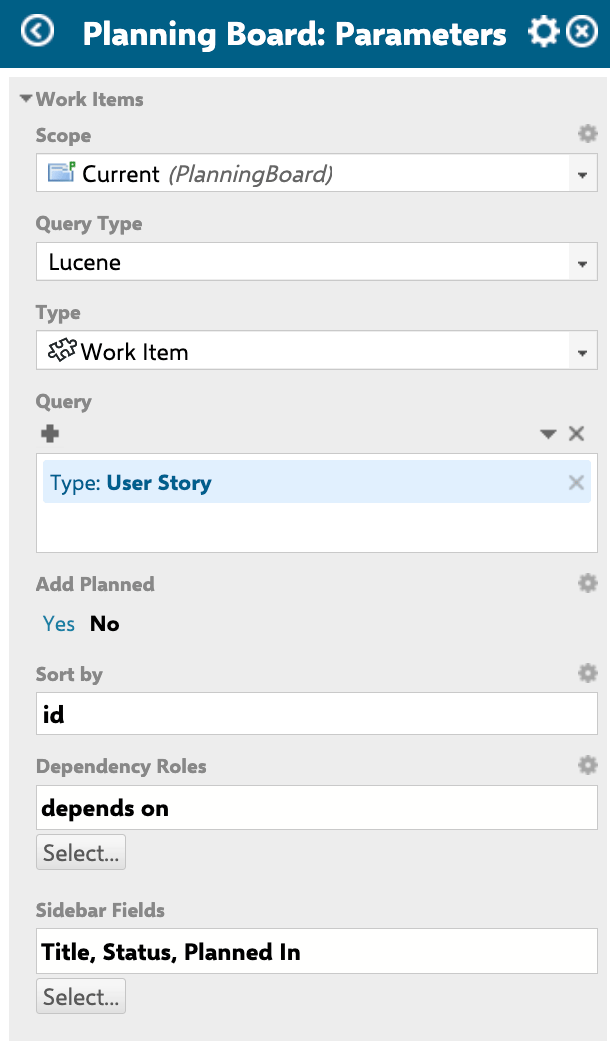
> The Work Items parameters control which work items appear on the Nextedy PLANNINGBOARD, how they are sorted, which link roles visualize dependencies, and what fields display in the sidebar when a card is opened.
 ***
## Parameter reference
### Scope and query
| Parameter | Type | Default | Description |
| ------------- | ------- | --------- | --------------------------------------------------------------------------------------------------------------------------------------------------------------------------------------------------- |
| `Scope` | string | — | Defines the project scope for the current board. Restricts the set of work items the board loads to the specified Polarion project. |
| `Query type` | enum | — | Specifies whether the query is a Lucene query or another supported type. |
| `Query` | string | `NOT *:*` | Lucene query to filter which work items are displayed on the board. Only work items matching this query are loaded. |
| `Add Planned` | boolean | — | When enabled, all work items that are already planned are loaded in addition to those matched by the `Query`. Useful when you want to show the full planned set alongside a filtered unplanned set. |
| `maxItems` | number | `1000` | Maximum number of work items loaded into the board in a single request. Reduce this value on large projects to improve load performance. |
| `wiType` | string | — | Work item type filter (for example, `task`, `story`, `feature`). When set, only work items of the specified type are shown on the board. |
The `Query` parameter accepts standard Polarion Lucene syntax. An empty or `NOT *:*` query loads no work items by default. Provide a valid query to populate the board. Example: `type:story AND NOT status:done`.
The default `maxItems` limit is `1000`. Loading large numbers of work items increases initial render time. Tune this value alongside your query to keep board load times acceptable.
***
### Sorting
| Parameter | Type | Default | Description |
| --------- | ------ | ------- | ------------------------------------------------------------------------------------------------------------------------------------------------------------------------------------------------------------------------------------------------------------------- |
| `Sort by` | string | — | Defines how cards are ordered within each swimlane. The board applies sort priority in the following order: (1) resource/assignee name, (2) start date, (3) the configured sort field or priority (if prioritization is enabled), (4) work item ID as a tiebreaker. |
The swimlane sort order is coupled to the item sort order. Changing the sort field affects the order of cards within every swimlane simultaneously.
***
### Dependencies
| Parameter | Type | Default | Description |
| ------------------ | --------------------- | ------- | ------------------------------------------------------------------------------------------------------------------------------------------------------------------------------------------------- |
| `Dependency Roles` | string (link role ID) | — | Specifies which Polarion work item link roles are visualized as dependency lines on the board. Set to the ID of the link role(s) that represent blocking or ordering relationships between cards. |
When `Dependency Roles` is configured, the **Show Dependencies** toolbar button becomes active. Clicking it reveals all dependency arrows between cards simultaneously across the board.
The **Show Dependencies** toolbar control is only functional when `Dependency Roles` is set. Without a configured link role, the toolbar button has no effect.
***
## Parameter reference
### Scope and query
| Parameter | Type | Default | Description |
| ------------- | ------- | --------- | --------------------------------------------------------------------------------------------------------------------------------------------------------------------------------------------------- |
| `Scope` | string | — | Defines the project scope for the current board. Restricts the set of work items the board loads to the specified Polarion project. |
| `Query type` | enum | — | Specifies whether the query is a Lucene query or another supported type. |
| `Query` | string | `NOT *:*` | Lucene query to filter which work items are displayed on the board. Only work items matching this query are loaded. |
| `Add Planned` | boolean | — | When enabled, all work items that are already planned are loaded in addition to those matched by the `Query`. Useful when you want to show the full planned set alongside a filtered unplanned set. |
| `maxItems` | number | `1000` | Maximum number of work items loaded into the board in a single request. Reduce this value on large projects to improve load performance. |
| `wiType` | string | — | Work item type filter (for example, `task`, `story`, `feature`). When set, only work items of the specified type are shown on the board. |
The `Query` parameter accepts standard Polarion Lucene syntax. An empty or `NOT *:*` query loads no work items by default. Provide a valid query to populate the board. Example: `type:story AND NOT status:done`.
The default `maxItems` limit is `1000`. Loading large numbers of work items increases initial render time. Tune this value alongside your query to keep board load times acceptable.
***
### Sorting
| Parameter | Type | Default | Description |
| --------- | ------ | ------- | ------------------------------------------------------------------------------------------------------------------------------------------------------------------------------------------------------------------------------------------------------------------- |
| `Sort by` | string | — | Defines how cards are ordered within each swimlane. The board applies sort priority in the following order: (1) resource/assignee name, (2) start date, (3) the configured sort field or priority (if prioritization is enabled), (4) work item ID as a tiebreaker. |
The swimlane sort order is coupled to the item sort order. Changing the sort field affects the order of cards within every swimlane simultaneously.
***
### Dependencies
| Parameter | Type | Default | Description |
| ------------------ | --------------------- | ------- | ------------------------------------------------------------------------------------------------------------------------------------------------------------------------------------------------- |
| `Dependency Roles` | string (link role ID) | — | Specifies which Polarion work item link roles are visualized as dependency lines on the board. Set to the ID of the link role(s) that represent blocking or ordering relationships between cards. |
When `Dependency Roles` is configured, the **Show Dependencies** toolbar button becomes active. Clicking it reveals all dependency arrows between cards simultaneously across the board.
The **Show Dependencies** toolbar control is only functional when `Dependency Roles` is set. Without a configured link role, the toolbar button has no effect.
 ***
### Sidebar fields
| Parameter | Type | Default | Description |
| ---------------- | ------------------ | ------------------------------ | ----------------------------------------------------------------------------------------------------------------------------------------------------------- |
| `Sidebar Fields` | array of field IDs | `title`, `status`, `plannedIn` | Defines which work item fields appear in the **Work Item Properties** sidebar when a card is clicked. Accepts a comma-separated list of Polarion field IDs. |
The sidebar opens when a user clicks any card on the board. It displays the fields listed in `Sidebar Fields` by default. Users can additionally personalize their own sidebar view using the gear icon (Select Fields button) — these personal additions apply only to that user and affect all work items of the same type.
When changes are saved in the sidebar, the Planningboard preserves the swimlane and scroll position. The board does not jump back to the top after saving.
**Common field IDs for sidebar configuration:**
| Field ID | Description |
| ------------- | ------------------------------------------- |
| `title` | Work item title (default) |
| `status` | Current workflow status (default) |
| `plannedIn` | Plans the work item is planned in (default) |
| `assignee` | Assigned user(s) |
| `priority` | Work item priority |
| `severity` | Work item severity |
| `description` | Full description text |
| `dueDate` | Due date |
The exact set of available field IDs depends on your Polarion project's custom field configuration. Verify field IDs against your project's work item type definitions.
***
### Unplanned sidebar hierarchy
| Parameter | Type | Default | Description |
| ----------------------------- | --------------------- | ------- | ---------------------------------------------------------------------------------------------------------------------------------------------------------------------------------- |
| `PARAMETER_US_DEPTH` | number | — | Controls how many levels of parent work items are loaded in the unplanned sidebar hierarchy. Higher values load deeper parent chains but may impact performance on large projects. |
| `PARAMETER_PARENTS_LINK_ROLE` | string (link role ID) | — | Specifies which link role defines parent-child relationships used to build the hierarchy tree in the unplanned sidebar. |
The unplanned sidebar groups cards by parent hierarchy when these parameters are set. The sidebar header shows a counter of the form "X out of Y work items" reflecting active filters.
Setting a high `PARAMETER_US_DEPTH` value on projects with deep work item hierarchies increases the number of Polarion queries during load. Start with depth `1` or `2` and increase only if the hierarchy display is required.
***
## Unplanned sidebar filtering
The unplanned sidebar supports several filter modes, all accessible without leaving the board:
| Filter | How to access | Behavior |
| ------------------- | ------------------------------------------------- | -------------------------------------------------------------------------------------------------------------------------------------------------------- |
| By assignee or team | Click the funnel icon | Shows only cards assigned to the selected resource. Mutually exclusive with query filtering — applying a resource filter clears the active query filter. |
| By query | Click the funnel icon → select a predefined query | Shows only cards matching the selected query. Mutually exclusive with resource filtering — applying a query filter clears the active resource filter. |
| Hide resolved items | Click the upper-right toggle | Removes work items in a resolved state from the unplanned list. |
| Filter columns | **Filter columns** toggle | Hides verified work items that are already planned from the unplanned section. |
| Text search | Search field | Case-insensitive real-time search across card content and parent names. Combines with other active filters. |
Clearing filters (the clear button) removes resource and query filters but does not affect the text search or the resolved-items toggle.
Queries available in the funnel filter are configured in the **Queries** section of the widget parameters (separate from the main work items `Query` parameter). See the Queries section in the [Widget Parameters reference](/planningboard/reference/widget-parameters/index) for details.
***
## Configuration example
The following example shows a representative Work Items parameter configuration for a Scrum project using story-type work items, dependency visualization via a `blocks` link role, and a custom sidebar showing priority and due date alongside the defaults.
```text theme={null}
Widget Parameter Configuration — Work Items
━━━━━━━━━━━━━━━━━━━━━━━━━━━━━━━━━━━━━━━━━━━
Scope : MyProject
Query type : Lucene
Query : type:story AND NOT status:done
Add Planned : enabled
maxItems : 500
wiType : story
Sort by : priority
Dependency Roles : blocks
Sidebar Fields : title, status, plannedIn, priority, dueDate
━━━━━━━━━━━━━━━━━━━━━━━━━━━━━━━━━━━━━━━━━━━
Result:
- Board loads up to 500 stories not in "done" status
- Already-planned stories also appear on the board
- Cards sorted by priority within each swimlane
- "blocks" link role lines shown via Show Dependencies toolbar
- Sidebar shows: Title, Status, Planned In, Priority, Due Date
```
***
## Related parameters
Work Items parameters interact with the following parameter groups:
| Parameter group | Relationship |
| ---------------------------------------------------------------------------------------------- | ----------------------------------------------------------------------------------------------------------------------------------------------------------- |
| [Plans (Columns) Parameters](/planningboard/reference/widget-parameters/plans-parameters) | Plans determine which columns cards can be dragged into. The `Add Planned` option loads work items already assigned to those Plans. |
| [Swimlanes (Rows) Parameters](/planningboard/reference/widget-parameters/swimlanes-parameters) | The swimlane assignment type determines which field (assignee, enum, parent, etc.) routes cards to rows. |
| [Capacity Parameters](/planningboard/reference/widget-parameters/capacity-parameters) | Capacity bars per swimlane reflect the work items loaded by this query. Adjust `maxItems` and `Query` to control the set of items contributing to capacity. |
| [Advanced Parameters](/planningboard/reference/widget-parameters/advanced-parameters) | Advanced scripting parameters can further customize card rendering and item behavior beyond what the standard Work Items parameters expose. |
***
## Limitations
* **Page parameters not supported in work item queries.** Planningboard query parameters (including `Scope` and `Query`) do not support Polarion page parameters (`$pageParameters.xxx`) for dynamic substitution. Use separate Planningboard pages per configuration rather than parameterized page-level filtering.
* **Work items with status Verified are locked.** Cards in a Verified status that have been placed on the board cannot be moved or unplanned via drag-and-drop.
* **Sidebar field personalization is per user, per work item type.** Fields added by a user via the gear icon in the sidebar apply to that user only and affect all work items of the same type across all boards they access.
* **`Sort by` and swimlane sort are coupled.** The sort field configured here affects card ordering inside every swimlane simultaneously; independent sort order per swimlane is not available.
**KB Articles**
* Planningboard Widget Parameters
* Planningboard: Customizable Statistics and Capacity Indicators
* Planningboard interface & basic interactions
**Support Tickets**
* [#6607](https://support.nextedy.com/helpdesk/tickets/6607)
* [#6174](https://support.nextedy.com/helpdesk/tickets/6174)
* [#6546](https://support.nextedy.com/helpdesk/tickets/6546)
**Source Code**
* `PlanningBoardWidget.java`
* `PlanningBoardWidgetRenderer.java`
* `widget.vm`
* `Config.java`
* `unplanned_sidebar.js`
***
### Sidebar fields
| Parameter | Type | Default | Description |
| ---------------- | ------------------ | ------------------------------ | ----------------------------------------------------------------------------------------------------------------------------------------------------------- |
| `Sidebar Fields` | array of field IDs | `title`, `status`, `plannedIn` | Defines which work item fields appear in the **Work Item Properties** sidebar when a card is clicked. Accepts a comma-separated list of Polarion field IDs. |
The sidebar opens when a user clicks any card on the board. It displays the fields listed in `Sidebar Fields` by default. Users can additionally personalize their own sidebar view using the gear icon (Select Fields button) — these personal additions apply only to that user and affect all work items of the same type.
When changes are saved in the sidebar, the Planningboard preserves the swimlane and scroll position. The board does not jump back to the top after saving.
**Common field IDs for sidebar configuration:**
| Field ID | Description |
| ------------- | ------------------------------------------- |
| `title` | Work item title (default) |
| `status` | Current workflow status (default) |
| `plannedIn` | Plans the work item is planned in (default) |
| `assignee` | Assigned user(s) |
| `priority` | Work item priority |
| `severity` | Work item severity |
| `description` | Full description text |
| `dueDate` | Due date |
The exact set of available field IDs depends on your Polarion project's custom field configuration. Verify field IDs against your project's work item type definitions.
***
### Unplanned sidebar hierarchy
| Parameter | Type | Default | Description |
| ----------------------------- | --------------------- | ------- | ---------------------------------------------------------------------------------------------------------------------------------------------------------------------------------- |
| `PARAMETER_US_DEPTH` | number | — | Controls how many levels of parent work items are loaded in the unplanned sidebar hierarchy. Higher values load deeper parent chains but may impact performance on large projects. |
| `PARAMETER_PARENTS_LINK_ROLE` | string (link role ID) | — | Specifies which link role defines parent-child relationships used to build the hierarchy tree in the unplanned sidebar. |
The unplanned sidebar groups cards by parent hierarchy when these parameters are set. The sidebar header shows a counter of the form "X out of Y work items" reflecting active filters.
Setting a high `PARAMETER_US_DEPTH` value on projects with deep work item hierarchies increases the number of Polarion queries during load. Start with depth `1` or `2` and increase only if the hierarchy display is required.
***
## Unplanned sidebar filtering
The unplanned sidebar supports several filter modes, all accessible without leaving the board:
| Filter | How to access | Behavior |
| ------------------- | ------------------------------------------------- | -------------------------------------------------------------------------------------------------------------------------------------------------------- |
| By assignee or team | Click the funnel icon | Shows only cards assigned to the selected resource. Mutually exclusive with query filtering — applying a resource filter clears the active query filter. |
| By query | Click the funnel icon → select a predefined query | Shows only cards matching the selected query. Mutually exclusive with resource filtering — applying a query filter clears the active resource filter. |
| Hide resolved items | Click the upper-right toggle | Removes work items in a resolved state from the unplanned list. |
| Filter columns | **Filter columns** toggle | Hides verified work items that are already planned from the unplanned section. |
| Text search | Search field | Case-insensitive real-time search across card content and parent names. Combines with other active filters. |
Clearing filters (the clear button) removes resource and query filters but does not affect the text search or the resolved-items toggle.
Queries available in the funnel filter are configured in the **Queries** section of the widget parameters (separate from the main work items `Query` parameter). See the Queries section in the [Widget Parameters reference](/planningboard/reference/widget-parameters/index) for details.
***
## Configuration example
The following example shows a representative Work Items parameter configuration for a Scrum project using story-type work items, dependency visualization via a `blocks` link role, and a custom sidebar showing priority and due date alongside the defaults.
```text theme={null}
Widget Parameter Configuration — Work Items
━━━━━━━━━━━━━━━━━━━━━━━━━━━━━━━━━━━━━━━━━━━
Scope : MyProject
Query type : Lucene
Query : type:story AND NOT status:done
Add Planned : enabled
maxItems : 500
wiType : story
Sort by : priority
Dependency Roles : blocks
Sidebar Fields : title, status, plannedIn, priority, dueDate
━━━━━━━━━━━━━━━━━━━━━━━━━━━━━━━━━━━━━━━━━━━
Result:
- Board loads up to 500 stories not in "done" status
- Already-planned stories also appear on the board
- Cards sorted by priority within each swimlane
- "blocks" link role lines shown via Show Dependencies toolbar
- Sidebar shows: Title, Status, Planned In, Priority, Due Date
```
***
## Related parameters
Work Items parameters interact with the following parameter groups:
| Parameter group | Relationship |
| ---------------------------------------------------------------------------------------------- | ----------------------------------------------------------------------------------------------------------------------------------------------------------- |
| [Plans (Columns) Parameters](/planningboard/reference/widget-parameters/plans-parameters) | Plans determine which columns cards can be dragged into. The `Add Planned` option loads work items already assigned to those Plans. |
| [Swimlanes (Rows) Parameters](/planningboard/reference/widget-parameters/swimlanes-parameters) | The swimlane assignment type determines which field (assignee, enum, parent, etc.) routes cards to rows. |
| [Capacity Parameters](/planningboard/reference/widget-parameters/capacity-parameters) | Capacity bars per swimlane reflect the work items loaded by this query. Adjust `maxItems` and `Query` to control the set of items contributing to capacity. |
| [Advanced Parameters](/planningboard/reference/widget-parameters/advanced-parameters) | Advanced scripting parameters can further customize card rendering and item behavior beyond what the standard Work Items parameters expose. |
***
## Limitations
* **Page parameters not supported in work item queries.** Planningboard query parameters (including `Scope` and `Query`) do not support Polarion page parameters (`$pageParameters.xxx`) for dynamic substitution. Use separate Planningboard pages per configuration rather than parameterized page-level filtering.
* **Work items with status Verified are locked.** Cards in a Verified status that have been placed on the board cannot be moved or unplanned via drag-and-drop.
* **Sidebar field personalization is per user, per work item type.** Fields added by a user via the gear icon in the sidebar apply to that user only and affect all work items of the same type across all boards they access.
* **`Sort by` and swimlane sort are coupled.** The sort field configured here affects card ordering inside every swimlane simultaneously; independent sort order per swimlane is not available.
**KB Articles**
* Planningboard Widget Parameters
* Planningboard: Customizable Statistics and Capacity Indicators
* Planningboard interface & basic interactions
**Support Tickets**
* [#6607](https://support.nextedy.com/helpdesk/tickets/6607)
* [#6174](https://support.nextedy.com/helpdesk/tickets/6174)
* [#6546](https://support.nextedy.com/helpdesk/tickets/6546)
**Source Code**
* `PlanningBoardWidget.java`
* `PlanningBoardWidgetRenderer.java`
* `widget.vm`
* `Config.java`
* `unplanned_sidebar.js`