> ## Documentation Index
> Fetch the complete documentation index at: https://learn.nextedy.com/llms.txt
> Use this file to discover all available pages before exploring further.
# Plans (Columns) Parameters
> The **Plans (Columns) Parameters** control which Polarion Plans are displayed as columns on the Nextedy PLANNINGBOARD, how many past and future plans appear, how plans are linked, and whether capacity load is enabled.
See also: [Widget Parameters](/planningboard/reference/widget-parameters/index) | [Capacity Parameters](/planningboard/reference/widget-parameters/capacity-parameters) | [Plans Modes](/planningboard/reference/plans-modes/index)
***
## Overview
 Each column on the board corresponds to one Polarion Plan. The parameters in this group determine which Plans are loaded, in what order, and what supplementary information (capacity, links) is attached to each column header.
***
## Core Properties
| Parameter | Type | Default | Description |
| -------------- | ------------- | -------------------------------------------------------------------------------- | ------------------------------------------------------------------------------------------------------------------------------------------------------------------------------------------------------------------------------ |
| `plansMode` | string (enum) | `PROJECT_PLANS` | Determines the type of Plans loaded as columns. See [Plans Mode options](#plans-mode-options) below. |
| `plansQuery` | string | `None` | Lucene query to filter which Plans are displayed as columns. When empty, all Plans of the selected type in the project are candidates. |
| `lastPlans` | number | `1` | Number of past (completed) Plans to show to the left of today. |
| `nextPlans` | number | `5` | Number of future (upcoming) Plans to show to the right of today. |
| `capacityLoad` | boolean | `false` | When `true`, enables visualization of the capacity load for each Plan column as a capacity bar. Requires capacity to be configured; see [Capacity Parameters](/planningboard/reference/widget-parameters/capacity-parameters). |
| `planLink` | string | `/polarion/#/project/${plan.objectId.projectId}/plan?id=${plan.objectId.itemId}` | URL template for the link opened when clicking a column header. Supports `${plan.*}` variable substitution. |
***
## Plans Mode Options
The `plansMode` parameter selects how Plans are sourced and organized as columns.
| Value | Description |
| ------------------ | ------------------------------------------------------------------------------------------------------------------------------------------------------------------------------ |
| `PROJECT_PLANS` | Standard Polarion Plans from the current project, filtered by `plansQuery`. This is the default mode and the most commonly used. |
| `SAFE_SPRINTS` | SAFe iteration Plans (sprints) from the current program. The plans query is automatically set to `template.id:iterationPlan`. Requires a Polarion SAFe Solution configuration. |
| `SAFE_PFL_SPRINTS` | SAFe iteration Plans (sprints) at portfolio level, spanning multiple programs within a solution portfolio. Requires a Polarion SAFe Solution configuration. |
| `SAFE_PIS` | SAFe Program Increments as columns. Configuration UI differs from `PROJECT_PLANS` — additional SAFe-specific fields appear. Requires Polarion SAFe Solution. |
| `SAFE_SOLUTION` | SAFe Solution Train level Plans. For portfolio-level planning. Requires Polarion SAFe Solution. |
When `plansMode` is set to a SAFe variant, the widget configuration panel shows different fields than the **Project Plans** (`PROJECT_PLANS`) mode. If you need a SAFe Plans mode, contact Nextedy support for configuration guidance.
For full details on each mode, see [Plans Modes](/planningboard/reference/plans-modes/index).
***
## Controlling How Many Plans Are Shown
The `lastPlans` and `nextPlans` parameters control the visible window of Plans around the current date.
| Parameter | Type | Default | Description |
| ----------- | ------ | ------- | -------------------------------------------------------------------------------------------------------------------------------- |
| `lastPlans` | number | `1` | Number of past Plans to display. Increasing this value loads more historical Plans and may affect performance on large projects. |
| `nextPlans` | number | `5` | Number of future Plans to display. |
Loading a large number of Plans increases the amount of data fetched and rendered. Keep the `lastPlans` + `nextPlans` total to a reasonable range for your team size and project. Excessive Plan counts also increase the number of work items loaded against the `maxItems` limit.
**Example — show 2 past iterations and 4 upcoming:**
```properties theme={null}
lastPlans = 2
nextPlans = 4
```
***
## Plans Query
When `plansMode` is set to **Project Plans** (`PROJECT_PLANS`), the `plansQuery` parameter accepts a Lucene query string to restrict which Plans appear as columns.
| Parameter | Type | Default | Description |
| ------------ | ------ | ------- | ------------------------------------------------------------------------------------------------------------------------------------------------------------------------- |
| `plansQuery` | string | `None` | Lucene query filtering Plans. When empty, all Plans of the selected template type in the current project are candidates, limited to the `lastPlans` / `nextPlans` window. |
**Example — show only Plans with a specific template type:**
```properties theme={null}
plansQuery = template.id:iteration
```
**Example — show Plans matching a name pattern:**
```properties theme={null}
plansQuery = name:Sprint*
```
***
## Capacity Load
Enabling `capacityLoad` adds a capacity bar to each Plan column header, showing how loaded that Plan is relative to its defined capacity.
| Parameter | Type | Default | Description |
| ------------------- | ------- | ------- | ------------------------------------------------------------------------------------------------------------------------------------------------------------------------------------------------------ |
| `capacityLoad` | boolean | `false` | Show the capacity bar for each Plan column. |
| `multiCapacityLoad` | boolean | `false` | Enable per-swimlane (per-resource) capacity bars within each column, rather than a single column-level bar. See [Capacity Parameters](/planningboard/reference/widget-parameters/capacity-parameters). |
| `userCapacityLoad` | boolean | `false` | Enable per-user capacity loading when using the Teams service. See [Capacity Parameters](/planningboard/reference/widget-parameters/capacity-parameters). |
When `capacityLoad` is enabled, hovering over a Plan column's capacity bar displays a detailed tooltip with capacity breakdown figures. This tooltip is only visible if capacity has been configured for that Plan.
For full capacity configuration details, see [Capacity Parameters](/planningboard/reference/widget-parameters/capacity-parameters).
***
## Assign to Parent Plan
When a work item is dragged onto the board and planned into a child Plan (for example, an Iteration under a Version), the `Assign to Parent Plan` option controls whether the item is also automatically planned into the parent Plan.
| UI Label | Property | Type | Default | Description |
| --------------------- | -------------------- | ------- | -------- | -------------------------------------------------------------------------------------------------------------- |
| Assign to Parent Plan | *(widget parameter)* | boolean | disabled | When enabled, planning a work item into a child Plan also plans it into that Plan's parent Plan automatically. |
**Behavior with this option disabled** — a work item dragged into Iteration 4 is planned only in Iteration 4.
**Behavior with this option enabled** — the same item is also planned into Version 1.0 (Iteration 4's parent Plan) automatically.
The exact widget-parameter key name for the Assign to Parent Plan option is not exposed in the available source context. Configure this option through the widget's configuration panel in Polarion.
***
## Report Link (Column Header Link)
The `planLink` parameter defines the URL that opens when a user clicks on a Plan column header. The URL template supports variable substitution using `${plan.*}` placeholders.
| Parameter | Type | Default | Description |
| ---------- | ------ | -------------------------------------------------------------------------------- | ----------------------------------------------------------------------------------------------------------------------- |
| `planLink` | string | `/polarion/#/project/${plan.objectId.projectId}/plan?id=${plan.objectId.itemId}` | URL template for the column-header link. Supports `${plan.objectId.projectId}` and `${plan.objectId.itemId}` variables. |
**Available template variables:**
| Variable | Description |
| ---------------------------- | -------------------------------------- |
| `${plan.objectId.projectId}` | The Polarion project ID of the Plan. |
| `${plan.objectId.itemId}` | The Plan's item ID within its project. |
**Example — link to a custom Wiki report page parameterised by Plan:**
```properties theme={null}
planLink = /polarion/#/project/${plan.objectId.projectId}/wiki/SOME_REPORT?plan=${plan.objectId.itemId}
```
This link opens when the user clicks the column header for that Plan. The `${plan.objectId.projectId}` and `${plan.objectId.itemId}` values are substituted at render time.
***
## New Plan Creation
The **New Plan** section of the widget parameters enables creating new Plans directly from the Planningboard toolbar. When enabled, a **+** button appears in the toolbar.
### New Plan Properties
| Parameter | Type | Default | Description |
| ----------------- | ------ | ------- | -------------------------------------------------------------------------------------------------------------------------------------------------- |
| `plansTemplateId` | string | `None` | The Polarion Plan template ID used when creating new Plans (for example, `iteration` or `release`). Must match a valid template ID in the project. |
### Plan Naming Patterns
New Plans are named and identified using pattern strings with `{planNum}` and `{teamName}` / `{teamId}` placeholders.
| Pattern Parameter | Available Placeholders | Description |
| ----------------- | ------------------------- | ----------------------------------------------------------------------------------------------------------------------------------- |
| Plan Name Pattern | `{planNum}`, `{teamName}` | Display name of the new Plan as it appears in the column header. |
| Plan ID Pattern | `{planNum}`, `{teamId}` | ID assigned to the new Plan. Must be unique across the project. The `{planNum}` placeholder is required for auto-numbering to work. |
**Placeholder reference:**
| Placeholder | Used In | Description |
| ------------ | ------------------------ | ------------------------------------------------------------------------------------------------------------------------------------------------------------------------------------ |
| `{planNum}` | Name pattern, ID pattern | Auto-incremented integer. The system extracts the last plan number from the most recent Plan matching the template and increments by 1. Defaults to `1` if no prior Plans are found. |
| `{teamName}` | Name pattern | The team's display name. Used when Teams are enabled and multiple Plans are created per run (one per team). |
| `{teamId}` | ID pattern | The team's identifier. Used to make each team's Plan ID unique. |
**Example — create iteration Plans without Teams:**
```properties theme={null}
plansTemplateId = iteration
Plan Name Pattern = Iteration {planNum}
Plan ID Pattern = Iteration_{planNum}
```
When the user clicks **+**, the system finds the last existing Plan matching `template.id:iteration` in the project, extracts the number from its ID, increments it, and proposes the next Plan name and ID for confirmation.
**Example — create Plans with Teams enabled:**
```properties theme={null}
Plan Name Pattern = Sprint {planNum} - {teamName}
Plan ID Pattern = Sprint_{planNum}_{teamId}
```
### Parent Plan and Duration
| UI Label | Description |
| ----------------- | --------------------------------------------------------------------------------------------------------------------------------------------------------------------- |
| Parent ID | The ID of an existing Plan under which new Plans are created. Useful when the project has multiple Versions but new iterations should always go under a specific one. |
| New Plan Duration | Duration of the newly created Plan (for example, `2w` for 2 weeks). |
### Last Plan Query and Sort
These parameters control how the system finds the "last" existing Plan when computing the next auto-number.
| UI Label | Description |
| --------------- | ------------------------------------------------------------------------------------------------------------------------------------------------------------------------------ |
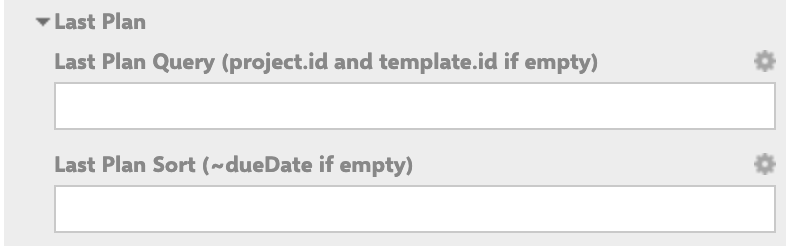
| Last Plan Query | Lucene query to find the last Plan. When empty, the system searches for the latest Plan of the same template type in the same project. |
| Last Plan Sort | Field used to decide which Plan from the query is "last". When empty, Plans are sorted by `dueDate` descending (the Plan with the latest due date is treated as the last one). |
Each column on the board corresponds to one Polarion Plan. The parameters in this group determine which Plans are loaded, in what order, and what supplementary information (capacity, links) is attached to each column header.
***
## Core Properties
| Parameter | Type | Default | Description |
| -------------- | ------------- | -------------------------------------------------------------------------------- | ------------------------------------------------------------------------------------------------------------------------------------------------------------------------------------------------------------------------------ |
| `plansMode` | string (enum) | `PROJECT_PLANS` | Determines the type of Plans loaded as columns. See [Plans Mode options](#plans-mode-options) below. |
| `plansQuery` | string | `None` | Lucene query to filter which Plans are displayed as columns. When empty, all Plans of the selected type in the project are candidates. |
| `lastPlans` | number | `1` | Number of past (completed) Plans to show to the left of today. |
| `nextPlans` | number | `5` | Number of future (upcoming) Plans to show to the right of today. |
| `capacityLoad` | boolean | `false` | When `true`, enables visualization of the capacity load for each Plan column as a capacity bar. Requires capacity to be configured; see [Capacity Parameters](/planningboard/reference/widget-parameters/capacity-parameters). |
| `planLink` | string | `/polarion/#/project/${plan.objectId.projectId}/plan?id=${plan.objectId.itemId}` | URL template for the link opened when clicking a column header. Supports `${plan.*}` variable substitution. |
***
## Plans Mode Options
The `plansMode` parameter selects how Plans are sourced and organized as columns.
| Value | Description |
| ------------------ | ------------------------------------------------------------------------------------------------------------------------------------------------------------------------------ |
| `PROJECT_PLANS` | Standard Polarion Plans from the current project, filtered by `plansQuery`. This is the default mode and the most commonly used. |
| `SAFE_SPRINTS` | SAFe iteration Plans (sprints) from the current program. The plans query is automatically set to `template.id:iterationPlan`. Requires a Polarion SAFe Solution configuration. |
| `SAFE_PFL_SPRINTS` | SAFe iteration Plans (sprints) at portfolio level, spanning multiple programs within a solution portfolio. Requires a Polarion SAFe Solution configuration. |
| `SAFE_PIS` | SAFe Program Increments as columns. Configuration UI differs from `PROJECT_PLANS` — additional SAFe-specific fields appear. Requires Polarion SAFe Solution. |
| `SAFE_SOLUTION` | SAFe Solution Train level Plans. For portfolio-level planning. Requires Polarion SAFe Solution. |
When `plansMode` is set to a SAFe variant, the widget configuration panel shows different fields than the **Project Plans** (`PROJECT_PLANS`) mode. If you need a SAFe Plans mode, contact Nextedy support for configuration guidance.
For full details on each mode, see [Plans Modes](/planningboard/reference/plans-modes/index).
***
## Controlling How Many Plans Are Shown
The `lastPlans` and `nextPlans` parameters control the visible window of Plans around the current date.
| Parameter | Type | Default | Description |
| ----------- | ------ | ------- | -------------------------------------------------------------------------------------------------------------------------------- |
| `lastPlans` | number | `1` | Number of past Plans to display. Increasing this value loads more historical Plans and may affect performance on large projects. |
| `nextPlans` | number | `5` | Number of future Plans to display. |
Loading a large number of Plans increases the amount of data fetched and rendered. Keep the `lastPlans` + `nextPlans` total to a reasonable range for your team size and project. Excessive Plan counts also increase the number of work items loaded against the `maxItems` limit.
**Example — show 2 past iterations and 4 upcoming:**
```properties theme={null}
lastPlans = 2
nextPlans = 4
```
***
## Plans Query
When `plansMode` is set to **Project Plans** (`PROJECT_PLANS`), the `plansQuery` parameter accepts a Lucene query string to restrict which Plans appear as columns.
| Parameter | Type | Default | Description |
| ------------ | ------ | ------- | ------------------------------------------------------------------------------------------------------------------------------------------------------------------------- |
| `plansQuery` | string | `None` | Lucene query filtering Plans. When empty, all Plans of the selected template type in the current project are candidates, limited to the `lastPlans` / `nextPlans` window. |
**Example — show only Plans with a specific template type:**
```properties theme={null}
plansQuery = template.id:iteration
```
**Example — show Plans matching a name pattern:**
```properties theme={null}
plansQuery = name:Sprint*
```
***
## Capacity Load
Enabling `capacityLoad` adds a capacity bar to each Plan column header, showing how loaded that Plan is relative to its defined capacity.
| Parameter | Type | Default | Description |
| ------------------- | ------- | ------- | ------------------------------------------------------------------------------------------------------------------------------------------------------------------------------------------------------ |
| `capacityLoad` | boolean | `false` | Show the capacity bar for each Plan column. |
| `multiCapacityLoad` | boolean | `false` | Enable per-swimlane (per-resource) capacity bars within each column, rather than a single column-level bar. See [Capacity Parameters](/planningboard/reference/widget-parameters/capacity-parameters). |
| `userCapacityLoad` | boolean | `false` | Enable per-user capacity loading when using the Teams service. See [Capacity Parameters](/planningboard/reference/widget-parameters/capacity-parameters). |
When `capacityLoad` is enabled, hovering over a Plan column's capacity bar displays a detailed tooltip with capacity breakdown figures. This tooltip is only visible if capacity has been configured for that Plan.
For full capacity configuration details, see [Capacity Parameters](/planningboard/reference/widget-parameters/capacity-parameters).
***
## Assign to Parent Plan
When a work item is dragged onto the board and planned into a child Plan (for example, an Iteration under a Version), the `Assign to Parent Plan` option controls whether the item is also automatically planned into the parent Plan.
| UI Label | Property | Type | Default | Description |
| --------------------- | -------------------- | ------- | -------- | -------------------------------------------------------------------------------------------------------------- |
| Assign to Parent Plan | *(widget parameter)* | boolean | disabled | When enabled, planning a work item into a child Plan also plans it into that Plan's parent Plan automatically. |
**Behavior with this option disabled** — a work item dragged into Iteration 4 is planned only in Iteration 4.
**Behavior with this option enabled** — the same item is also planned into Version 1.0 (Iteration 4's parent Plan) automatically.
The exact widget-parameter key name for the Assign to Parent Plan option is not exposed in the available source context. Configure this option through the widget's configuration panel in Polarion.
***
## Report Link (Column Header Link)
The `planLink` parameter defines the URL that opens when a user clicks on a Plan column header. The URL template supports variable substitution using `${plan.*}` placeholders.
| Parameter | Type | Default | Description |
| ---------- | ------ | -------------------------------------------------------------------------------- | ----------------------------------------------------------------------------------------------------------------------- |
| `planLink` | string | `/polarion/#/project/${plan.objectId.projectId}/plan?id=${plan.objectId.itemId}` | URL template for the column-header link. Supports `${plan.objectId.projectId}` and `${plan.objectId.itemId}` variables. |
**Available template variables:**
| Variable | Description |
| ---------------------------- | -------------------------------------- |
| `${plan.objectId.projectId}` | The Polarion project ID of the Plan. |
| `${plan.objectId.itemId}` | The Plan's item ID within its project. |
**Example — link to a custom Wiki report page parameterised by Plan:**
```properties theme={null}
planLink = /polarion/#/project/${plan.objectId.projectId}/wiki/SOME_REPORT?plan=${plan.objectId.itemId}
```
This link opens when the user clicks the column header for that Plan. The `${plan.objectId.projectId}` and `${plan.objectId.itemId}` values are substituted at render time.
***
## New Plan Creation
The **New Plan** section of the widget parameters enables creating new Plans directly from the Planningboard toolbar. When enabled, a **+** button appears in the toolbar.
### New Plan Properties
| Parameter | Type | Default | Description |
| ----------------- | ------ | ------- | -------------------------------------------------------------------------------------------------------------------------------------------------- |
| `plansTemplateId` | string | `None` | The Polarion Plan template ID used when creating new Plans (for example, `iteration` or `release`). Must match a valid template ID in the project. |
### Plan Naming Patterns
New Plans are named and identified using pattern strings with `{planNum}` and `{teamName}` / `{teamId}` placeholders.
| Pattern Parameter | Available Placeholders | Description |
| ----------------- | ------------------------- | ----------------------------------------------------------------------------------------------------------------------------------- |
| Plan Name Pattern | `{planNum}`, `{teamName}` | Display name of the new Plan as it appears in the column header. |
| Plan ID Pattern | `{planNum}`, `{teamId}` | ID assigned to the new Plan. Must be unique across the project. The `{planNum}` placeholder is required for auto-numbering to work. |
**Placeholder reference:**
| Placeholder | Used In | Description |
| ------------ | ------------------------ | ------------------------------------------------------------------------------------------------------------------------------------------------------------------------------------ |
| `{planNum}` | Name pattern, ID pattern | Auto-incremented integer. The system extracts the last plan number from the most recent Plan matching the template and increments by 1. Defaults to `1` if no prior Plans are found. |
| `{teamName}` | Name pattern | The team's display name. Used when Teams are enabled and multiple Plans are created per run (one per team). |
| `{teamId}` | ID pattern | The team's identifier. Used to make each team's Plan ID unique. |
**Example — create iteration Plans without Teams:**
```properties theme={null}
plansTemplateId = iteration
Plan Name Pattern = Iteration {planNum}
Plan ID Pattern = Iteration_{planNum}
```
When the user clicks **+**, the system finds the last existing Plan matching `template.id:iteration` in the project, extracts the number from its ID, increments it, and proposes the next Plan name and ID for confirmation.
**Example — create Plans with Teams enabled:**
```properties theme={null}
Plan Name Pattern = Sprint {planNum} - {teamName}
Plan ID Pattern = Sprint_{planNum}_{teamId}
```
### Parent Plan and Duration
| UI Label | Description |
| ----------------- | --------------------------------------------------------------------------------------------------------------------------------------------------------------------- |
| Parent ID | The ID of an existing Plan under which new Plans are created. Useful when the project has multiple Versions but new iterations should always go under a specific one. |
| New Plan Duration | Duration of the newly created Plan (for example, `2w` for 2 weeks). |
### Last Plan Query and Sort
These parameters control how the system finds the "last" existing Plan when computing the next auto-number.
| UI Label | Description |
| --------------- | ------------------------------------------------------------------------------------------------------------------------------------------------------------------------------ |
| Last Plan Query | Lucene query to find the last Plan. When empty, the system searches for the latest Plan of the same template type in the same project. |
| Last Plan Sort | Field used to decide which Plan from the query is "last". When empty, Plans are sorted by `dueDate` descending (the Plan with the latest due date is treated as the last one). |
 ### Teams
When **Enable Teams** is turned on, the New Plan feature creates one Plan per configured team in a single operation.
| UI Label | Description |
| ------------ | ---------------------------------------------------------------------------------------------------------------- |
| Enable Teams | When enabled, new Plans are created for each configured team using the `{teamId}` and `{teamName}` placeholders. |
| Teams | List of team name/ID pairs used when creating Plans with Teams enabled. |
### Teams
When **Enable Teams** is turned on, the New Plan feature creates one Plan per configured team in a single operation.
| UI Label | Description |
| ------------ | ---------------------------------------------------------------------------------------------------------------- |
| Enable Teams | When enabled, new Plans are created for each configured team using the `{teamId}` and `{teamName}` placeholders. |
| Teams | List of team name/ID pairs used when creating Plans with Teams enabled. |
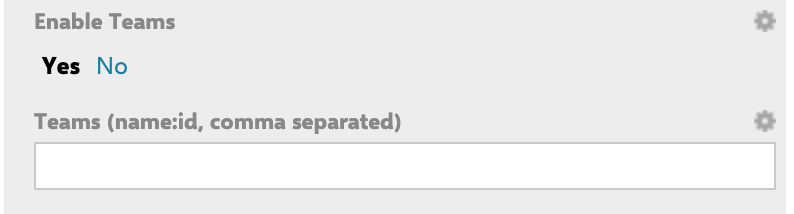 The Plan Name Pattern and Plan ID Pattern are predefined with `{teamName}` / `{teamId}` when Teams are enabled. If you are **not** using Teams, update these patterns to remove the team placeholders — otherwise the literal placeholder text appears in Plan names.
***
## Configuration Example
The following example shows a **Project Plans** (`PROJECT_PLANS`) configuration that displays 2 past iterations and 3 upcoming iterations, enables the capacity bar, and links column headers to a custom report page.
```properties theme={null}
# Plans (Columns) — example configuration
plansMode = PROJECT_PLANS
plansQuery = template.id:iteration
lastPlans = 2
nextPlans = 3
# Capacity
capacityLoad = true
# Column header link — opens a custom Wiki report for the selected Plan
planLink = /polarion/#/project/${plan.objectId.projectId}/wiki/SPRINT_REPORT?plan=${plan.objectId.itemId}
# New Plan creation
plansTemplateId = iteration
# Plan Name Pattern = Iteration {planNum}
# Plan ID Pattern = Iteration_{planNum}
```
This setup renders three future iteration columns and two past ones on the board. Each column header is clickable and opens the `SPRINT_REPORT` Wiki page filtered to that Plan. The capacity bar appears on each column.
***
## Limitations
* **Page parameters not supported in Plans configuration.** Planningboard Plans column configuration does not evaluate Polarion page parameters (such as `$pageParameters.xxx`) at runtime. Plans must be selected via static `plansQuery` values or the `lastPlans` / `nextPlans` window.
* **SAFe Plans modes require support configuration.** The **SAFe Sprints in Program** (`SAFE_SPRINTS`), **SAFe Sprints in Portfolio** (`SAFE_PFL_SPRINTS`), **SAFe Program Increments in Program** (`SAFE_PIS`), and **SAFe Program Increments in Solution** (`SAFE_SOLUTION`) modes depend on a correctly configured Polarion SAFe Solution. The configuration UI changes based on the selected mode. Contact Nextedy support for SAFe-specific setup guidance.
* **`lastPlans` + `nextPlans` affects performance.** Each additional Plan column increases data fetched. Large windows on busy projects may exceed the `maxItems` limit or produce slow load times.
***
## Related Parameters
| Topic | Reference |
| -------------------------------- | ---------------------------------------------------------------------------------------------- |
| Swimlane (row) configuration | [Swimlanes (Rows) Parameters](/planningboard/reference/widget-parameters/swimlanes-parameters) |
| Work item query and card content | [Work Items Parameters](/planningboard/reference/widget-parameters/work-items-parameters) |
| Capacity bar details | [Capacity Parameters](/planningboard/reference/widget-parameters/capacity-parameters) |
| Plans mode details | [Plans Modes](/planningboard/reference/plans-modes/index) |
| Project Plans mode | [Project Plans](/planningboard/reference/plans-modes/project-plans) |
| SAFe Sprints mode | [SAFe Sprints](/planningboard/reference/plans-modes/safe-sprints) |
| SAFe Program Increments mode | [SAFe Program Increments](/planningboard/reference/plans-modes/safe-pis) |
| SAFe Solution Trains mode | [SAFe Solution Trains](/planningboard/reference/plans-modes/safe-solutions) |
| All widget parameters | [Widget Parameters](/planningboard/reference/widget-parameters/index) |
**KB Articles**
* Planningboard Widget Parameters
* Planningboard interface & basic interactions
* Planningboard: Customizable Statistics and Capacity Indicators
**Support Tickets**
* [#6607](https://support.nextedy.com/helpdesk/tickets/6607)
* [#6546](https://support.nextedy.com/helpdesk/tickets/6546)
* [#5879](https://support.nextedy.com/helpdesk/tickets/5879)
**Source Code**
* `PlanningBoardWidget.java`
* `widget.vm`
* `Config.java`
* `PlanningBoardWidgetRenderer.java`
* `PlanningBoardApiServlet.java`
The Plan Name Pattern and Plan ID Pattern are predefined with `{teamName}` / `{teamId}` when Teams are enabled. If you are **not** using Teams, update these patterns to remove the team placeholders — otherwise the literal placeholder text appears in Plan names.
***
## Configuration Example
The following example shows a **Project Plans** (`PROJECT_PLANS`) configuration that displays 2 past iterations and 3 upcoming iterations, enables the capacity bar, and links column headers to a custom report page.
```properties theme={null}
# Plans (Columns) — example configuration
plansMode = PROJECT_PLANS
plansQuery = template.id:iteration
lastPlans = 2
nextPlans = 3
# Capacity
capacityLoad = true
# Column header link — opens a custom Wiki report for the selected Plan
planLink = /polarion/#/project/${plan.objectId.projectId}/wiki/SPRINT_REPORT?plan=${plan.objectId.itemId}
# New Plan creation
plansTemplateId = iteration
# Plan Name Pattern = Iteration {planNum}
# Plan ID Pattern = Iteration_{planNum}
```
This setup renders three future iteration columns and two past ones on the board. Each column header is clickable and opens the `SPRINT_REPORT` Wiki page filtered to that Plan. The capacity bar appears on each column.
***
## Limitations
* **Page parameters not supported in Plans configuration.** Planningboard Plans column configuration does not evaluate Polarion page parameters (such as `$pageParameters.xxx`) at runtime. Plans must be selected via static `plansQuery` values or the `lastPlans` / `nextPlans` window.
* **SAFe Plans modes require support configuration.** The **SAFe Sprints in Program** (`SAFE_SPRINTS`), **SAFe Sprints in Portfolio** (`SAFE_PFL_SPRINTS`), **SAFe Program Increments in Program** (`SAFE_PIS`), and **SAFe Program Increments in Solution** (`SAFE_SOLUTION`) modes depend on a correctly configured Polarion SAFe Solution. The configuration UI changes based on the selected mode. Contact Nextedy support for SAFe-specific setup guidance.
* **`lastPlans` + `nextPlans` affects performance.** Each additional Plan column increases data fetched. Large windows on busy projects may exceed the `maxItems` limit or produce slow load times.
***
## Related Parameters
| Topic | Reference |
| -------------------------------- | ---------------------------------------------------------------------------------------------- |
| Swimlane (row) configuration | [Swimlanes (Rows) Parameters](/planningboard/reference/widget-parameters/swimlanes-parameters) |
| Work item query and card content | [Work Items Parameters](/planningboard/reference/widget-parameters/work-items-parameters) |
| Capacity bar details | [Capacity Parameters](/planningboard/reference/widget-parameters/capacity-parameters) |
| Plans mode details | [Plans Modes](/planningboard/reference/plans-modes/index) |
| Project Plans mode | [Project Plans](/planningboard/reference/plans-modes/project-plans) |
| SAFe Sprints mode | [SAFe Sprints](/planningboard/reference/plans-modes/safe-sprints) |
| SAFe Program Increments mode | [SAFe Program Increments](/planningboard/reference/plans-modes/safe-pis) |
| SAFe Solution Trains mode | [SAFe Solution Trains](/planningboard/reference/plans-modes/safe-solutions) |
| All widget parameters | [Widget Parameters](/planningboard/reference/widget-parameters/index) |
**KB Articles**
* Planningboard Widget Parameters
* Planningboard interface & basic interactions
* Planningboard: Customizable Statistics and Capacity Indicators
**Support Tickets**
* [#6607](https://support.nextedy.com/helpdesk/tickets/6607)
* [#6546](https://support.nextedy.com/helpdesk/tickets/6546)
* [#5879](https://support.nextedy.com/helpdesk/tickets/5879)
**Source Code**
* `PlanningBoardWidget.java`
* `widget.vm`
* `Config.java`
* `PlanningBoardWidgetRenderer.java`
* `PlanningBoardApiServlet.java`