> ## Documentation Index
> Fetch the complete documentation index at: https://learn.nextedy.com/llms.txt
> Use this file to discover all available pages before exploring further.
# Swimlane Controls
> Reference for all swimlane-level controls in Nextedy PLANNINGBOARD — the collapse/expand toggles, the capacity bar, the assignment type configuration, sorting options, and the Not Assigned/Other row behavior.
***
## Board Layout Overview
 Each horizontal band is a **swimlane**. Swimlanes group work items (cards) by a chosen criterion — the **assignment type** — across all Plan columns.
***
## Collapse / Expand Controls
Individual swimlanes can be collapsed to hide their cards and save vertical space, then expanded again to reveal them.
### Per-swimlane toggle
Clicking the swimlane row header toggles that swimlane between collapsed and expanded state. The toolbar also provides global collapse/expand actions that affect all swimlanes simultaneously (see [Toolbar Controls](/planningboard/reference/ui-elements/toolbar)).
Each horizontal band is a **swimlane**. Swimlanes group work items (cards) by a chosen criterion — the **assignment type** — across all Plan columns.
***
## Collapse / Expand Controls
Individual swimlanes can be collapsed to hide their cards and save vertical space, then expanded again to reveal them.
### Per-swimlane toggle
Clicking the swimlane row header toggles that swimlane between collapsed and expanded state. The toolbar also provides global collapse/expand actions that affect all swimlanes simultaneously (see [Toolbar Controls](/planningboard/reference/ui-elements/toolbar)).
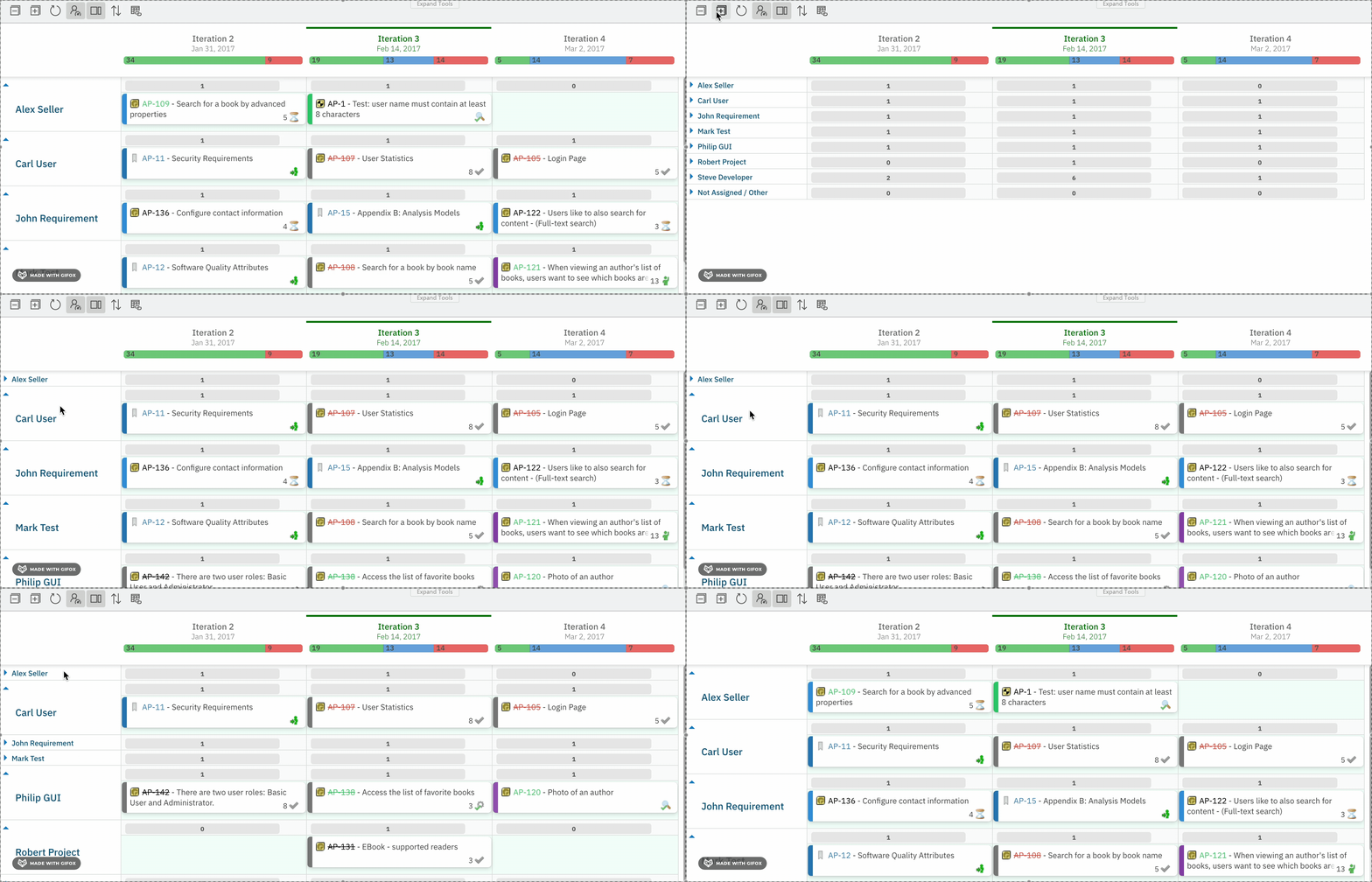 | Control | Location | Effect |
| ---------------------- | ------------------ | ------------------------------------------ |
| Click swimlane header | Swimlane row label | Toggles that swimlane collapsed / expanded |
| Collapse all (toolbar) | Upper-left toolbar | Collapses every swimlane on the board |
| Expand all (toolbar) | Upper-left toolbar | Expands every swimlane on the board |
### Widget parameter
| Parameter | Type | Default | Description |
| ---------------------- | ------- | ------- | ----------------------------------------------------------------------------------------------------------------------------------- |
| `collapsibleSwimlanes` | boolean | `true` | Enables per-swimlane collapse/expand. When `false`, swimlane headers are not interactive and all lanes remain permanently expanded. |
**Configuration example:**
```properties theme={null}
collapsibleSwimlanes=true
```
An intermittent browser-specific bug causes clicking to expand a swimlane to expand a different swimlane (typically the last one in the list) instead. This has been observed in Chrome but not in Edge. **Workaround:** use Microsoft Edge, or click the global Expand all toolbar button and then collapse the lanes you do not need.
***
## Show Empty Swimlanes
By default, swimlanes with no matching work items are hidden. Enabling this option keeps all possible lanes visible even when empty.
| Parameter | Type | Default | Description |
| -------------------- | ------- | ------- | ---------------------------------------------------------------------------- |
| `showEmptySwimlanes` | boolean | `false` | When `true`, all swimlane rows are rendered even if they contain zero cards. |
**Configuration example:**
```properties theme={null}
showEmptySwimlanes=true
```
Showing empty swimlanes is useful when you want a consistent row structure across all iterations — for example, to confirm a team member truly has no work planned in a sprint rather than wondering whether the row is simply hidden.
***
## Assignment Type
The **assignment type** (widget parameter `assignmentMode`) determines how work items are grouped into swimlane rows. It is configured in the **Widget Parameters** panel under **Swimlanes (Rows) > Assignment Type**.
| Control | Location | Effect |
| ---------------------- | ------------------ | ------------------------------------------ |
| Click swimlane header | Swimlane row label | Toggles that swimlane collapsed / expanded |
| Collapse all (toolbar) | Upper-left toolbar | Collapses every swimlane on the board |
| Expand all (toolbar) | Upper-left toolbar | Expands every swimlane on the board |
### Widget parameter
| Parameter | Type | Default | Description |
| ---------------------- | ------- | ------- | ----------------------------------------------------------------------------------------------------------------------------------- |
| `collapsibleSwimlanes` | boolean | `true` | Enables per-swimlane collapse/expand. When `false`, swimlane headers are not interactive and all lanes remain permanently expanded. |
**Configuration example:**
```properties theme={null}
collapsibleSwimlanes=true
```
An intermittent browser-specific bug causes clicking to expand a swimlane to expand a different swimlane (typically the last one in the list) instead. This has been observed in Chrome but not in Edge. **Workaround:** use Microsoft Edge, or click the global Expand all toolbar button and then collapse the lanes you do not need.
***
## Show Empty Swimlanes
By default, swimlanes with no matching work items are hidden. Enabling this option keeps all possible lanes visible even when empty.
| Parameter | Type | Default | Description |
| -------------------- | ------- | ------- | ---------------------------------------------------------------------------- |
| `showEmptySwimlanes` | boolean | `false` | When `true`, all swimlane rows are rendered even if they contain zero cards. |
**Configuration example:**
```properties theme={null}
showEmptySwimlanes=true
```
Showing empty swimlanes is useful when you want a consistent row structure across all iterations — for example, to confirm a team member truly has no work planned in a sprint rather than wondering whether the row is simply hidden.
***
## Assignment Type
The **assignment type** (widget parameter `assignmentMode`) determines how work items are grouped into swimlane rows. It is configured in the **Widget Parameters** panel under **Swimlanes (Rows) > Assignment Type**.
 ### Assignment type options
| Assignment Type | `assignmentMode` value | Swimlane rows represent |
| ----------------- | ---------------------- | --------------------------------------------------------- |
| Users (Assignee) | `ASSIGNEE` | Individual users who hold a specified role in the project |
| Parent Item | `PARENT` | Parent work items matched by a Lucene query and link role |
| Enumeration Field | `ENUM` | Values of a specified enumeration custom field |
| Project | `PROJECT` | Sub-projects within the current project group |
| SAFe Team | `SAFE_TEAM` | SAFe teams within the current program |
| SAFe Train Team | `SAFE_TRAIN_TEAM` | Teams within a specific Agile Release Train |
| SAFe Programs | `SAFE_PROGRAMS` | SAFe programs within a solution train |
| No Swimlanes | `none` | (all items in a single flat view — no rows) |
Each type exposes different configuration fields, described in the sections below.
***
### Users (Assignee)
Each swimlane row represents one user who holds a specified role in the current Polarion project.
| Field | Required | Description |
| -------------------------- | -------- | -------------------------------------------------------------------------------------------------------------------------------------------------------------------------------------------------- |
| **User Role** (`userRole`) | Yes | The Polarion role ID whose members become swimlane rows. Example: `project_user`. |
| **Report Link** | No | URL template for a report link on the swimlane label. Supports `${r.objectId.itemId}` to pass the user ID. Example: `/polarion/#/project/PlanningBoard/wiki/SOME_REPORT?user=${r.objectId.itemId}` |
**Configuration example:**
```properties theme={null}
assignmentMode=ASSIGNEE
userRole=project_user
```
**When to use:** plan the workload of individual team members who are active in the project. Provides a per-person view for balancing assignments.
See also: [Assignee Mode](/planningboard/reference/assignment-modes/assignee-mode)
***
### Parent Item
Each swimlane row represents a parent work item. Items can only be placed under their actual parent — dragging to an incorrect row causes Planningboard to snap the card back to its correct parent's lane automatically.
| Field | Required | Description |
| ------------------------------------------------ | -------- | ---------------------------------------------------------------------------------------------------------------------------------- |
| **Parent Role** (`parentRole`) | Yes | The link role that defines the parent relationship (e.g., `implements`). |
| **Parent Work Item Type** (`parentWorkItemType`) | No | Filters parent items to only those of this type. |
| **Parent Query** | No | Lucene query to restrict which parent items appear as rows. |
| **Filter Parents** | No | `Yes` / `No` — whether to limit visible parents to those matched by the query. |
| **Sort By** | No | Property by which parent swimlanes are ordered. Since Planningboard 25.9.0, any custom property including `priority` is supported. |
| **Report Link** | No | URL template for a report link on the swimlane label. |
**Configuration example:**
```properties theme={null}
assignmentMode=PARENT
parentRole=implements
parentWorkItemType=feature
```
Parent Item assignment mode does **not** support plan normalization (`planCellsMode`). Do not combine `assignmentMode=PARENT` with `planCellsMode=true`.
**When to use:** visualize and plan hierarchical relationships — for example, see how tasks distribute across features or initiatives.
See also: [Parent Item Mode](/planningboard/reference/assignment-modes/parent-mode), [Swimlanes Parameters](/planningboard/reference/widget-parameters/swimlanes-parameters)
***
### Enumeration Field
Each swimlane row represents a value from a specified enumeration custom field (e.g., `team`, component type, or priority tier).
| Field | Required | Description |
| ---------------------------- | -------- | ----------------------------------------------------------------------------------------------------------------------------------------- |
| **Field ID** (`enumFieldId`) | Yes | The Polarion custom field ID (e.g., `team`). Must reference a valid enumeration field (`IEnumType` or `IListType` containing enum items). |
| **Rows Filter** | No | Limits which enum values appear as rows. |
| **Report Link** | No | URL template for a report link on the swimlane label. |
**Configuration example:**
```properties theme={null}
assignmentMode=ENUM
enumFieldId=team
```
The `status`, `resolution`, and `type` built-in fields are **not** supported as enum swimlane sources. Only custom enumeration fields are valid.
**Multi-valued fields:** when a work item has multiple values for the enum field, it appears in each corresponding swimlane row simultaneously. Dragging the card to the **Not Assigned/Other** row removes that specific enum value from the field — not all values.
**When to use:** plan work by team, component, or any categorical attribute stored as a custom enumeration field.
See also: [Enumeration Field Mode](/planningboard/reference/assignment-modes/enum-mode)
***
### Project
Each swimlane row represents a sub-project within the current project group. Only projects readable by the current user are included; the current project itself is excluded.
| Field | Required | Description |
| --------------- | -------- | ----------------------------------------------------------------- |
| **Report Link** | No | URL template for a project-specific report on the swimlane label. |
**Configuration example:**
```properties theme={null}
assignmentMode=PROJECT
```
**When to use:** cross-project planning view for teams working across multiple projects simultaneously.
See also: [Project Mode](/planningboard/reference/assignment-modes/project-mode)
***
### SAFe Assignment Types
Three assignment types are available for SAFe (Scaled Agile Framework) environments. These require a Polarion SAFe Solution to be configured.
| Assignment Type | `assignmentMode` value | Additional field |
| --------------- | ---------------------- | ---------------------------------------------------------------------------------------------- |
| SAFe Team | `SAFE_TEAM` | `safeTeamField` — custom field storing the SAFe team assignment (default: `safeTeam`) |
| SAFe Train Team | `SAFE_TRAIN_TEAM` | `safeTeamField` + ART ID parameter to filter by Agile Release Train |
| SAFe Programs | `SAFE_PROGRAMS` | `safeProgramField` — custom field storing the SAFe program assignment (default: `safeProgram`) |
SAFe assignment type configuration requires Polarion SAFe Solution. Contact Nextedy support for setup guidance specific to your SAFe topology.
See also: [SAFe Team Mode](/planningboard/reference/assignment-modes/safe-team-mode), [SAFe Train Team Mode](/planningboard/reference/assignment-modes/safe-train-team-mode), [SAFe Programs Mode](/planningboard/reference/assignment-modes/safe-programs-mode)
***
### No Swimlanes
All work items appear in a single flat view. No horizontal grouping is applied.
**Configuration example:**
```properties theme={null}
assignmentMode=none
```
**When to use:** high-level planning or quick overviews where swimlane separation is unnecessary; focus is on columns (Plans) only.
See also: [No Swimlanes Mode](/planningboard/reference/assignment-modes/no-swimlanes-mode)
***
## Swimlane Sort Order
The `swimlaneSort` parameter controls the vertical ordering of swimlane rows (when using any assignment type other than `none`).
| Parameter | Type | Default | Description |
| -------------- | ------ | -------------- | ----------------------------------------------------------------------------------- |
| `swimlaneSort` | string | `alphabetical` | Sort order for swimlane rows. Controls vertical ordering of all lanes on the board. |
**Available values:**
| Value | Description |
| -------------- | ---------------------------------------------------------------------------------- |
| `alphabetical` | Rows sorted A–Z by the swimlane label (user name, enum value, project name, etc.). |
Additional sort values beyond `alphabetical` (including custom property sort introduced in Planningboard 25.9.0 for Parent mode via the **Sort By** field) may be available depending on the assignment type and version. Check the **Sort By** field in Widget Parameters > Swimlanes (Rows) for available options for your chosen assignment type.
**Note:** swimlane sort order is coupled to item sort order within each lane. The sort order of cards within a swimlane follows the same hierarchy: 1) resource name, 2) start date, 3) priority (if prioritization is enabled) or the custom sort field, 4) work item ID as tiebreaker.
***
## Capacity Bar
Each swimlane row displays a **capacity bar** that visualizes the load relative to available capacity for that resource. The capacity bar is a per-swimlane indicator — not to be confused with the per-Plan capacity tooltip displayed on column headers.
### Assignment type options
| Assignment Type | `assignmentMode` value | Swimlane rows represent |
| ----------------- | ---------------------- | --------------------------------------------------------- |
| Users (Assignee) | `ASSIGNEE` | Individual users who hold a specified role in the project |
| Parent Item | `PARENT` | Parent work items matched by a Lucene query and link role |
| Enumeration Field | `ENUM` | Values of a specified enumeration custom field |
| Project | `PROJECT` | Sub-projects within the current project group |
| SAFe Team | `SAFE_TEAM` | SAFe teams within the current program |
| SAFe Train Team | `SAFE_TRAIN_TEAM` | Teams within a specific Agile Release Train |
| SAFe Programs | `SAFE_PROGRAMS` | SAFe programs within a solution train |
| No Swimlanes | `none` | (all items in a single flat view — no rows) |
Each type exposes different configuration fields, described in the sections below.
***
### Users (Assignee)
Each swimlane row represents one user who holds a specified role in the current Polarion project.
| Field | Required | Description |
| -------------------------- | -------- | -------------------------------------------------------------------------------------------------------------------------------------------------------------------------------------------------- |
| **User Role** (`userRole`) | Yes | The Polarion role ID whose members become swimlane rows. Example: `project_user`. |
| **Report Link** | No | URL template for a report link on the swimlane label. Supports `${r.objectId.itemId}` to pass the user ID. Example: `/polarion/#/project/PlanningBoard/wiki/SOME_REPORT?user=${r.objectId.itemId}` |
**Configuration example:**
```properties theme={null}
assignmentMode=ASSIGNEE
userRole=project_user
```
**When to use:** plan the workload of individual team members who are active in the project. Provides a per-person view for balancing assignments.
See also: [Assignee Mode](/planningboard/reference/assignment-modes/assignee-mode)
***
### Parent Item
Each swimlane row represents a parent work item. Items can only be placed under their actual parent — dragging to an incorrect row causes Planningboard to snap the card back to its correct parent's lane automatically.
| Field | Required | Description |
| ------------------------------------------------ | -------- | ---------------------------------------------------------------------------------------------------------------------------------- |
| **Parent Role** (`parentRole`) | Yes | The link role that defines the parent relationship (e.g., `implements`). |
| **Parent Work Item Type** (`parentWorkItemType`) | No | Filters parent items to only those of this type. |
| **Parent Query** | No | Lucene query to restrict which parent items appear as rows. |
| **Filter Parents** | No | `Yes` / `No` — whether to limit visible parents to those matched by the query. |
| **Sort By** | No | Property by which parent swimlanes are ordered. Since Planningboard 25.9.0, any custom property including `priority` is supported. |
| **Report Link** | No | URL template for a report link on the swimlane label. |
**Configuration example:**
```properties theme={null}
assignmentMode=PARENT
parentRole=implements
parentWorkItemType=feature
```
Parent Item assignment mode does **not** support plan normalization (`planCellsMode`). Do not combine `assignmentMode=PARENT` with `planCellsMode=true`.
**When to use:** visualize and plan hierarchical relationships — for example, see how tasks distribute across features or initiatives.
See also: [Parent Item Mode](/planningboard/reference/assignment-modes/parent-mode), [Swimlanes Parameters](/planningboard/reference/widget-parameters/swimlanes-parameters)
***
### Enumeration Field
Each swimlane row represents a value from a specified enumeration custom field (e.g., `team`, component type, or priority tier).
| Field | Required | Description |
| ---------------------------- | -------- | ----------------------------------------------------------------------------------------------------------------------------------------- |
| **Field ID** (`enumFieldId`) | Yes | The Polarion custom field ID (e.g., `team`). Must reference a valid enumeration field (`IEnumType` or `IListType` containing enum items). |
| **Rows Filter** | No | Limits which enum values appear as rows. |
| **Report Link** | No | URL template for a report link on the swimlane label. |
**Configuration example:**
```properties theme={null}
assignmentMode=ENUM
enumFieldId=team
```
The `status`, `resolution`, and `type` built-in fields are **not** supported as enum swimlane sources. Only custom enumeration fields are valid.
**Multi-valued fields:** when a work item has multiple values for the enum field, it appears in each corresponding swimlane row simultaneously. Dragging the card to the **Not Assigned/Other** row removes that specific enum value from the field — not all values.
**When to use:** plan work by team, component, or any categorical attribute stored as a custom enumeration field.
See also: [Enumeration Field Mode](/planningboard/reference/assignment-modes/enum-mode)
***
### Project
Each swimlane row represents a sub-project within the current project group. Only projects readable by the current user are included; the current project itself is excluded.
| Field | Required | Description |
| --------------- | -------- | ----------------------------------------------------------------- |
| **Report Link** | No | URL template for a project-specific report on the swimlane label. |
**Configuration example:**
```properties theme={null}
assignmentMode=PROJECT
```
**When to use:** cross-project planning view for teams working across multiple projects simultaneously.
See also: [Project Mode](/planningboard/reference/assignment-modes/project-mode)
***
### SAFe Assignment Types
Three assignment types are available for SAFe (Scaled Agile Framework) environments. These require a Polarion SAFe Solution to be configured.
| Assignment Type | `assignmentMode` value | Additional field |
| --------------- | ---------------------- | ---------------------------------------------------------------------------------------------- |
| SAFe Team | `SAFE_TEAM` | `safeTeamField` — custom field storing the SAFe team assignment (default: `safeTeam`) |
| SAFe Train Team | `SAFE_TRAIN_TEAM` | `safeTeamField` + ART ID parameter to filter by Agile Release Train |
| SAFe Programs | `SAFE_PROGRAMS` | `safeProgramField` — custom field storing the SAFe program assignment (default: `safeProgram`) |
SAFe assignment type configuration requires Polarion SAFe Solution. Contact Nextedy support for setup guidance specific to your SAFe topology.
See also: [SAFe Team Mode](/planningboard/reference/assignment-modes/safe-team-mode), [SAFe Train Team Mode](/planningboard/reference/assignment-modes/safe-train-team-mode), [SAFe Programs Mode](/planningboard/reference/assignment-modes/safe-programs-mode)
***
### No Swimlanes
All work items appear in a single flat view. No horizontal grouping is applied.
**Configuration example:**
```properties theme={null}
assignmentMode=none
```
**When to use:** high-level planning or quick overviews where swimlane separation is unnecessary; focus is on columns (Plans) only.
See also: [No Swimlanes Mode](/planningboard/reference/assignment-modes/no-swimlanes-mode)
***
## Swimlane Sort Order
The `swimlaneSort` parameter controls the vertical ordering of swimlane rows (when using any assignment type other than `none`).
| Parameter | Type | Default | Description |
| -------------- | ------ | -------------- | ----------------------------------------------------------------------------------- |
| `swimlaneSort` | string | `alphabetical` | Sort order for swimlane rows. Controls vertical ordering of all lanes on the board. |
**Available values:**
| Value | Description |
| -------------- | ---------------------------------------------------------------------------------- |
| `alphabetical` | Rows sorted A–Z by the swimlane label (user name, enum value, project name, etc.). |
Additional sort values beyond `alphabetical` (including custom property sort introduced in Planningboard 25.9.0 for Parent mode via the **Sort By** field) may be available depending on the assignment type and version. Check the **Sort By** field in Widget Parameters > Swimlanes (Rows) for available options for your chosen assignment type.
**Note:** swimlane sort order is coupled to item sort order within each lane. The sort order of cards within a swimlane follows the same hierarchy: 1) resource name, 2) start date, 3) priority (if prioritization is enabled) or the custom sort field, 4) work item ID as tiebreaker.
***
## Capacity Bar
Each swimlane row displays a **capacity bar** that visualizes the load relative to available capacity for that resource. The capacity bar is a per-swimlane indicator — not to be confused with the per-Plan capacity tooltip displayed on column headers.
 ### Enabling capacity display
Capacity bar display is controlled by a combination of parameters:
| Parameter | Type | Default | Description |
| ------------------- | ------- | ------- | ----------------------------------------------------------------------------------------------------------------- |
| `capacityLoad` | boolean | `false` | Enables capacity/load calculations for resources. Must be `true` for capacity bars to appear. |
| `capacityField` | string | (none) | Custom field ID containing the capacity values used in load calculations (e.g., story points field, hours field). |
| `hoursPerDay` | number | `8` | Working hours per day, used in capacity normalization calculations. |
| `multiCapacityLoad` | boolean | `false` | Enables capacity loading across multiple plans simultaneously. |
| `userCapacityLoad` | boolean | `false` | Enables user-level capacity loading. Requires `useTeamsService=true`. |
**Configuration example:**
```properties theme={null}
capacityLoad=true
capacityField=storyPoints
hoursPerDay=8
```
Capacity configuration parameter values are whitespace-sensitive. Do not add leading or trailing spaces around `=` assignments when editing capacity parameters.
### Capacity tooltip
Hovering over the capacity bar on a **Plan column header** (not the swimlane bar) displays a detailed tooltip with capacity information per plan. This tooltip is only available when `capacityLoad` is enabled via Widget Parameters.
Planningboard capacity tracking has the following known gaps compared to Nextedy GANTT:
* **No multi-assignee capacity distribution** — if a work item has multiple assignees, capacity is not split across them.
* **No sub-item effort distribution** — effort from child work items is not rolled up to parent items for capacity purposes.
See also: [Capacity Parameters](/planningboard/reference/widget-parameters/capacity-parameters)
***
## Not Assigned/Other Row
When using Enumeration Field or Users (Assignee) assignment types, a special **Not Assigned/Other** row (`UNASSIGNED`) is displayed at the bottom of the swimlane list. It contains work items that have no value for the grouping field.
### Enabling capacity display
Capacity bar display is controlled by a combination of parameters:
| Parameter | Type | Default | Description |
| ------------------- | ------- | ------- | ----------------------------------------------------------------------------------------------------------------- |
| `capacityLoad` | boolean | `false` | Enables capacity/load calculations for resources. Must be `true` for capacity bars to appear. |
| `capacityField` | string | (none) | Custom field ID containing the capacity values used in load calculations (e.g., story points field, hours field). |
| `hoursPerDay` | number | `8` | Working hours per day, used in capacity normalization calculations. |
| `multiCapacityLoad` | boolean | `false` | Enables capacity loading across multiple plans simultaneously. |
| `userCapacityLoad` | boolean | `false` | Enables user-level capacity loading. Requires `useTeamsService=true`. |
**Configuration example:**
```properties theme={null}
capacityLoad=true
capacityField=storyPoints
hoursPerDay=8
```
Capacity configuration parameter values are whitespace-sensitive. Do not add leading or trailing spaces around `=` assignments when editing capacity parameters.
### Capacity tooltip
Hovering over the capacity bar on a **Plan column header** (not the swimlane bar) displays a detailed tooltip with capacity information per plan. This tooltip is only available when `capacityLoad` is enabled via Widget Parameters.
Planningboard capacity tracking has the following known gaps compared to Nextedy GANTT:
* **No multi-assignee capacity distribution** — if a work item has multiple assignees, capacity is not split across them.
* **No sub-item effort distribution** — effort from child work items is not rolled up to parent items for capacity purposes.
See also: [Capacity Parameters](/planningboard/reference/widget-parameters/capacity-parameters)
***
## Not Assigned/Other Row
When using Enumeration Field or Users (Assignee) assignment types, a special **Not Assigned/Other** row (`UNASSIGNED`) is displayed at the bottom of the swimlane list. It contains work items that have no value for the grouping field.
 ### Drag-and-drop behavior with Not Assigned/Other
| Action | Result |
| --------------------------------------------------------- | ---------------------------------------------------------------------------------------------------- |
| Drag card from user/enum swimlane to Not Assigned/Other | Removes **that specific value** from the multi-valued field. Other values on the card are preserved. |
| Drag card from Not Assigned/Other to a user/enum swimlane | Assigns that user or enum value to the work item. |
When a work item has multiple values for the grouping field, it appears in each corresponding row simultaneously. Dropping it onto Not Assigned/Other removes only the value corresponding to the source swimlane row — not all values. The change persists after board refresh.
***
## License-Based Swimlane Access
Swimlane interaction is restricted based on whether the current user holds a Planningboard license.
| Capability | Licensed user | Unlicensed user |
| ---------------------------- | ------------- | -------------------------------------------------------------------- |
| View swimlane contents | Yes | Yes |
| Collapse / expand swimlane | Yes | Yes |
| Drag cards between swimlanes | Yes | No — drag operations are blocked; cards return to their original row |
| View capacity bar | Yes | Yes |
Unlicensed users retain full visibility of the board — including swimlane contents and capacity bars — for collaboration and review purposes. Editing capabilities (drag-and-drop, creating plans, accessing the sidebar) are restricted to licensed users.
See also: [License Panel](/planningboard/reference/ui-elements/license-panel)
***
## Configuration Example
The following example configures a board with user-based swimlanes, capacity enabled, and empty lanes hidden:
```properties theme={null}
# Swimlane assignment
assignmentMode=ASSIGNEE
userRole=project_user
swimlaneSort=alphabetical
showEmptySwimlanes=false
collapsibleSwimlanes=true
# Capacity
capacityLoad=true
capacityField=storyPoints
hoursPerDay=8
```
**Report link example for user swimlanes:**
```
/polarion/#/project/PlanningBoard/wiki/SOME_REPORT?user=${r.objectId.itemId}
```
The `${r.objectId.itemId}` placeholder is substituted at runtime with the user ID for the selected swimlane row.
***
## Related Reference
| Page | Description |
| --------------------------------------------------------------------------------------- | ---------------------------------------------------------- |
| [Swimlanes Parameters](/planningboard/reference/widget-parameters/swimlanes-parameters) | Full widget parameter reference for swimlane configuration |
| [Capacity Parameters](/planningboard/reference/widget-parameters/capacity-parameters) | Capacity and load parameters |
| [Assignment Modes](/planningboard/reference/assignment-modes/index) | Detailed reference for each assignment mode |
| [Toolbar Controls](/planningboard/reference/ui-elements/toolbar) | Global collapse/expand and other toolbar actions |
| [Unplanned Sidebar](/planningboard/reference/ui-elements/sidebar) | Sidebar controls for unplanned work items |
| [Card Quick Actions](/planningboard/reference/ui-elements/card-quick-actions) | Per-card hover actions |
**KB Articles**
* Planningboard interface & basic interactions
* Swimlane Assignment Types
* Planningboard Widget Parameters
**Support Tickets**
* [#6681](https://support.nextedy.com/helpdesk/tickets/6681)
* [#6688](https://support.nextedy.com/helpdesk/tickets/6688)
**Source Code**
* `licenseReadonly.cy.ts`
* `Config.java`
* `AssignmentMode.java`
* `widget.vm`
* `PlanningBoardWidget.java`
### Drag-and-drop behavior with Not Assigned/Other
| Action | Result |
| --------------------------------------------------------- | ---------------------------------------------------------------------------------------------------- |
| Drag card from user/enum swimlane to Not Assigned/Other | Removes **that specific value** from the multi-valued field. Other values on the card are preserved. |
| Drag card from Not Assigned/Other to a user/enum swimlane | Assigns that user or enum value to the work item. |
When a work item has multiple values for the grouping field, it appears in each corresponding row simultaneously. Dropping it onto Not Assigned/Other removes only the value corresponding to the source swimlane row — not all values. The change persists after board refresh.
***
## License-Based Swimlane Access
Swimlane interaction is restricted based on whether the current user holds a Planningboard license.
| Capability | Licensed user | Unlicensed user |
| ---------------------------- | ------------- | -------------------------------------------------------------------- |
| View swimlane contents | Yes | Yes |
| Collapse / expand swimlane | Yes | Yes |
| Drag cards between swimlanes | Yes | No — drag operations are blocked; cards return to their original row |
| View capacity bar | Yes | Yes |
Unlicensed users retain full visibility of the board — including swimlane contents and capacity bars — for collaboration and review purposes. Editing capabilities (drag-and-drop, creating plans, accessing the sidebar) are restricted to licensed users.
See also: [License Panel](/planningboard/reference/ui-elements/license-panel)
***
## Configuration Example
The following example configures a board with user-based swimlanes, capacity enabled, and empty lanes hidden:
```properties theme={null}
# Swimlane assignment
assignmentMode=ASSIGNEE
userRole=project_user
swimlaneSort=alphabetical
showEmptySwimlanes=false
collapsibleSwimlanes=true
# Capacity
capacityLoad=true
capacityField=storyPoints
hoursPerDay=8
```
**Report link example for user swimlanes:**
```
/polarion/#/project/PlanningBoard/wiki/SOME_REPORT?user=${r.objectId.itemId}
```
The `${r.objectId.itemId}` placeholder is substituted at runtime with the user ID for the selected swimlane row.
***
## Related Reference
| Page | Description |
| --------------------------------------------------------------------------------------- | ---------------------------------------------------------- |
| [Swimlanes Parameters](/planningboard/reference/widget-parameters/swimlanes-parameters) | Full widget parameter reference for swimlane configuration |
| [Capacity Parameters](/planningboard/reference/widget-parameters/capacity-parameters) | Capacity and load parameters |
| [Assignment Modes](/planningboard/reference/assignment-modes/index) | Detailed reference for each assignment mode |
| [Toolbar Controls](/planningboard/reference/ui-elements/toolbar) | Global collapse/expand and other toolbar actions |
| [Unplanned Sidebar](/planningboard/reference/ui-elements/sidebar) | Sidebar controls for unplanned work items |
| [Card Quick Actions](/planningboard/reference/ui-elements/card-quick-actions) | Per-card hover actions |
**KB Articles**
* Planningboard interface & basic interactions
* Swimlane Assignment Types
* Planningboard Widget Parameters
**Support Tickets**
* [#6681](https://support.nextedy.com/helpdesk/tickets/6681)
* [#6688](https://support.nextedy.com/helpdesk/tickets/6688)
**Source Code**
* `licenseReadonly.cy.ts`
* `Config.java`
* `AssignmentMode.java`
* `widget.vm`
* `PlanningBoardWidget.java`