> ## Documentation Index
> Fetch the complete documentation index at: https://learn.nextedy.com/llms.txt
> Use this file to discover all available pages before exploring further.
# Unplanned Sidebar
> The **Unplanned Sidebar** is a collapsible panel displayed on the right side of the Nextedy PLANNINGBOARD. It serves as a backlog holding all work items not yet assigned to a Plan.
***
 ***
## Overview
| Attribute | Value |
| --------------------- | ------------------------------------------------------------------ |
| Panel position | Right side of the board |
| Default visibility | Visible (toggle with **Show Unplanned** toolbar button) |
| License requirement | Licensed users only — panel is hidden for unlicensed users |
| Primary interaction | Drag card from sidebar onto a board swimlane/Plan cell to schedule |
| Secondary interaction | Click a card to open the Work Item Properties sidebar |
***
## Visibility Toggle
The sidebar can be shown or hidden using the **Show Unplanned** toolbar button (`#btnShowUnplanned`). This button is only visible to licensed users.
* When hidden, the board area expands to fill the full width.
* When shown, the board area narrows to accommodate the sidebar.
* The panel preference is saved between sessions.
The **Show Unplanned** button and the sidebar panel itself are only rendered for licensed users. Unlicensed users see neither the button nor the sidebar.
***
## Item Display and Grouping
Items in the sidebar are grouped by **parent hierarchy**. The `updateSidebarHeader` function applies all active filters, sorts items by parent, groups them into parent-hierarchy dividers, and updates the item count indicator.
### Item Counter
A counter at the bottom of the sidebar displays the number of currently visible items relative to the total:
```
X out of Y work items
```
The counter updates in real time as filters are applied or cleared.
### Parent Hierarchy Grouping
Items are organized under collapsible parent-group dividers. The depth of parent levels loaded is controlled by the `PARAMETER_US_DEPTH` widget parameter (see [Work Items Parameters](/planningboard/reference/widget-parameters/work-items-parameters)).
The link role used to determine parent-child relationships is set by `PARAMETER_PARENTS_LINK_ROLE` (see [Work Items Parameters](/planningboard/reference/widget-parameters/work-items-parameters)).
| Widget Parameter | Purpose | Default |
| ----------------------------- | ----------------------------------------------------------- | --------------- |
| `PARAMETER_US_DEPTH` | Number of parent levels loaded in sidebar hierarchy | See application |
| `PARAMETER_PARENTS_LINK_ROLE` | Link role defining parent-child relationships for hierarchy | See application |
Deep parent hierarchies (high `PARAMETER_US_DEPTH` values) increase data load time. Keep depth to the minimum required for your planning workflow.
***
## Filters
The sidebar supports multiple filter modes. Some filter modes are mutually exclusive — enabling one clears the other.
### Filter Controls
| Control | Element | Description |
| ------------------------------ | ------------------- | ------------------------------------------------------------------ |
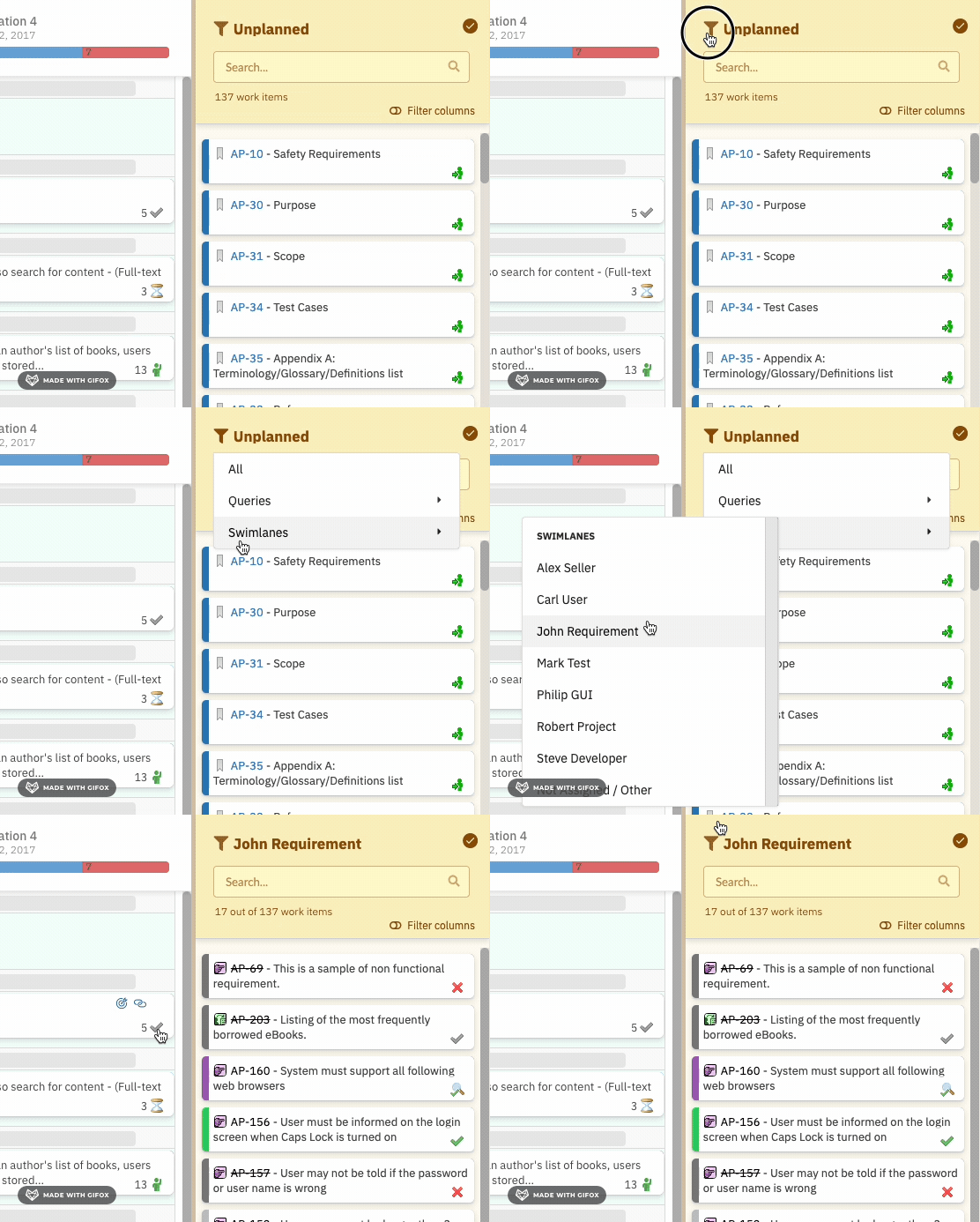
| Funnel icon | Filter button | Opens the filter panel to select resource or query filters |
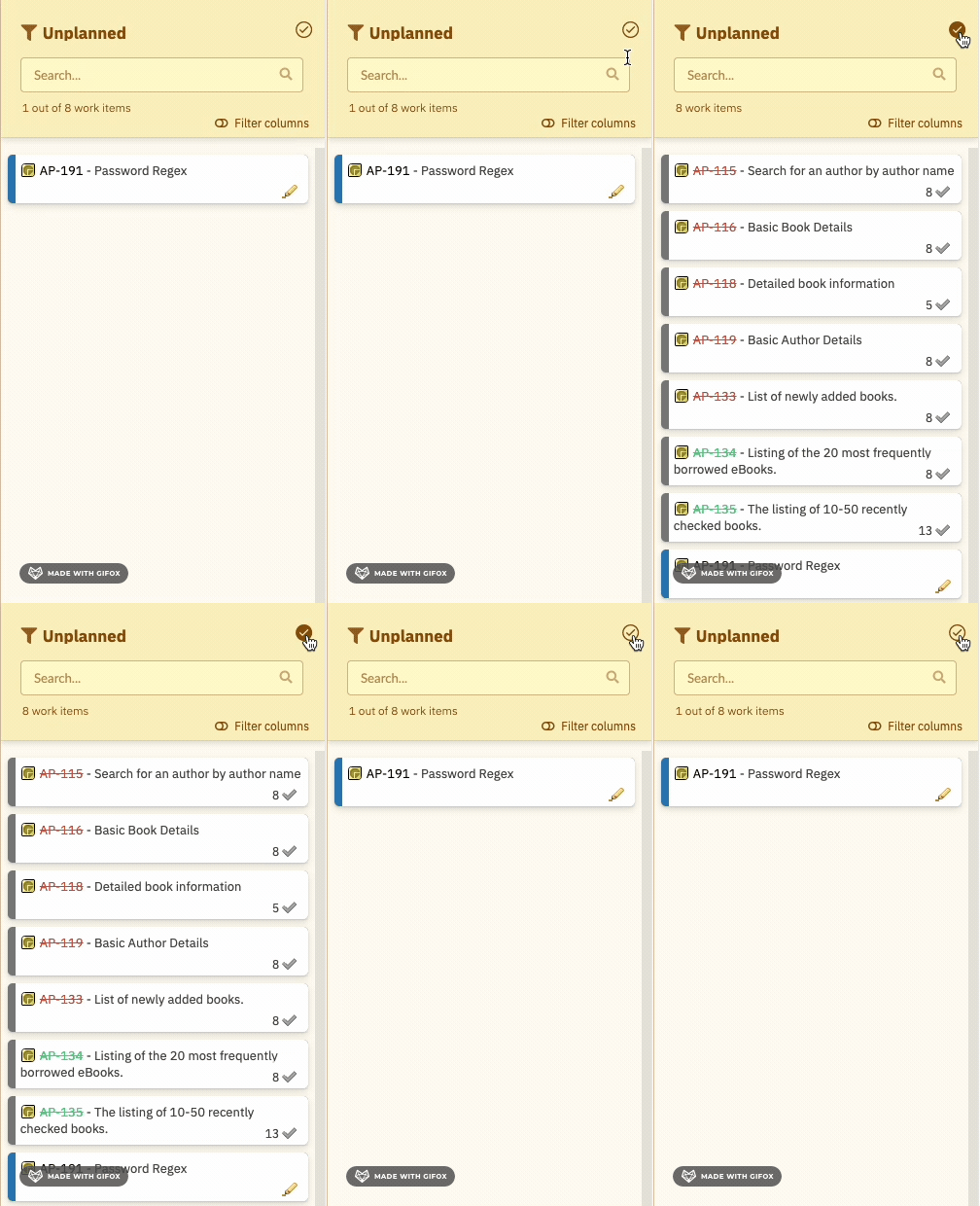
| **Filter Verified WIs** button | Upper-right button | Toggles whether resolved/verified work items appear in the sidebar |
| **Filter columns** option | Filter panel option | Hides verified work items that are already planned on the board |
| Search field | Text input | Real-time text search across item content and parent names |
| Clear filter | Clear action | Removes all active resource and query filters |
***
## Overview
| Attribute | Value |
| --------------------- | ------------------------------------------------------------------ |
| Panel position | Right side of the board |
| Default visibility | Visible (toggle with **Show Unplanned** toolbar button) |
| License requirement | Licensed users only — panel is hidden for unlicensed users |
| Primary interaction | Drag card from sidebar onto a board swimlane/Plan cell to schedule |
| Secondary interaction | Click a card to open the Work Item Properties sidebar |
***
## Visibility Toggle
The sidebar can be shown or hidden using the **Show Unplanned** toolbar button (`#btnShowUnplanned`). This button is only visible to licensed users.
* When hidden, the board area expands to fill the full width.
* When shown, the board area narrows to accommodate the sidebar.
* The panel preference is saved between sessions.
The **Show Unplanned** button and the sidebar panel itself are only rendered for licensed users. Unlicensed users see neither the button nor the sidebar.
***
## Item Display and Grouping
Items in the sidebar are grouped by **parent hierarchy**. The `updateSidebarHeader` function applies all active filters, sorts items by parent, groups them into parent-hierarchy dividers, and updates the item count indicator.
### Item Counter
A counter at the bottom of the sidebar displays the number of currently visible items relative to the total:
```
X out of Y work items
```
The counter updates in real time as filters are applied or cleared.
### Parent Hierarchy Grouping
Items are organized under collapsible parent-group dividers. The depth of parent levels loaded is controlled by the `PARAMETER_US_DEPTH` widget parameter (see [Work Items Parameters](/planningboard/reference/widget-parameters/work-items-parameters)).
The link role used to determine parent-child relationships is set by `PARAMETER_PARENTS_LINK_ROLE` (see [Work Items Parameters](/planningboard/reference/widget-parameters/work-items-parameters)).
| Widget Parameter | Purpose | Default |
| ----------------------------- | ----------------------------------------------------------- | --------------- |
| `PARAMETER_US_DEPTH` | Number of parent levels loaded in sidebar hierarchy | See application |
| `PARAMETER_PARENTS_LINK_ROLE` | Link role defining parent-child relationships for hierarchy | See application |
Deep parent hierarchies (high `PARAMETER_US_DEPTH` values) increase data load time. Keep depth to the minimum required for your planning workflow.
***
## Filters
The sidebar supports multiple filter modes. Some filter modes are mutually exclusive — enabling one clears the other.
### Filter Controls
| Control | Element | Description |
| ------------------------------ | ------------------- | ------------------------------------------------------------------ |
| Funnel icon | Filter button | Opens the filter panel to select resource or query filters |
| **Filter Verified WIs** button | Upper-right button | Toggles whether resolved/verified work items appear in the sidebar |
| **Filter columns** option | Filter panel option | Hides verified work items that are already planned on the board |
| Search field | Text input | Real-time text search across item content and parent names |
| Clear filter | Clear action | Removes all active resource and query filters |
 ***
### Filter: Resolved / Verified Items (`toggleFilterResolved`)
Toggles whether **resolved** (verified) work items appear in the sidebar.
* When active: resolved items are hidden from the sidebar.
* When inactive: resolved items are shown alongside unresolved items.
* Items with the `Verified` status that have already been placed on the board **cannot be moved or unplanned**.
Once a card with `Verified` status is placed on the board, it cannot be moved or returned to the sidebar via drag and drop.
***
### Filter: Column Filtering (`toggleFilterColumns`)
***
### Filter: Resolved / Verified Items (`toggleFilterResolved`)
Toggles whether **resolved** (verified) work items appear in the sidebar.
* When active: resolved items are hidden from the sidebar.
* When inactive: resolved items are shown alongside unresolved items.
* Items with the `Verified` status that have already been placed on the board **cannot be moved or unplanned**.
Once a card with `Verified` status is placed on the board, it cannot be moved or returned to the sidebar via drag and drop.
***
### Filter: Column Filtering (`toggleFilterColumns`)
 Hides verified work items that are **already planned** (already placed in a Plan column on the board).
* Differs from the resolved toggle: this filter targets items that appear on the board in a plan column, regardless of their resolved status.
* Use this to keep the sidebar clean by removing items that have already been scheduled.
***
### Filter: Resource Filter (`filterSidebarByResource`)
Filters sidebar items to show only those assigned to a **specific resource** (person or team).
* Accessed via the funnel icon filter panel.
* **Mutually exclusive with query filtering** — enabling a resource filter clears any active query filter.
* To remove: use the clear filter action (`clearSidebarFiler`).
***
### Filter: Query Filter (`filterSidebarByQuery`)
Filters sidebar items to show only those matching a **specific Polarion query**.
* Predefined queries must be configured via widget parameters (see [Work Items Parameters](/planningboard/reference/widget-parameters/work-items-parameters)).
* Accessed via the funnel icon filter panel under the **Queries** section.
* **Mutually exclusive with resource filtering** — enabling a query filter clears any active resource filter.
***
### Filter: Search (`searchSidebar`)
Performs real-time text search across sidebar items.
| Attribute | Behavior |
| ------------------------------ | ----------------------------------------------------------------------------------------------------------- |
| Scope | Searches both item content and parent names |
| Case sensitivity | Case-insensitive |
| Interaction with other filters | Combines with active resource/query filters (search narrows the already-filtered set) |
| Clearing search | Clearing the search text restores the previously filtered set — it does not clear resource or query filters |
***
### Clearing Filters (`clearSidebarFiler`)
The clear filter action removes all active **resource** and **query** filters and shows all unplanned items (subject to the resolved toggle state).
Clearing filters does **not** reset the search text field or the resolved/verified toggle. Those must be cleared independently.
***
## Filter Precedence and Combination
Hides verified work items that are **already planned** (already placed in a Plan column on the board).
* Differs from the resolved toggle: this filter targets items that appear on the board in a plan column, regardless of their resolved status.
* Use this to keep the sidebar clean by removing items that have already been scheduled.
***
### Filter: Resource Filter (`filterSidebarByResource`)
Filters sidebar items to show only those assigned to a **specific resource** (person or team).
* Accessed via the funnel icon filter panel.
* **Mutually exclusive with query filtering** — enabling a resource filter clears any active query filter.
* To remove: use the clear filter action (`clearSidebarFiler`).
***
### Filter: Query Filter (`filterSidebarByQuery`)
Filters sidebar items to show only those matching a **specific Polarion query**.
* Predefined queries must be configured via widget parameters (see [Work Items Parameters](/planningboard/reference/widget-parameters/work-items-parameters)).
* Accessed via the funnel icon filter panel under the **Queries** section.
* **Mutually exclusive with resource filtering** — enabling a query filter clears any active resource filter.
***
### Filter: Search (`searchSidebar`)
Performs real-time text search across sidebar items.
| Attribute | Behavior |
| ------------------------------ | ----------------------------------------------------------------------------------------------------------- |
| Scope | Searches both item content and parent names |
| Case sensitivity | Case-insensitive |
| Interaction with other filters | Combines with active resource/query filters (search narrows the already-filtered set) |
| Clearing search | Clearing the search text restores the previously filtered set — it does not clear resource or query filters |
***
### Clearing Filters (`clearSidebarFiler`)
The clear filter action removes all active **resource** and **query** filters and shows all unplanned items (subject to the resolved toggle state).
Clearing filters does **not** reset the search text field or the resolved/verified toggle. Those must be cleared independently.
***
## Filter Precedence and Combination
 * Resource filter and query filter are **mutually exclusive** — enabling one clears the other.
* Search combines with whichever of the above filters are active.
* The resolved toggle and column filter apply independently before resource/query filtering.
***
## Drag and Drop
The primary interaction with the sidebar is **drag and drop**: drag a card from the sidebar onto a board cell (Plan column × swimlane row) to schedule it.
| Aspect | Behavior |
| --------------------------------- | ----------------------------------------------------------------------------- |
| Source | Unplanned sidebar items |
| Target | Board cells (Plan column × swimlane intersection) |
| Effect on drop | Work item is assigned to the Plan and resource/swimlane; removed from sidebar |
| Drag blocked in prioritize mode | Drag is disabled when Prioritization mode is active |
| Drag blocked for unlicensed users | Unlicensed users cannot drag cards; changes are not persisted |
### Alt+Drag to Duplicate
Holding **Alt** while dragging creates a **duplicate assignment** to another resource instead of moving the item:
* Creates a multi-resource assignment (comma-separated resource list on the work item).
* Cannot duplicate to the **Not Assigned/Other** swimlane.
* When duplicating from **Not Assigned/Other**, the **Not Assigned/Other** assignment is automatically removed.
***
## Click to Open Work Item Properties
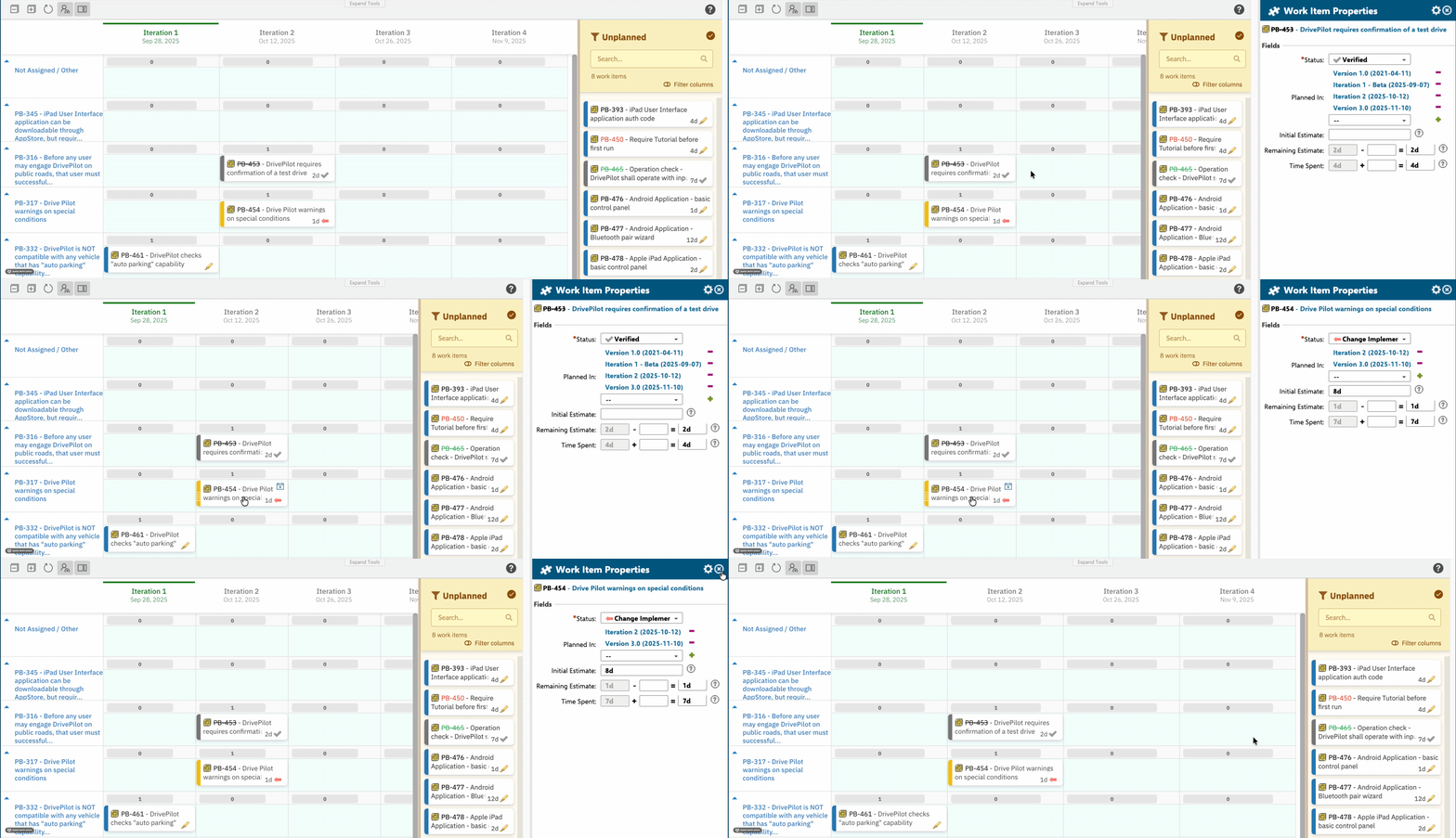
Clicking a card in the sidebar opens the **Work Item Properties** sidebar, where fields of the selected work item can be reviewed and modified.
* Fields displayed in the properties sidebar are configured via the `PARAMETER_SIDEBAR_FIELDS` widget parameter.
* Default fields: `title`, `status`, `plannedIn`.
* Users can personalize displayed fields using the **Select Fields** (gear icon) button in the sidebar. These additions are per-user and apply to all work items of the same type.
* After saving changes in the properties sidebar, the board **preserves your swimlane and scroll position** — the board does not jump back to the top.
* Resource filter and query filter are **mutually exclusive** — enabling one clears the other.
* Search combines with whichever of the above filters are active.
* The resolved toggle and column filter apply independently before resource/query filtering.
***
## Drag and Drop
The primary interaction with the sidebar is **drag and drop**: drag a card from the sidebar onto a board cell (Plan column × swimlane row) to schedule it.
| Aspect | Behavior |
| --------------------------------- | ----------------------------------------------------------------------------- |
| Source | Unplanned sidebar items |
| Target | Board cells (Plan column × swimlane intersection) |
| Effect on drop | Work item is assigned to the Plan and resource/swimlane; removed from sidebar |
| Drag blocked in prioritize mode | Drag is disabled when Prioritization mode is active |
| Drag blocked for unlicensed users | Unlicensed users cannot drag cards; changes are not persisted |
### Alt+Drag to Duplicate
Holding **Alt** while dragging creates a **duplicate assignment** to another resource instead of moving the item:
* Creates a multi-resource assignment (comma-separated resource list on the work item).
* Cannot duplicate to the **Not Assigned/Other** swimlane.
* When duplicating from **Not Assigned/Other**, the **Not Assigned/Other** assignment is automatically removed.
***
## Click to Open Work Item Properties
Clicking a card in the sidebar opens the **Work Item Properties** sidebar, where fields of the selected work item can be reviewed and modified.
* Fields displayed in the properties sidebar are configured via the `PARAMETER_SIDEBAR_FIELDS` widget parameter.
* Default fields: `title`, `status`, `plannedIn`.
* Users can personalize displayed fields using the **Select Fields** (gear icon) button in the sidebar. These additions are per-user and apply to all work items of the same type.
* After saving changes in the properties sidebar, the board **preserves your swimlane and scroll position** — the board does not jump back to the top.
 ### Sidebar Fields Widget Parameter
| Widget Parameter | Type | Default | Description |
| -------------------------- | ------------------ | ------------------------------ | ---------------------------------------------------------------------- |
| `PARAMETER_SIDEBAR_FIELDS` | Array of field IDs | `title`, `status`, `plannedIn` | Work item fields shown in the properties sidebar when a card is opened |
See [Work Items Parameters](/planningboard/reference/widget-parameters/work-items-parameters) for the full field reference.
***
## Height Management (`modSchedHeight`)
The sidebar and board area heights are **automatically managed** to fit the browser window or Polarion iframe. No manual height configuration is required.
* Height adjusts dynamically when the browser window is resized.
* Behavior differs slightly when embedded in a Polarion LiveDoc or Wiki page (iframe) versus standalone.
***
## Unplanning Items from the Board
Items can be returned from the board to the sidebar using the **Unplan** card quick action (visible on hover). See [Card Quick Actions](/planningboard/reference/ui-elements/card-quick-actions) for details.
The **Unplan** action:
* Moves the card from its current Plan/swimlane cell back into the Unplanned Sidebar.
* Clears the work item's date and resource assignment.
* Makes the item available for re-planning.
Cards with `Verified` status cannot be unplanned — the action is blocked for verified items.
***
## Configuration Reference
### Widget Parameters Affecting the Sidebar
| Parameter | Where Configured | Description | Reference |
| ----------------------------- | ----------------- | ---------------------------------------------- | ----------------------------------------------------------------------------------------- |
| `PARAMETER_SIDEBAR_FIELDS` | Widget Parameters | Fields shown in the Work Item Properties panel | [Work Items Parameters](/planningboard/reference/widget-parameters/work-items-parameters) |
| `PARAMETER_US_DEPTH` | Widget Parameters | Parent hierarchy depth loaded in the sidebar | [Work Items Parameters](/planningboard/reference/widget-parameters/work-items-parameters) |
| `PARAMETER_PARENTS_LINK_ROLE` | Widget Parameters | Link role used to build parent-child hierarchy | [Work Items Parameters](/planningboard/reference/widget-parameters/work-items-parameters) |
### Sidebar Behavior Summary
| Feature | Behavior | Notes |
| ------------------- | --------------------------------------------------------- | --------------------------------------------------- |
| Sidebar visibility | Toggle via **Show Unplanned** toolbar button | Licensed users only |
| Item grouping | Grouped by parent hierarchy | Depth set by `PARAMETER_US_DEPTH` |
| Item counter | Shows `X of Y work items` | Updates with each filter change |
| Resource filter | Filter by assignee or team | Mutually exclusive with query filter |
| Query filter | Filter by predefined Polarion query | Mutually exclusive with resource filter |
| Search | Real-time, case-insensitive, combined with active filters | Does not clear resource/query filters |
| Resolved toggle | Show/hide verified items | Does not affect already-placed verified items |
| Column filter | Hide already-planned verified items | Independent of resolved toggle |
| Clear filter | Clears resource and query filters only | Search text and resolved toggle unaffected |
| Drag and drop | Drag to board cell to schedule | Blocked in prioritize mode and for unlicensed users |
| Alt+drag | Create duplicate multi-resource assignment | Cannot target the **Not Assigned/Other** swimlane |
| Click card | Open Work Item Properties panel | Fields configured via `PARAMETER_SIDEBAR_FIELDS` |
| Scroll preservation | Board position preserved after saving properties | No jump to top on save |
| Height | Automatic, fits browser/iframe | No manual configuration |
***
## Related Pages
* [Toolbar Controls](/planningboard/reference/ui-elements/toolbar) — the **Show Unplanned** toggle button lives in the toolbar
* [Card Quick Actions](/planningboard/reference/ui-elements/card-quick-actions) — the Unplan action that returns items to the sidebar
* [Swimlane Controls](/planningboard/reference/ui-elements/swimlane-controls) — swimlane behavior that interacts with sidebar assignments
* [Work Items Parameters](/planningboard/reference/widget-parameters/work-items-parameters) — `PARAMETER_SIDEBAR_FIELDS`, `PARAMETER_US_DEPTH`, `PARAMETER_PARENTS_LINK_ROLE`
* [UI and Display Parameters](/planningboard/reference/widget-parameters/ui-parameters) — additional display configuration
* [License Panel](/planningboard/reference/ui-elements/license-panel) — license enforcement that controls sidebar access
**KB Articles**
* Planningboard interface & basic interactions
**Source Code**
* `unplanned_sidebar.js`
* `planningboard.js`
* `PlanningBoardWidgetRenderer.java`
* `PlanningBoardWidget.java`
* `widget.vm`
### Sidebar Fields Widget Parameter
| Widget Parameter | Type | Default | Description |
| -------------------------- | ------------------ | ------------------------------ | ---------------------------------------------------------------------- |
| `PARAMETER_SIDEBAR_FIELDS` | Array of field IDs | `title`, `status`, `plannedIn` | Work item fields shown in the properties sidebar when a card is opened |
See [Work Items Parameters](/planningboard/reference/widget-parameters/work-items-parameters) for the full field reference.
***
## Height Management (`modSchedHeight`)
The sidebar and board area heights are **automatically managed** to fit the browser window or Polarion iframe. No manual height configuration is required.
* Height adjusts dynamically when the browser window is resized.
* Behavior differs slightly when embedded in a Polarion LiveDoc or Wiki page (iframe) versus standalone.
***
## Unplanning Items from the Board
Items can be returned from the board to the sidebar using the **Unplan** card quick action (visible on hover). See [Card Quick Actions](/planningboard/reference/ui-elements/card-quick-actions) for details.
The **Unplan** action:
* Moves the card from its current Plan/swimlane cell back into the Unplanned Sidebar.
* Clears the work item's date and resource assignment.
* Makes the item available for re-planning.
Cards with `Verified` status cannot be unplanned — the action is blocked for verified items.
***
## Configuration Reference
### Widget Parameters Affecting the Sidebar
| Parameter | Where Configured | Description | Reference |
| ----------------------------- | ----------------- | ---------------------------------------------- | ----------------------------------------------------------------------------------------- |
| `PARAMETER_SIDEBAR_FIELDS` | Widget Parameters | Fields shown in the Work Item Properties panel | [Work Items Parameters](/planningboard/reference/widget-parameters/work-items-parameters) |
| `PARAMETER_US_DEPTH` | Widget Parameters | Parent hierarchy depth loaded in the sidebar | [Work Items Parameters](/planningboard/reference/widget-parameters/work-items-parameters) |
| `PARAMETER_PARENTS_LINK_ROLE` | Widget Parameters | Link role used to build parent-child hierarchy | [Work Items Parameters](/planningboard/reference/widget-parameters/work-items-parameters) |
### Sidebar Behavior Summary
| Feature | Behavior | Notes |
| ------------------- | --------------------------------------------------------- | --------------------------------------------------- |
| Sidebar visibility | Toggle via **Show Unplanned** toolbar button | Licensed users only |
| Item grouping | Grouped by parent hierarchy | Depth set by `PARAMETER_US_DEPTH` |
| Item counter | Shows `X of Y work items` | Updates with each filter change |
| Resource filter | Filter by assignee or team | Mutually exclusive with query filter |
| Query filter | Filter by predefined Polarion query | Mutually exclusive with resource filter |
| Search | Real-time, case-insensitive, combined with active filters | Does not clear resource/query filters |
| Resolved toggle | Show/hide verified items | Does not affect already-placed verified items |
| Column filter | Hide already-planned verified items | Independent of resolved toggle |
| Clear filter | Clears resource and query filters only | Search text and resolved toggle unaffected |
| Drag and drop | Drag to board cell to schedule | Blocked in prioritize mode and for unlicensed users |
| Alt+drag | Create duplicate multi-resource assignment | Cannot target the **Not Assigned/Other** swimlane |
| Click card | Open Work Item Properties panel | Fields configured via `PARAMETER_SIDEBAR_FIELDS` |
| Scroll preservation | Board position preserved after saving properties | No jump to top on save |
| Height | Automatic, fits browser/iframe | No manual configuration |
***
## Related Pages
* [Toolbar Controls](/planningboard/reference/ui-elements/toolbar) — the **Show Unplanned** toggle button lives in the toolbar
* [Card Quick Actions](/planningboard/reference/ui-elements/card-quick-actions) — the Unplan action that returns items to the sidebar
* [Swimlane Controls](/planningboard/reference/ui-elements/swimlane-controls) — swimlane behavior that interacts with sidebar assignments
* [Work Items Parameters](/planningboard/reference/widget-parameters/work-items-parameters) — `PARAMETER_SIDEBAR_FIELDS`, `PARAMETER_US_DEPTH`, `PARAMETER_PARENTS_LINK_ROLE`
* [UI and Display Parameters](/planningboard/reference/widget-parameters/ui-parameters) — additional display configuration
* [License Panel](/planningboard/reference/ui-elements/license-panel) — license enforcement that controls sidebar access
**KB Articles**
* Planningboard interface & basic interactions
**Source Code**
* `unplanned_sidebar.js`
* `planningboard.js`
* `PlanningBoardWidgetRenderer.java`
* `PlanningBoardWidget.java`
* `widget.vm`