> ## Documentation Index
> Fetch the complete documentation index at: https://learn.nextedy.com/llms.txt
> Use this file to discover all available pages before exploring further.
# Scroll and Focus Behavior
> Diagnose and work around scroll and focus issues that occur when editing cards on a Nextedy PLANNINGBOARD.
## The Problem: Board Scrolls to Top After a Card Update
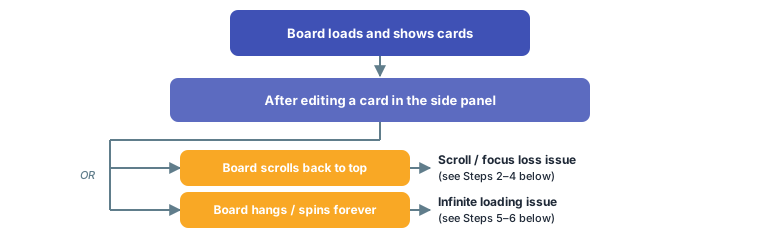
When you update a card using the side panel, the board may scroll back to the top of the page and lose your current scroll position. This makes it difficult to continue working on boards that require vertical scrolling — for example, a board with many swimlanes or a large number of work items.
In versions of Planningboard prior to the focus-preservation fix, every card save via the side panel triggered a full board reload that reset the scroll position to the top. If you are experiencing this, check your installed version and upgrade if available. See [Version Updates and Checking](/planningboard/guides/troubleshooting/version-updates) for instructions.
***
Before troubleshooting, confirm which symptom you are seeing:
 ***
The scroll-to-top behavior after card updates was addressed in a Planningboard release that preserves focus on the last edited row after a card update.
1. Check your current Planningboard version: in Polarion, navigate to **Administration > Nextedy PLANNINGBOARD** (or your equivalent administration page) and note the installed version.
2. Compare it against the release notes at [Version Updates and Checking](/planningboard/guides/troubleshooting/version-updates).
3. If an updated version is available, follow the upgrade procedure described in [Version Updates and Checking](/planningboard/guides/troubleshooting/version-updates).
After installing an updated version, clear your browser cache and reload the Planningboard page. The board should now return focus to the swimlane row you were editing after you save a card.
***
Once you have upgraded:
1. Open a Planningboard with enough swimlanes that the board requires scrolling.
2. Scroll down to a swimlane in the lower half of the board.
3. Click a card to open the side panel.
4. Make a change to a field and save.
**You should now see** the board remain at (or return to) the swimlane row you were editing, rather than jumping back to the top of the page.
The exact mechanism for focus preservation (for example, whether it anchors to the swimlane row, the specific card, or the scroll offset) was not confirmed in the available source context. Observe the behavior in your environment after upgrading.
***
If upgrading is not immediately possible:
* **Use the keyboard:** after saving a card, use your browser's scroll position (`Page Down` / arrow keys) to navigate back to where you were.
* **Reduce swimlane count per board:** consider splitting a very tall board into multiple Planningboard instances, each covering a subset of swimlanes, to reduce the scrolling distance lost on reload. See [Configure Swimlanes (Rows)](/planningboard/guides/configuration/swimlanes-configuration) for swimlane filtering options.
* **Filter by Plan range:** narrow the board to a smaller set of Plans so fewer rows are rendered. See [Filter Swimlanes by Plan Range](/planningboard/guides/swimlanes/filtering-by-plan-range).
***
If the board shows a loading indicator that never resolves — rather than scroll loss — the cause is often a network or firewall issue rather than a Planningboard bug.
Infinite loading on Planningboard pages has been confirmed to be caused by corporate firewalls and internal proxies blocking required network traffic. This is not a product defect. The board may appear stuck indefinitely with no error message.
To diagnose:
1. Open your browser's developer tools (`F12`).
2. Go to the **Network** tab.
3. Reload the Planningboard page.
4. Look for requests that are pending, blocked, or returning non-`200` status codes (for example `403`, `407`, `net::ERR_BLOCKED_BY_CLIENT`, or long-stalled requests with no response).
5. If you see blocked or failed requests, contact your network administrator to allow the relevant endpoints.
See [Network and Firewall Requirements](/planningboard/guides/troubleshooting/network-requirements) for the full list of network prerequisites for Planningboard.
Access the Planningboard page from a machine outside your corporate network (for example, via a personal hotspot). If the board loads correctly, a firewall or proxy on your network is the cause.
***
Whether you are experiencing scroll loss or infinite loading, the browser console often contains useful diagnostic information.
1. Open developer tools (`F12`) and go to the **Console** tab.
2. Reload the page or reproduce the action that causes the issue.
3. Look for red error entries or warnings referencing Planningboard resources.
4. Note the full error message and include it when reporting the issue to support.
Specific browser console error messages produced by scroll or focus issues are not documented in the available source context. If you encounter a specific error message, see [Common Errors](/planningboard/guides/troubleshooting/common-errors) for general error resolution guidance.
***
## Summary
| Symptom | Most Likely Cause | Resolution |
| ---------------------------------------- | -------------------------------------------------- | ------------------------------------------------- |
| Board scrolls to top after card save | Focus not preserved in older Planningboard version | Upgrade Planningboard |
| Board never finishes loading | Firewall or proxy blocking network requests | Check network requirements; contact network admin |
| Board loads but card save fails silently | Configuration or permission issue | Check browser console for errors |
***
## See Also
* [Version Updates and Checking](/planningboard/guides/troubleshooting/version-updates) — upgrade your Planningboard installation
* [Network and Firewall Requirements](/planningboard/guides/troubleshooting/network-requirements) — prerequisites for connectivity
* [Common Errors](/planningboard/guides/troubleshooting/common-errors) — general error resolution
* [Drag and Drop Issues](/planningboard/guides/troubleshooting/drag-and-drop-issues) — related board interaction issues
* [Swimlane Expansion Issues](/planningboard/guides/troubleshooting/swimlane-expansion) — other board rendering issues
* [Basic Board Interactions](/planningboard/getting-started/basic-interactions) — overview of board navigation
**KB Articles**
* Troubleshooting Script Errors in Planningboard
**Support Tickets**
* [#6659](https://support.nextedy.com/helpdesk/tickets/6659)
* [#6425](https://support.nextedy.com/helpdesk/tickets/6425)
***
The scroll-to-top behavior after card updates was addressed in a Planningboard release that preserves focus on the last edited row after a card update.
1. Check your current Planningboard version: in Polarion, navigate to **Administration > Nextedy PLANNINGBOARD** (or your equivalent administration page) and note the installed version.
2. Compare it against the release notes at [Version Updates and Checking](/planningboard/guides/troubleshooting/version-updates).
3. If an updated version is available, follow the upgrade procedure described in [Version Updates and Checking](/planningboard/guides/troubleshooting/version-updates).
After installing an updated version, clear your browser cache and reload the Planningboard page. The board should now return focus to the swimlane row you were editing after you save a card.
***
Once you have upgraded:
1. Open a Planningboard with enough swimlanes that the board requires scrolling.
2. Scroll down to a swimlane in the lower half of the board.
3. Click a card to open the side panel.
4. Make a change to a field and save.
**You should now see** the board remain at (or return to) the swimlane row you were editing, rather than jumping back to the top of the page.
The exact mechanism for focus preservation (for example, whether it anchors to the swimlane row, the specific card, or the scroll offset) was not confirmed in the available source context. Observe the behavior in your environment after upgrading.
***
If upgrading is not immediately possible:
* **Use the keyboard:** after saving a card, use your browser's scroll position (`Page Down` / arrow keys) to navigate back to where you were.
* **Reduce swimlane count per board:** consider splitting a very tall board into multiple Planningboard instances, each covering a subset of swimlanes, to reduce the scrolling distance lost on reload. See [Configure Swimlanes (Rows)](/planningboard/guides/configuration/swimlanes-configuration) for swimlane filtering options.
* **Filter by Plan range:** narrow the board to a smaller set of Plans so fewer rows are rendered. See [Filter Swimlanes by Plan Range](/planningboard/guides/swimlanes/filtering-by-plan-range).
***
If the board shows a loading indicator that never resolves — rather than scroll loss — the cause is often a network or firewall issue rather than a Planningboard bug.
Infinite loading on Planningboard pages has been confirmed to be caused by corporate firewalls and internal proxies blocking required network traffic. This is not a product defect. The board may appear stuck indefinitely with no error message.
To diagnose:
1. Open your browser's developer tools (`F12`).
2. Go to the **Network** tab.
3. Reload the Planningboard page.
4. Look for requests that are pending, blocked, or returning non-`200` status codes (for example `403`, `407`, `net::ERR_BLOCKED_BY_CLIENT`, or long-stalled requests with no response).
5. If you see blocked or failed requests, contact your network administrator to allow the relevant endpoints.
See [Network and Firewall Requirements](/planningboard/guides/troubleshooting/network-requirements) for the full list of network prerequisites for Planningboard.
Access the Planningboard page from a machine outside your corporate network (for example, via a personal hotspot). If the board loads correctly, a firewall or proxy on your network is the cause.
***
Whether you are experiencing scroll loss or infinite loading, the browser console often contains useful diagnostic information.
1. Open developer tools (`F12`) and go to the **Console** tab.
2. Reload the page or reproduce the action that causes the issue.
3. Look for red error entries or warnings referencing Planningboard resources.
4. Note the full error message and include it when reporting the issue to support.
Specific browser console error messages produced by scroll or focus issues are not documented in the available source context. If you encounter a specific error message, see [Common Errors](/planningboard/guides/troubleshooting/common-errors) for general error resolution guidance.
***
## Summary
| Symptom | Most Likely Cause | Resolution |
| ---------------------------------------- | -------------------------------------------------- | ------------------------------------------------- |
| Board scrolls to top after card save | Focus not preserved in older Planningboard version | Upgrade Planningboard |
| Board never finishes loading | Firewall or proxy blocking network requests | Check network requirements; contact network admin |
| Board loads but card save fails silently | Configuration or permission issue | Check browser console for errors |
***
## See Also
* [Version Updates and Checking](/planningboard/guides/troubleshooting/version-updates) — upgrade your Planningboard installation
* [Network and Firewall Requirements](/planningboard/guides/troubleshooting/network-requirements) — prerequisites for connectivity
* [Common Errors](/planningboard/guides/troubleshooting/common-errors) — general error resolution
* [Drag and Drop Issues](/planningboard/guides/troubleshooting/drag-and-drop-issues) — related board interaction issues
* [Swimlane Expansion Issues](/planningboard/guides/troubleshooting/swimlane-expansion) — other board rendering issues
* [Basic Board Interactions](/planningboard/getting-started/basic-interactions) — overview of board navigation
**KB Articles**
* Troubleshooting Script Errors in Planningboard
**Support Tickets**
* [#6659](https://support.nextedy.com/helpdesk/tickets/6659)
* [#6425](https://support.nextedy.com/helpdesk/tickets/6425)